CapCut is the top video trimming software for beginners, with free trimming, templates and auto-captions on phone, desktop and web. Filmora suits YouTube beginners who want templates and AI captions, while VEED is the fastest browser pick for trimming and captioning clips.
How we make this list: we compare pricing pages, product documentation and public user reviews, then re-check every price before each update. No product paid for a place. Disclosure.
CapCut is the simplest free start for short social videos, with templates and auto-captions in the free version.
Filmora is the only tool here whose free exports carry a watermark; Basic costs $49.99 a year to remove it.
iMovie, OpenShot and Shotcut are fully free with no paid plan and no watermark.
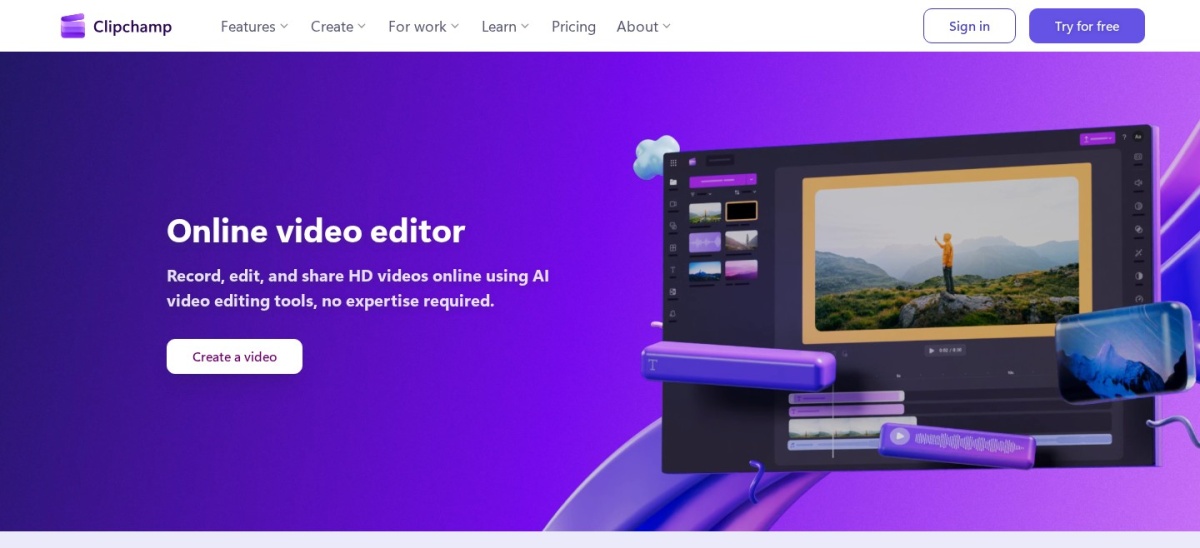
Clipchamp is the cheapest paid browser editor at $11.99 a month, just under VEED at $12.
Clipchamp exports free video up to 1080p with no watermark, in a browser or on Windows.
How do you choose the top video trimming software for beginners?
Trimming is the first video skill, and the best beginner tool makes it obvious: drag a clip edge, split where you want, delete the rest. If the timeline hides the trim handle behind menus, a beginner will give up before the first export.
Free exports decide the real cost. Some free plans export without a watermark, while others stamp one on every video until you pay, so check the export terms before you learn the tool.
Browser editors suit quick trims because there is nothing to install, while desktop editors suit longer projects that need offline work and 4K export. Pick the one that matches where you edit most.
Start with a short clip, not a project. Our guide to the best free simple video editing software covers the same editors in full, and a free plan shows whether the trim tools feel natural.
The 9 best video trimming software tools for beginners
01
CapCut
4.6/5on G2 (500 reviews, checked Nov 2026)
Paid from$19.99/mo
Best video trimming software overall
Entry pricePro, $19.99/mo
Free planYes, basic tools and templates
Free export1080p, no watermark on basics
Paid planPro, $19.99/mo
capcut.com
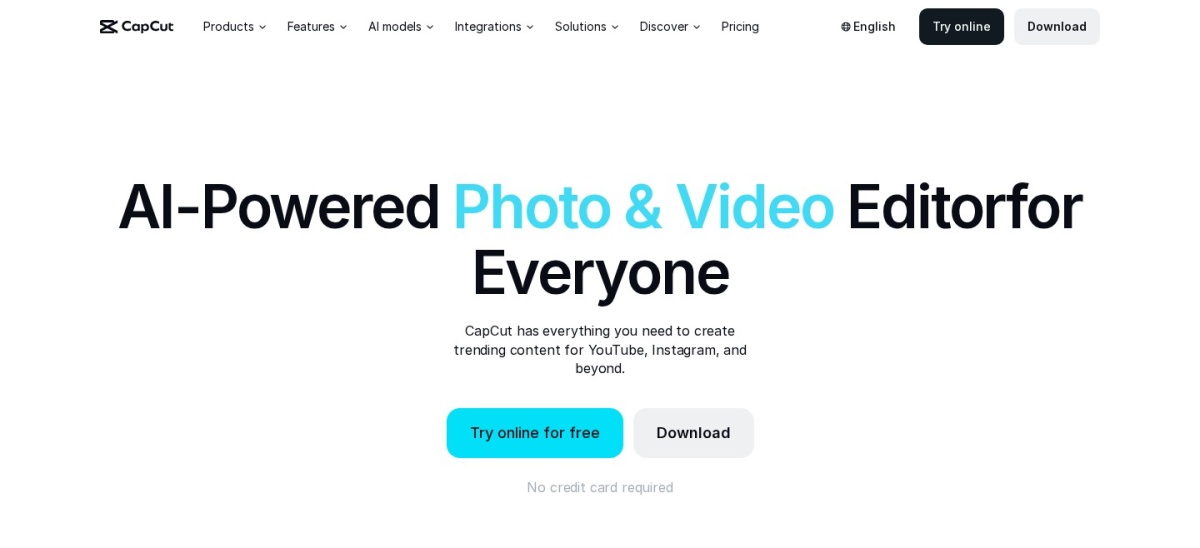
CapCut homepage, captured Nov 2026.
CapCut is a free editor from ByteDance built for short-form video, on mobile, desktop and the web. The free version covers trimming, transitions, templates, auto-captions and effects, and basic exports carry no watermark from the app itself.
The trade off is the paid wall around premium assets. Pro costs $19.99 a month and adds 4K export, the full AI toolkit and premium templates and stock. It suits beginners cutting TikTok, Reels and Shorts who want to finish fast.
What we like
Free trimming, templates and auto-captions
Rated 4.6 out of 5 on G2 from 500 reviews
Works on phone, desktop and web with synced projects
Basic exports carry no watermark
Watch out for
Premium templates and effects stay locked behind Pro
Trustpilot rating is far lower than the G2 rating
AI features consume credits on top of the subscription
Pro adds 4K export, the full AI toolkit and 1TB of storageVisit capcut.com
02
Filmora
4.4/5on G2 (613 reviews, checked Nov 2026)
Paid from$49.99/yr
Best for YouTube beginners
Entry priceBasic, $49.99/yr
Free planYes, watermarked exports
AI toolsAuto captions and silence removal
Paid planBasic, $49.99/yr
filmora.wondershare.com
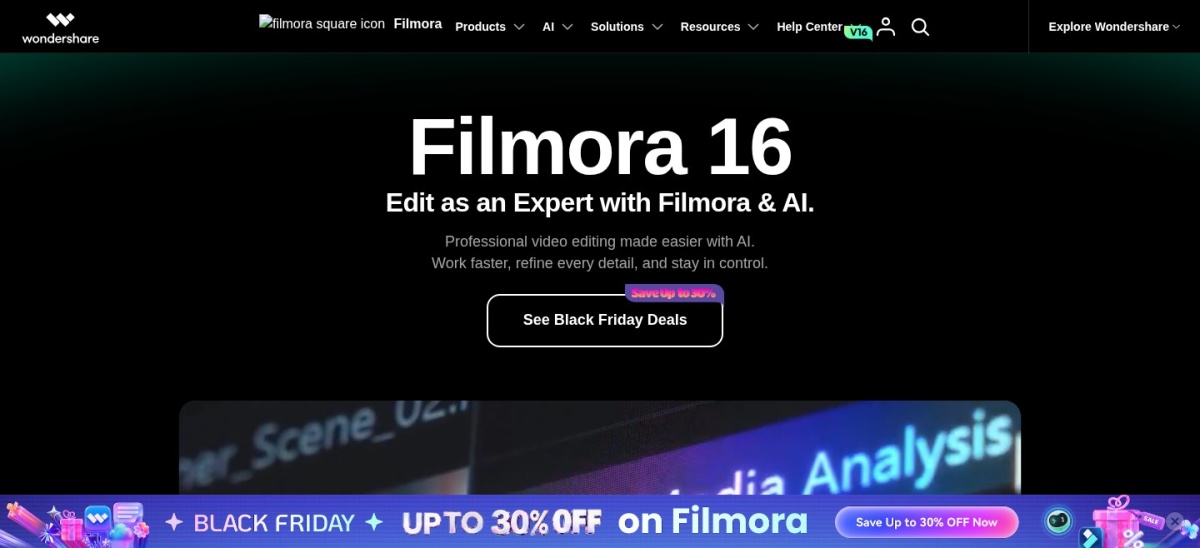
Filmora homepage, captured Nov 2026.
Filmora is a beginner-friendly editor that turns a first YouTube video into a finished upload in one evening. Its timeline is simple, with drag-and-drop titles, transitions and effects, plus AI tools that add captions and cut silences for you.
The trade off is the free plan. Exports carry a watermark until you pay, and the paid plan costs $49.99 a year. It suits YouTube beginners who want templates and AI help without a learning cliff.
What we like
Simplest desktop timeline for YouTube beginners
Rated 4.4 out of 5 on G2 from 613 reviews
AI captions and silence removal included
Cheapest yearly route to watermark-free 4K export here
Watch out for
Free exports carry a watermark
Some AI features consume credits on top of the plan
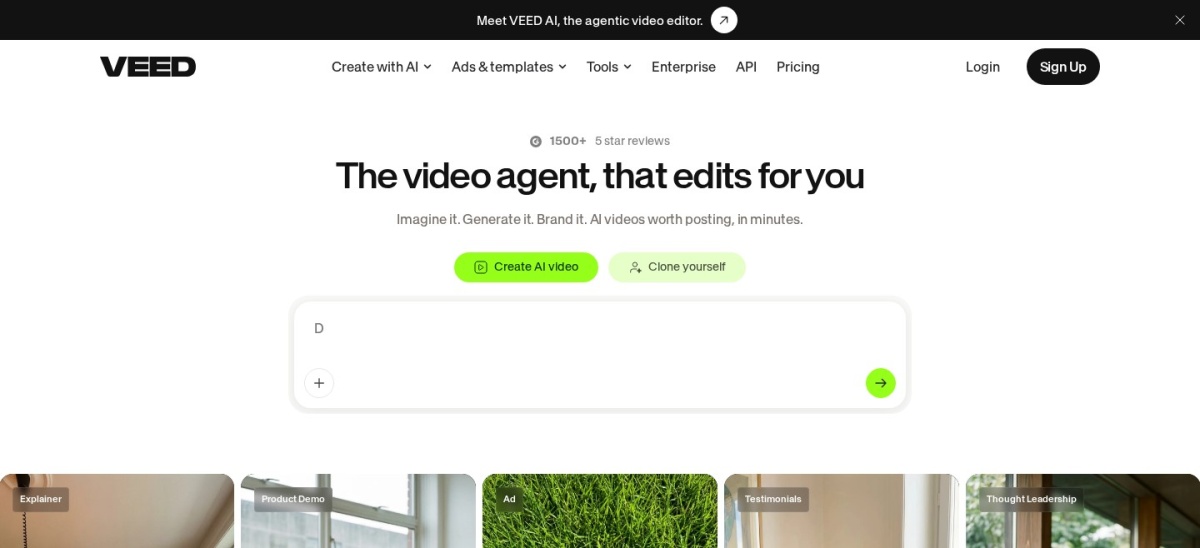
VEED is a browser-based video editor built for quick jobs: auto-subtitle generation in more than 100 languages, silence removal, background noise cleanup and one-click resizing. You open a video, trim it, add captions for silent-scroll social viewing, and export without installing software.
The trade off is the tier maze. AI features sit on higher tiers, and the entry price has moved several times in 2026, so confirm the current Lite price before you commit. It suits marketing teams and creators who trim in the browser.
What we like
Fastest browser trimming and captioning here
Rated 4.6 out of 5 from 1,755 G2 reviews
Auto-subtitles in more than 100 languages
No install needed to start trimming
Watch out for
Entry price has moved several times in 2026
Free exports carry a watermark and stop at 720p
AI features sit on higher tiers
Pro adds translation, brand kits and more AI creditsVisit veed.io
04
Descript
4.6/5on G2 (934 reviews, checked Nov 2026)
Paid from$16/mo
Best for trimming by editing the transcript
Entry priceHobbyist, $16/mo
Free planYes, 60 media minutes a month
Media hours10 a month on Hobbyist
Paid planHobbyist, $16/mo
descript.com
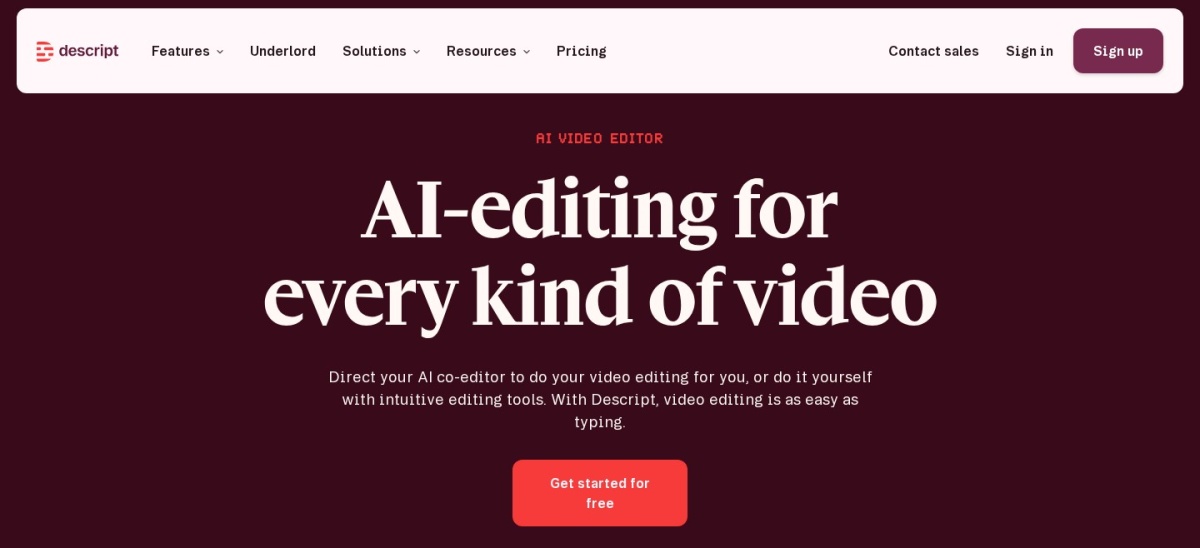
Descript homepage, captured Nov 2026.
Descript is a video editor that lets you trim by editing words: delete a sentence from the transcript and the matching video disappears. It also removes filler words, adds studio sound, and exports watermark-free 1080p video on its Hobbyist plan.
The trade off is the media-hour limit. Hobbyist costs $16 a month billed annually for 10 media hours, and longer projects need a higher tier. It suits talking-head videos, interviews and podcasts where the words carry the edit.
Clipchamp is Microsoft's browser-based editor, also available as a Windows app. The free plan exports up to 1080p with no watermark and includes trimming, titles, a screen recorder and free stock assets, with no download needed to start.
The trade off is the 1080p ceiling. 4K export, premium stock and a brand kit come through Microsoft 365 Personal at $9.99 a month or $99.99 a year, or Clipchamp Premium at $11.99 a month. It suits Windows and office users who want a clean, quick trim.
What we like
Free 1080p exports with no watermark
Rated 4.1 out of 5 on G2 from 52 reviews
No install needed, runs in the browser
Screen recorder included in the free plan
Watch out for
Free exports stop at 1080p
Premium route through Microsoft 365 confuses pricing
iMovie is Apple's free editor for Mac, iPhone and iPad, and it costs nothing with no paid tier at all. It keeps trimming simple with storyboards, trailers, filters and 4K export, and projects move between Mac and iPhone through the cloud.
The trade off is the platform lock-in. iMovie does not run on Windows or Linux, and its toolset is thinner than a paid editor once you want multi-track control. It suits Mac owners cutting a first video the easy way.
What we like
Free on every Mac, iPhone and iPad
Rated 4.3 out of 5 on G2 from 568 reviews
4K export with no watermark and no subscription
Storyboards guide a first edit step by step
Watch out for
Apple devices only, no Windows or Linux
Thinner toolset than paid editors
No collaboration features for teams
No paid tier exists, so there is nothing to upgrade toVisit apple.com
07
OpenShot
4.5/5on G2 (31 reviews, checked Nov 2026)
PriceFree
Best free open-source editor for first-timers
Entry priceFree, no paid tier
Free planYes, fully free
ExportNo watermark, no limits
Paid planNone, free forever
openshot.org
OpenShot homepage, captured Nov 2026.
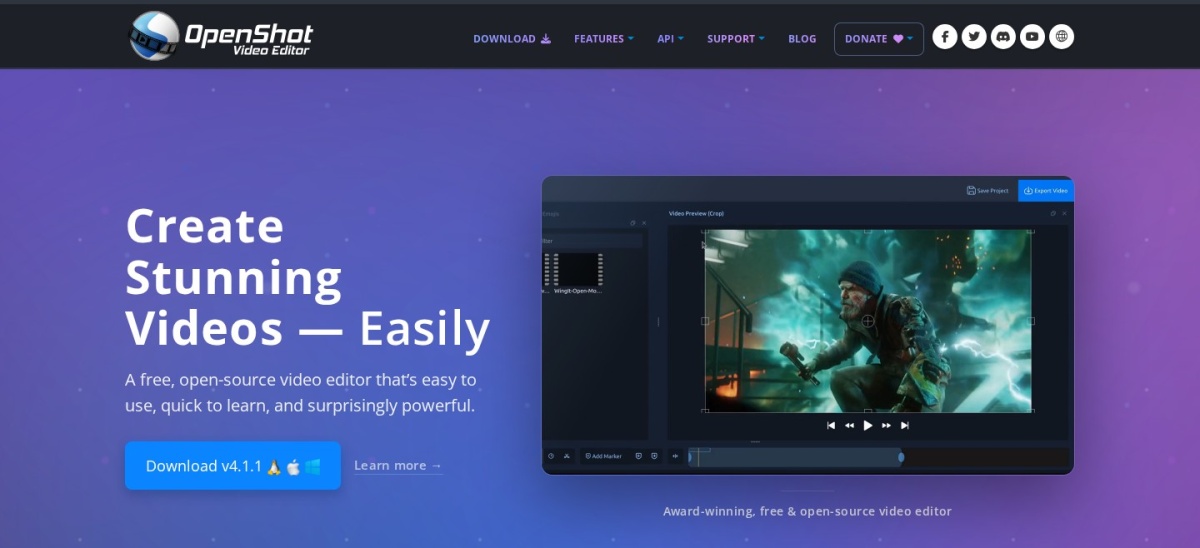
OpenShot is a free, open-source desktop editor for Windows, Mac and Linux. It keeps editing simple: drag clips onto unlimited tracks, trim, add transitions, animate with keyframes and export, all free and open source with no watermark and no project limits.
The trade off is polish and pace. The interface is plain, and large projects can feel slow next to paid editors. It suits beginners on any desktop who want a free editor that stays free.
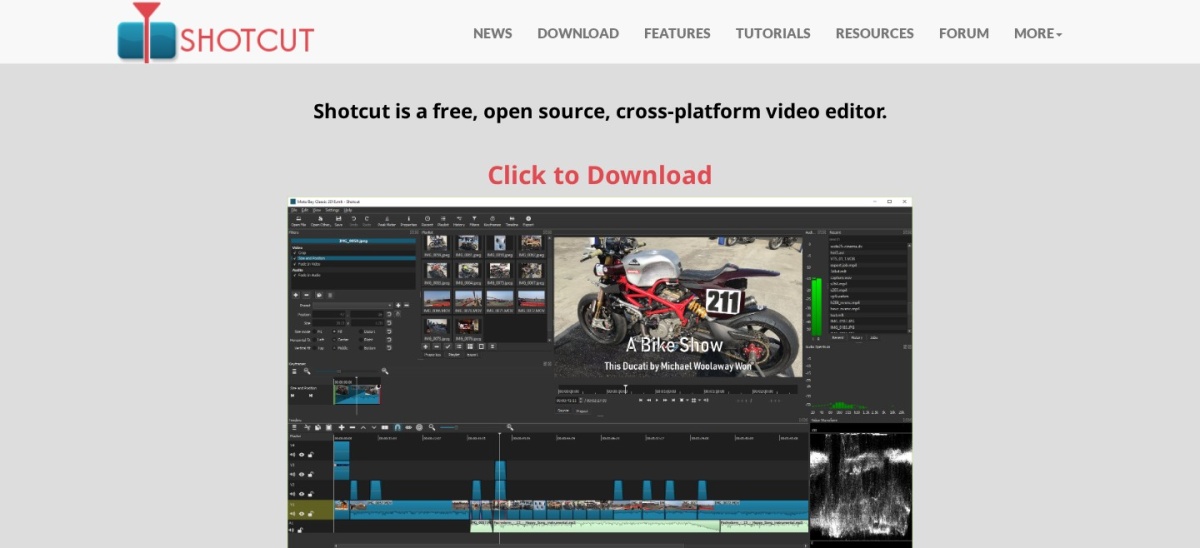
Shotcut is a free, open-source video editor for Windows, Mac and Linux, built on the MLT framework. It edits natively with no import step, supports 4K and 8K timelines, and exports without a watermark, with filters and a wide format range through FFmpeg.
The trade off is interface discovery. Some controls sit inside dockable panels and menus and take time to learn, and transitions are thinner than in paid editors. It suits creators who want a free editor that grows with them.
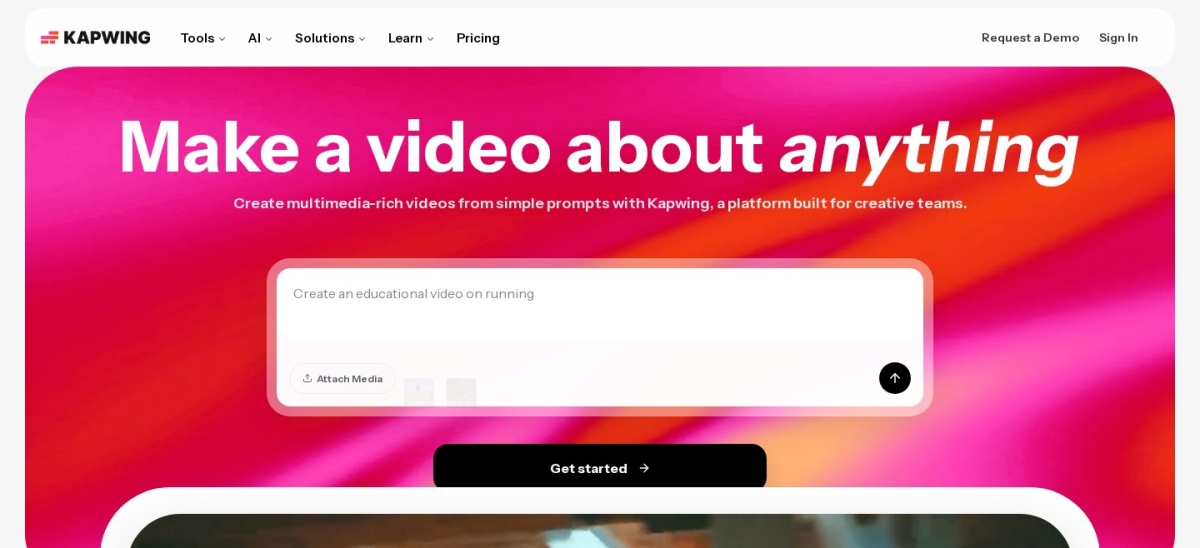
Kapwing is a browser-based editor built for teams that trim, subtitle and resize videos together. It adds auto-subtitles, smart resizing for every social format, and shared workspaces, with free exports up to 720p that carry a watermark.
The trade off is the rating and the watermark. Kapwing rates 3.9 out of 5 on G2 from only 40 reviews, and Pro costs $16 a month per member to remove the watermark. It suits small teams that publish social clips together.
What we like
Browser editing with team workspaces
Smart resizing for every social format
Auto-subtitles and transcript tools included
Free plan for trying team edits
Watch out for
Lowest G2 rating in this list at 3.9 out of 5
Free exports carry a watermark and stop at 720p
Pro is priced per member, so teams pay more
Pro removes the watermark and adds 1,000 subtitle minutesVisit kapwing.com
Free vs paid: what the watermark costs
Free plans cover trimming well. Most include split, cut, titles and transitions, and all except Filmora export without a watermark for free.
Paid plans mostly add 4K export, premium templates and AI tools. You pay to remove the watermark, unlock stock assets, or export faster.
If you publish every week, the first year of a paid plan often costs less than the time lost re-editing watermarked exports.
How we chose
We started from the established video editors with a clear trim workflow, then kept those with a verifiable rating on G2, Capterra or Trustpilot and a free plan or trial.
Prices come from each vendor's pricing page, checked on 29 November 2026. Ratings and review counts come from G2 on the same day. Where a vendor shows a sale, the list shows the regular price.
We left out tools we could not verify a rating or a price for. No vendor paid for a place, and we do not claim hands-on testing for this list.
How to choose video trimming software for beginners
Start with the clips you trim every week, then check the export terms and the price before you pay.
List the clips you trim every week. Write down whether they are short social clips, YouTube videos or family footage, then check each shortlisted tool fits that job.
Check the free export terms. Compare whether free exports carry a watermark and what resolution they allow, before you learn the tool.
Read the limits on the cheapest plan. Caps on export resolution, cloud storage or AI credits are the usual reason buyers upgrade within months.
Try the free plan first. A short test with a real clip shows whether the trim tools feel natural before you pay for a year.
FAQ
What is the best video trimming software for beginners in 2026?
CapCut is the best video trimming software for most beginners. Its free version covers trimming, templates and auto-captions, exports basic edits without a watermark, and it is rated 4.6 out of 5 on G2 from 500 reviews.
What is the cheapest video trimming software for beginners?
iMovie, OpenShot and Shotcut are free with no paid plan at all, and all three export without a watermark. Of the paid tools, Filmora is cheapest at $49.99 a year for watermark-free exports.
Can I trim videos for free without a watermark?
Yes. CapCut, Clipchamp, iMovie, OpenShot and Shotcut all export basic trims without a watermark on their free plans. Filmora is the only tool here whose free exports carry a watermark until you pay.
What is the easiest video trimming software to learn?
iMovie is the easiest for Mac owners, with storyboards and one-tap trimming. CapCut is the easiest on any device, with templates that do the fiddly work, while Clipchamp is the simplest browser option for Windows users.
CapCut vs Filmora: which is better for beginners?
CapCut is better for short social videos, with free templates and auto-captions, while Filmora is better for YouTube beginners who want a simple desktop timeline with effects. CapCut Pro costs $19.99 a month; Filmora Basic costs $49.99 a year.
Which video trimming software is best in a browser?
VEED is the best browser trimming tool here, with fast trimming, auto-subtitles and one-click resizing. Kapwing is the best browser pick for teams, and Clipchamp is the best free browser editor on Windows.
SaaS SEO and WordPress specialist with about 8 years of experience. Rakib compares WordPress plugins, themes, hosting and software using public pricing, documentation and user reviews. See how we rank.