HandBrake is the best video processing software for batch transcoding and file compression at zero cost, holding a 4.7/5 G2 rating across 156 reviews. For full post-production with a free tier, choose DaVinci Resolve, while Shutter Encoder fits editors who need broadcast codecs without a subscription.
How we make this list: we compare pricing pages, product documentation and public user reviews, then re-check every price before each update. No product paid for a place. Disclosure.
HandBrake is free and open source, scoring 4.7/5 on G2 across 156 reviews for multi-platform transcoding.
DaVinci Resolve offers a $0 free version and a $295 one-time Studio license with a 4.7/5 G2 rating.
Shutter Encoder runs on FFmpeg for free and supports editing and broadcast codecs like ProRes and DNxHR.
Wondershare Filmora starts at $49.99/yr for Basic or $79.99 one-time for Perpetual, rated 4.4/5 across 614 G2 reviews.
Adobe Premiere Pro starts at $22.99/mo on an annual plan billed monthly, rated 4.5/5 across 1,738 G2 reviews.
How do you choose the best video processing software?
Start by separating batch transcoding from full timeline editing. Dedicated encoders convert codecs, resize frames, and shrink file sizes quickly, whereas editors focus on cuts, audio mixing, color grading, and motion graphics.
Check how licensing affects long-term costs before committing. Some tools stay free with no watermarks, others charge a one-time fee, and cloud or pro suites rely on monthly subscriptions or credit limits.
Match codec and hardware support to your actual delivery targets. Look for hardware acceleration, ProRes or DNxHR support when feeding editing timelines, and H.264, H.265, or AV1 presets for web playback.
Decide whether you want local desktop speed or browser convenience. Local apps use your GPU and disk without upload limits, while browser tools simplify captions and team reviews over the web.
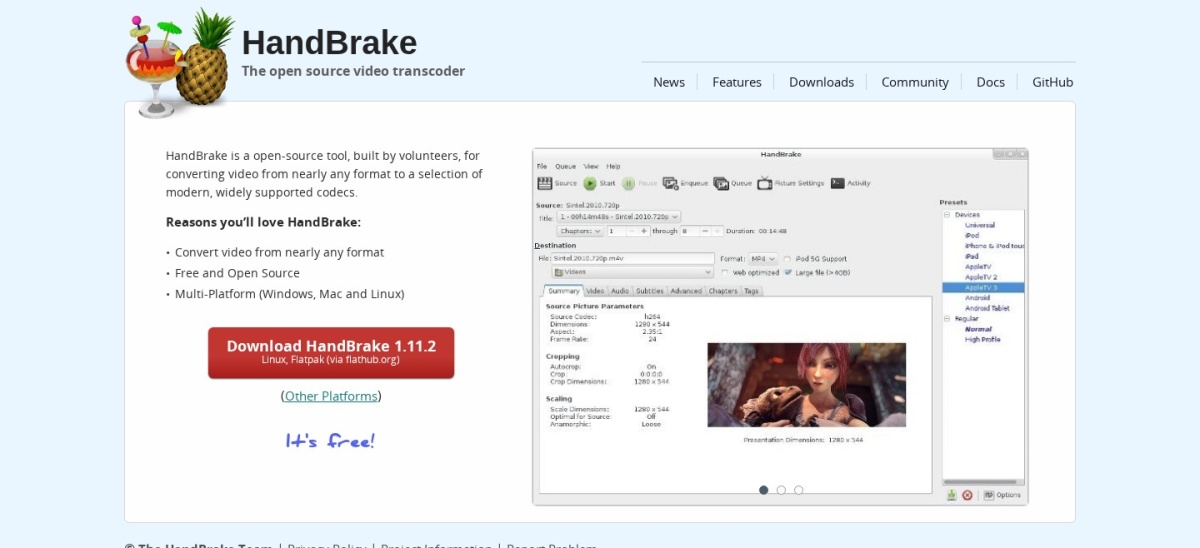
HandBrake is a free, open-source video transcoder that converts media files across modern codecs with no paid tiers or watermarks. It runs on Windows, macOS, and Linux, offering batch queues, resolution scaling, frame rate controls, and video filters.
The trade off is that it lacks timeline editing, motion graphics, and a subscription support desk at $0 (no paid plan). It suits creators and developers who need fast, repeatable file compression and format conversion.
What we like
Completely free and open source with no watermarks
Runs natively on Windows, macOS, and Linux
Includes batch queues, presets, and video filters
Maintained actively with release 1.11.2 available
Watch out for
No timeline editing or visual effects tools
Technical codec and bitrate sliders can feel dense
No paid plan; all transcoding and batch features are included for free.Visit handbrake.fr
02
DaVinci Resolve
4.7/5on G2 (223 reviews, checked Nov 2026)
Paid from$295 one-time
Best for free post-production and color grading
Free Tier$0 (up to Ultra HD 60fps)
Studio Price$295 one-time
PlatformsMac, Windows, Linux
G2 Rating4.7/5 (223)
blackmagicdesign.com
DaVinci Resolve homepage, captured Nov 2026.
DaVinci Resolve is a post-production suite combining editing, color grading, visual effects, and audio tools, with a free version supporting up to Ultra HD at 60fps. Studio adds DaVinci AI Neural Engine tools, extra Resolve FX, and higher frame rates for $295 one-time.
The trade off is a steep learning curve and high hardware demands at $295 one-time. It suits editors and colorists who want deep post-production control without monthly subscription fees.
What we like
Generous free edition with no recurring subscription
Studio license is $295 one-time rather than monthly
Unifies editing, color grading, VFX, and audio
Watch out for
Steep learning curve for first-time editors
Demands strong GPU and memory on heavy timelines
DaVinci Resolve Studio ($295 one-time) adds AI neural tools, extra FX, and higher frame rates.Visit blackmagicdesign.com
03
Shutter Encoder
4.7/5on G2 (156 reviews, checked Nov 2026)
PriceFree
Best for free broadcast and editing codecs
PricingFree (donation-supported)
EngineFFmpeg codec suite
CodecsProRes, DNxHR, H.264, AV1
WorkflowQueue, cuts, watermarks, subs
shutterencoder.com
Shutter Encoder homepage, captured Nov 2026.
Shutter Encoder is a free video, audio, and image converter built on FFmpeg for post-production workflows without ads or feature locks. It supports editing and broadcast codecs such as Apple ProRes, DNxHR, H.264, and AV1 alongside batch queues.
The trade off is a dense, utility-style interface with no commercial support contract at $0 (no paid plan). It suits editors who need mezzanine codecs, lossless cuts, and subtitle tools on a budget.
What we like
Free with no watermarks, ads, or paywalled functions
Supports ProRes, DNxHR, broadcast formats, and web codecs
Includes lossless trimming, timecode burn-in, and subtitling
Wondershare Filmora is a desktop video editor with drag-and-drop tracks, templates, and AI editing tools, offering a free trial that watermarks exports. Paid plans start at $49.99/yr for Basic, $59.99/yr for Advanced, or $79.99 one-time for Perpetual.
The trade off is watermarked free exports and optional add-ons at $49.99/yr. It suits content creators who want fast templates and guided edits without deep post-production complexity.
What we like
Accessible timeline and drag-and-drop effects library
Offers both annual subscriptions and a $79.99 one-time option
Includes AI tools like smart cutout and scene detection
Watch out for
Free exports carry a watermark
Less granular control than dedicated pro editing suites
Adobe Premiere Pro is a professional video editor with multi-track timelines, auto-captions, transcript editing, and Creative Cloud links, offering a 7-day trial rather than a free tier. Single-app pricing starts at $22.99/mo on an annual plan billed monthly.
The trade off is ongoing subscription billing and heavy system requirements at $22.99/mo ($275.88/yr at the listed monthly rate). It suits teams and editors already working inside Adobe workflows.
What we like
Deep integration with After Effects, Audition, and Photoshop
Includes text-based editing, captions, and audio cleanup tools
Widely supported across agencies and production teams
Watch out for
No permanent free plan after the 7-day trial
Heavy on CPU, GPU, and memory during complex exports
Paid plans provide full timeline export access, cloud storage, and generative AI credits.Visit adobe.com
06
VEED
4.6/5on G2 (2,199 reviews, checked Nov 2026)
Paid from$12/mo
Best for browser captions and short social clips
Entry PlanLite from $12/mo
Free TierFree plan available
DeliveryWeb and mobile
G2 Rating4.6/5 (2,199)
veed.io
VEED homepage, captured Nov 2026.
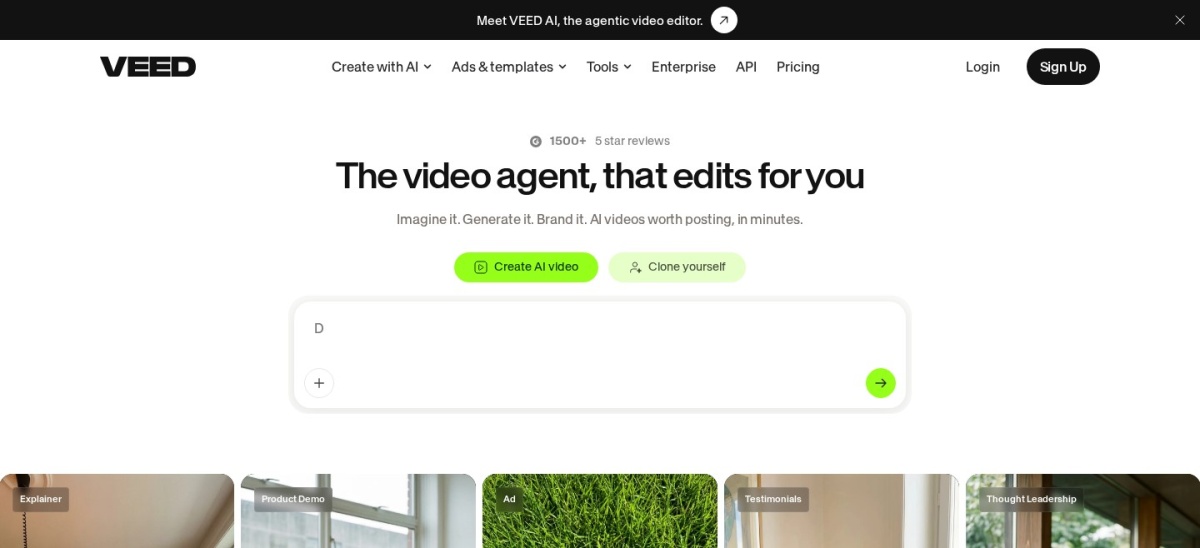
VEED is a browser-based video editor focused on auto-subtitles, social resizing, audio cleanup, and quick clip assembly, with a free plan to test basic editing. Its Lite plan starts at $12 per user/month ($144/yr at that rate).
The trade off is browser performance limits on long projects and recurring per-user billing at $12/mo. It suits marketers and solo creators making captioned social clips fast.
What we like
Runs in the browser without local installation
Strong auto-subtitle and social format tools
Offers a free tier to get started
Watch out for
Long or complex timelines feel tighter than desktop NLEs
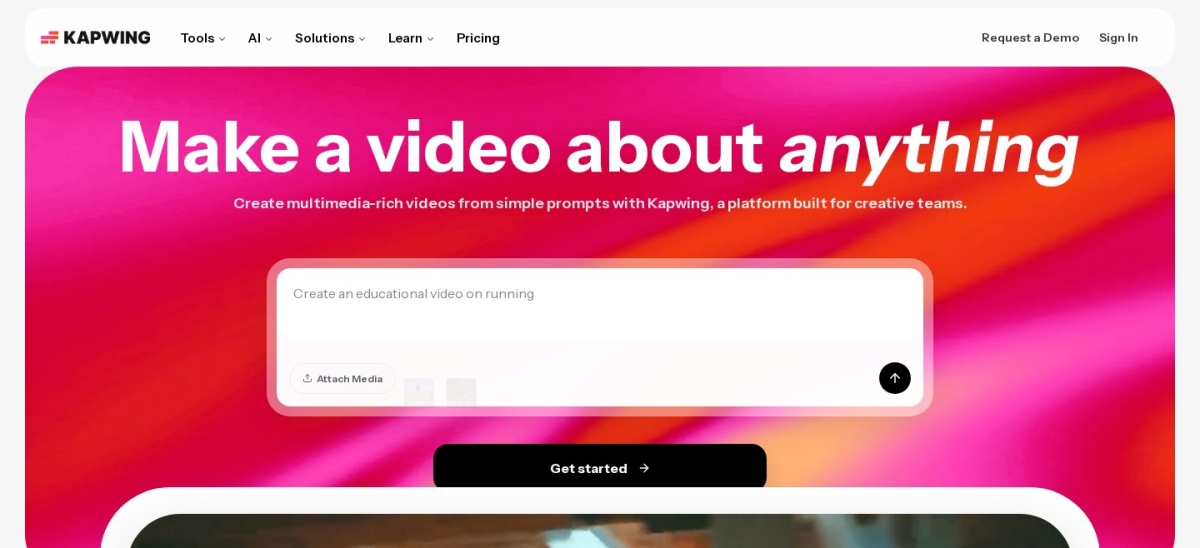
Kapwing is a browser video workspace for resizing, subtitling, transcript editing, and team collaboration, starting with a $0 free plan that includes 10 lifetime credits. Pro starts at $16/mo ($192/yr at that rate) with 1,000 monthly credits.
The trade off is credit-based AI usage and 3-day project file storage on the free plan at $16/mo. It suits small marketing teams collaborating on social and training videos.
What we like
Shared browser workspace with commenting and templates
Includes transcript-based editing, resizing, and subtitling
Pro tier adds 1,000 monthly credits and 200 GB storage
Watch out for
Free plan has tight credit and storage limits
Browser exports can slow down on large files
Pro removes watermarks, enables 4K export, and provides 1,000 monthly credits and 200 GB storage.Visit kapwing.com
Do you need a dedicated transcoder or a full video editor?
Dedicated transcoders like HandBrake and Shutter Encoder focus on converting containers, codecs, and bitrates cleanly and quickly. They cost nothing upfront and suit batch jobs where timeline cutting is secondary.
Full editors like DaVinci Resolve, Filmora, and Premiere Pro add multi-track timelines, color grading, and motion graphics. Pick an editor when storytelling, pacing, or visual layers drive the project.
How we chose
We shortlisted established video processing and editing tools across desktop and web workflows, focusing on actively maintained software with clear public pricing and review histories.
Every rating, review count, and price in this guide was checked on 29 Nov 2026 using G2 review listings and official vendor pricing or product pages.
We excluded unmaintained tools, enterprise-only systems without published starting prices, and products whose pricing could not be verified on an official page today. No vendor paid for a place, and we do not claim testing for this list.
How to pick the right video processing tool
Follow four practical checks before paying for a license or subscription.
Match the tool to your main task. Choose a transcoder for format conversion and compression, or an editor for cuts, captions, and visual effects.
Check free-tier limits first. Test whether the free version covers your target resolution, frame rate, and watermark rules before buying.
Compare yearly and one-time costs. Weigh recurring monthly or annual fees against one-time licenses based on how long you will use the software.
Verify hardware and browser fit. Make sure your computer specs handle local rendering or your connection handles browser-based uploads.
FAQ
What is the best video processing software in 2026?
HandBrake is the best option for free batch transcoding and file compression with a 4.7/5 G2 rating. For full timeline editing and color work, DaVinci Resolve stands out with a free version and a $295 one-time Studio tier.
What is the best free video processing software?
HandBrake and Shutter Encoder are both free without paid tiers or watermarks, making them strong picks for format conversion and compression. DaVinci Resolve also offers a capable free edition for editing and color grading up to Ultra HD at 60fps.
How much does video processing software usually cost?
Costs range from $0 for free tools like HandBrake and Shutter Encoder to $49.99/yr on Filmora Basic or $295 one-time on DaVinci Resolve Studio. Subscription editors like Adobe Premiere Pro start at $22.99/mo on an annual plan billed monthly.
Which tool is better for beginners: Filmora or DaVinci Resolve?
Wondershare Filmora is easier to pick up quickly thanks to drag-and-drop templates and guided workflows. DaVinci Resolve offers deeper editing and color tools for free, though it takes longer to learn.
Should I choose a browser editor like VEED or Kapwing over desktop software?
Choose VEED or Kapwing when you want browser access, quick captions, or team commenting without installing heavy software. Choose desktop tools like HandBrake, Shutter Encoder, or DaVinci Resolve when you process large files or need local hardware speed.
SaaS SEO and WordPress specialist with about 8 years of experience. Rakib compares WordPress plugins, themes, hosting and software using public pricing, documentation and user reviews. See how we rank.