Security · Guide
How to Get Wordfence 2FA Code (Step by Step)
Short answer
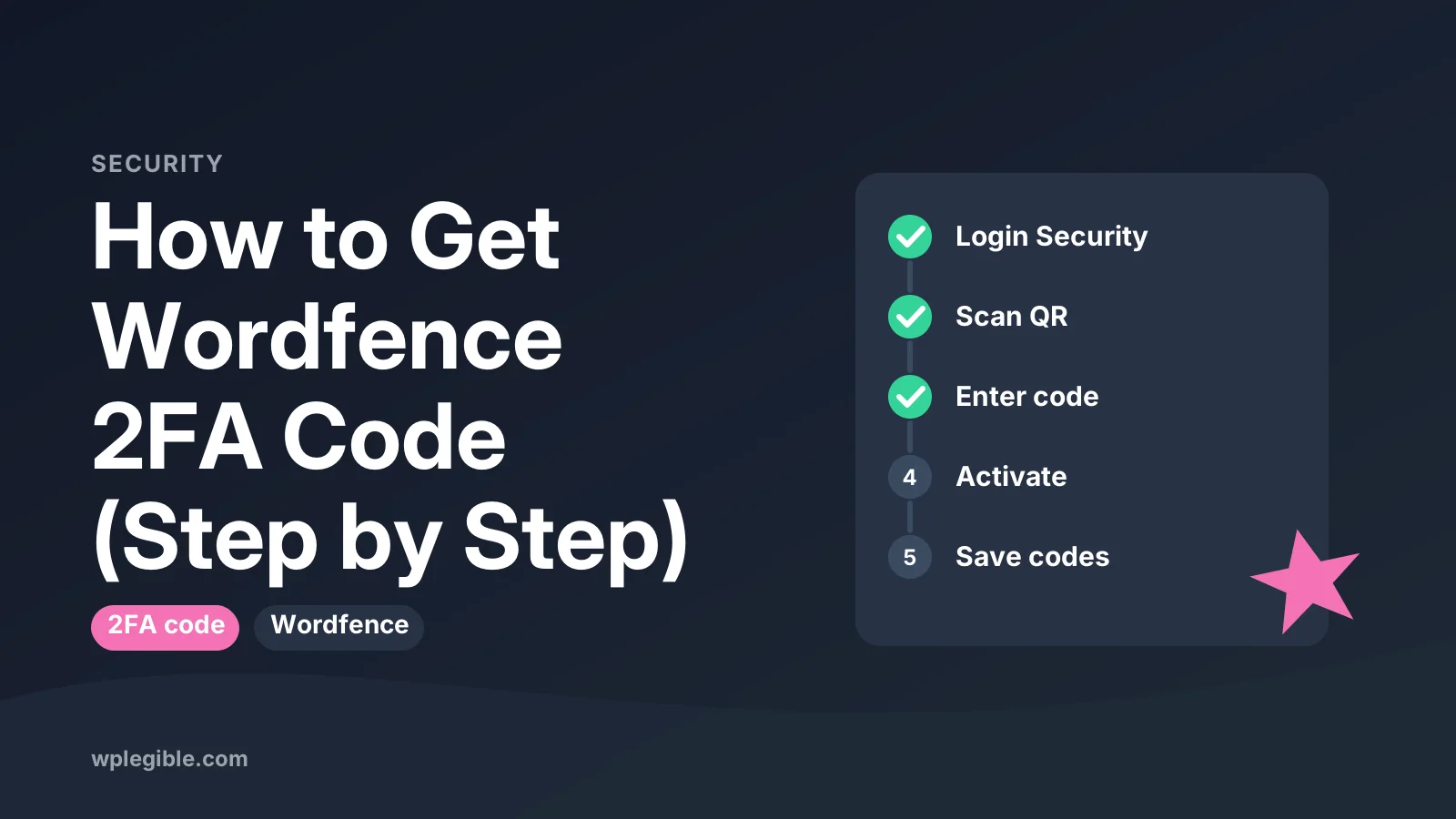
Wordfence 2FA codes come from an authenticator app on your phone, not from email or SMS. Go to Wordfence, then Login Security, scan the QR code with an app like Google Authenticator, enter the six-digit code and click Activate, then save your recovery codes.
Key takeaways
- Codes come from an authenticator app, never email or SMS.
- Set it up under Wordfence, then Login Security.
- Each code lasts about 30 seconds.
- Save recovery codes right after activation.
- Rejected codes usually mean a clock mismatch.
- Another admin can reset 2FA if you lose your phone.
Where do you get a Wordfence 2FA code?
You get a Wordfence 2FA code from an authenticator app on your phone, such as Google Authenticator or Microsoft Authenticator, after you link the app to your WordPress account by scanning a QR code.
Wordfence does not send codes by email or text message. Its two-factor login uses time-based codes that your app creates every 30 seconds.
That surprises many people the first time they see the code prompt. There is no send code button, and nothing arrives in your inbox. The code only exists inside the app you paired with your account.
If you have never set the app up, you need to do that first while you can still log in. If you are already locked out, skip to the section on recovery codes below.
This guide walks through the full setup, shows where the code appears, and explains what to do when a code does not work.
How does Wordfence two-factor authentication work?
Wordfence pairs your user account with an authenticator app using a shared secret, and both the app and your site calculate the same six-digit code from that secret and the current time.
The method follows the TOTP standard (RFC 6238). Your phone and your web server never talk to each other. They both run the same math, so the codes match as long as their clocks agree.
The setup lives in the Login Security part of the Wordfence Security plugin. It is included in the free version, so you do not need a paid licence to get codes.
Each WordPress user sets up their own 2FA. An admin cannot scan the QR code on behalf of another user and hand them a code.
For a broader look at login protection options, see our guide on how to add two-factor authentication to WordPress.
What do you need before you start?
You need a working admin login, the Wordfence plugin installed and active, and a phone with an authenticator app that supports time-based codes.
Here is the short checklist:
- Wordfence installed and activated on your site.
- A user account you can log in to right now.
- An authenticator app on your phone.
- Your phone set to automatic date and time.
- Somewhere safe to store recovery codes, such as a password manager.
If Wordfence is not installed yet, follow our guide on how to install the Wordfence plugin in WordPress first.
Common authenticator apps include Google Authenticator, Microsoft Authenticator, Authy and the built-in code features of many password managers. Google explains its app in the Google Authenticator help page.
How do you set up Wordfence 2FA to get your first code?
Open Wordfence, go to Login Security, scan the QR code with your authenticator app, type the six-digit code the app shows, and click Activate.
Follow these steps in order:
- Log in to your WordPress dashboard.
- In the left menu, open Wordfence and then Login Security.
- Stay on the Two-Factor Authentication tab.
- Open your authenticator app and choose the option to add an account or scan a QR code.
- Point your phone camera at the QR code on the Wordfence screen.
- A new entry appears in the app with a six-digit code that changes every 30 seconds.
- Type the current code into the field on the Wordfence page.
- Click Activate.
If your phone cannot scan the code, most apps let you type the secret key by hand. Wordfence shows the key next to the QR code.
Once activated, Wordfence shows that 2FA is on for your account. From now on the login screen asks for a code after your password.
Where does the code appear when you log in?
After you enter your username and password, Wordfence shows a second field asking for a code, and you copy the current six-digit number from the matching entry in your authenticator app.
Open the app and find the entry for your site. Most apps label it with the site name and your username, which helps if you manage several sites.
Type the code before the timer runs out. If the code changes while you are typing, wait for the new one and enter that instead.
Some setups offer a remember this device option for a set number of days. Wordfence's settings control whether that option appears. It is handy on your own computer, but avoid it on shared machines.
If the second field never appears, a cached login page or a custom login form may be getting in the way. Our guide to Wordfence 2FA not working covers that case.
What are recovery codes and how do you get them?
Recovery codes are one-time backup codes that Wordfence gives you when you turn on 2FA, and each one lets you log in once without your phone.
Right after activation, Wordfence shows a set of recovery codes. You can download them as a text file. Do it straight away.
Store them somewhere you can reach without your phone. A password manager on your computer, a printed sheet in a drawer or an encrypted note all work.
Each code works only once. When you use one, cross it off. If you run low, you can create a fresh set from the same Login Security screen, which cancels the old ones.
Without recovery codes, losing your phone means asking another admin for help or working through FTP. That is slower and more stressful than typing a backup code.
Which authenticator app should you use?
Any app that supports standard time-based one-time passwords works with Wordfence, so pick one that can back up or move your accounts to a new phone.
The table below compares common choices in general terms. Features change, so check each app's own page before you decide.
| App | Works with Wordfence | Backup or transfer | Good for |
|---|---|---|---|
| Google Authenticator | Yes | Account sync or export, depending on version | Simple personal use |
| Microsoft Authenticator | Yes | Cloud backup option | People already using Microsoft accounts |
| Authy | Yes | Encrypted backups | Several devices |
| Password manager with TOTP | Yes, if it supports TOTP | Synced with your vault | Keeping logins and codes together |
The most important feature is a way to move codes when you change phones. People often get locked out after a phone upgrade because the old app entry was never transferred.
How do you require 2FA for other users?
An administrator can choose which user roles must use 2FA in the Login Security settings, and each affected user then sets up their own app the same way.
Go to Wordfence, then Login Security, then the Settings tab. Look for the option that lists user roles for two-factor authentication.
You can usually choose between making 2FA optional or required for each role. Required roles may get a grace period so they can set it up after their next login.
Tell your team before you switch it on. Send them a short note explaining which app to install and that they must save their recovery codes.
Editors and shop managers are good candidates for required 2FA, because their accounts can change a lot of content. For other hardening steps, our Wordfence settings explained guide covers the main options.
What if your Wordfence 2FA code does not work?
If your code is rejected, the usual cause is a clock mismatch between your phone and the server, or using the wrong entry in the app.
Try these checks in order:
- Turn on automatic date and time on your phone.
- Make sure you are copying the entry that matches this site and username.
- Wait for a fresh code and type it quickly.
- Clear your browser cache or try a private window.
- Use a recovery code if you still cannot get in.
The Wordfence two-factor authentication help page describes the setup and recovery options in more detail.
If the server clock is wrong, you cannot fix it from your phone. Ask your hosting company to check that the server time is synced.
How do you get back in if you lost your phone?
Log in with one of your saved recovery codes, then deactivate 2FA and scan a new QR code with your new phone.
The steps are:
- Enter your username and password as normal.
- When asked for the code, enter one recovery code instead.
- Go to Wordfence, then Login Security.
- Deactivate 2FA for your account.
- Scan the new QR code with your new phone and activate again.
- Download the new recovery codes.
If you have no recovery codes, another administrator can turn off 2FA for your account from your user profile or the Login Security screens.
If you are the only admin, the last resort is to disable Wordfence through FTP or your hosting file manager by renaming its plugin folder. Our guide on how to disable Wordfence from cPanel shows that process. Turn it back on as soon as you are in.
What are good habits for keeping 2FA trouble-free?
Keep recovery codes in a safe place, move your authenticator entries before you change phones, and keep at least two admin accounts with 2FA on.
A few small habits prevent most lockouts:
- Save recovery codes the moment you activate 2FA.
- Use an app with backup or transfer features.
- Keep a second admin account for emergencies.
- Do not cache the login page in your caching plugin or CDN.
- Review which roles require 2FA after adding new staff.
2FA adds only a few seconds to each login. In return, a stolen password alone is no longer enough to get into your dashboard.
If you want to see what else the plugin protects, read our overview of what Wordfence does.
Frequently asked questions
Does Wordfence send 2FA codes by email?
No. Wordfence two-factor login uses an authenticator app that creates time-based codes on your phone. Nothing is sent by email or text message. If you are waiting for an email code, you will need to use the app entry you set up or one of your saved recovery codes.
Is Wordfence 2FA free?
Yes. Two-factor authentication is part of the Login Security features in the free Wordfence plugin. You do not need a premium licence to set it up or to require it for user roles on your site.
How long is a Wordfence 2FA code valid?
Each code is valid for a short window of about 30 seconds, after which the app shows a new one. Servers usually allow a little drift either side. If a code expires while you type, simply wait for the next one and enter it.
Can I use the same authenticator app for several sites?
Yes. One app can hold many entries, one for each site and user account. Just make sure you copy the code from the entry that matches the site you are logging in to, because each entry has its own secret.
What happens if I change my phone?
Move your authenticator entries to the new phone before wiping the old one, using your app's transfer or backup feature. If that is not possible, log in with a recovery code, deactivate 2FA and scan a fresh QR code on the new phone.
Sources
- Two-factor authentication Wordfence Help
- Wordfence Security plugin WordPress.org
- RFC 6238: TOTP: Time-Based One-Time Password Algorithm IETF
- Get verification codes with Google Authenticator Google Account Help
Is your product missing, or something out of date?
Tell us what to add or correct. We read every note and reply when we need a source. A message does not buy a ranking.
Thanks — we review requests within 3 business days.
Related guides
About the editors
Researched from the primary sources listed above and checked against our editorial rules before publishing.