Security · Guide
How to Change WordPress Password in phpMyAdmin (Step by Step)
Short answer
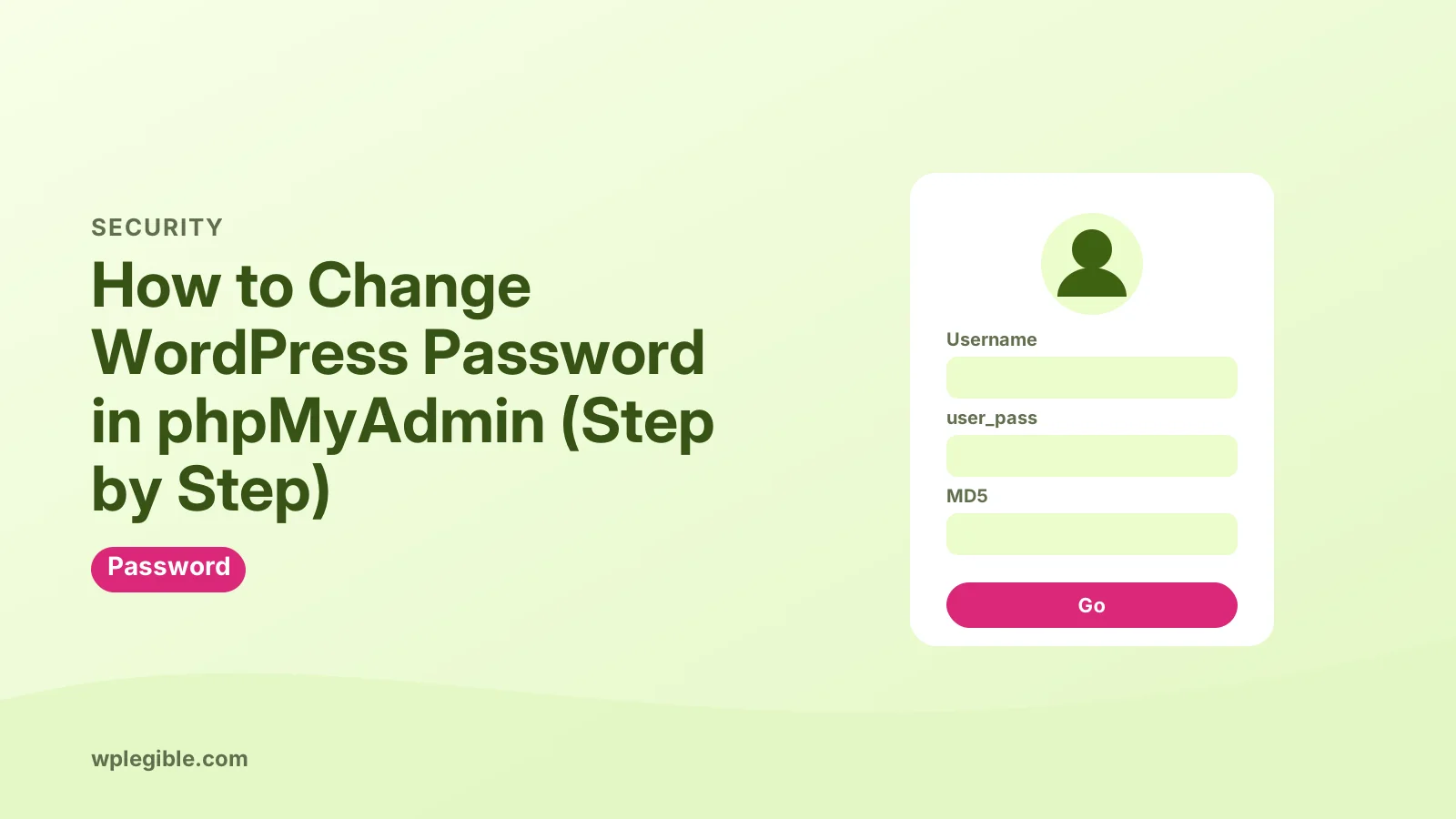
Open phpMyAdmin from your hosting panel, select your WordPress database, open the users table and click Edit on your user. Type a new password in the user_pass field, choose MD5 in the Function dropdown, click Go, then log in so WordPress rehashes it securely.
Key takeaways
- Use phpMyAdmin only when the normal lost password reset does not work.
- Back up the database and confirm the right database name and table prefix first.
- Always choose the MD5 function when typing the new password in user_pass.
- WordPress replaces the MD5 hash with a stronger hash when you next log in.
- WP-CLI is a cleaner option if your host offers SSH access.
How do you change a WordPress password in phpMyAdmin?
Open phpMyAdmin, select your WordPress database, edit your user row in the users table, type a new password in user_pass, set the Function to MD5, and click Go.
This method works when you cannot log in and the reset email never arrives. You change the password directly in the database, so WordPress email does not matter.
Here is the short version:
- Back up the database
- Open phpMyAdmin from your hosting panel
- Select the WordPress database
- Open the users table, usually wp_users
- Click Edit on your user row
- In user_pass, choose MD5 from the Function list and type the new password
- Click Go, then log in with the new password
The sections below explain each step and the common mistakes. If you can still reach the dashboard, use the normal method in our guide on changing a WordPress password instead.
When should you use phpMyAdmin to reset a password?
Use phpMyAdmin only when the normal login screen reset fails, for example when reset emails never arrive or you have lost access to the admin email address.
The lost password link on the login page is safer and easier. It sends a reset link to the account email. WordPress explains that flow in its reset your password guide.
phpMyAdmin is the fallback. Common reasons to use it:
- The reset email never arrives, often because the host cannot send mail
- The account email is an old address you no longer control
- A hacked site has changed the admin password
- You inherited a site with no login details
If the email is the only problem, our guide on password reset emails not arriving may fix it without touching the database.
What do you need before you start?
You need access to your hosting control panel or database login details, the database name, and a fresh backup of the database.
Most hosts include phpMyAdmin in cPanel, Plesk or their own dashboard. Look for a Databases section.
If your host has several databases, find the one your site uses. The name sits in the DB_NAME line of wp-config.php. Our guide on finding your WordPress database name shows where to look.
Back up before editing. A wrong click in phpMyAdmin can change the wrong row or table. Our guide on backing up a WordPress database covers phpMyAdmin exports and plugin options.
How do you find your user in the database?
Select the database in the left panel, open the table ending in _users, and find the row whose user_login matches your username.
The default table name is wp_users. Many sites use a different prefix for security, such as wpx7_users. The prefix is set by the $table_prefix line in wp-config.php.
Click the table name to browse its rows. Each row is one user. The important columns are:
| Column | What it holds |
|---|---|
| ID | The user ID number |
| user_login | The username used to log in |
| user_pass | The hashed password |
| user_email | The account email address |
| display_name | The name shown on posts |
If the table has many users, use the Search tab to find your user_login or user_email.
Note the ID of your account as well. Administrators on older sites often have ID 1, but that is not guaranteed, so match on the username or email rather than guessing.
If you do not see a users table at all, you have opened the wrong database. Some hosts list databases for every site on the account, so check the name against wp-config.php again.
How do you set the new password?
Click Edit on your row, choose MD5 in the Function dropdown next to user_pass, replace the value with your new plain text password, and click Go.
Step by step:
- Click Edit on your user row
- Find the user_pass field
- Delete the long hashed value in it
- Type your new password in plain text
- In the Function column next to it, choose MD5
- Scroll down and click Go
phpMyAdmin runs the MD5 function on your text before saving it. That stores a hash, not the plain password. The phpMyAdmin documentation covers the editing screen if your version looks different.
Do not skip the MD5 step. If you save plain text, WordPress will not recognize the password, and anyone who can read the database sees it.
Pick a long, unique password. A password manager can generate one.
Avoid passwords that contain a single quote if you plan to use the SQL method below. A quote ends the text value early and breaks the query.
The edit screen also shows the user_email column. If the email on file is wrong, you can correct it here at the same time, so future password resets reach the right inbox.
Is an MD5 password safe in WordPress?
Yes for a quick reset, because WordPress accepts the MD5 hash once and then replaces it with its own stronger hash the next time you log in.
MD5 on its own is a weak hashing method. The PHP manual warns against using it for passwords.
WordPress handles this for you. When you log in and the stored value is an old MD5 hash, WordPress checks it, then rehashes the password with its current method. Since WordPress 6.8, that method is bcrypt, as announced on the Make WordPress Core blog.
So log in straight after the change. That upgrades the hash and removes the weak MD5 value from your database.
Can you change the password with an SQL query instead?
Yes, you can run a single UPDATE query in phpMyAdmin's SQL tab that sets user_pass to the MD5 of your new password for one user.
Open the SQL tab with the database selected and run a query like this, changing the table prefix, password and username:
UPDATE wp_users
SET user_pass = MD5('YourNewStrongPassword')
WHERE user_login = 'yourusername';
phpMyAdmin should report one row affected. If it says zero rows, the username or table prefix is wrong.
Be careful with queries. Leaving out the WHERE line changes the password for every user on the site.
You can also target the user by ID instead of username. Replace the WHERE line with WHERE ID = 1, using the real ID from the users table. This helps when the username contains unusual characters.
After the query runs, browse the users table again. The user_pass value should now be a 32 character string of letters and numbers, which is what an MD5 hash looks like.
What if you have SSH or WP-CLI access?
If your host offers SSH with WP-CLI, one command changes the password and uses WordPress's own hashing, which is cleaner than editing the database.
Run this from the site's folder:
wp user update yourusername --user_pass="YourNewStrongPassword"The wp user update reference lists the options. This route stores a proper hash straight away.
Developers can also call wp_set_password() from a temporary snippet, but remove the code as soon as you log in.
Why can't you log in after changing the password?
Login usually still fails because you edited the wrong user or database, skipped the MD5 function, or a security plugin, cache or two-factor setting blocks the login.
Check these points:
- Wrong database. Confirm DB_NAME in wp-config.php matches the database you edited
- Wrong row. Confirm user_login matches the username you type
- Plain text saved. Edit again and select MD5 in the Function column
- Extra spaces. A trailing space becomes part of the password
- Security plugins. Too many failed attempts can lock you out for a while
- Two-factor login. You still need the second factor after the password
If the login page reloads or redirects in a loop, the password may be fine but cookies or site URLs are wrong. See our guide on login pages that refresh and redirect.
Our wider guide on being locked out of wp-admin covers other blocks, such as lockouts from firewall plugins.
What should you do after logging in?
Review the user list for unknown admins, set a fresh strong password from your profile, check the account email, and fix the reason resets failed.
If you reset the password because of a hack, unknown administrator accounts are a red flag. Remove them, update all plugins and themes, and change your hosting and database passwords too.
Update the account email under Users > Profile so future resets reach you. Then test that WordPress can send email, so the normal reset link works next time.
Finally, set the password again from your profile. That guarantees WordPress stores it with its current hashing method.
It is also worth adding two-factor authentication to administrator accounts. It stops someone logging in even if they learn the password, and it gives you another layer if the database is ever exposed.
Keep the database backup you made before the change for a few days. If anything else on the site behaves oddly, you can compare against it or restore it.
Frequently asked questions
Where is the password stored in the WordPress database?
It is stored as a hash in the user_pass column of the users table, which is named wp_users by default. Sites with a custom prefix use a different table name, such as abc_users.
Can I see my current WordPress password in phpMyAdmin?
No. WordPress stores a one-way hash, not the password itself. You cannot turn the hash back into the password, so the only option is to set a new one.
Is it safe to use MD5 for a WordPress password?
It is fine as a temporary step. WordPress accepts the MD5 hash once, then replaces it with its own stronger hash when you log in, so log in straight after the change.
How do I find the users table if it is not called wp_users?
Open wp-config.php and read the table_prefix value. Add _users to it to get the table name. In phpMyAdmin, the table list in the left panel also shows every table name.
Will changing the password in phpMyAdmin log out other sessions?
Not always right away. To be sure, log in and use the log out everywhere else option on your profile screen, especially if you reset the password after a security problem.
Sources
- Reset Your Password WordPress.org Documentation
- WordPress 6.8 will use bcrypt for password hashing Make WordPress Core
- wp user update WP-CLI Command Reference
- phpMyAdmin Documentation phpMyAdmin
- md5 PHP Manual
- wp_set_password() WordPress Code Reference
Is your product missing, or something out of date?
Tell us what to add or correct. We read every note and reply when we need a source. A message does not buy a ranking.
Thanks — we review requests within 3 business days.
Related guides
About the editors
Researched from the primary sources listed above and checked against our editorial rules before publishing.