Security · Guide
How to Change a WordPress Password (Even if You're Locked Out)
Short answer
To change your WordPress password, go to Users > Profile, scroll to Account Management, click Set New Password, enter a strong password and click Update Profile. If you cannot log in, use the Lost your password link on the login page. If the reset email never arrives, an administrator, your host, phpMyAdmin or WP-CLI can set a new password directly.
Key takeaways
- Logged in: change your password in Users > Profile > Account Management.
- Locked out: use Lost your password on the login page to get a reset link by email.
- Administrators can set a new password for any user from Users > All Users.
- If email does not work, reset the password in phpMyAdmin or with WP-CLI.
- Changing a password logs you out elsewhere if you also click Log Out Everywhere Else.
How do you change your password when you can log in?
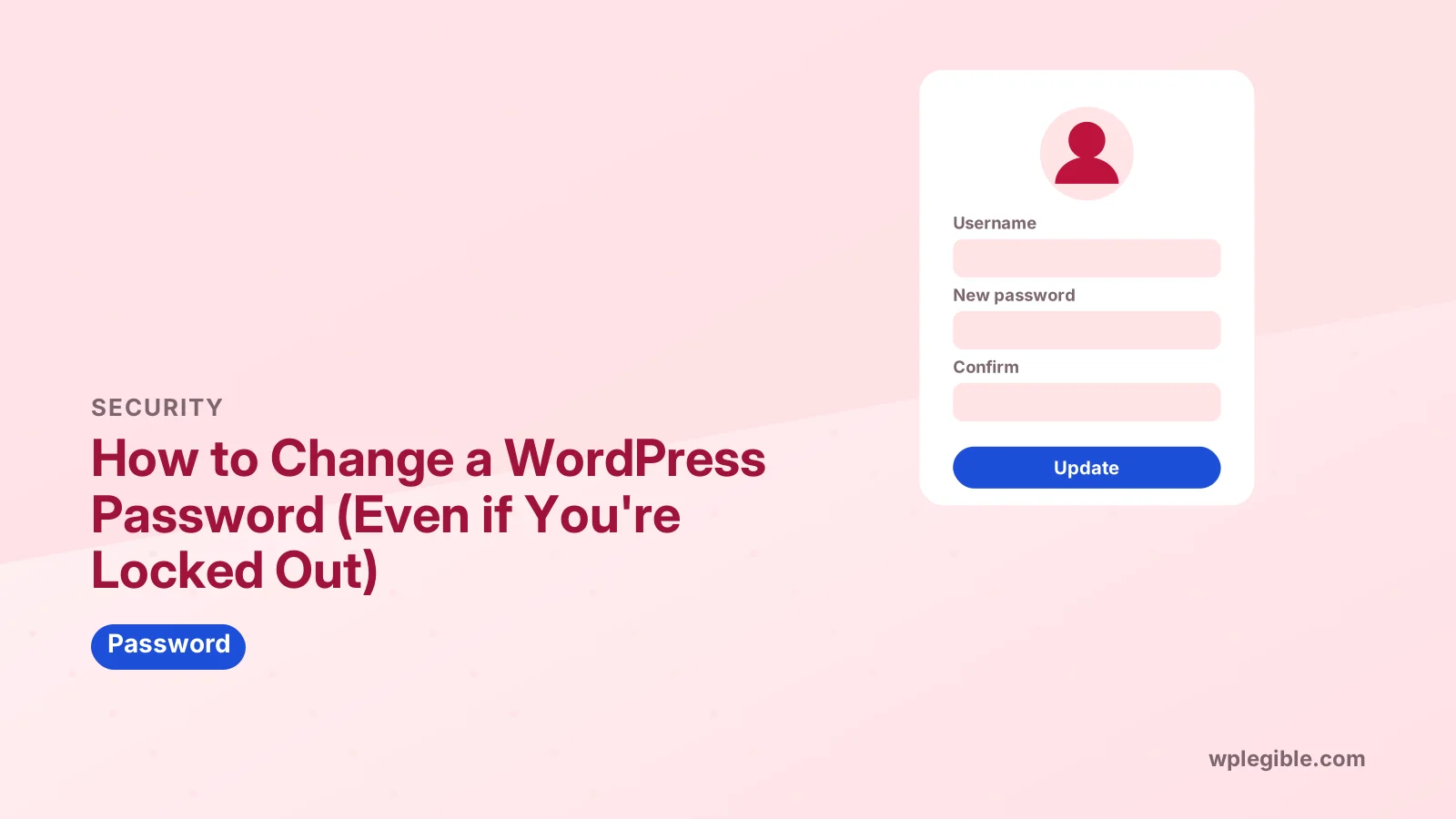
Go to Users > Profile, scroll to Account Management, click Set New Password, type a strong password or keep the suggested one, then click Update Profile.
Step by step:
- Log in to your WordPress dashboard
- Go to Users > Profile, or click your name in the top right corner
- Scroll down to Account Management
- Click Set New Password
- Use the suggested strong password, or type your own
- Click Update Profile
WordPress shows a strength meter as you type. Aim for Strong, and save the new password in a password manager before you leave the page.
If you share a computer or suspect someone else knows the old password, click Log Out Everywhere Else on the same screen. That ends every other session on other devices.
How do you reset a forgotten WordPress password?
On the login page, click Lost your password, enter your username or email, then open the reset link WordPress emails you and choose a new password.
The login page is usually at your domain plus /wp-login.php. Our guide to finding the WordPress admin URL helps if you are not sure where it is.
The reset link expires after a while, so use it soon after it arrives and do not forward it to anyone. If it has expired, request a new one.
The official password reset documentation covers this method and the alternatives below in more detail.
What if the password reset email never arrives?
Check spam and the email address on the account; if the site cannot send email, ask another administrator or your host, or reset the password in the database.
Many WordPress sites send email unreliably, because hosting servers are not set up to deliver mail well. Reset emails then land in spam or never leave the server.
Our guide on password reset emails not being received walks through the causes and fixes. Setting up a proper email sending service prevents the problem in future.
If you still cannot get in, use one of the direct methods in the next sections.
How do you change another user's password as an administrator?
Go to Users > All Users, click Edit under the user's name, scroll to Account Management, click Set New Password, and update the user.
You can also click Send Reset Link on the same screen. WordPress emails the user a link to choose their own password, which is better than sending them a password you made up.
Only users with permission to edit other users, normally Administrators, can do this. Editors and lower roles can only change their own password.
If you manage a site for a client, never reuse the same password across their accounts. Give each person their own login instead of sharing one.
How do you reset a password in phpMyAdmin?
Open phpMyAdmin from your hosting panel, find the users table, edit your user row, enter a new password in user_pass with the MD5 function selected, and save.
This works when you cannot log in and email does not work. Take a backup of the database first.
- Open phpMyAdmin and select your WordPress database
- Open the users table, usually named wp_users or with a custom prefix
- Click Edit on your user's row
- In the user_pass field, choose MD5 from the Function dropdown
- Type your new password in the Value box and click Go
MD5 is only used to get you back in. When you log in, WordPress replaces it with its own stronger password hash automatically.
If you see several users, check the user_login and user_email columns to make sure you edit the right one.
How do you reset a password with WP-CLI?
Run wp user update with the user's ID or login and the --user_pass option, which sets a new password immediately.
If your host offers SSH access, this is the fastest method. List users first, then update the one you need:
wp user list --fields=ID,user_login,user_email
wp user update 1 --user_pass='use-a-long-unique-password-here'
The wp user update reference lists all options. Many managed hosts also have a button in their dashboard that does the same thing.
Clear your terminal history afterwards if others can access the same server account, since the password appears in the command.
How do you change a WordPress.com password?
On WordPress.com, change your password in your account's Security settings, because one WordPress.com account covers all your WordPress.com sites.
Log in at wordpress.com, open your profile menu, go to Security and choose Password. Use the Lost password link on the WordPress.com login page if you cannot sign in.
This password is separate from any self-hosted WordPress sites you run. Changing one does not change the other.
How do you choose a strong WordPress password?
Use a long, unique password made by a password manager, and add two-factor login, so one leaked password cannot open your site.
Good passwords are long and random, and used nowhere else. Government guidance such as the CISA advice on using strong passwords recommends at least 16 characters and a password manager.
Other good habits:
- Never reuse your WordPress password on other sites
- Turn on two-factor authentication with a security plugin
- Use application passwords for apps and integrations instead of your main password
- Change passwords straight away if you suspect a leak or a hack
Our guide to application passwords explains how they keep your main password out of other tools.
How often should you change your WordPress password?
Change it straight away when there is a reason, such as a leak, a hack, a shared login or someone leaving your team, rather than on a fixed calendar.
Modern security advice has moved away from forcing password changes every few months. Frequent forced changes push people toward weak, predictable passwords with a number added at the end.
A long, unique password stored in a password manager can stay in place for a long time. What matters is changing it quickly when something happens:
- Your email address appears in a data breach notice
- You logged in on a device you do not trust
- A freelancer, employee or agency no longer works on the site
- Your site shows signs of a hack, such as unknown users or spam pages
- You find the password written somewhere it should not be
Two-factor authentication matters more than how often you change passwords. Even if a password leaks, a second factor stops most attackers from logging in.
How do you make every user set a new password?
Send each user a password reset link from Users > All Users, or use a security plugin that forces a password reset at the next login.
After a hack or a security incident, it is wise to reset every account, not just your own. Attackers often create new users or steal the passwords of existing ones.
In Users > All Users, tick the users you want, choose Send password reset from the Bulk actions menu and apply. Each user gets an email with a link to choose a new password.
Then review the list for accounts that should not exist, especially extra administrators, and delete them. Assign their content to a real user when WordPress asks.
Changing the authentication keys and salts in wp-config.php also logs everyone out at once. The WordPress hardening guide explains these keys and other ways to lock the site down after an incident.
What if someone else changed your password?
If your password stopped working and you did not change it, treat it as a possible hack: regain access through your host, check for unknown admin users and change every password.
Use phpMyAdmin, WP-CLI or your host's tools to get back in. Then review Users > All Users for accounts you do not recognize, and check for unfamiliar plugins.
Our guide on recovering a hacked WordPress admin account covers the full cleanup.
Frequently asked questions
Where do I change my password in WordPress?
Go to Users > Profile in the dashboard, scroll to Account Management, click Set New Password, enter the new password and click Update Profile.
How do I reset my WordPress password without email?
Ask another administrator to set a new password, use your host's tools, run the WP-CLI user update command, or edit your user's password in phpMyAdmin using the MD5 function.
Why is my WordPress password reset link not working?
The link may have expired, already been used, or been cut off by your email app. Request a new link and open it soon. If emails do not arrive at all, the site's email sending needs fixing.
Can an admin see my WordPress password?
No. WordPress stores passwords as hashes, so nobody can read them, including administrators. An admin can only set a new password or send you a reset link.
Does changing my WordPress password log me out?
Your current session stays logged in. Other devices stay logged in too unless you click Log Out Everywhere Else in your profile, which ends all other sessions.
Sources
- Reset Your Password WordPress.org Documentation
- wp user update WP-CLI Commands
- Use Strong Passwords CISA
- phpMyAdmin documentation phpMyAdmin
Is your product missing, or something out of date?
Tell us what to add or correct. We read every note and reply when we need a source. A message does not buy a ranking.
Thanks — we review requests within 3 business days.
Related guides
About the editors
Researched from the primary sources listed above and checked against our editorial rules before publishing.