Security · Guide
How to Install Wordfence Plugin in WordPress (Step by Step)
Short answer
In your dashboard, go to Plugins, then Add New Plugin, search for Wordfence Security, click Install Now and Activate. Register a free or Premium license, optimise the firewall so it loads before WordPress, run your first scan, and turn on two-factor login for admins.
Key takeaways
- Install Wordfence only from WordPress.org or Wordfence itself.
- Back up and remove other firewall plugins first.
- The free license covers firewall, scanner and 2FA with delayed rules.
- Optimise the firewall so it loads before WordPress.
- Learning Mode runs for about a week after setup.
- Rename the plugin folder over FTP if you get locked out.
How do you install the Wordfence plugin in WordPress?
Go to Plugins > Add New Plugin in your WordPress dashboard, search for Wordfence Security, click Install Now, then Activate, and finish the setup by adding a free or paid license key.
The whole install takes a few minutes. The extra setup steps, such as optimising the firewall and running your first scan, take a little longer but matter more for protection.
Wordfence is listed on the WordPress.org plugin directory, which is the safest place to get the free version. Avoid downloading it from third-party sites, which may bundle malware.
Before you start, make sure you are logged in as an administrator. Only admins can install plugins on a standard WordPress site.
What should you check before installing Wordfence?
Check that you have a recent backup, that you are not already running another security plugin with a firewall, and that your hosting allows plugins to be installed.
A backup lets you roll back if anything goes wrong. Our guide to restoring WordPress from a backup explains the options.
Running two security firewalls together often causes conflicts, blocked logins and high CPU use. If you already use Sucuri, iThemes or All-In-One Security, decide which one to keep.
Some managed hosts, such as certain WordPress.com plans, restrict plugin installs or ban specific security plugins. Check your host's rules first.
How do you install Wordfence from the dashboard?
Search the plugin directory from inside WordPress, install the plugin with one click, and activate it so the Wordfence menu appears in your sidebar.
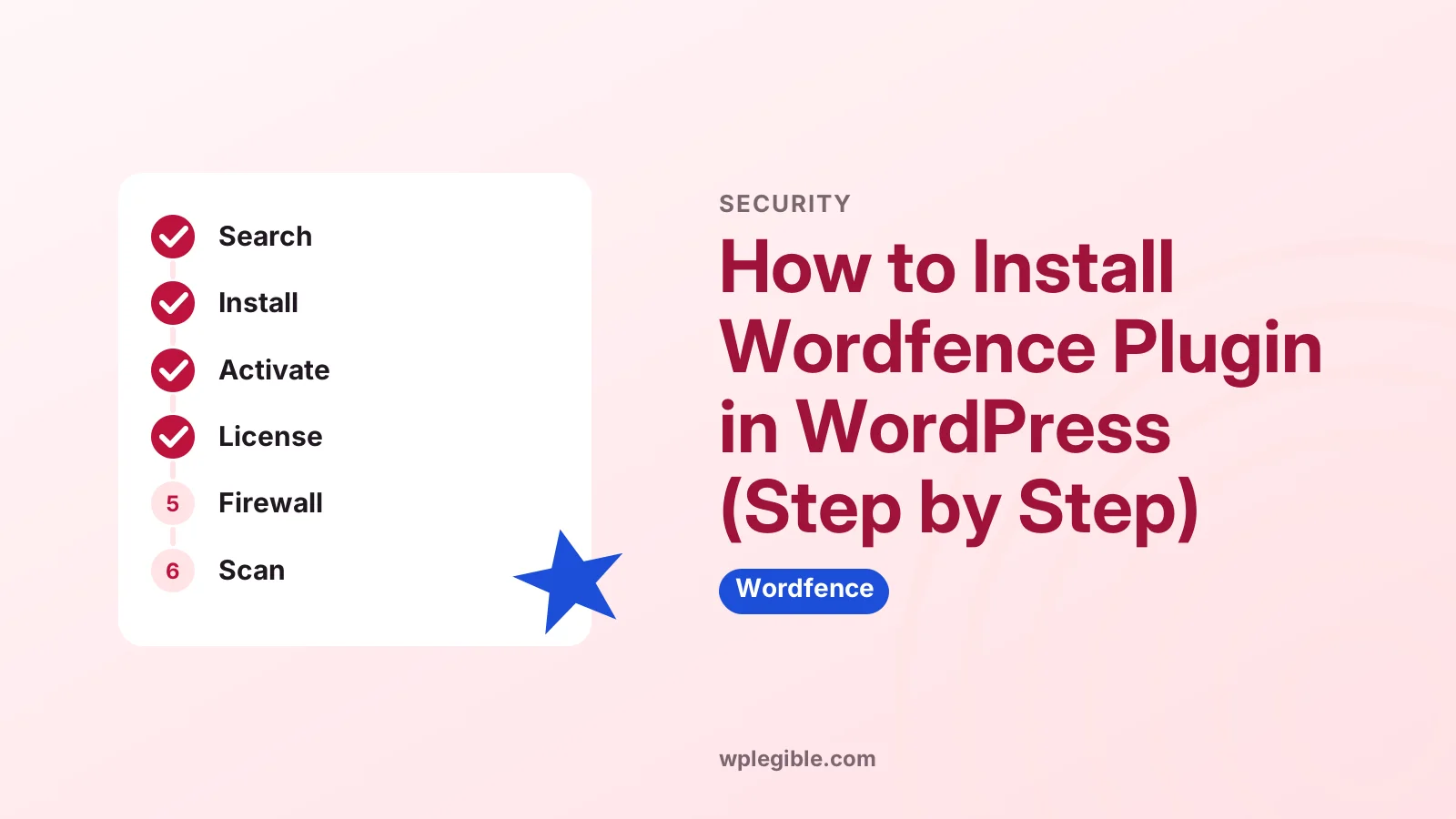
- Log in to your WordPress admin area.
- Go to Plugins > Add New Plugin.
- Type Wordfence in the search box.
- Find Wordfence Security – Firewall, Malware Scan, and Login Security by Wordfence.
- Click Install Now.
- When the button changes, click Activate.
A new Wordfence menu now appears in the left sidebar. WordPress's own guide to managing plugins covers the install screen in more detail.
How do you install Wordfence from a ZIP file?
Download the ZIP file, go to Plugins > Add New Plugin > Upload Plugin, choose the file, click Install Now, then activate it.
This method is useful if your site cannot reach WordPress.org, or if you bought Wordfence Premium and want a specific version.
- Download the plugin ZIP from the WordPress.org plugin page.
- In WordPress, go to Plugins > Add New Plugin.
- Click Upload Plugin at the top.
- Choose the ZIP file and click Install Now.
- Click Activate Plugin.
If the upload fails with a file size error, your PHP upload limit may be too low. You can also upload the unzipped folder to wp-content/plugins over FTP, as explained in our guide to getting FTP access to WordPress.
How do you add a Wordfence license key?
After activation, Wordfence asks you to register a license; choose the free license, enter your email, and paste the key it sends you, or enter a Premium key if you bought one.
The free license gives you the firewall, malware scanner and login security features. Premium adds real-time firewall rules and malware signatures, a real-time IP blocklist and other extras.
| Feature | Free license | Premium license |
|---|---|---|
| Web application firewall | Yes, rules delayed | Yes, real-time rules |
| Malware scanner | Yes, signatures delayed | Yes, real-time signatures |
| Login security and 2FA | Yes | Yes |
| Real-time IP blocklist | No | Yes |
| Country blocking | No | Yes |
Wordfence states the delay for free rules on its plugin page; check there for the current details. Our guide on how much Wordfence costs covers paid plans.
You can also choose whether Wordfence sends you security alerts and news by email during this step.
How do you optimise the Wordfence firewall?
Click the prompt to optimise the firewall, let Wordfence detect your server setup, download the backup file it offers, and continue so the firewall loads before WordPress.
By default, the firewall runs in basic mode, as part of the plugin. Extended protection loads it earlier through a PHP setting, so it can block attacks before any plugin or theme code runs.
- Go to Wordfence > Firewall.
- Click Optimize the Wordfence Firewall or the notice at the top of the screen.
- Confirm the server configuration Wordfence suggests.
- Download the backup of your .htaccess or .user.ini file when asked.
- Click Continue and wait for the success message.
On some hosts the change takes a few minutes to apply, because PHP caches settings. The Wordfence help pages on optimising the firewall list host-specific notes.
Behind the scenes, extended protection uses the PHP auto_prepend_file setting, which tells PHP to load a file before any other script. That is why the firewall can inspect requests before WordPress starts.
New installs start in Learning Mode for about a week. During that time the firewall learns normal traffic so it does not block your own actions. Our guide to setting up the Wordfence firewall explains the modes.
How do you run your first Wordfence scan?
Open Wordfence > Scan and click Start New Scan; Wordfence checks core files, plugins, themes and your content for malware and known vulnerabilities, then lists any issues.
The first scan can take a few minutes on large sites. You can leave the page and come back.
Results appear as issues with a severity. Common findings include outdated plugins, files that differ from the official versions, and weak settings.
Do not delete flagged files without checking them first. Some custom files are flagged simply because Wordfence cannot compare them to a known version.
How do you check that Wordfence is working?
Check the Wordfence dashboard for green status boxes, confirm the firewall shows Extended Protection, and look at Live Traffic or the firewall summary to see blocked requests.
The Wordfence > Dashboard screen shows the firewall status, scan status and recent notifications in one place. Any red or yellow box points to a step you still need to finish.
On Wordfence > Firewall, the protection level should read Extended Protection once optimisation has applied. If it still says Basic, wait a few minutes and reload.
The Tools > Live Traffic screen shows recent visitors and bots. Seeing blocked login attempts or bad bots there within a day or two is normal and shows the firewall is active.
You can also check that your scan runs on schedule by looking at the last scan time on the Scan page.
How do you keep Wordfence up to date?
Turn on automatic updates for Wordfence from the Plugins screen, or update it promptly whenever WordPress shows a new version, because security fixes matter most in security plugins.
On the Plugins screen, click Enable auto-updates next to Wordfence. WordPress then installs new versions in the background.
Keep WordPress itself, your theme and other plugins updated too. Wordfence will flag outdated items in its scan results, but it cannot update them for you without permission.
The WordPress hardening guide on developer.wordpress.org lists other basic steps that work alongside a security plugin.
Which Wordfence settings should you set after installing?
Set up email alerts, turn on two-factor authentication for admin accounts, review brute force limits, and check that scans are scheduled automatically.
- Email alerts: go to Wordfence > All Options and choose which events email you.
- Two-factor authentication: go to Wordfence > Login Security and scan the QR code with an authenticator app.
- Brute force protection: check the login attempt limits under the firewall options.
- Scan schedule: free users get automatic scans on a schedule Wordfence chooses.
Our full guide to Wordfence settings explains each option.
What if Wordfence locks you out after installing?
If Wordfence blocks your login, use the email link offered on the lockout screen, or rename the Wordfence plugin folder over FTP to disable it temporarily.
Lockouts often happen when an admin mistypes a password too many times or logs in from a new country.
If renaming the folder does not help, the firewall may still load through its PHP setting. Remove the Wordfence line from .user.ini or .htaccess, or restore the backup file you downloaded.
See our guide on how to fix Wordfence blocking the admin for full steps, or ask on the Wordfence support forum.
Frequently asked questions
Is Wordfence free to install?
Yes. The Wordfence plugin is free on WordPress.org and works with a free license that includes the firewall, malware scanner and login security. Premium adds real-time firewall rules and signatures, a real-time IP blocklist and country blocking.
Why does Wordfence ask for a license key?
Wordfence asks every site to register a license, including free users. Registering links the install to an email address for alerts and lets Wordfence deliver the correct firewall rules and malware signatures for your license level.
Will Wordfence slow down my site?
The firewall adds a small amount of work to each request, and scans use CPU while they run. On most hosts the effect is minor. On very small plans, schedule scans at quiet times and avoid running another security plugin at the same time.
Can I install Wordfence with another security plugin?
It is not recommended to run two firewalls or two malware scanners together. They can block each other, cause lockouts and raise server load. Pick one main security plugin and remove overlapping features from the other.
What is Wordfence Learning Mode?
Learning Mode is a period after setup when the firewall watches normal traffic instead of blocking it, so it does not mistake your own admin actions for attacks. It usually lasts about a week before switching to enabled and protecting mode.
Sources
- Wordfence Security WordPress.org Plugin Directory
- Manage plugins WordPress.org Documentation
- Optimizing the firewall Wordfence Help
- Wordfence support forum WordPress.org
Is your product missing, or something out of date?
Tell us what to add or correct. We read every note and reply when we need a source. A message does not buy a ranking.
Thanks — we review requests within 3 business days.
Related guides
About the editors
Researched from the primary sources listed above and checked against our editorial rules before publishing.