Best Video Tutorial Software in 2026: 7 Tools Compared
WLWPLegible EditorsLast verified 22 Nov 2026How we rank11 min read
★ Short answer
Camtasia is our top video tutorial software pick for creating polished screen recordings with cursor effects, annotations and timeline editing; its Essentials editor package costs $179.88 annually. ScreenPal is a lower-cost alternative with a free 15-minute recording limit, while Guidde automates step-by-step software walkthroughs with AI narration.
How we make this list: we compare pricing pages, product documentation and public user reviews, then re-check every price before each update. No product paid for a place. Disclosure.
Camtasia Starter costs $39 annually for recording and capture, while Essentials adds its full tutorial editor for $179.88 annually.
ScreenPal offers free recordings up to 15 minutes and Solo Deluxe at a regular $4 per month billed annually, or $48 yearly.
Guidde Pro costs $19 per creator per month billed annually and removes the 25-video limit of its free plan.
Descript Hobbyist costs $16 per month billed annually and includes 10 media hours and 400 AI credits monthly.
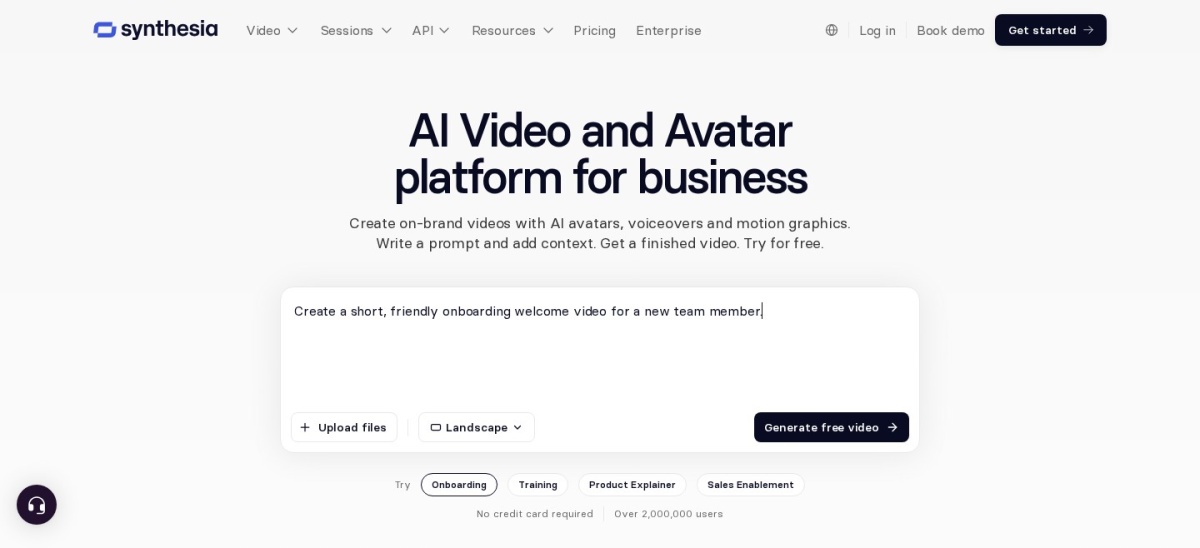
Synthesia Starter costs $168 annually and includes 15,000 yearly credits for AI-generated tutorial videos.
Loom Business costs $18 per user per month on monthly billing, while VEED Lite lists $108 annually for browser-based video editing.
What to look for in video tutorial software
Video tutorial software helps creators demonstrate processes, explain applications and turn instructions into visual lessons. It is useful for employee onboarding, customer education, online courses and product walkthroughs.
The most important difference is between screen recording, video editing and AI-generated tutorials. Screen recorders capture real actions, editing software improves presentation, and AI tutorial platforms can create narration or visual sequences from guided workflows.
For software training, prioritize cursor highlighting, zoom effects, annotations and clear audio. These features help viewers follow individual actions without repeatedly pausing the recording.
If you create tutorials regularly, look for transcription, captions, reusable templates and simple ways to update outdated instructions. Some platforms also export interactive quizzes, PDFs or other supporting training materials.
Finally, examine free-plan restrictions and paid editing capabilities. Recording limits, watermarks, export resolution, AI credits and team permissions can make a low-cost tool unsuitable for larger training projects.
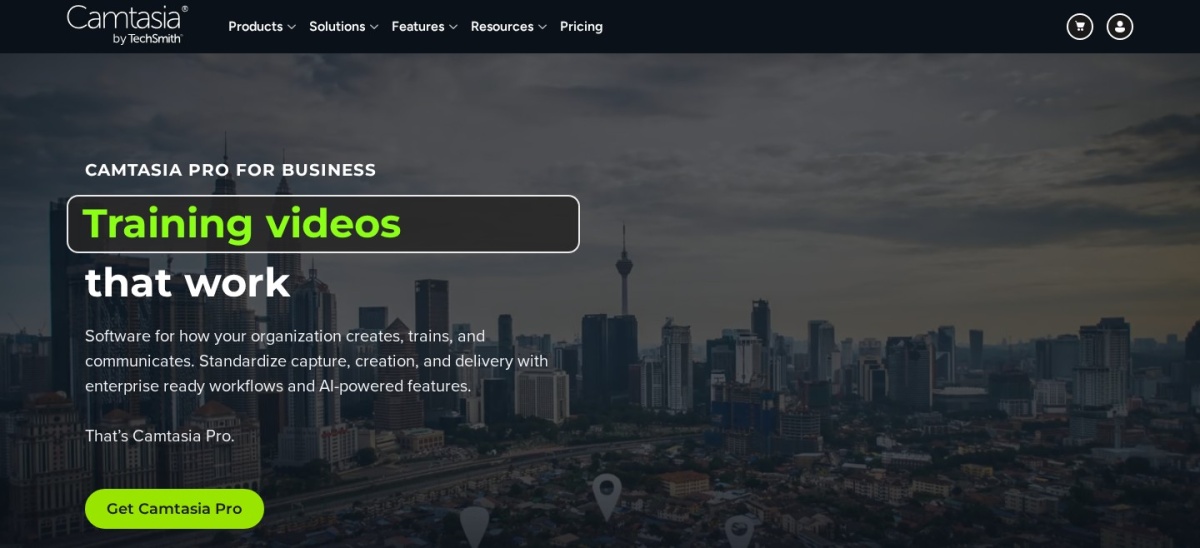
Camtasia is a screen recording and video production suite for software demonstrations, instructional lessons and workplace training. Its $39 annual Starter subscription includes Camtasia Snagit, unlimited 4K/60 fps recordings, screenshots and GIF creation, while the $179.88 Essentials tier adds Camtasia Editor, cursor effects, animations, quizzes and SCORM export.
The trade off is that the $39 Starter license does not include the complete Camtasia Editor, making Essentials the practical choice for detailed video lessons. Essentials costs $179.88 annually, while advanced AI narration requires higher tiers. It suits educators, trainers and creators needing precise control over software tutorials.
What we like
Detailed cursor effects and timeline editing
Multitrack recording and animations on Essentials
Quizzes and SCORM export for training
Advanced audio and caption tools
Strong established G2 review base
Watch out for
Full editor not included in Starter
AI voice generation requires a higher subscription
More editing decisions than simple share-link tools
Starter adds unrestricted recording; Essentials adds the full editor, captions, cursor effects and interactive training toolsVisit techsmith.com
02
ScreenPal
4.5/5on G2 (139 reviews, checked Nov 2026)
Paid from$4/mo
Best affordable video tutorial software
Free recording15 minutes per recording
Entry paid planSolo Deluxe
Regular annual rate$4/mo
Video quizzes5 on Deluxe
screenpal.com
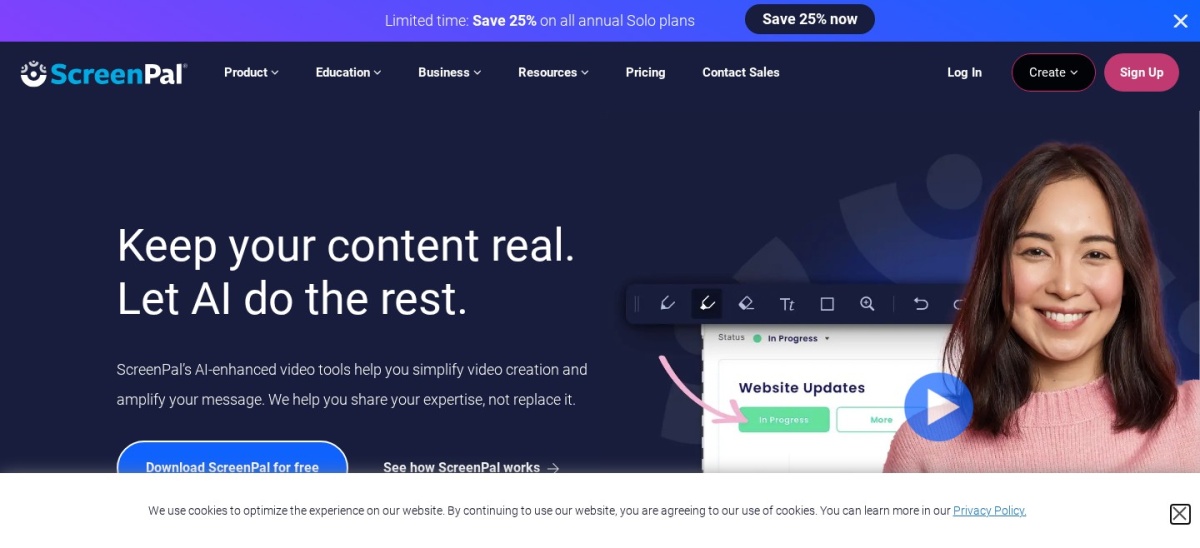
ScreenPal homepage, captured Nov 2026.
ScreenPal is a screen recorder, video editor and hosting platform for creating instructional videos. Its free plan supports recordings up to 15 minutes, basic editing and unlimited video hosting, while Solo Deluxe adds unlimited recording time, a full video editor, audio editing, speech-to-text captions and five video quizzes.
The trade off is that advanced AI dubbing, additional quizzes and premium creative features require Solo Max. Solo Deluxe normally costs $4 per month billed annually, or $48 yearly, although a temporary $3 monthly promotional rate is advertised. It suits teachers, freelancers and small teams producing frequent screen tutorials on a budget.
What we like
Free screen recording and video hosting
Affordable full video editing subscription
Interactive storyboards and tutorial quizzes
Captions and audio editing
Unlimited recording duration on Deluxe
Watch out for
Free recordings have a 15-minute limit
Advanced AI features require Solo Max
Some collaboration tools require team subscriptions
Solo Deluxe adds unlimited recording, full editing, captions, stock media and interactive storyboardsVisit screenpal.com
03
Guidde
4.8/5on G2 (97 reviews, checked Nov 2026)
Paid from$19/mo
Best for AI-generated step-by-step tutorials
Free allowance25 how-to videos
Entry paid planPro
Annual-billed rate$19/creator/mo
Monthly-billed rate$29/creator/mo
guidde.com
Guidde homepage, captured Nov 2026.
Guidde is an AI video documentation platform that captures software workflows and converts them into guided tutorials. Its free plan supports 25 how-to videos, screen walkthroughs and recorded voiceovers, while Pro adds unlimited how-to videos, watermark removal, a brand kit, sensitive-information blurring and video, presentation and PDF exports.
The trade off is that Pro primarily covers web application tutorials, with desktop capture, advanced analytics and extensive AI voice generation reserved for Business. Pro costs $19 per creator per month billed annually, or $228 yearly. It suits customer support, onboarding and training teams documenting repeatable software processes.
What we like
Automatically creates step-by-step walkthroughs
Free allowance for introductory projects
AI narration and visual guidance features
Exports videos, PDFs and presentations
Sensitive-information blurring on Pro
Watch out for
Desktop application capture requires Business
Advanced analytics require a higher subscription
Less detailed timeline control than traditional editors
Per-creator pricing increases team costs
Pro adds unlimited tutorials, branding, watermark removal, exports and sensitive-information blurringVisit guidde.com
04
Descript
4.6/5on G2 (940 reviews, checked Nov 2026)
Paid from$16/mo
Best for editing narrated video tutorials
Entry planHobbyist
Media allowance10 hours/month
AI allowance400 credits/month
Paid export1080p without watermark
descript.com
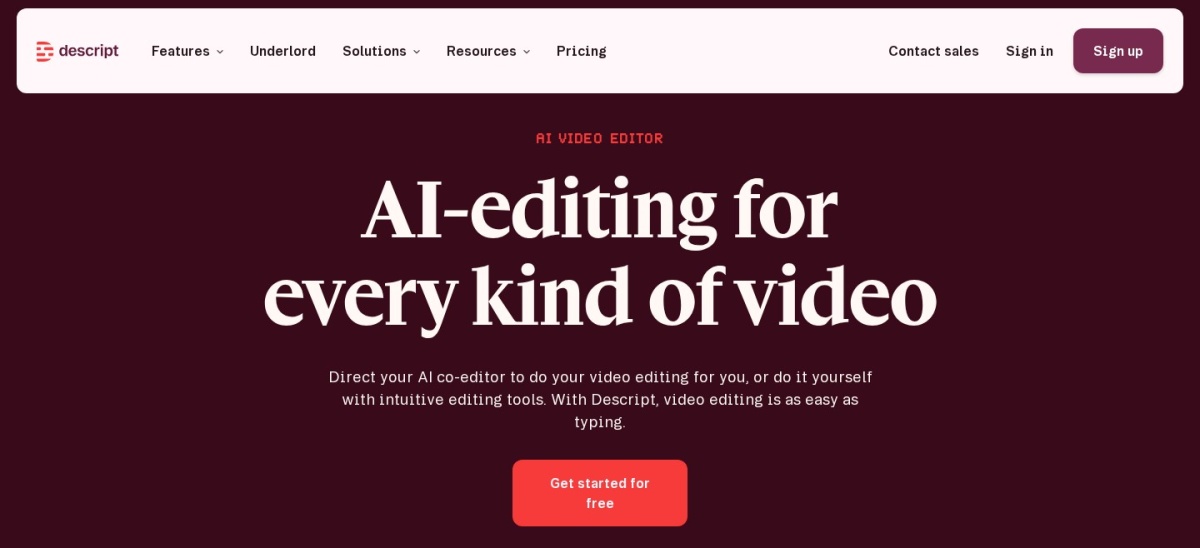
Descript homepage, captured Nov 2026.
Descript is a video and audio editor that lets creators revise recordings by editing the corresponding transcript. Its free option supports introductory projects, while Hobbyist includes 10 media hours, 400 AI credits monthly, watermark-free 1080p export and AI-assisted tools for improving audio, removing filler words and preparing tutorial clips.
The trade off is that media hours and AI credits limit how much content can be processed monthly. Hobbyist costs $16 per person per month billed annually, or $192 yearly, while monthly billing costs $24. It suits educators and content creators who regularly refine narrated lessons rather than manually cutting every clip.
What we like
Text-based video editing
AI audio cleanup and filler-word removal
Screen recording and transcription
Watermark-free 1080p export on Hobbyist
Useful for voice-heavy educational videos
Watch out for
Monthly media and AI credit allowances
Advanced AI tools require additional credits or upgrades
Not specialized for interactive software walkthroughs
Hobbyist adds watermark-free exports, expanded media hours, AI credits and voice editingVisit descript.com
05
Synthesia
4.6/5on G2 (2,864 reviews, checked Nov 2026)
Paid from$19/mo
Best for AI-presented training videos
Entry paid planStarter
Regular monthly price$19
Annual billing option$168/yr
Annual credit allowance15,000 credits
synthesia.io
Synthesia homepage, captured Nov 2026.
Synthesia is an AI video creation platform for producing scripted tutorials, explainer videos and employee training content using digital presenters. Its free Basic tier offers limited AI video creation, while Starter provides 1,250 monthly credits on monthly billing or 15,000 yearly credits with annual billing, plus expanded avatar and publishing features.
The trade off is that generated video output depends on credits, and AI presenters cannot demonstrate every real software interaction accurately. Starter costs a regular $19 per month, while the annual billing option is $168 per year after standard annual savings. It suits organizations producing scripted lessons without filming presenters.
What we like
AI presenters for training videos
Script-based video production
Supports multilingual educational content
No filming equipment required for avatar lessons
Free plan available for introductory use
Watch out for
Credit limits restrict production volume
Not a substitute for recording complex software actions
Advanced avatar and interactivity features require upgrades
Generated demonstrations still need accuracy review
Starter increases available video credits and provides expanded creation and avatar capabilitiesVisit synthesia.io
06
Loom
4.7/5on G2 (2,561 reviews, checked Nov 2026)
Paid from$18/mo
Best for quick team training videos
Free recordings25 videos
Free video limit5 minutes
Entry planBusiness
Regular monthly price$18/user
loom.com
Loom homepage, captured Nov 2026.
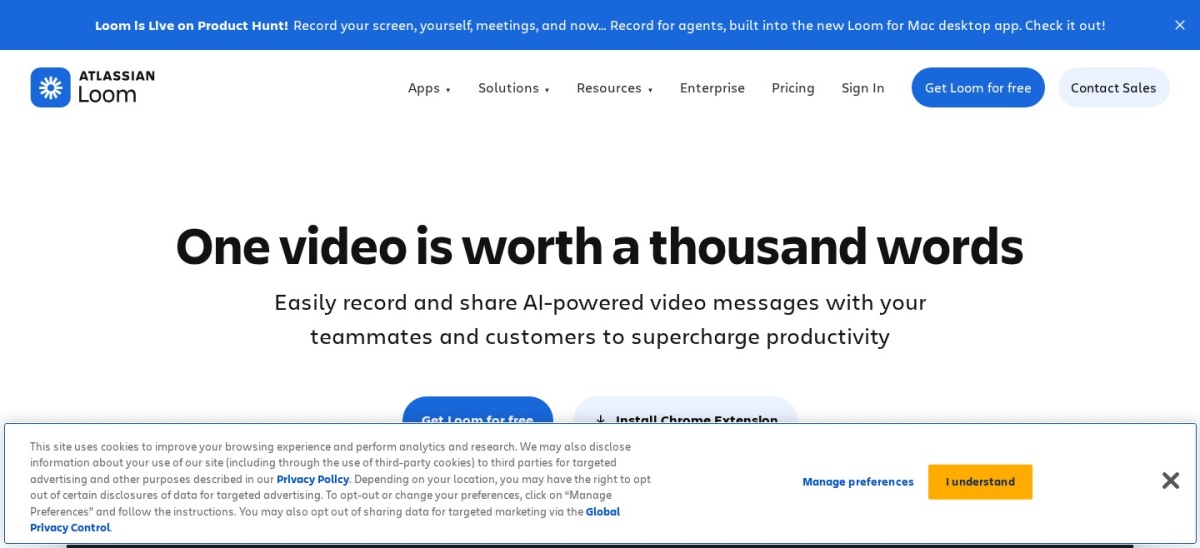
Loom is a screen and camera recording tool for sharing software walkthroughs, process explanations and team training videos. Its free Starter plan includes 25 recordings, a five-minute video limit, transcription in more than 50 languages and viewer comments, while Business adds unlimited video recording, basic waveform editing and branding removal.
The trade off is that advanced AI editing, automatic summaries and enhanced meeting features require Business + AI. Business costs $18 per user per month on the displayed monthly pricing option, equivalent to $216 for twelve months, with annual billing discounts available. It suits teams sharing quick instructions through links.
What we like
Fast screen and camera recording
Simple link-based sharing
Free plan for short walkthroughs
Unlimited recording on Business
Viewer comments and transcriptions
Watch out for
Limited detailed editing compared with Camtasia
Free recordings have duration restrictions
Advanced AI features require another subscription tier
Business adds unlimited recordings, longer videos, basic editing, uploads and branding removalVisit loom.com
07
VEED
4.6/5on G2 (2,195 reviews, checked Nov 2026)
Paid from$19/mo
Best for browser-based tutorial video editing
Free optionWatermarked exports
Entry paid planLite
Monthly rate$19
Annual billing option$108/yr
veed.io
VEED homepage, captured Nov 2026.
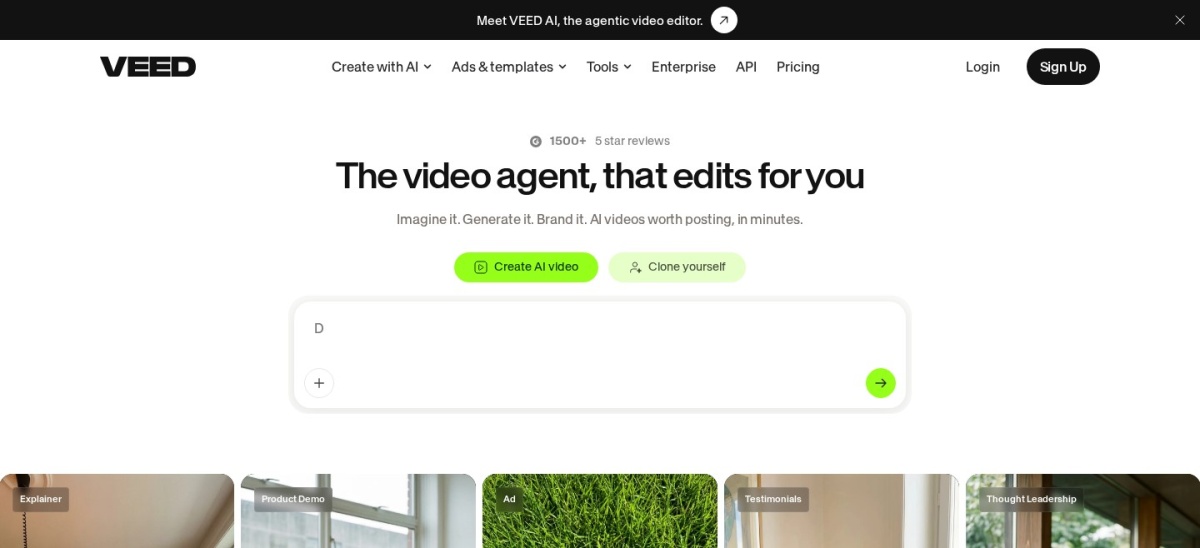
VEED is a browser-based video creation and editing platform for tutorials, presentations and instructional content. Its free plan supports basic editing with watermarked exports, while Lite provides watermark removal, captions, brand kits and additional video processing capacity for regular creators.
The trade off is that AI generation allowances and advanced editing features depend on the plan. VEED's published Lite comparison lists $19 per month or $108 annually, with the lower annual amount reflecting the longer billing commitment. It suits educators and creators who prefer editing tutorial videos directly in a browser.
What we like
Browser-based video editing
Automatic captions and subtitle tools
Branding and export controls
Free plan for initial projects
Useful for trimming and repurposing lessons
Watch out for
Free exports include a watermark
AI usage and processing allowances vary by tier
Advanced AI features may require higher plans
Less specialized for cursor-focused software tutorials
Lite adds watermark-free exports, expanded editing capacity and branding featuresVisit veed.io
Screen recording vs AI-generated tutorial software
Screen recording software captures the actions you perform on a computer. Camtasia, ScreenPal and Loom are especially useful when learners need to see actual buttons, menus and application workflows.
AI walkthrough platforms such as Guidde turn captured actions into structured instructions with generated visual guidance and narration. They work well for repeatable software procedures and internal documentation.
Transcript-based editors such as Descript simplify revising narrated lessons. Instead of adjusting every clip on a timeline, creators can make changes through a transcript and use AI assistance for audio cleanup.
AI presenter platforms such as Synthesia create scripted instructional videos with digital presenters. They are useful for policy explanations and training presentations but may still require genuine screen recordings for detailed software demonstrations.
Some tools combine these approaches. Choose based on whether your tutorials primarily demonstrate real actions, explain concepts or need frequent updates.
How to make video tutorials easier to follow
Begin with a specific learning goal. Explain what viewers will accomplish and avoid adding unrelated material that distracts from the procedure.
Record one logical action at a time. Use cursor highlights, zoom effects and annotations to direct attention toward the relevant controls rather than expecting viewers to search the entire screen.
Prioritize clear narration and readable captions. Software demonstrations should provide enough time to recognize each action, and spoken instructions should match the movements shown.
Remove unnecessary pauses, repeated actions and irrelevant setup. Editors such as Camtasia and Descript help refine recordings, while Guidde can organize repeatable workflows into step-by-step sequences.
Review the finished tutorial whenever the demonstrated application changes. Outdated menus, buttons and instructions can make otherwise well-produced educational videos difficult to use.
How we chose
We shortlisted established screen recorders, video editors and AI tutorial creation platforms with documented instructional-video capabilities. The list covers detailed software demonstrations, affordable recording, automated walkthroughs, transcript editing, AI presenters and team video communication.
Official pricing pages and public G2 reviews were opened on 24 Nov 2026 for this article's 22 Nov 2026 editorial date. We compared regular subscription prices, free-plan allowances, recording limits, editing capabilities and export restrictions. Annual equivalents use the identified billing terms, and temporary promotional prices are excluded.
We excluded products without sufficient public review evidence, tools lacking relevant instructional-video capabilities and offerings whose regular pricing could not be established. We distinguished entry-level recording packages from complete editing suites and noted where advanced features require upgrades. No vendor paid for a place, and we do not claim testing for this list.
How to choose the right video tutorial software
Define the lessons you want to create, then compare recording controls, editing features, AI capabilities and the total subscription cost.
Match the software to your tutorial format. Decide whether you need actual screen recordings, narrated presentations, AI presenters or automated walkthroughs. Choose a tool designed for that format rather than paying for unrelated creation features.
Check recording and editing capabilities. Prioritize clear audio, cursor effects, annotations, trimming, zooming and captions. For formal training, consider whether quizzes, interactive elements or learning management system exports are necessary.
Evaluate how tutorials will be updated. Software interfaces and procedures change. Look for reusable projects, easy narration edits, replaceable steps and consistent branding so your team can maintain tutorial libraries without recreating every video.
Calculate the full production cost. Compare recording allowances, export resolution, AI credits, watermark restrictions and user licensing. Verify whether the cheapest paid subscription includes the editor or requires a more expensive package for finished tutorials.
FAQ
What is the best video tutorial software in 2026?
Camtasia is our overall choice for detailed software tutorials because its Essentials package includes screen recording, timeline editing, cursor effects, animations and interactive training features. ScreenPal is more affordable, while Guidde is a strong alternative for creating automated software walkthroughs.
What is the best free video tutorial software?
ScreenPal provides free recording for videos up to 15 minutes with basic editing and hosting. Loom offers 25 free recordings with a five-minute limit, while Guidde allows 25 how-to videos. Each is useful for getting started, but advanced editing and production features require paid upgrades.
How much does video tutorial software cost?
ScreenPal Solo Deluxe normally costs $48 annually, while Camtasia Starter costs $39 annually for basic recording and capture. Camtasia Essentials, which includes the full editor, costs $179.88 annually. AI-focused platforms such as Guidde and Descript generally have recurring creator subscriptions.
Which software is best for recording software tutorials?
Camtasia and ScreenPal are particularly suited to demonstrations involving actual software interfaces. Camtasia offers detailed cursor and timeline editing, while ScreenPal provides a lower-cost recording and editing workflow. Loom is useful when quick recordings and easy sharing matter more than production control.
Can AI create video tutorials automatically?
Yes. Guidde can transform captured software actions into guided video instructions, and Synthesia can generate scripted videos using AI presenters. These tools can reduce manual production work, but creators should verify generated narration, visual instructions and interface details before publishing.
Which video tutorial software is best for teachers?
ScreenPal is a practical option for teachers who need affordable recordings, captions and interactive quiz features. Camtasia Essentials offers more elaborate editing and SCORM export for structured instructional content. The better choice depends on whether the priority is quick lesson production or detailed learning materials.
Is Camtasia better than Loom for tutorials?
Camtasia offers more detailed editing controls, animations, cursor enhancements and interactive learning features. Loom focuses on recording and sharing simple explanations quickly. Camtasia suits polished lessons and training libraries, while Loom is often sufficient for brief workplace demonstrations.
Do I need a microphone to record video tutorials?
A dedicated microphone is helpful but not always necessary. Most video tutorial tools can record audio from a computer's built-in microphone. Clear audio and a quiet recording environment matter more than expensive equipment, and editing tools can help reduce background noise.
What features should video tutorial software include?
Look for screen recording, microphone capture, trimming, cursor highlighting, annotations, captions and suitable export options. Teams may also need cloud sharing, access controls and collaboration. AI narration, translation, interactive quizzes and learning management integrations are valuable when they support a specific teaching requirement.