HandBrake is the top video converter software in 2026, offering free, open-source H.264, H.265, and AV1 transcoding with hardware acceleration and a 4.7/5 G2 rating. Pick CloudConvert for browser-based API conversions, or Movavi Video Converter for simple preset-driven desktop workflows.
How we make this list: we compare pricing pages, product documentation and public user reviews, then re-check every price before each update. No product paid for a place. Disclosure.
HandBrake, FFmpeg, and VLC Media Player cost $0 with no watermarks, file-size limits, or paid tiers.
CloudConvert starts at $9/mo ($108/yr) for 1,000 monthly credits, or $17 for a non-expiring 1,000-credit pack.
Any Video Converter Pro is the lowest-cost paid desktop upgrade at $19.95/mo or $39.95/yr.
Movavi Video Converter starts at $54.95/yr at regular pricing, while Winxvideo AI regular yearly pricing is $59.95/yr.
Adobe Media Encoder is bundled with Premiere Pro or After Effects plans starting at $22.99/mo ($275.88/yr).
What to look for in video converter software
Format and codec coverage determines whether a converter can handle your source files without errors. Modern workflows require H.264 for universal playback, H.265 (HEVC) and AV1 for smaller 4K file sizes, and ProRes or DNxHD for non-linear editing suites.
Hardware acceleration directly affects how long large exports take. Desktop converters that tap into NVIDIA NVENC, Intel Quick Sync, AMD VCE, or Apple VideoToolbox offload encoding from your CPU and cut transcoding times substantially on multi-gigabyte 4K footage.
Licensing models vary widely between free open-source utilities, cloud credit packs, and desktop subscriptions. Free tools like HandBrake and FFmpeg impose zero output limits, whereas paid suites bundle screen recording, DVD burning, and AI upscaling behind annual or perpetual licenses.
Batch queueing and preset management save hours when preparing dozens of clips for social platforms or learning portals. Look for tools that let you save custom bitrate, resolution, and audio pass-through profiles so every file in a folder exports consistently.
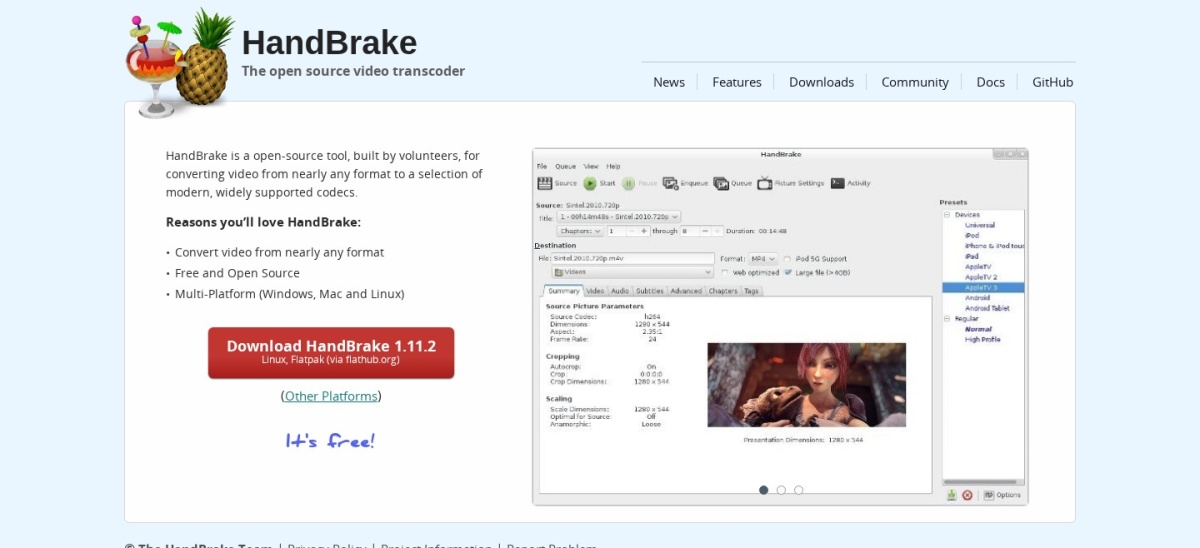
HandBrake is a free, open-source video transcoder that converts multimedia files and unprotected DVD or Blu-ray sources into MP4, MKV, or WebM. Licensed under GPL with no paid tiers or watermarks, it includes built-in device presets, batch queue scanning, Constant Quality encoding, and GPU acceleration via Intel QSV, NVIDIA NVENC, AMD VCN, and Apple VideoToolbox.
The trade off is that its dense technical tabs take practice to master, and it outputs only three container formats without lossless stream remuxing. It suits creators, educators, and home media archivists who want reliable, zero-cost batch compression across Windows, macOS, and Linux.
What we like
100% free and open source with no ads, watermarks, or file caps
Hardware-accelerated H.264, H.265, and AV1 encoding on major GPUs
Built-in device presets and folder batch queueing
Includes deinterlace, denoise, crop, and subtitle burn-in filters
Watch out for
Limited to MP4, MKV, and WebM output containers
No lossless remux copy mode without re-encoding
Technical controls can overwhelm first-time users
No paid plan; all features are included free under the GPL license.Visit handbrake.fr
02
FFmpeg
4.6/5on G2 (20 reviews, checked Nov 2026)
PriceFree
Best for developers and automated scripts
PlatformsWindows, macOS, Linux
InterfaceCommand-line (CLI)
Latest releaseFFmpeg 9.1 Gauss (Nov 2026)
Remux supportLossless stream copy
ffmpeg.org
FFmpeg homepage, captured Nov 2026.
FFmpeg is the free, open-source multimedia framework that underpins much of the video industry, updated to version 9.1 in November 2026. Accessible via the command line at no cost, it transcodes, muxes, demuxes, filters, and streams hundreds of audio and video codecs, including instant lossless container swaps via stream copy.
The trade off is the complete lack of an official graphical user interface, requiring users to write terminal flags or shell scripts. It suits developers, media engineers, and power users automating repeatable conversion pipelines.
What we like
Supports virtually every modern and legacy video and audio codec
Instant lossless container remuxing without re-encoding video streams
Ideal for shell scripts, servers, and CI/CD media pipelines
Actively maintained with frequent codec updates
Watch out for
No official graphical interface for point-and-click use
Steep learning curve for complex filter graphs and command syntax
No paid plan; full source code and binaries are free and open source.Visit ffmpeg.org
03
CloudConvert
4.7/5on G2 (21 reviews, checked Nov 2026)
Paid from$9/mo
Best for browser and API conversions
PlatformsWeb browser, REST API
Supported formats200+ file formats
Free tier10 credits/day, 1 GB max
Cloud storageGoogle Drive, Dropbox, OneDrive
cloudconvert.com
CloudConvert homepage, captured Nov 2026.
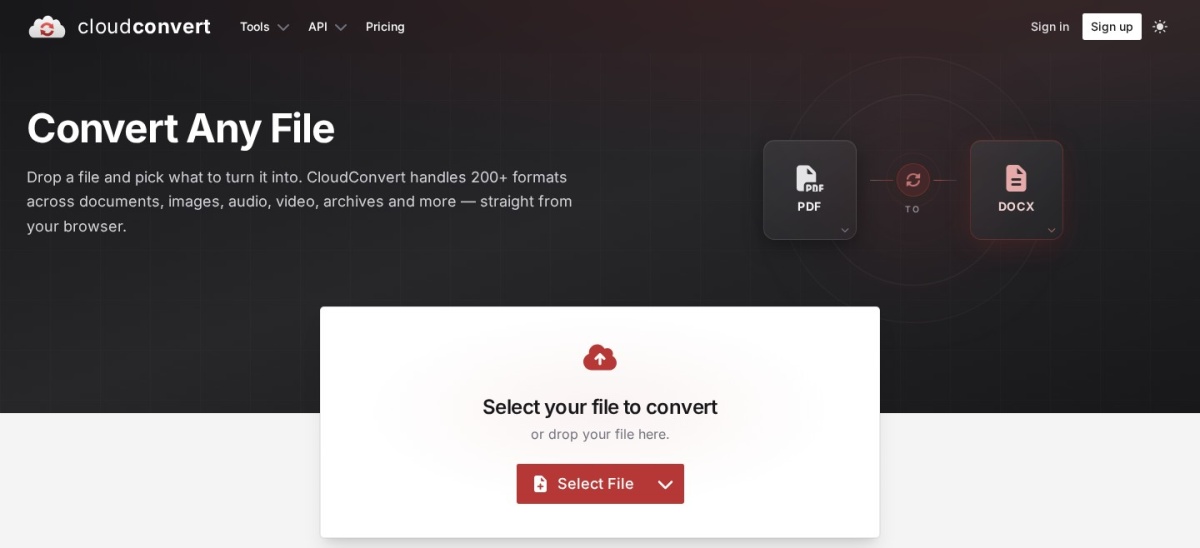
CloudConvert is a browser-based file conversion platform and developer API supporting over 200 video, audio, image, and document formats without local installation. Its free tier includes 10 conversion credits per day, up to 5 concurrent tasks, a 1 GB file size cap, and direct import/export with Google Drive, Dropbox, and OneDrive.
The trade off is usage-based credit billing that starts at $9/mo ($108/yr) for 1,000 monthly credits or $17 for a non-expiring 1,000-credit package, and large uploads depend on your internet speed. It suits teams and developers needing quick cloud conversions or API automation.
What we like
No desktop software installation required; runs in any browser
Full REST API access included even on the free tier
Non-expiring one-time credit packs available alongside monthly plans
Direct integration with Google Drive, Dropbox, and OneDrive
Watch out for
Free plan caps files at 1 GB and 5 minutes of processing time
Monthly subscription credits expire without rollover
Requires uploading large video files over the internet
Paid plans remove the 1 GB file limit, add high-priority queues, and start at 1,000 credits.Visit cloudconvert.com
04
Movavi Video Converter
4.8/5on G2 (60 reviews, checked Nov 2026)
Starts at$54.95/yr
Best for simple preset-driven conversions
PlatformsWindows, macOS
Supported formats180+ formats
Device profiles200+ presets
Free trial7-day trial
movavi.com
Movavi Video Converter homepage, captured Nov 2026.
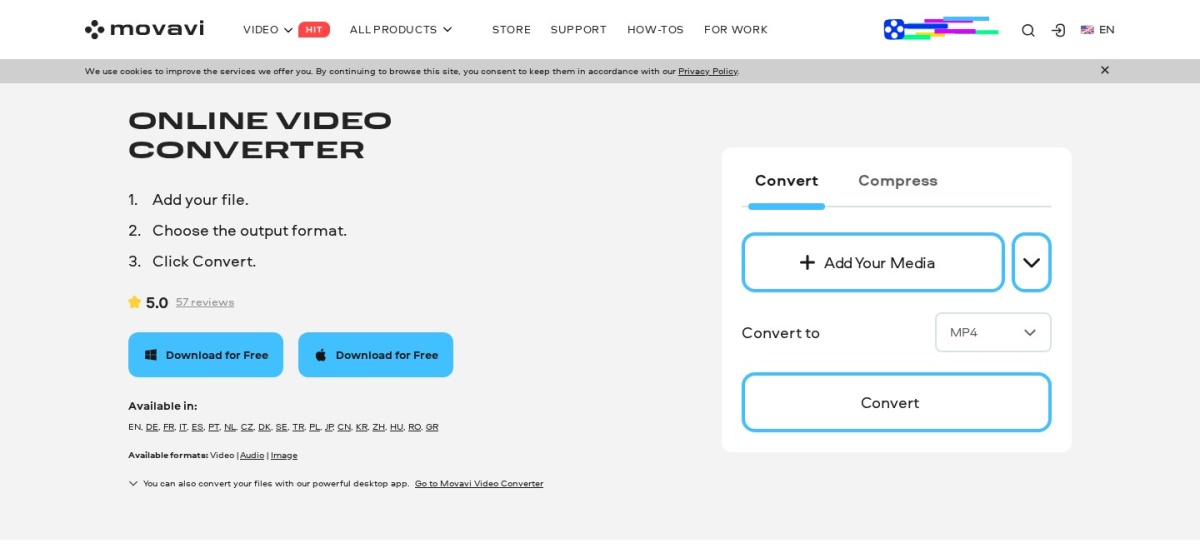
Movavi Video Converter is a desktop media utility for Windows and macOS built around fast drag-and-drop conversion across more than 180 formats and 200 device presets. Alongside format transcoding and lossless file merging, it includes basic trimming, cropping, rotation, online subtitle search, and AI quality enhancement.
The trade off is that there is no permanent free version—only a 7-day trial—and the regular 1-year license costs $54.95/yr (often discounted during seasonal sales). It suits non-technical users who want a clean interface and one-click device presets without configuring codec parameters.
What we like
Clean, approachable interface with 200+ ready-made device profiles
Fast hardware-accelerated conversion and lossless clip merging
Built-in trimming, cropping, effects, and subtitle search
Highest G2 rating in this comparison at 4.8/5 across 60 reviews
Watch out for
No free tier beyond a restricted 7-day trial
Fewer advanced codec and container controls than HandBrake
Paid license unlocks unlimited full-length exports without trial restrictions.Visit movavi.com
05
Any Video Converter
4.8/5on G2 (21 reviews, checked Nov 2026)
Paid from$19.95/mo
Best budget desktop converter with free tier
PlatformsWindows, macOS
Supported formats1,000+ formats
Free tierUnlimited basic conversions
Yearly Pro price$39.95/yr (or $19.95/mo)
any-video-converter.com
Any Video Converter homepage, captured Nov 2026.
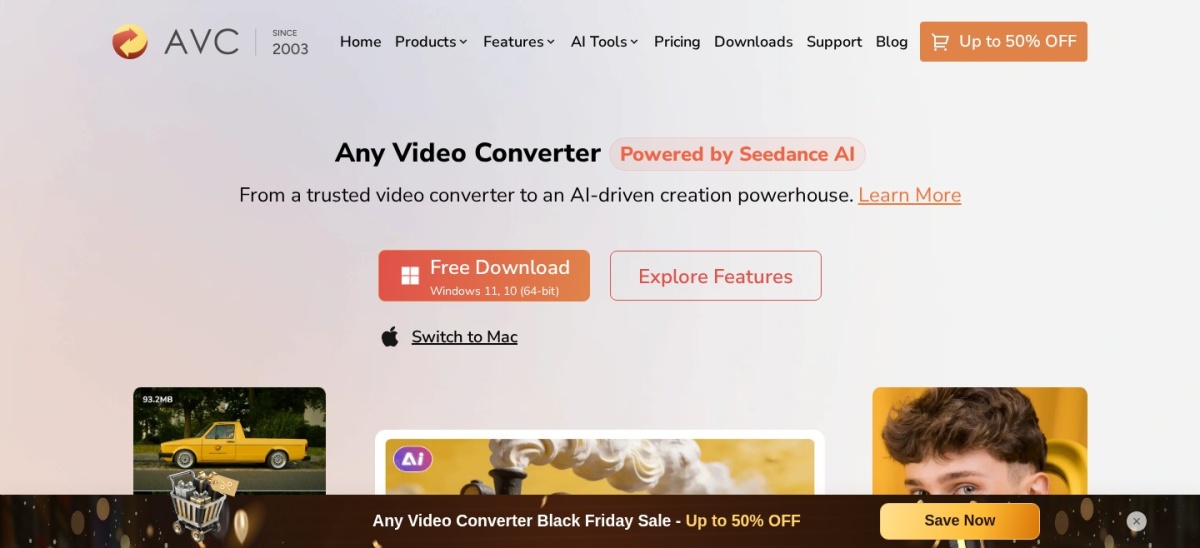
Any Video Converter by Anvsoft pairs a capable freeware desktop app with optional Pro and Ultimate upgrades on Windows and macOS. The free edition handles conversion across more than 1,000 formats, batch processing, video compression, trimming, merging, and custom presets without watermarks or daily file caps.
The trade off is that upgrading to Pro costs $19.95/mo ($239.40/yr billed monthly) or $39.95/yr billed annually to unlock DVD burning, screen recording, and parallel tasks, while Ultimate adds AI upscaling and transcription. It suits casual users who want a free GUI tool with a low-cost annual upgrade path.
What we like
Generous freeware edition converts 1,000+ formats with no watermarks
Includes batch conversion, trimming, merging, and compression for free
Annual Pro plan is only $39.95/yr if billed yearly
Watch out for
Monthly billing ($19.95/mo) is steep compared to the annual plan
AI enhancement and speech-to-text require the pricier Ultimate tier
Winxvideo AI (formerly WinX HD Video Converter Deluxe) combines full GPU-accelerated format conversion with local AI restoration models on Windows and macOS. It converts 4K/8K H.264, HEVC, AV1, and ProRes files, compresses large videos, records screens, and upscales grainy footage up to 4K while stabilizing camera shake.
The trade off is that the free trial limits video conversions to 5 minutes and caps AI exports at 5 watermark-free files, while the regular 1-year plan for 3 PCs is $59.95/yr (often discounted to $34.95/yr during sales). It suits creators restoring older or low-resolution footage during conversion.
What we like
Combines format transcoding with local AI upscaling, stabilization, and frame interpolation
1-year license covers up to 3 computers with unlimited AI processing
Supports NVIDIA, Intel, and AMD hardware acceleration
Watch out for
Free trial restricts conversion length to 5 minutes per file
Regular renewal rate ($59.95/yr) is higher than entry sale promos
Full license removes the 5-minute file cap and unlocks unlimited AI enhancements.Visit winxdvd.com
07
VLC Media Player
4.7/5on G2 (630 reviews, checked Nov 2026)
PriceFree
Best for quick conversions without new installs
PlatformsWindows, macOS, Linux, iOS, Android
Latest releaseVLC 3.0.24
LicenseOpen-source (GPL)
Cost100% Free
videolan.org
VLC Media Player homepage, captured Nov 2026.
VLC Media Player is VideoLAN's free, open-source multimedia player that also includes a built-in transcoding utility under its Convert/Save menu. Already installed on millions of Windows, macOS, and Linux computers, it plays and converts dozens of video and audio formats, rips unprotected discs, and extracts MP3 or AAC audio tracks at zero cost.
The trade off is a dated conversion dialog with limited bitrate tuning, slower encoding than HandBrake, and no graphical batch queue. It suits users who already have VLC installed and need an occasional one-off file conversion without downloading dedicated software.
What we like
Completely free and open source with zero ads or telemetry
Likely already installed on your desktop computer
Reads almost any damaged or obscure input video container
Watch out for
Conversion menu is buried and lacks visual feedback
No graphical batch queue for processing multiple files at once
Fewer quality and hardware encoding controls than HandBrake
No paid plan; developed and maintained by the non-profit VideoLAN organization.Visit videolan.org
08
Adobe Media Encoder
4.5/5on G2 (209 reviews, checked Nov 2026)
Starts at$22.99/mo
Best for Adobe Premiere and After Effects users
PlatformsWindows, macOS
AutomationWatch folders and background queues
Pro codecsProRes, DNxHD, MXF, H.264, HEVC
AvailabilityBundled with Creative Cloud apps
adobe.com
Adobe Media Encoder homepage, captured Nov 2026.
Adobe Media Encoder is a professional transcoding and background rendering engine bundled with Adobe Premiere Pro and After Effects subscriptions starting at $22.99/mo ($275.88/yr). It processes multiple video outputs simultaneously, monitors automated watch folders for hands-free batch encoding, and exports broadcast formats including Apple ProRes, DNxHD, MXF, H.264, and HEVC.
The trade off is that Adobe does not sell Media Encoder as a cheap standalone utility, making it expensive if you do not already use Creative Cloud. It suits video editors and post-production teams working inside the Adobe ecosystem.
What we like
Direct background queue integration with Premiere Pro and After Effects
Supports broadcast codecs like ProRes, DNxHD, and MXF alongside web presets
Watch out for
Not sold standalone; requires a Creative Cloud app plan from $22.99/mo
Heavy system resource footprint compared to lightweight converters
Included at no extra charge with Premiere Pro, After Effects, or Creative Cloud All Apps.Visit adobe.com
Remuxing vs. re-encoding: when you do not need to lose quality
Many users re-encode an entire video just to change its file extension from MKV or MOV to MP4. Re-encoding decompresses and re-compresses every frame, which takes minutes or hours and slightly reduces visual fidelity.
When the underlying video and audio streams (such as H.264 video and AAC audio) are already compatible with your target player, tools like FFmpeg can remux the streams into a new container in seconds with zero quality loss. Choose a full re-encode in HandBrake or Movavi only when you need to shrink file size, change resolution, or switch to a newer codec like AV1.
How we chose
We evaluated established desktop and cloud video conversion tools based on supported codecs, hardware acceleration, batch workflow features, and verified user sentiment on G2. Our selection includes both free open-source utilities and commercial suites so buyers can match software to their technical comfort and budget.
All product ratings, review counts, software release versions, and regular pricing tiers were verified directly on official vendor websites and G2 product pages on 22 Nov 2026. Where vendors run seasonal discounts, we listed the standard non-sale price and noted promotional pricing in the review.
We excluded browser converters with unverified ownership, tools that have not received updates in the past 12 months, and products without publicly verifiable pricing or established review profiles. No vendor paid for a place, and we do not claim testing for this list.
How to choose the right video converter software
Match your file volume, technical comfort, and target codecs to the right conversion workflow before paying for a license.
Check whether a free open-source tool already covers your formats. If you only need to convert videos to MP4, MKV, or WebM and compress large 4K files, HandBrake and VLC handle the job locally without watermarks, subscriptions, or file-size limits.
Verify GPU hardware acceleration for 4K and batch workloads. Converting multi-gigabyte 4K footage on a CPU alone can take hours. Confirm that your chosen tool supports NVIDIA NVENC, Intel Quick Sync, AMD VCN, or Apple VideoToolbox to speed up exports.
Decide between local desktop processing and cloud convenience. Browser tools like CloudConvert eliminate software installs and offer APIs, but uploading large raw footage takes bandwidth and uses paid credits. Desktop apps process sensitive or oversized files locally at full disk speed.
Compare regular annual renewal rates against lifetime licenses. Many commercial converters advertise steep introductory discounts on their checkout pages. Check the standard renewal rate or opt for a one-time perpetual license if you plan to use the software for several years.
FAQ
What is the best completely free video converter with no watermark?
HandBrake is the best free video converter with no watermarks, file-size limits, or paid upgrades. It is open source, runs on Windows, macOS, and Linux, and supports GPU-accelerated H.264, H.265, and AV1 batch encoding.
Is HandBrake safe to download and use?
Yes, HandBrake is a long-standing open-source project licensed under the GPL with zero ads or bundled adware when downloaded directly from its official website, handbrake.fr.
Does converting a video reduce its quality?
Re-encoding a video with a lossy codec like H.264 or H.265 always discards some data, though high-quality settings make the difference invisible to the eye. If you only change the container format via remuxing in FFmpeg, quality remains 100% identical.
Which video format gives the smallest file size without losing quality?
H.265 (HEVC) and AV1 deliver roughly 30% to 50% smaller files than H.264 at comparable visual quality. However, H.264 remains the safest choice when you need guaranteed playback on older TVs, browsers, and mobile devices.
When should I pay for video converter software instead of using HandBrake?
Consider paid tools like Movavi Video Converter, Winxvideo AI, or CloudConvert if you want beginner-friendly device presets, AI video upscaling, screen recording, DVD burning, or cloud API automation without learning technical encoding settings.
SaaS SEO and WordPress specialist with about 8 years of experience. Rakib compares WordPress plugins, themes, hosting and software using public pricing, documentation and user reviews. See how we rank.