HandBrake is the best video compression software for most users because it is completely free, open-source, and encodes AV1, H.265, and H.264 locally without file size limits or watermarks. Choose VideoProc Converter AI for GPU-accelerated batch compression with target file sizes, or FreeConvert for browser-based compression up to 1 GB per file.
How we make this list: we compare pricing pages, product documentation and public user reviews, then re-check every price before each update. No product paid for a place. Disclosure.
HandBrake 1.11.2 compresses unlimited local videos in AV1, H.265, and H.264 for $0 with zero watermarks and a 4.7/5 G2 rating.
VideoProc Converter AI uses GPU acceleration across 370+ input formats and starts at $59.95/yr regular price ($34.95/yr on sale) or $89.95 one-time.
Wondershare UniConverter handles 1,000+ formats with batch compression starting at $49.99/yr or $79.99 for a perpetual license.
DaVinci Resolve bundles delivery encoding with full post-production for free, while Studio costs $295 one-time ($236 on special).
FreeConvert and CloudConvert handle cloud compression without installs, starting at $12.99/mo and $9/mo respectively for higher file limits.
What to look for in video compression software
Video compression shrinks large camera, screen, or editing exports so they upload faster, meet attachment caps, and stream smoothly without visible artifacting. The best tools balance file size reduction against visual clarity by supporting modern codecs like H.264, H.265 (HEVC), and AV1 alongside adjustable bitrate or constant quality controls.
Desktop software processes files directly on your hardware, avoiding upload wait times and keeping private footage off third-party servers. Hardware acceleration through Intel Quick Sync, NVIDIA NVENC, AMD VCE, or Apple Silicon dramatically cuts encoding time on 4K files, while batch queues let you shrink entire folders overnight.
Browser-based compressors work well when you cannot install desktop apps or only need occasional single-clip reductions. When comparing cloud tools, pay close attention to free file size caps, daily conversion minute limits, and whether free exports add watermarks.
Pricing models vary widely across the category. Open-source transcoders cost nothing forever, commercial desktop suites typically offer annual subscriptions alongside one-time perpetual licenses, and web platforms bill via monthly subscriptions or pay-as-you-go credit packs.
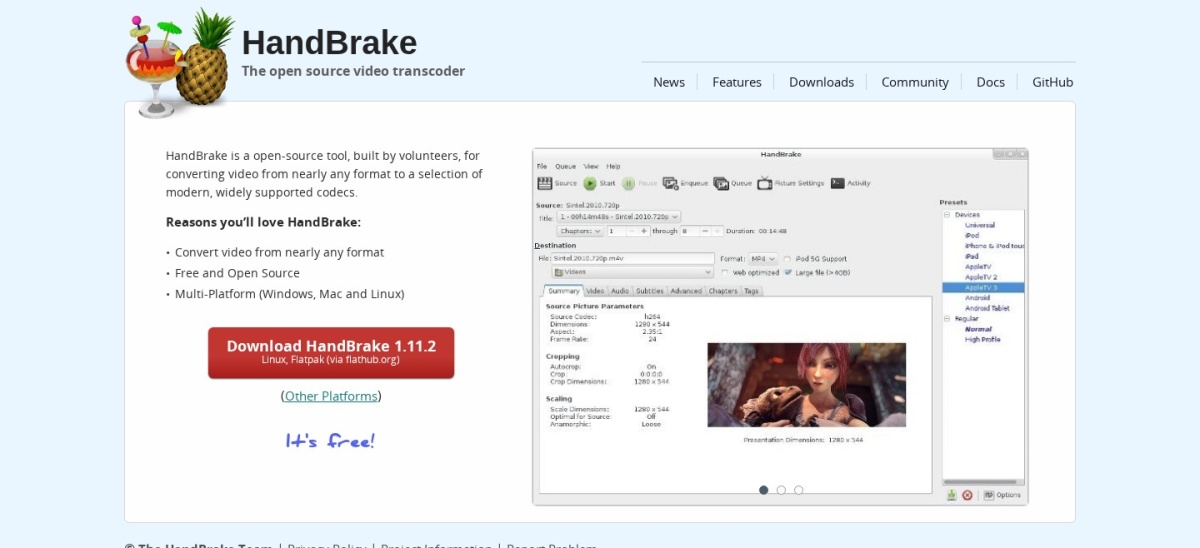
HandBrake is a free, open-source video transcoder for Windows, macOS, and Linux that compresses local files with no size caps, time limits, or watermarks. Version 1.11.2 supports AV1, H.265, H.264, VP9, and VP8 encoders alongside hardware-accelerated encoding, constant quality RF sliders, average bitrate targets, batch scanning, and built-in device or web presets.
The trade off is a dense interface with no one-click target file size box, so reaching a strict megabyte cap requires adjusting quality or bitrate settings manually. Since it is 100% free under the GPLv2 license with no paid tiers, it suits creators, developers, and teams who want full local encoding control at zero cost.
What we like
Completely free and open-source with no paid tiers or watermarks
Supports modern AV1, H.265, and H.264 codecs with GPU acceleration
Handles batch folder queues and reusable custom presets offline
Strong 4.7/5 rating across 155 G2 user reviews
Watch out for
No simple target-megabyte slider for exact email attachment sizes
Dense settings tabs take time for beginners to learn
4.3/5on Trustpilot (517 reviews, checked Nov 2026)
Paid from$59.95/yr
Best for GPU-accelerated batch compression
PlatformsWindows, macOS
Supported formats370+ inputs, 420+ outputs
Size controlExact MB target or 10%–90% slider
One-time option$89.95 regular ($54.95 on sale)
videoproc.com
VideoProc Converter AI homepage, captured Nov 2026.
VideoProc Converter AI is a desktop video compressor and converter for Windows and macOS built around Level-3 GPU acceleration. Its free trial handles videos under 5 minutes without watermarks, while the full version supports 370+ input formats, 420+ outputs, batch compression, and exact target file size or percentage reduction controls.
The trade off is that files over 5 minutes require a paid license, regularly priced at $59.95/yr for 3 PCs ($34.95/yr during frequent flash sales) or $89.95 one-time for 1 PC ($54.95 on sale). It suits Windows and Mac users who want fast hardware-accelerated shrinking and AI upscaling without manual command flags.
What we like
Set exact output file sizes in megabytes or drag a compression ratio slider
Full GPU acceleration speeds up large 4K H.265 and AV1 encodes
Includes trimming, cropping, and AI video/audio enhancement tools
Watch out for
Free trial caps video conversions at 5 minutes per file
Desktop-only application with no browser workflow
Frequent promotional pricing makes regular rates harder to spot
Paid plans remove the 5-minute file cap and unlock unlimited AI tools.Visit videoproc.com
03
Wondershare UniConverter
4.3/5on G2 (41 reviews, checked Nov 2026)
Paid from$49.99/yr
Best for broad format support and presets
PlatformsWindows, macOS
Supported formats1,000+ video and audio formats
Batch toolsMulti-file compressor and converter
Perpetual license$79.99 one-time fee
videoconverter.wondershare.com
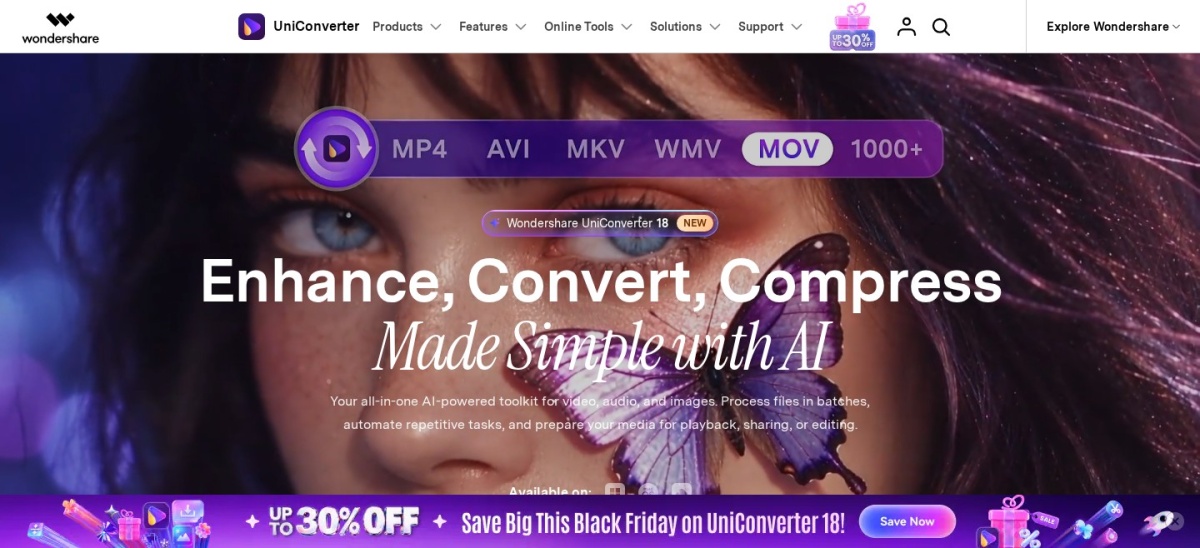
Wondershare UniConverter homepage, captured Nov 2026.
Wondershare UniConverter is a Windows and Mac media toolbox that compresses and converts across more than 1,000 video and audio formats. A free trial lets you test the interface before upgrading to the Yearly Plan at $49.99/yr or the Perpetual Plan at $79.99 one-time, both of which unlock batch compression, 4K/8K conversion, and adjustable bitrate, resolution, and frame rate controls.
The trade off is that newer generative AI features run on a separate credits system, and the free trial restricts full export length. At $49.99/yr or $79.99 one-time, it suits creators and small business teams who want a guided desktop compressor that converts obscure camera formats into web-ready MP4s.
What we like
Supports 1,000+ input and output formats for legacy and modern clips
Simple batch compressor adjusts quality and resolution across folders
Choice of $49.99/yr subscription or $79.99 one-time perpetual license
High 9.0/10 Ease of Setup score on G2
Watch out for
Advanced AI tools consume separate monthly or bonus credits
Heavier all-in-one suite than single-purpose compressors
Free export capUp to Ultra HD (3840x2160) at 60 fps
Delivery codecsH.264, H.265, AV1, ProRes, DNxHR
Studio license$295 one-time ($236 on special)
blackmagicdesign.com
DaVinci Resolve homepage, captured Nov 2026.
DaVinci Resolve is a professional editing, color grading, and audio post-production suite whose Deliver page doubles as a granular video compressor. The free version requires registration and exports watermark-free H.264, H.265, and AV1 files up to 4K Ultra HD at 60 fps with custom bitrate ceilings, resolution scaling, and multi-clip render queues.
The trade off is high hardware overhead and a $295 one-time price ($236 during Blackmagic specials) if you need DaVinci Resolve Studio for 10-bit H.264/H.265 hardware encoding, resolutions above 4K, or Neural Engine AI tools. It suits video editors who want to trim, grade, and compress final deliverables in one app.
What we like
Generous free version exports watermark-free 4K 60fps video
Precise bitrate limits, multipass encoding, and social export presets
No recurring subscription; Studio is a $295 one-time purchase
4.8/5 rating across 273 Capterra reviews
Watch out for
Large download and demanding GPU/RAM requirements for quick tasks
10-bit H.265 hardware encoding and 8K exports require Studio
DaVinci Resolve Studio ($295 one-time) adds 10-bit hardware encoding, >4K export, and AI tools.Visit blackmagicdesign.com
05
FreeConvert
4.6/5on Trustpilot (17,400 reviews, checked Nov 2026)
Paid from$12.99/mo
Best for free browser compression up to 1 GB
DeploymentWeb browser and REST API
Free file limit1 GB per file, 20 conversion min/day
Compression modesTarget size (MB), percentage, or CRF
Paid file limits1.5 GB (Basic) up to 20 GB (Scale)
freeconvert.com
FreeConvert homepage, captured Nov 2026.
FreeConvert is a browser-based file compression and conversion service that runs without desktop installation. Its free tier accepts files up to 1 GB with 20 conversion minutes per day and no watermarks, letting you compress MP4, MOV, MKV, or AVI clips by target file size, percentage, H.264/H.265 codec, or Constant Rate Factor.
The trade off is per-minute processing billing and upload wait times on large videos, with the entry Basic plan starting at $12.99/mo ($155.88/yr) for 1,500 conversion minutes per month and a 1.5 GB file cap. It suits users who want watermark-free web compression with granular codec controls.
What we like
Generous 1 GB free file size limit with no output watermarks
Supports exact target file size in MB as well as H.265 and CRF tuning
Works in any browser with Google Drive and Dropbox integration
Over 17,400 Trustpilot reviews with a 4.6/5 score
Watch out for
Free tier caps usage at 20 conversion minutes per day and 5 minutes per file
Long 4K videos consume many conversion minutes and upload slowly
Basic ($12.99/mo) unlocks 1,500 conversion minutes/month, 1.5 GB files, and an ad-free UI.Visit freeconvert.com
06
CloudConvert
4.7/5on Trustpilot (76 reviews, checked Nov 2026)
Paid from$9/mo
Best for API automation and pay-as-you-go credits
DeploymentWeb app, REST API, Zapier/Make
Free allowance10 conversion credits/day, 1 GB max
Video controlsH.264, H.265, AV1, VP9, CRF, resolution
Credit packages$17 one-time for 1,000 non-expiring credits
cloudconvert.com
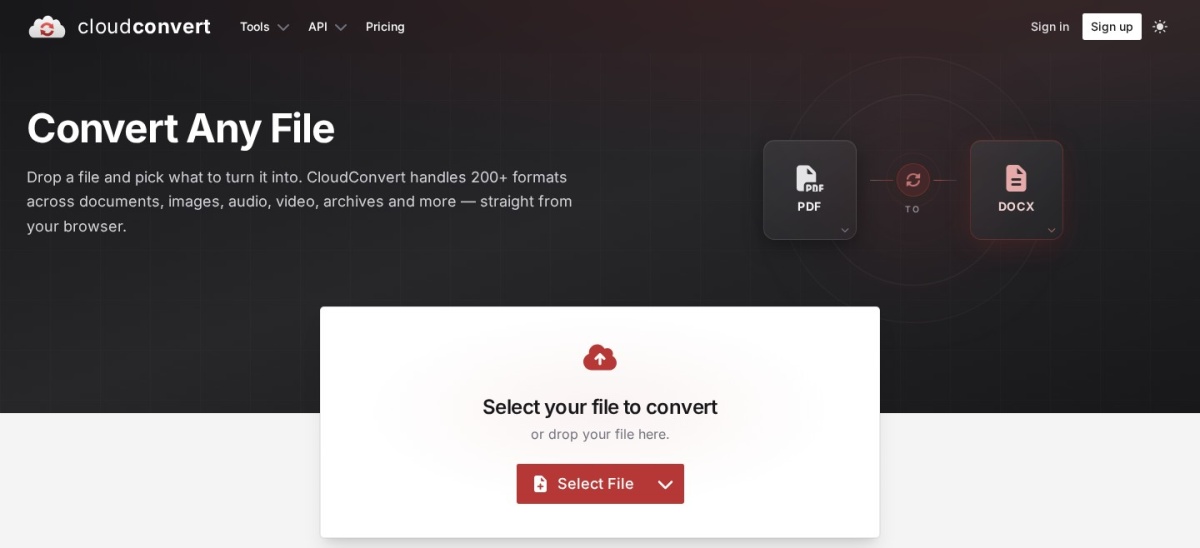
CloudConvert homepage, captured Nov 2026.
CloudConvert is an online file conversion and video compression platform built for both browser users and developer workflows. The free plan includes 10 conversion credits per day for files up to 1 GB and 5 minutes of processing time, exposing codec, CRF quality, resolution, frame rate, and audio bitrate controls for MP4, WebM, and MKV outputs.
The trade off is credit-based consumption where longer encodes use multiple credits, with subscriptions starting at $9/mo ($108/yr) for 1,000 monthly credits or $17 one-time for 1,000 non-expiring credits. It suits teams automating video compression via API, S3 buckets, or cloud storage.
What we like
One-time $17 credit packs never expire for occasional bursts
Exposes CRF, preset speed, resolution, and codec parameters in the browser
Direct integrations with Amazon S3, Google Cloud, Dropbox, and Google Drive
Clean, ad-free web interface even on the free tier
Watch out for
Free plan limits jobs to 10 credits per day and 5 minutes processing time
Long high-resolution videos burn through credits quickly
Paid subscriptions ($9/mo) and packages ($17) remove file size and runtime caps.Visit cloudconvert.com
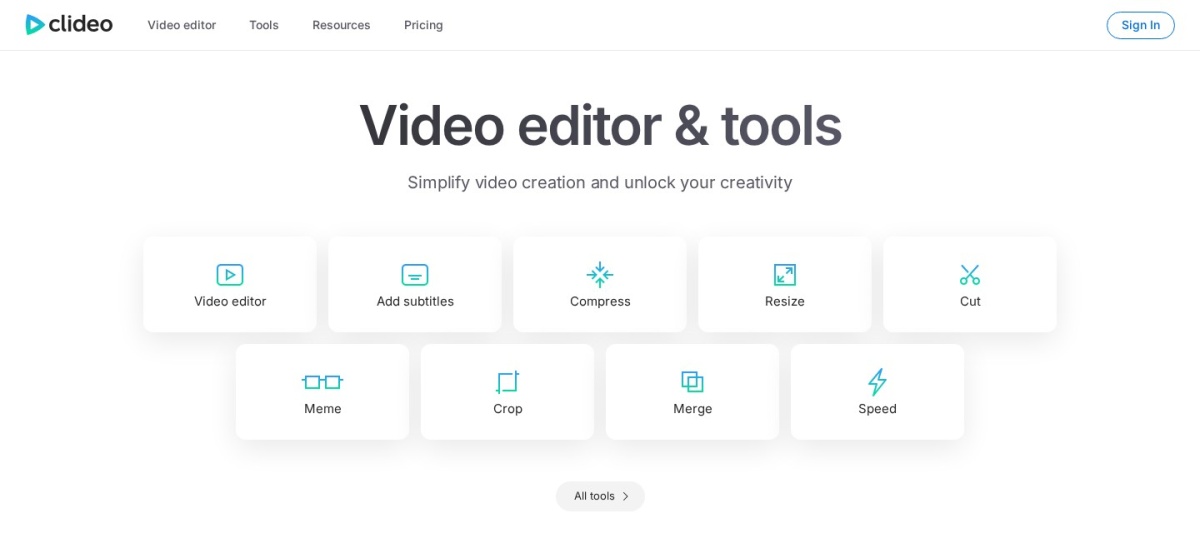
Clideo is a browser-based video toolkit featuring a single-purpose Video Compressor designed for quick, zero-setup file shrinking. Visitors can upload MP4, MOV, WMV, or AVI clips up to 500 MB for free and let Clideo automatically reduce file size while previewing the estimated output size before download.
The trade off is a corner watermark on free exports and no manual codec or bitrate controls, requiring Clideo Pro at $9/mo ($108/yr billed monthly, or $72/yr billed annually) for watermark-free exports and uploads up to 100 GB. It suits non-technical users who want the simplest browser workflow for occasional clips.
What we like
Zero learning curve with automatic compression and size preview
No account required to test basic compression in the browser
Clideo Pro ($72/yr annual or $9/mo) unlocks 100 GB uploads across all tools
Watch out for
Adds a visible watermark on all free tier exports
No manual control over codecs, CRF, or target megabytes
Lower Capterra user score (2.9/5) compared to desktop transcoders
Clideo Pro removes watermarks, raises uploads to 100 GB, and unlocks all editing tools.Visit clideo.com
Desktop vs. browser video compressors
Desktop tools like HandBrake, VideoProc Converter AI, and DaVinci Resolve encode footage using your local CPU and GPU. They handle multi-gigabyte 4K files faster than uploading over a home internet connection, never impose file size caps, and keep sensitive client or personal videos off external servers.
Browser tools such as FreeConvert, CloudConvert, and Clideo shine when you work on a locked-down Chromebook, mobile device, or shared computer. They eliminate software installation and codec configuration, though free plans restrict file sizes to 500 MB–1 GB and large uploads can stall on slower connections.
How we chose
We evaluated actively maintained desktop transcoders, NLE export tools, and browser-based video compressors across Windows, macOS, Linux, and the web. Selection focused on support for modern high-efficiency codecs (H.264, H.265, AV1), batch processing, control over output file size or bitrate, and transparent pricing.
All pricing plans, free tier limits, user ratings, and review counts were verified directly from official vendor pricing pages and public review platforms (G2, Capterra, and Trustpilot) on 22 Nov 2026. Where vendors display temporary promotional discounts, we listed the regular non-sale price as the primary figure and noted active sale rates in the text.
We excluded discontinued desktop utilities, browser compressors that hide pricing behind account walls, and command-line-only libraries without a graphical interface. No vendor paid for a place, and we do not claim testing for this list.
How to choose the right video compression software
Match your file sizes, privacy needs, and technical comfort level to the right compression workflow before paying for a license.
Check your typical file size and internet upload speed. If you regularly compress 4K camera footage or multi-gigabyte screen recordings, choose a local desktop app like HandBrake or VideoProc Converter AI so you skip slow cloud uploads and strict file caps.
Decide between target file size and visual quality presets. If you need to hit an exact limit such as 25 MB for email or 10 MB for chat, pick a tool with a direct megabyte target box like VideoProc Converter AI or FreeConvert rather than guessing bitrates.
Verify hardware acceleration and modern codec support. Encoding H.265 (HEVC) or AV1 shrinks files 30% to 50% smaller than older H.264 at similar visual quality, so confirm the software supports your NVIDIA, AMD, Intel, or Apple Silicon media engine.
Compare one-time licenses against free open-source tools. Start with HandBrake if you want unlimited offline compression for $0, or choose a one-time perpetual desktop license from VideoProc or Wondershare if you prefer guided presets and batch AI tools without recurring fees.
FAQ
What is the best free video compression software with no watermark?
HandBrake is the best free desktop option because it is open-source, works on Windows, macOS, and Linux, and has zero file size limits or watermarks. For browser use without installing software, FreeConvert allows watermark-free compression up to 1 GB per file on its free tier.
Which video codec compresses files smallest without losing quality?
AV1 and H.265 (HEVC) deliver the smallest file sizes at a given visual quality, typically reducing file size by 30% to 50% compared to H.264. H.264 remains the safest choice when compatibility with older phones, browsers, or smart TVs matters most.
Is desktop or online video compression faster?
Desktop compression is much faster for files larger than a few hundred megabytes because it uses your local GPU and avoids uploading raw video over the internet. Online compressors are only faster for small clips when you do not already have desktop software installed.
How can I compress a video to an exact megabyte size?
Use a compressor that includes a target file size mode, such as VideoProc Converter AI on desktop or FreeConvert in the browser. Enter your desired megabyte cap and the tool calculates the required video bitrate automatically.
Can video editing software compress videos as well as dedicated tools?
Yes, editors like DaVinci Resolve include full export encoding controls on their Deliver page, allowing you to cap bitrates, switch codecs, and downscale resolution. Dedicated tools like HandBrake are simply lighter and faster when you do not need timeline editing.
SaaS SEO and WordPress specialist with about 8 years of experience. Rakib compares WordPress plugins, themes, hosting and software using public pricing, documentation and user reviews. See how we rank.