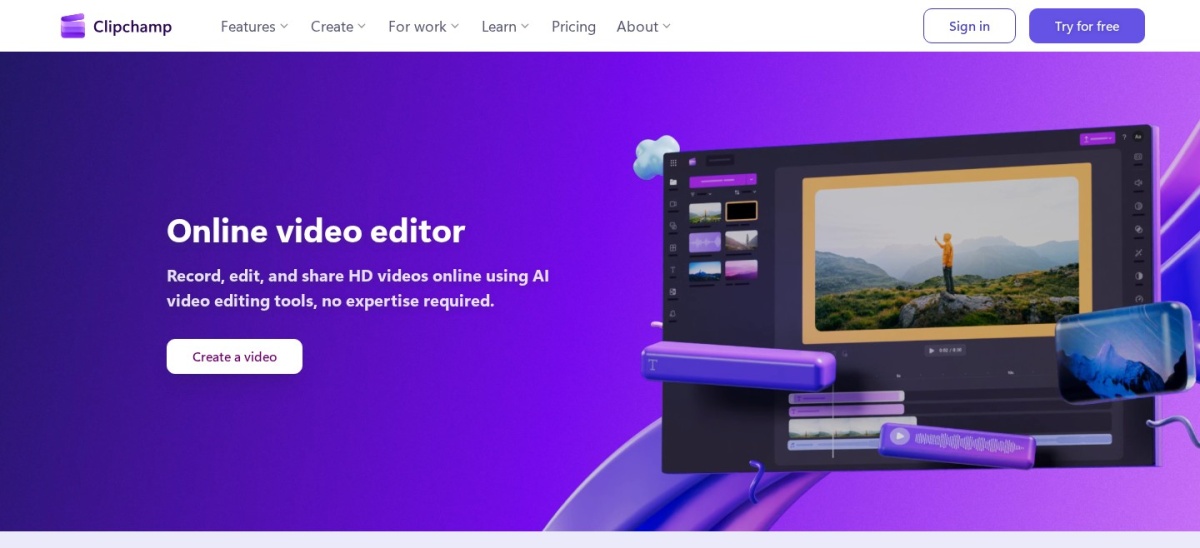
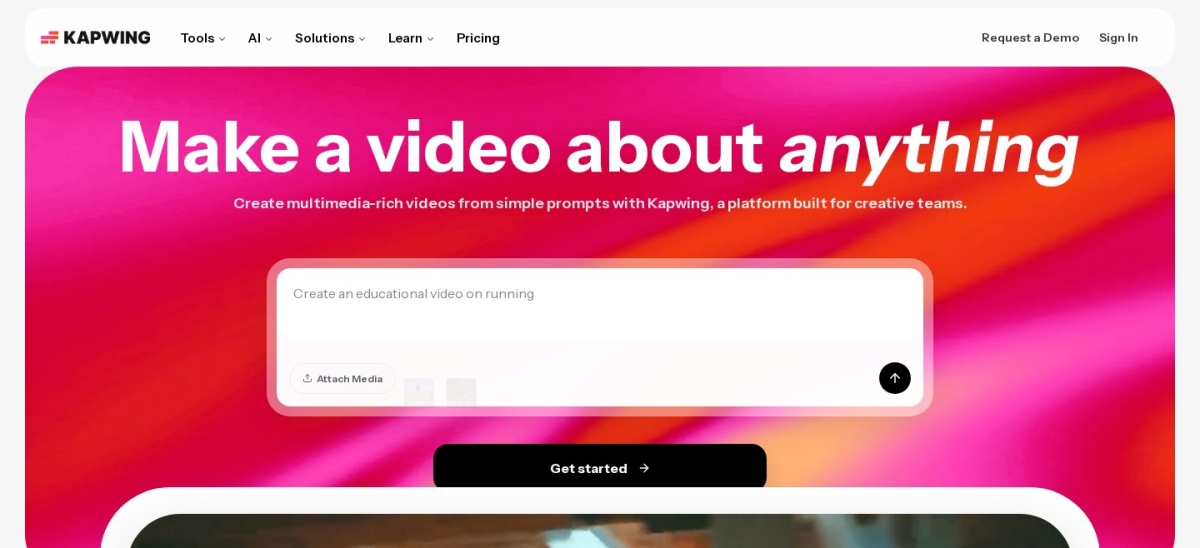
Clipchamp is the best software to merge videos for most users, offering free watermark-free exports at 1080p resolution. Choose DaVinci Resolve for professional editing and color correction, or Kapwing for combining video clips in a collaborative browser-based workspace.
How we make this list: we compare pricing pages, product documentation and public user reviews, then re-check every price before each update. No product paid for a place. Disclosure.
Clipchamp combines videos and exports at 1080p without watermarks for free.
DaVinci Resolve has a 4.8/5 Capterra rating and a $295 one-time Studio upgrade.
Kapwing Pro costs $16 per month with annual billing and supports 4K exports.
Shotcut and OpenShot are completely free, open-source video editors.
Descript Hobbyist includes 10 media hours per month for $192 a year.
Adobe Premiere costs $275.88 per year at its regular subscription rate.
What to look for in software to merge videos
Video merging software combines separate clips into a continuous video. A suitable editor should let you rearrange footage, remove unwanted sections, adjust audio and export the finished project.
File compatibility matters when combining footage from phones, cameras and screen recordings. Look for an editor that accommodates different resolutions, frame rates and video formats.
Free video editors can handle most basic merging projects. Paid plans generally add higher export resolutions, premium transitions, automated editing and collaboration features.
Check whether the software processes files locally or uploads them to a cloud workspace. Desktop editors are particularly useful for large files, confidential recordings and unreliable internet connections.
Clipchamp is a beginner-friendly video editor that combines clips through a visual timeline. Its free version supports watermark-free 1080p exports, trimming, transitions and audio editing.
The trade off is that premium stock assets, brand customization and 4K exports require Microsoft 365 Personal at a regular $99.99 per year. A temporary first-year discount is available. It suits beginners, educators and creators making straightforward videos.
DaVinci Resolve is a professional video editor combining timeline editing, audio production, visual effects and color adjustment. Its free edition covers standard video merging and carries a 4.8/5 rating from 273 Capterra reviews.
The trade off is a steeper learning curve and greater hardware requirements than simpler editors. Studio costs $295 as a one-time purchase and adds advanced processing features. It suits filmmakers and experienced creators working with complex footage.
Kapwing is a browser-based video editing platform for combining footage, adding subtitles and collaborating with teammates. Its free version supports watermarked 720p exports lasting up to four minutes.
The trade off is that longer projects and clean exports require Pro at $16 per month, billed annually. Uploading large recordings also takes time. It suits marketing teams and creators who need shared access to editing projects.
What we like
No software installation required
Shared editing workspace
Subtitle and text editing tools
4K exports on Pro
Watch out for
Free exports contain watermarks
Dependent on internet connectivity
Short free export duration
Pro adds watermark removal, longer exports and higher resolution.Visit kapwing.com
04
Shotcut
4.5/5on Capterra (78 reviews, checked Nov 2026)
PriceFree
Best for free desktop video merging
LicenseOpen source
ResolutionUp to 4K
PlatformsWindows, macOS, Linux
WatermarkNone
shotcut.org
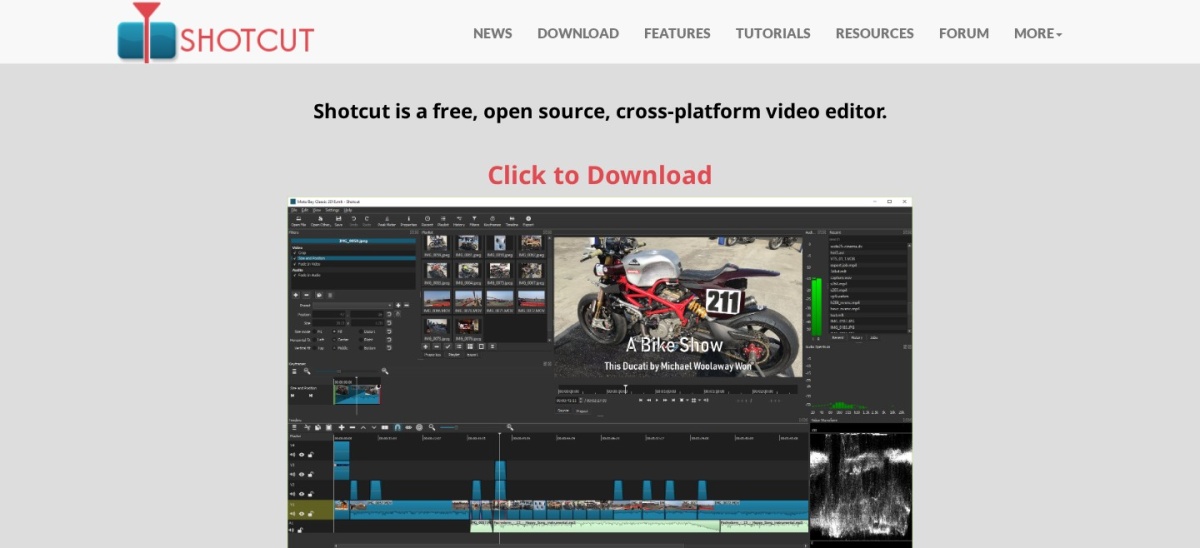
Shotcut homepage, captured Nov 2026.
Shotcut is a free desktop video editor that supports clips with different formats, resolutions and frame rates. It supports 4K footage and offers timeline editing without requiring a subscription.
The trade off is that Shotcut has a less guided interface than commercial beginner editors. All standard editing features are free, with no required paid upgrade. It suits budget-conscious creators who frequently combine footage from different devices.
What we like
Completely free and open source
Extensive video format compatibility
No forced watermarks
Local file processing
Watch out for
Less intuitive editing interface
Limited template library
Community-based support
All standard desktop editing features are available for free.Visit shotcut.org
05
OpenShot
4.3/5on Capterra (177 reviews, checked Nov 2026)
PriceFree
Best for simple offline video merging
LicenseOpen source
EditingDrag-and-drop timeline
PlatformsWindows, macOS, Linux
WatermarkNone
openshot.org
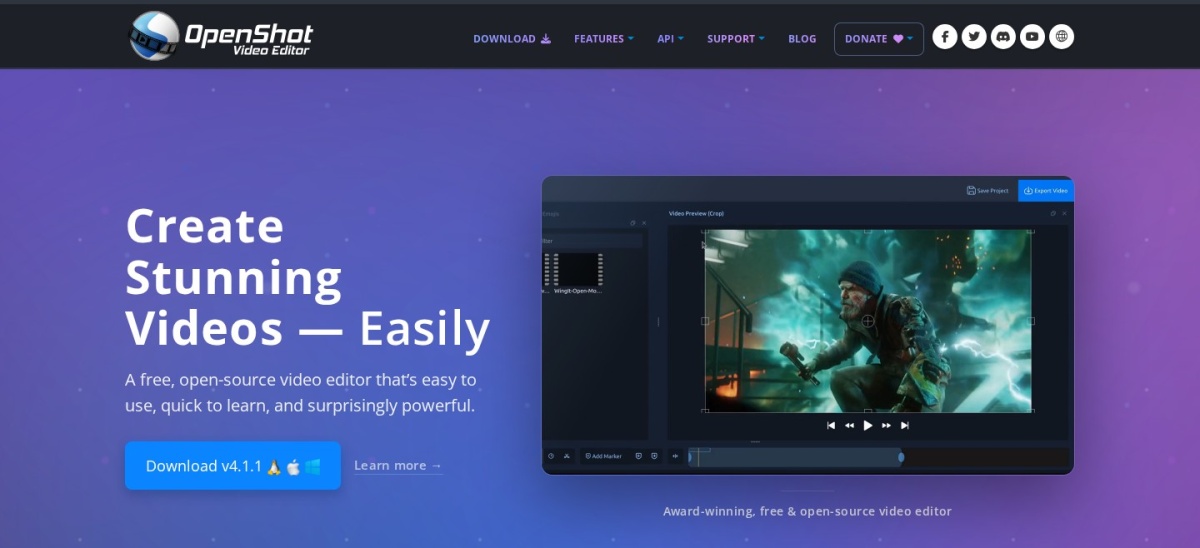
OpenShot homepage, captured Nov 2026.
OpenShot is a free video editor designed for arranging clips, creating transitions and adding titles through a visual timeline. It has a 4.3/5 rating from 177 Capterra reviews and requires no paid desktop license.
The trade off is limited advanced editing functionality compared with professional production software. The desktop application remains free without subscription charges. It suits occasional editors combining personal footage, presentations and short educational videos.
Descript is a video and audio editor that lets users combine recordings by editing their transcripts and arranging scenes. Its Hobbyist plan includes 10 monthly media hours and watermark-free 1080p exports.
The trade off is that media processing allowances limit how much footage users can work with. Hobbyist costs $16 per month with annual billing, while 4K exports require a higher plan. It suits interview producers, podcasters and training video creators.
What we like
Transcript-based editing
Automatic transcription and captions
Integrated audio cleanup
Useful for spoken-word recordings
Watch out for
Monthly media processing limits
4K requires a higher subscription
Less suitable for complex visual effects
Hobbyist adds watermark-free HD exports and expanded media allowances.Visit descript.com
07
Adobe Premiere
4.7/5on Capterra (613 reviews, checked Nov 2026)
Starts at$22.99/mo
Best for professional production workflows
EditingMultitrack timeline
Cloud storage100GB
Free trial7 days
BillingAnnual commitment, paid monthly
adobe.com
Adobe Premiere homepage, captured Nov 2026.
Adobe Premiere is a professional video editing application for joining footage, controlling transitions and managing production timelines. Its individual subscription includes 100GB of cloud storage, Adobe Express Premium and video review tools.
The trade off is the ongoing subscription cost of $22.99 per month with an annual commitment. Adobe advertises temporary promotional offers, but the regular rate is used here. It suits professional editors and production teams managing detailed video projects.
What we like
Precise timeline and trimming controls
Professional color and audio editing
Extensive production workflows
Integrated video review tools
Watch out for
No permanent free plan
Recurring subscription expense
Requires editing experience for advanced projects
The subscription provides professional editing tools and integrated Adobe services.Visit adobe.com
How to merge videos without unnecessary quality loss
Use original source files rather than previously compressed copies. Set the project resolution and frame rate to match your primary footage, and avoid unnecessary resizing.
Choose an export bitrate appropriate for the footage. Most timeline editors re-encode videos during export, so maintaining the original resolution does not guarantee identical image quality.
For compatible clips, specialized stream-copy workflows can concatenate files without re-encoding. Conventional video editors are more suitable when you need transitions, audio adjustments or mixed recording formats.
How we chose
We shortlisted established video editors that support joining clips into a continuous project. The comparison considers timeline controls, file compatibility, export quality, watermark policies and suitability for different editing workflows.
Prices, ratings and review counts were checked on 27 Nov 2026 using official product pages and Capterra. Annual subscriptions use regular annual billing rates, while perpetual licenses show their upfront purchase cost.
We excluded products without verifiable regular prices or established review histories. Completely free desktop editors remain eligible because they do not require a paid license. No vendor paid for a place, and we do not claim testing for this list.
How to choose the best software to merge videos
Compare your footage, editing requirements and export preferences before committing to a video merging application.
Check source file compatibility. Confirm that the editor accepts your recording formats, resolutions and frame rates before importing large projects.
Decide between online and desktop editing. Choose browser software for convenient collaboration or desktop software for local processing and larger files.
Compare export restrictions. Check watermark policies, maximum resolution, video duration and any monthly processing allowances.
Calculate the regular ownership cost. Compare annual subscription charges with one-time licenses and free open-source alternatives rather than relying on temporary discounts.
FAQ
What is the best free software to merge videos?
Clipchamp is a suitable free option for most beginners because it supports watermark-free 1080p exports. Shotcut and OpenShot are alternatives for users who prefer completely free desktop applications.
Can I merge videos without losing quality?
Yes, compatible video files can sometimes be joined without re-encoding through stream-copy workflows. Conventional editors usually encode the finished project again, so suitable resolution, bitrate and codec settings matter.
What is the best online video merger?
Kapwing is a suitable choice for collaborative online editing, while Clipchamp offers a simpler free option. Both let users arrange video clips, add transitions and export a combined project.
Can I merge videos with different resolutions?
Yes. Editors such as Shotcut and DaVinci Resolve accommodate footage with different resolutions. The finished project uses a selected output resolution, which may require scaling or cropping some clips.
Which software merges videos without watermarks?
Clipchamp, Shotcut, OpenShot and the standard free edition of DaVinci Resolve support ordinary exports without forced watermarks. Kapwing requires a paid subscription to remove its free-plan export watermark.
SaaS SEO and WordPress specialist with about 8 years of experience. Rakib compares WordPress plugins, themes, hosting and software using public pricing, documentation and user reviews. See how we rank.