Plugin how-tos · Guide
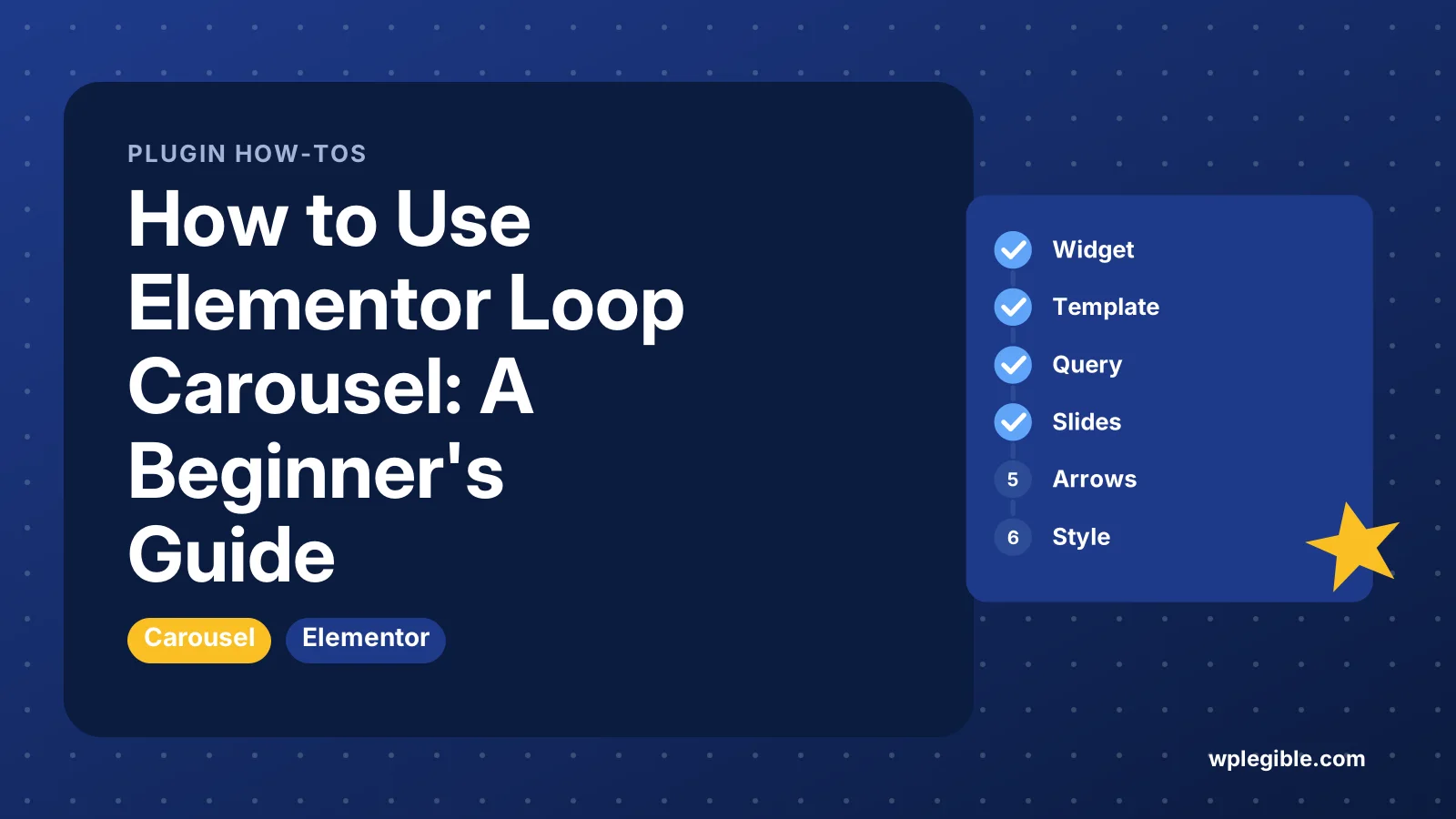
How to Use Elementor Loop Carousel: A Beginner's Guide
Short answer
Add the Loop Carousel widget in Elementor Pro, create a Loop Item template with dynamic widgets such as the post title and featured image, then choose your content in the Query section. Finish by setting slides per device, autoplay, arrows and pagination, and style the cards inside the template.
Key takeaways
- The Loop Carousel is an Elementor Pro widget, not part of the free plugin.
- Each slide is built from a reusable Loop Item template.
- The Query section decides which posts or products appear.
- Set slides on display separately for desktop, tablet and mobile.
- Style cards in the template and spacing or arrows in the widget.
- Keep autoplay slow or off for better accessibility.
What is the Elementor Loop Carousel?
The Loop Carousel is an Elementor Pro widget that shows posts, products or custom post types as a sliding carousel, with each slide built from a Loop Item template you design.
It works like the Loop Grid widget, but instead of laying items out in rows, it puts them in a slider with arrows, dots and autoplay options.
The key idea is the Loop Item template. You design one card, for example an image, a title and a button, and Elementor repeats that card for every post the query returns.
That makes it useful for recent blog posts, featured products, team members, testimonials stored as a custom post type, or portfolio items. Elementor documents the widget in its Loop Carousel help article.
What do you need before you start?
You need WordPress, the free Elementor plugin, an active Elementor Pro license, and some content to show, such as published posts or products.
The Loop Carousel is a Pro feature. The free Elementor plugin on WordPress.org does not include it. Our comparison of Elementor Free vs Pro lists what else you get with Pro.
If Pro is not set up yet, follow our guide on how to install Elementor Pro first.
Check that your content is ready too:
- Posts or products should have featured images, because cards look empty without them.
- Excerpts should be short and consistent.
- Custom post types need to exist and be public if you want to show them.
Our guide on setting a featured image in WordPress helps if some posts are missing images.
Step 1: How do you add the Loop Carousel widget?
Open the page in the Elementor editor, search the widget panel for Loop Carousel, and drag it into a container where you want the slider to appear.
Give the carousel room. A full-width container works well for three or four slides on desktop. A narrow column suits one slide at a time.
When the widget lands on the page, it asks you to choose or create a template. Nothing displays until a Loop Item template is connected.
Step 2: How do you create the Loop Item template?
Click Create a Template in the widget, and Elementor opens a Loop Item editing mode where you design a single card using dynamic widgets.
In this mode, you build one card that represents one post. Use widgets that pull data from each post automatically:
- Post Title for the heading.
- Featured Image for the picture.
- Post Excerpt for a short summary.
- Post Info for date, author or categories.
- A Button with a dynamic link to the post URL.
For WooCommerce products, use product widgets such as product price and add to cart where available.
Keep the card simple. A carousel shows several cards at once, so heavy cards slow the page and look crowded. Save the template when you finish, and Elementor returns you to the page with the carousel filled in.
You can reuse the same Loop Item template in other carousels and loop grids. Our guide on how to use Elementor templates explains how saved templates are managed.
Step 3: How do you choose what content appears?
Open the Query section in the widget's Content tab, pick a source such as posts, products or a custom post type, and filter it by terms, authors or dates.
The query decides which items fill the carousel. Common settings include:
- Source: posts, pages, products, a custom post type, or a manual selection.
- Include and Exclude: limit by category, tag, author or specific posts.
- Order By and Order: date, title, menu order or random.
- Posts per page: how many items the carousel loads in total.
- Avoid duplicates: skip posts already shown in another loop on the same page.
Set a sensible total. Loading 30 items into a carousel that shows 3 at a time adds weight without much benefit. Six to twelve is a common range.
If you want to show your own content type, our guide on creating a custom post type covers the setup. The WordPress post types documentation explains the options developers use.
Step 4: How do you set slides, scrolling and autoplay?
Use the Carousel or settings section in the Content tab to choose slides on display, slides to scroll, autoplay, infinite loop and transition speed, separately for each device.
These are the settings most people adjust:
| Setting | What it does | Common choice |
|---|---|---|
| Slides on display | How many cards show at once | 3 desktop, 2 tablet, 1 mobile |
| Slides to scroll | How many move per click | 1 |
| Equal height | Makes all cards the same height | On |
| Autoplay | Moves slides automatically | Off for long text, on for logos |
| Autoplay speed | Pause between moves | A few seconds |
| Pause on hover | Stops while the mouse is over it | On |
| Infinite scroll | Loops back to the start | On |
| Transition duration | Speed of the slide movement | Default |
Use the responsive mode icons to set different values for tablet and mobile. Three cards that look fine on a laptop become unreadable on a phone.
Exact labels can change between Elementor Pro versions, so if a setting is not where you expect, check the help article for your version.
Step 5: How do you add arrows and pagination?
Turn on navigation arrows and choose a pagination style, such as dots, a fraction counter or a progress bar, then style them in the Style tab.
Arrows help desktop users. Dots or a progress bar show how many slides exist. On mobile, people usually swipe, so small arrows matter less.
In the Style tab, set arrow size, color and position. Make sure arrows have enough contrast against your background. Placing them outside the cards often looks cleaner than placing them on top of images.
Step 6: How do you style the carousel?
Style the cards inside the Loop Item template, and style the spacing, arrows and pagination in the Loop Carousel widget's Style tab.
This split confuses many first-time users. If you want to change the card's font, image ratio or button color, edit the template. If you want to change the gap between slides or the arrow color, edit the widget.
A few tips keep the design tidy:
- Use a fixed image ratio in the template so cards line up.
- Limit excerpt length so text does not push buttons out of line.
- Set the gap between slides in the widget, not with margins on the card.
- Preview on tablet and mobile before publishing.
How do you make the carousel accessible?
Avoid fast autoplay, keep pause on hover enabled, make sure arrows and dots can be reached with a keyboard, and give images meaningful alt text.
Carousels can be hard to use for people with motion sensitivity, screen reader users and keyboard users. The W3C's carousel accessibility tutorial recommends giving users control over movement.
In practice, many sites leave autoplay off for content carousels. People can read at their own pace, and the important content is not hidden behind a timer.
How do you keep the Loop Carousel fast?
Load a modest number of items, use properly sized images, and avoid putting heavy widgets such as videos or forms inside each card.
Every card loads its image even if it is off screen at first, depending on your settings and lazy loading. Twelve large images can add a lot of weight.
Use an image size close to the card's display size rather than the full-size upload. Our guide on speeding up Elementor covers more ways to trim page weight.
Why is the Loop Carousel not showing content?
Usually the query returns nothing, the Loop Item template is missing or empty, or a cache is serving an old version of the page.
Check these points in order:
- Open the Query section and confirm the source and filters match published content.
- Make sure a Loop Item template is selected and that it contains widgets.
- Check that the posts have the data the template uses, such as featured images.
- Clear your page cache and Elementor's generated files, then reload.
- Confirm Elementor Pro is active and the license is connected.
If the slider shows but does not move, a JavaScript error from another plugin may be the cause. Check the browser console and test with other plugins turned off.
When should you use a Loop Grid instead?
Use a Loop Grid when visitors need to scan or compare many items at once, and a Loop Carousel when space is limited and you want to tease a few highlights.
Carousels hide most of their content behind clicks. That suits related posts, featured products or logos. It suits archives and product listings less well, where a grid lets people see more without interaction.
If you need a slider with custom slides rather than dynamic posts, a regular slides or carousel widget may be simpler. Our guide to Elementor Pro slider settings covers those options.
Frequently asked questions
Is the Loop Carousel available in free Elementor?
No. The Loop Carousel is part of Elementor Pro, along with the Loop Grid and the Theme Builder. The free plugin has basic carousel widgets for images and testimonials, but not one that repeats a dynamic template for each post or product.
Can the Loop Carousel show WooCommerce products?
Yes. Set the query source to products and build the Loop Item template with product widgets such as the image, title, price and add to cart button. You can filter by product category or tag and order products by date, price or menu order.
Can I use different card designs in one carousel?
The carousel uses one main Loop Item template for all slides. Some Elementor Pro versions let you add alternate templates that appear at set positions in the loop. Check the Loop Carousel help article for your version to see whether alternate templates are supported.
Why are my carousel cards different heights?
Cards change height when titles or excerpts have different lengths. Turn on the equal height option in the widget if your version offers it, limit excerpt length, and set a fixed image ratio in the Loop Item template so every card follows the same layout.
How many items should a Loop Carousel load?
Load only what visitors are likely to scroll through, often six to twelve items. More items add images and markup to the page, which slows loading. If people need to see many items, a Loop Grid with pagination usually works better.
Sources
- Loop Carousel Elementor Help Center
- How to Use the Loop Carousel Widget Elementor Help Center
- Elementor Website Builder WordPress.org
- Post Types WordPress Developer Resources
- Carousels Tutorial W3C Web Accessibility Initiative
Is your product missing, or something out of date?
Tell us what to add or correct. We read every note and reply when we need a source. A message does not buy a ranking.
Thanks — we review requests within 3 business days.
Related guides



About the editors
Researched from the primary sources listed above and checked against our editorial rules before publishing.