Plugin how-tos · Guide
How to Install Elementor Pro and Activate Your License
Short answer
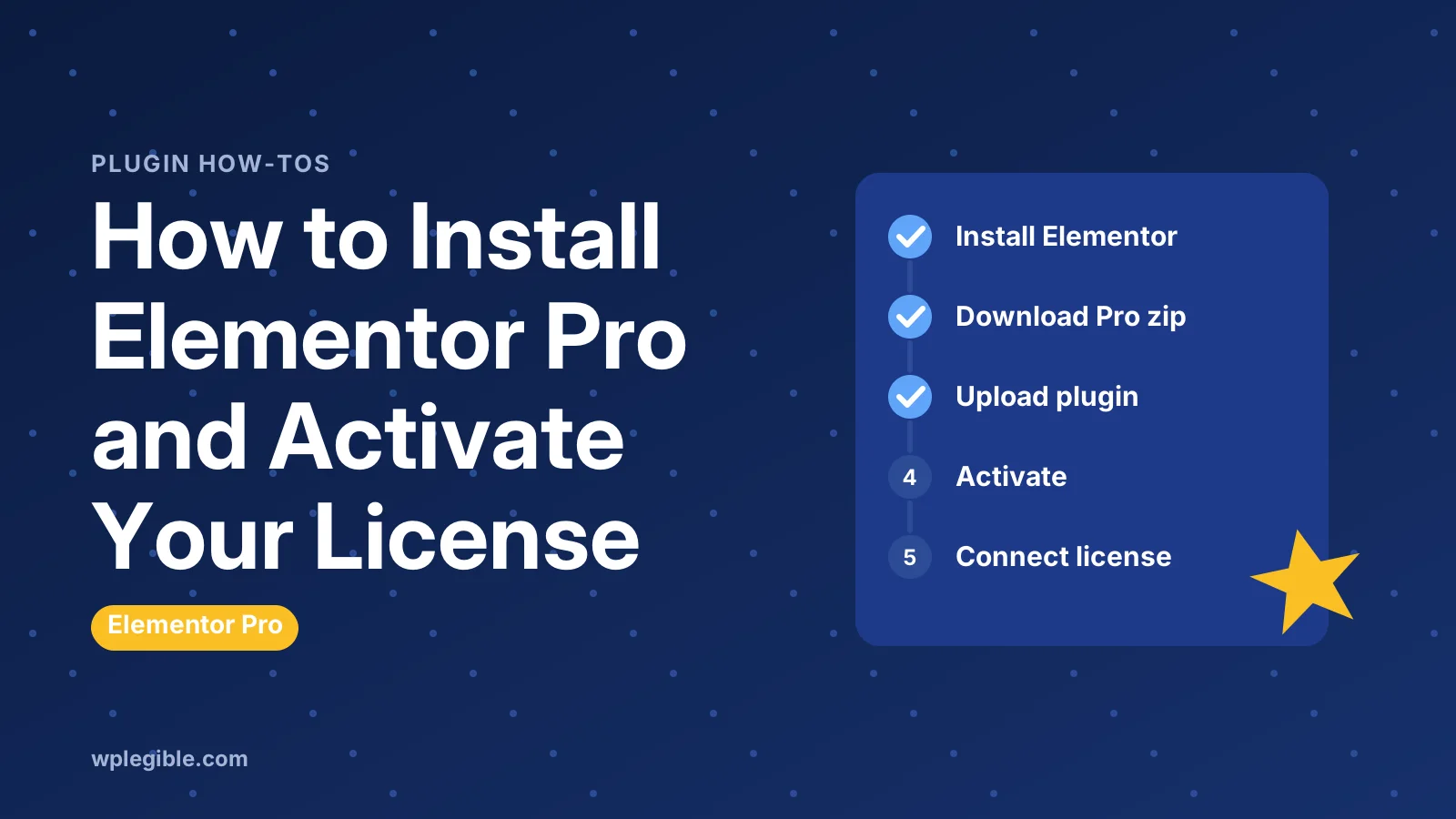
To install Elementor Pro, first install and activate the free Elementor plugin, then download the Elementor Pro zip file from your Elementor account. In WordPress, go to Plugins > Add New Plugin > Upload Plugin, choose the zip, click Install Now and Activate Plugin. Finally, open Elementor > License and click Connect & Activate to link your subscription.
Key takeaways
- Elementor Pro is an add-on and needs the free Elementor plugin installed and active.
- Download the Pro zip from your Elementor account; it is not in the WordPress plugin directory.
- Upload the zip without unzipping it, under Plugins > Add New Plugin > Upload Plugin.
- Connect & Activate under Elementor > License links the site to your subscription.
- An active license is needed for updates, support and some cloud features.
What do you need before installing Elementor Pro?
You need a self-hosted WordPress site or a plan that allows plugin uploads, the free Elementor plugin installed, an active Elementor Pro subscription and access to your Elementor account.
Elementor Pro does not replace the free plugin. It adds Pro widgets, the Theme Builder and other features on top of it, so both plugins must stay installed and active.
If you have not chosen a plan yet, our guide on how much Elementor costs compares the options.
Unsure whether you need Pro at all? Our Elementor Free vs Pro comparison explains what the paid version adds.
Take a backup before installing major plugins on a live site. It only takes a few minutes and makes it easy to undo any problems, especially if the new plugin conflicts with your theme or another plugin.
How do you install the free Elementor plugin first?
Go to Plugins > Add New Plugin, search for Elementor, click Install Now on Elementor Website Builder, then click Activate.
The free plugin comes from the WordPress plugin directory, so it installs like any other plugin. Elementor may open a short setup screen after activation, which you can complete or skip.
If you already use Elementor, update it to the latest version before adding Pro. Mismatched versions are a common cause of errors.
How do you download the Elementor Pro zip file?
Log in to your Elementor account, open your subscription, and click the button to download the Elementor Pro plugin; a zip file is saved to your computer.
Elementor's help article on installing and activating Elementor Pro shows the current account screens, which change from time to time.
Do not unzip the file. WordPress needs the original zip to install it. Some browsers, especially Safari on macOS, unzip downloads automatically, which you can turn off in the browser's settings.
Only download Elementor Pro from your own Elementor account. Copies from other websites are often outdated, unsupported or modified with malicious code.
How do you upload and activate Elementor Pro?
In WordPress, go to Plugins > Add New Plugin, click Upload Plugin, choose the Elementor Pro zip, click Install Now, then click Activate Plugin.
- Go to Plugins > Add New Plugin
- Click Upload Plugin at the top of the screen
- Click Choose File and select the Elementor Pro zip
- Click Install Now and wait for the upload to finish
- Click Activate Plugin
The WordPress documentation on managing plugins covers uploading plugins in more detail.
If the upload fails with a file size error, your host's upload limit is too low. Ask your host to raise it, or upload the unzipped folder to wp-content/plugins with an FTP client such as FileZilla and activate it from the Plugins screen.
Developers who manage many sites can install the same zip from the command line with WP-CLI, using the plugin install command with the path to the file.
How do you connect and activate your license?
Go to Elementor > License in the WordPress dashboard, click Connect & Activate, log in to your Elementor account if asked, and approve the connection for this site.
Once connected, the License screen shows your subscription and expiry date. Elementor's guide to connecting and activating your Elementor Pro license explains each step.
The license connects one site per activation, depending on your plan. If you move the site or rebuild it, disconnect the old site first so the activation is free to use again.
If you bought Elementor as part of a bundled plan, the connection steps may differ slightly, and Elementor's help centre covers those cases separately.
Why can't you see the License option?
The License option only appears when both free Elementor and Elementor Pro are installed and active, so check both on the Plugins screen and update them if needed.
Elementor's troubleshooting page for when the License option does not appear lists further checks, such as user permissions and conflicts.
You must be logged in as an administrator to manage the license. Editors and other roles do not see it, so ask the site owner to log in if you are working on someone else's site with a limited account.
What if activation fails?
If Connect & Activate fails, make sure your site can reach Elementor's servers, check that the account and subscription are active, try a different browser, and use Elementor's manual connection method if needed.
Security plugins and firewalls sometimes block the connection. Temporarily allow the request or ask your host whether outgoing connections are restricted.
A license mismatch error usually means the site was connected to a different account, or the site address changed. Disconnect and reconnect using the account that holds the subscription.
What should you do after installing Elementor Pro?
Set up global colours and fonts in Site Settings, build your header and footer in the Theme Builder, check performance settings, and explore the Pro widgets you plan to use.
Global settings first saves time later. Our guide to Elementor Site Settings covers colours, fonts, Theme Style and layout.
If you are new to building pages, our guide on how to use Elementor in WordPress walks through the editor step by step.
Which Elementor Pro features should you try first?
Start with the Theme Builder for your header, footer and post templates, then the Form widget, Popup Builder and dynamic content, since these replace several separate plugins on many sites.
The Theme Builder lets you design parts of the site that the free version cannot touch, such as the single post layout and archive pages. Set display conditions so each template appears where you want.
The Form widget handles contact and lead forms inside the editor. If you already use a separate form plugin, compare features before switching, since forms often connect to email tools and CRMs.
Popups are powerful but easy to overuse. Show them sparingly, make them easy to close, and test them on mobile so they do not block content.
How do you avoid slowing the site down?
Turn on only the features you use, keep the number of widgets per page reasonable, and use Elementor's performance settings alongside a caching plugin.
Every extra widget and animation adds weight. Our guide to Elementor performance settings explains which options help most.
Check key pages with PageSpeed Insights after building them, and compare the results before and after adding heavy features such as sliders or video backgrounds.
How do you keep Elementor Pro updated?
With an active, connected license, Elementor Pro updates appear on the Plugins and Updates screens like any other plugin; update the free plugin and Pro together when both have new versions.
Update on a staging site first if your site is complex or business-critical. Page builder updates can occasionally change how layouts look.
If your subscription expires, Pro keeps working, but you stop receiving updates and support. Running an outdated plugin for long periods can create security and compatibility risks.
How do you move Elementor Pro to a new site?
Disconnect the license on the old site under Elementor > License, install Elementor and Elementor Pro on the new site, then connect the license there.
If the old site is gone and you cannot disconnect it, manage your activations from your Elementor account instead.
When migrating a whole site with a migration plugin, the Pro plugin files move with it. You usually only need to reconnect the license on the new domain.
Should you install Elementor Pro on a staging site?
Yes, for testing designs and updates. Staging sites can usually be connected to your license, and many plans allow it without using up a live activation, but check your plan's terms.
Testing Pro features on staging keeps experiments away from visitors. Build headers, footers and templates there, then move them with Elementor's export tools or a migration.
Our guide on setting up a staging site for WordPress shows how to create one.
Frequently asked questions
Do I need the free Elementor plugin to use Elementor Pro?
Yes. Elementor Pro is an add-on that builds on the free Elementor plugin. Both must be installed and active, and keeping them on matching current versions avoids errors.
Where do I download Elementor Pro?
Download it from your own Elementor account after purchase. Elementor Pro is not in the WordPress plugin directory, and copies from other sites can be outdated or unsafe.
Why is my Elementor Pro zip upload failing?
Common causes are an unzipped file, a host upload limit that is too low, or a timeout. Upload the original zip, ask your host to raise the limit, or install the folder by FTP.
What happens when my Elementor Pro license expires?
Pro features keep working, but you stop getting updates and support. Running an outdated version for long periods can cause security and compatibility problems.
Can I use one Elementor Pro license on several sites?
It depends on your plan. Each plan allows a set number of site activations. Disconnect a site under Elementor then License to free an activation for another site.
Sources
- Install & activate Elementor Pro Elementor Help Center
- Connect and activate your Elementor Pro license Elementor Help Center
- Troubleshooting: I don't see the License option in WP Admin Elementor Help Center
- Manage Plugins WordPress.org Documentation
- Elementor Website Builder WordPress.org Plugins
- WP-CLI WP-CLI
Is your product missing, or something out of date?
Tell us what to add or correct. We read every note and reply when we need a source. A message does not buy a ranking.
Thanks — we review requests within 3 business days.
Related guides
About the editors
Researched from the primary sources listed above and checked against our editorial rules before publishing.