Plugin how-tos · Guide
How to Use Elementor in WordPress: A Beginner's Walkthrough
Short answer
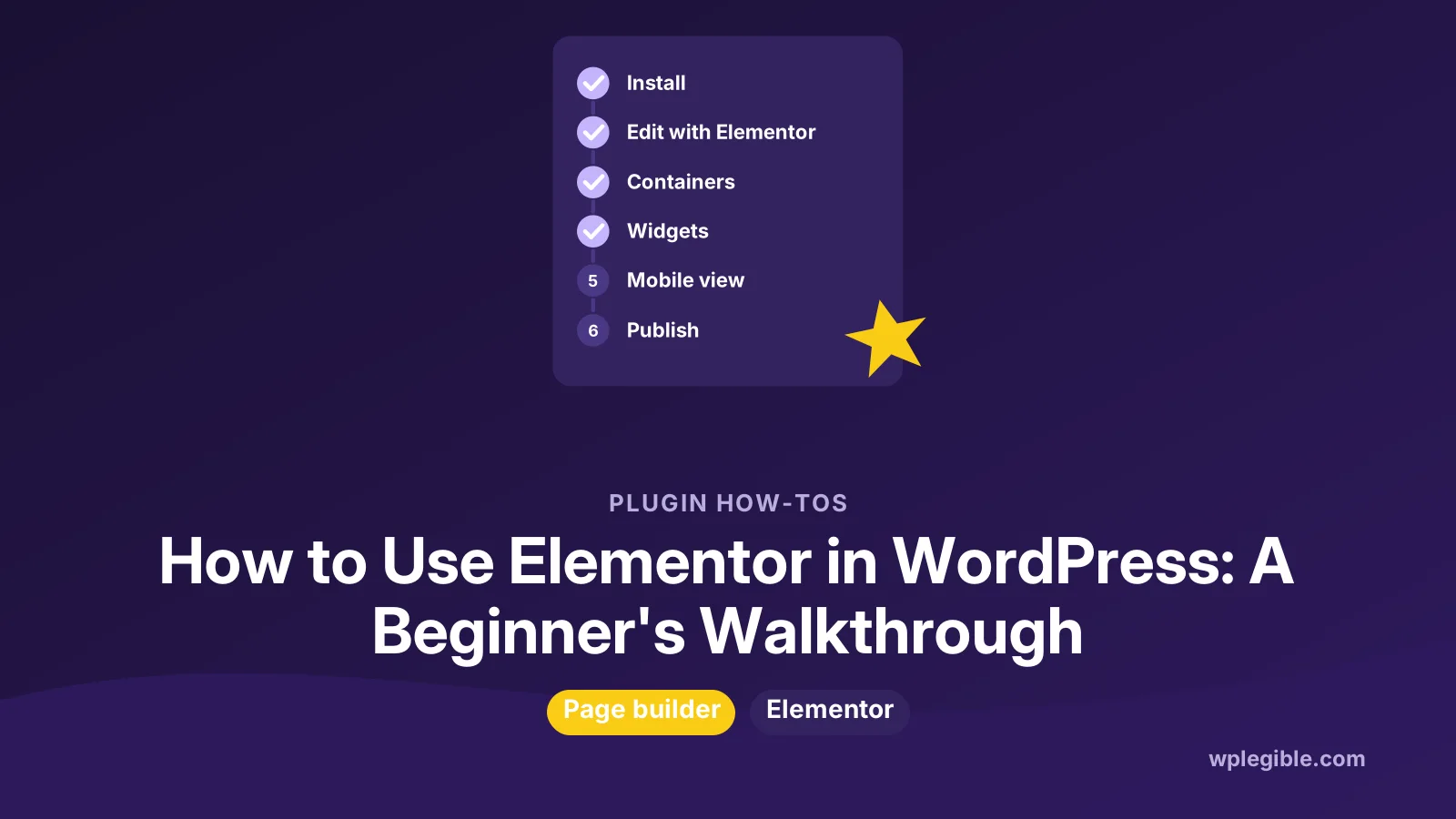
To use Elementor in WordPress, install and activate the free Elementor plugin, create or open a page, click Edit with Elementor, then build the layout by adding containers and dragging widgets such as headings, images and buttons from the panel onto the canvas. Adjust each element's settings, check mobile and tablet views, and click Publish.
Key takeaways
- Elementor is a visual page builder plugin with a free version and a paid Pro version.
- The editor has three areas: the top bar, the panel with widgets and settings, and the canvas.
- Layouts are built from containers that hold widgets like headings, text, images and buttons.
- Templates and kits speed up design, and responsive mode lets you tune mobile layouts.
- Keep pages light by using fewer nested containers, optimized images and only the widgets you need.
What is Elementor and when should you use it?
Elementor is a drag-and-drop page builder plugin for WordPress that lets you design pages visually, with a free version and a paid Pro version that adds more widgets and site-wide templates.
It suits people who want precise visual control over landing pages, sales pages and custom layouts without writing code. You see the page exactly as visitors will while you build it.
WordPress also has its own block editor and Site Editor, which can now handle many layouts without a builder. Our comparison of Gutenberg vs page builders explains when a builder is worth the extra weight.
The free plugin is listed in the WordPress.org plugin directory, where you can check its version, requirements and support forum.
How do you install Elementor?
Go to Plugins > Add New Plugin, search for Elementor, click Install Now and Activate; for Pro, upload the Pro plugin from your Elementor account and connect your license.
The official getting started guide lists the steps: install the free plugin, then optionally buy, install and connect Elementor Pro to use its features.
After activation, Elementor may open a short setup wizard. You can skip it and go straight to building, then come back to the settings later.
Pair Elementor with a lightweight theme that supports it well. Many builders recommend a minimal theme so the builder controls the layout without the theme adding extra design code.
How do you open the Elementor editor?
Create or open a page, then click Edit with Elementor at the top of the WordPress editor or in the admin bar on the live page.
Go to Pages > Add New Page, give the page a title, and click Edit with Elementor. The builder opens full screen.
For a full-width design without your theme's sidebar or title, set the page layout to Elementor Full Width or Elementor Canvas in the page settings. Canvas removes the header and footer too, which suits landing pages.
How is the Elementor editor laid out?
The editor has three main areas: the top bar with tools and settings, the panel on the side with elements and their settings, and the canvas where your page appears.
Elementor's guide to exploring the editor describes each area in detail.
Here is what each part does:
| Area | What you do there |
|---|---|
| Top bar | Page settings, responsive views, history, preview and Publish |
| Panel | Browse widgets, then edit Content, Style and Advanced settings for the selected element |
| Canvas | See the page and drag, select or rearrange elements |
| Navigator | A tree view of every container and widget on the page |
The Navigator is very handy on long pages. It lets you select elements that are hard to click on the canvas.
How do you build a page with containers and widgets?
Add a container to create a section of the page, choose its structure, then drag widgets such as Heading, Text Editor, Image and Button from the panel into it.
Containers are boxes that hold other elements. They use flexible layout rules, similar to CSS flexbox, so items can sit side by side or stack. MDN's guide to flexbox explains the ideas behind those settings.
A simple page often looks like this:
- A hero container with a heading, a short paragraph and a button
- A container with three columns for services or features
- A container with an image on one side and text on the other
- A call-to-action container with a button
Click any widget to edit it. The Content tab changes text and links, the Style tab changes colors and typography, and the Advanced tab handles spacing, motion and visibility.
How do you use templates in Elementor?
Click the template library icon in an empty container to insert a pre-designed block or full page, then replace the text, images and colors with your own.
Templates save a lot of time, especially for common sections like pricing tables, testimonials and contact areas. Elementor Pro adds more templates and full website kits.
You can also save your own sections as templates and reuse them across pages. That keeps repeating sections consistent and quick to update.
Always replace template images with your own, and check that template text fits your real content before publishing.
How do you make Elementor pages look good on mobile?
Switch to tablet and mobile views in the top bar, then adjust font sizes, spacing, column direction and visibility for each device.
Many settings in Elementor can be different per device. A three-column layout on desktop usually needs to stack into one column on phones.
Check these on mobile before publishing:
- Headings are not too large and do not break awkwardly
- Buttons are easy to tap and not too close together
- Images are not cropped in a way that hides the subject
- Hidden elements are not still loading heavy content
Preview the page on a real phone as well. The editor's responsive mode is close, but not identical to every device.
How do you set global colors and fonts?
Open Site Settings from the Elementor menu and set global colors and typography, then use them in widgets so a single change updates the whole site.
Global styles keep your design consistent. If every heading uses the global primary font, changing that font once changes every page.
Avoid setting colors and fonts by hand on each widget. It makes the site slower to update and leads to small inconsistencies across pages.
How do you undo mistakes in Elementor?
Use the History panel in the top bar to step back through recent actions, or open Revisions to restore an earlier saved version of the page.
Every change you make while editing is recorded in History, so you can jump back several steps if a layout goes wrong. Keyboard shortcuts also work: Ctrl+Z or Cmd+Z to undo and Ctrl+Shift+Z or Cmd+Shift+Z to redo.
Revisions are saved when you publish or update. They let you return to a version from yesterday or last week, which helps when a mistake is only noticed later.
Elementor's revisions are separate from WordPress post revisions, so use the History and Revisions panel inside the builder for Elementor pages.
How do you build headers, footers and forms with Elementor?
With Elementor Pro, use the Theme Builder to design headers, footers and templates for posts and archives, and the Form widget to add contact forms; the free version focuses on page content.
The Theme Builder replaces your theme's header, footer and other templates with designs you build in Elementor. Display conditions decide where each template appears, such as the whole site or only blog posts.
If you use only the free version, keep your theme's header and footer, or edit them with the theme's own options or the Site Editor in block themes.
For forms, Elementor Pro includes a Form widget with email notifications and integrations. With the free version, a separate form plugin works well inside an Elementor page through its shortcode or widget.
Be careful with too many global templates and conditions. They are powerful, but it can become hard to see which template controls which page. Name every template clearly and keep a short list of where each one applies.
How do you keep an Elementor site fast?
Use fewer nested containers, compress images, load only the widgets and fonts you need, and turn on Elementor's built-in performance features.
Page builders add extra HTML, CSS and JavaScript compared with plain blocks. Careful building keeps that overhead small.
Our guide on speeding up Elementor lists the settings and habits that make the biggest difference.
If the editor itself will not open, see our guide to fixing the Elementor editor not loading.
If you later want to leave Elementor, our guide to removing Elementor safely explains how to avoid broken pages.
Frequently asked questions
Is Elementor free to use in WordPress?
Yes. The free Elementor plugin includes the drag-and-drop editor, basic widgets and templates. Elementor Pro is a paid upgrade that adds more widgets, theme building, forms and popups.
Do I need a special theme for Elementor?
No, but a lightweight theme that supports Elementor works best. The theme then handles basic structure while Elementor controls page layouts, which keeps pages lighter.
Can I use Elementor with the block editor?
Yes. You can build some pages with Elementor and others with the block editor on the same site. Each page is edited with the tool it was built in.
What happens to my pages if I deactivate Elementor?
Pages built with Elementor lose their layout and may show plain content or leftover code. Rebuild or convert those pages before removing the plugin.
Is Elementor good for beginners?
Yes. The visual editor shows changes instantly and templates help you start quickly. Learning containers and responsive settings takes a little practice, but no coding is required.
Sources
- Elementor Website Builder WordPress.org Plugins
- Get started with the Elementor plugin Elementor Help Center
- Explore the Elementor Editor Elementor Help Center
- Flexbox MDN Web Docs
- PageSpeed Insights Google
Is your product missing, or something out of date?
Tell us what to add or correct. We read every note and reply when we need a source. A message does not buy a ranking.
Thanks — we review requests within 3 business days.
Related guides
About the editors
Researched from the primary sources listed above and checked against our editorial rules before publishing.