Developer · Guide
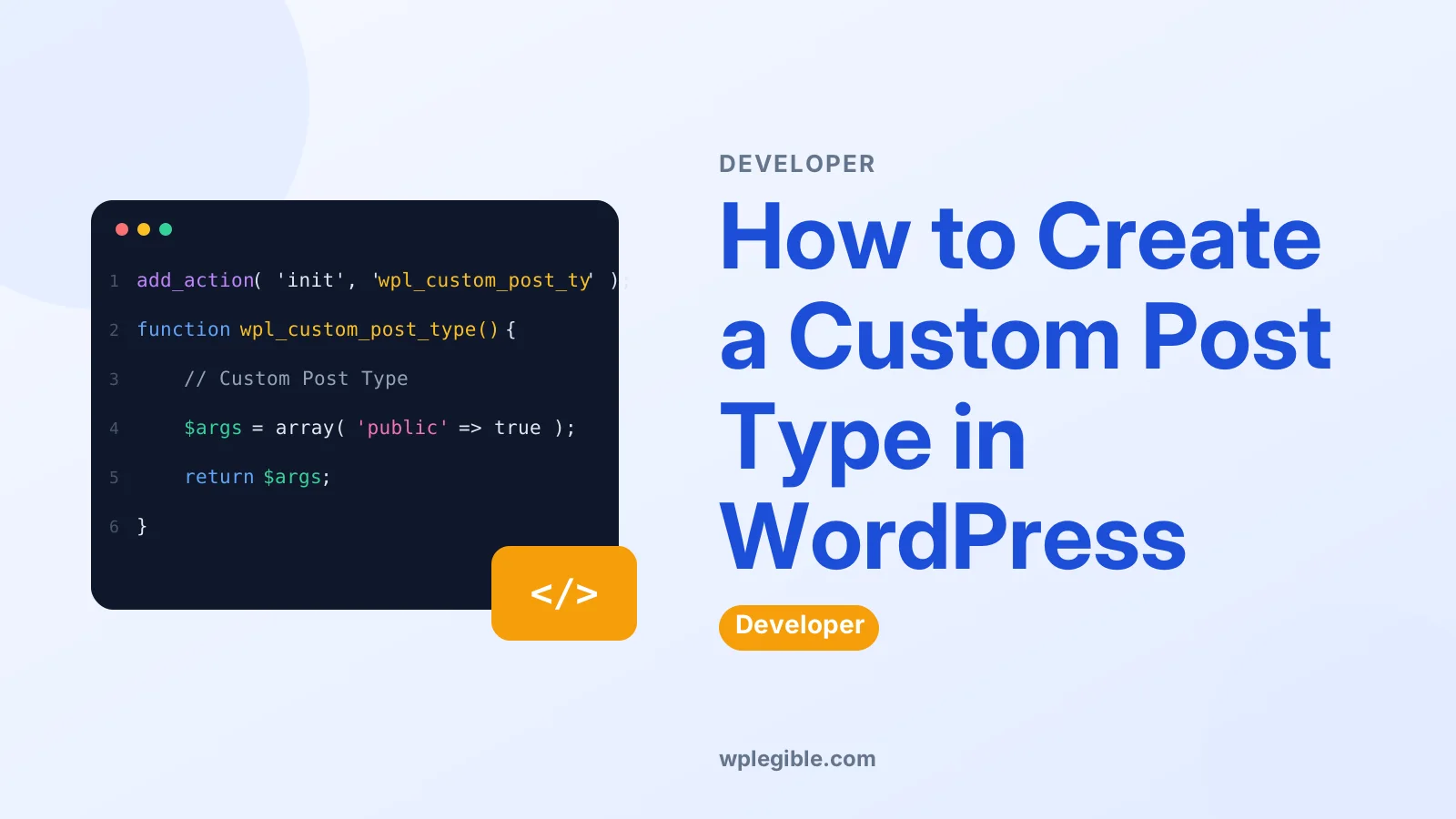
How to Create a Custom Post Type in WordPress
Short answer
To create a custom post type in WordPress, write a small plugin that calls register_post_type on the init hook with a short prefixed key under 20 characters, labels, public set to true, has_archive set to true, and show_in_rest set to true. Then flush the rewrite rules once by saving the permalink settings, and check the new admin menu, a single item, and the archive page.
Key takeaways
- WordPress ships with five default post types: post, page, attachment, revision, and menu.
- A custom post type key must stay under 20 characters and must not start with wp_.
- Register the type on the init hook, and put the code in a plugin so it survives a theme change.
- Set show_in_rest to true to open the type in the block editor and the REST API.
- Flush the rewrite rules once after registration, or new URLs will return 404 errors.
What is a custom post type?
A custom post type is a content type you register in code, such as Books or Products, with its own admin menu and edit screens.
WordPress ships with five default post types: post, page, attachment, revision, and menu. Developer.WordPress.org states that a custom post type adds a new type of your own, such as products for a shop, assignments for a course site, or movies for a review site (checked November 2026).
Once you register a custom post type, WordPress gives it a new top-level admin screen. Developer.WordPress.org states that the new screen can be used to manage and create posts of that type (checked November 2026).
A guide on posts vs pages in WordPress explains the two default types first, so you can see whether your content fits them before you build a new type.
When should you create a custom post type?
Create one when a group of content has its own fields, listings, and archive, and does not fit posts or pages.
Books, events, team members, listings, and portfolio items are common cases. Each has the same shape every time, and readers expect to browse them as a group.
Do not create a custom post type for a one-off page or a single landing page. A normal page does that job with less code and less upkeep.
Do not create one just to hold a few extra fields on normal posts. Custom fields on the post type, or a taxonomy to group posts, may be enough. A guide on categories vs tags in WordPress explains how taxonomies group content without a new type.
Learn WordPress states that when you register a custom post type correctly, WordPress will create a new admin menu item for it, plus admin pages to manage the data (checked November 2026).
What do you need before you start?
You need a small plugin file to hold the registration code, a short unique prefix, and a plan for the type name and labels.
Put the code in a plugin, not in a theme. Developer.WordPress.org recommends putting custom post types in a plugin rather than a theme, so the content stays portable if the theme changes (checked November 2026).
Pick a prefix tied to your plugin or site, such as wporg for a plugin named WPOrg. Developer.WordPress.org states that you should prefix your post type functions and identifiers with a short prefix that matches your plugin, theme, or website (checked November 2026).
Decide the key, the plural label, and the singular label before you write code. The key is the id WordPress stores in the database, while the labels are what editors see in the menu.
WordPress.org states that WordPress recommends PHP 8.3 or greater, so set the Requires PHP value in your plugin header to a version your code actually supports (checked November 2026).
A guide on theme vs plugin in WordPress explains which kind of code belongs in a theme and which belongs in a plugin.
How do you register a custom post type?
Call register_post_type on the init hook, passing the type key and an array of arguments.
The handbook example registers a Products type with the key wporg_product. Developer.WordPress.org shows this minimal call with labels for the name and singular name, public set to true, and has_archive set to true (checked November 2026).
function wporg_custom_post_type() {
    register_post_type( 'wporg_product',
        array(
            'labels'      => array(
                'name'          => 'Products',
                'singular_name' => 'Product',
            ),
            'public'      => true,
            'has_archive' => true,
        )
    );
}
add_action( 'init', 'wporg_custom_post_type' );
Registration must not run before the init action. Developer.WordPress.org states that post type registrations should not be hooked before the init action (checked November 2026).
The type key has strict limits. Developer.WordPress.org states that the key must not exceed 20 characters and may only contain lowercase letters, numbers, dashes, and underscores (checked November 2026).
Do not start the key with wp_. Developer.WordPress.org states that wp_ is used by WordPress core, so your identifier must not use it (checked November 2026).
Which arguments matter most?
The arguments set visibility, editing features, archive pages, and the block editor, so set them with care.
| Argument | What it controls | Common value |
|---|---|---|
| public | Visible in admin and on the front end | true |
| has_archive | Archive page for the type | true |
| show_in_rest | Available in the REST API and block editor | true |
| hierarchical | Parent and child items, like pages | false |
| supports | Editing features the type gets | title, editor, thumbnail |
| rewrite | URL slug for single items | slug set to products |
| menu_position | Place in the admin menu | 5 |
| capability_type | Base for read, edit, and delete rights | post |
The public argument defaults to false, so a type with no public value stays hidden. Developer.WordPress.org states that public defaults to false, and that show_ui, publicly_queryable, and show_in_nav_menus inherit from it when unset (checked November 2026).
The supports argument picks the editing features. Developer.WordPress.org lists the core features as title, editor, comments, revisions, trackbacks, author, excerpt, page-attributes, thumbnail, custom-fields, and post-formats (checked November 2026).
The default supports value is title and editor only. Developer.WordPress.org states that when supports is not set, the type gets an array with title and editor (checked November 2026).
How do you set the URL slug and archive?
Set the rewrite slug in the arguments, then flush the rewrite rules once so the new URLs start working.
A post type gets its own slug in the site URL structure. Developer.WordPress.org states that a post of type wporg_product uses the URL form example.com/wporg_product/product-name by default (checked November 2026).
To use a cleaner slug, add a rewrite array with a slug value. Developer.WordPress.org states that adding a rewrite key with a slug of products changes the URL form to example.com/products/product-name (checked November 2026).
A generic slug can clash with another plugin or theme. Developer.WordPress.org warns that a generic slug like products can conflict, and that the fix is to change the slug for one of the clashing types (checked November 2026).
After you register the type, visit Settings, then Permalinks, and save once to flush the rules. A guide on how to set up permalinks in WordPress covers the permalink settings that shape these URLs.
How do you show the type in the block editor and the REST API?
Set show_in_rest to true, since that is the switch that opens the type to the block editor and the REST API.
Developer.WordPress.org states that show_in_rest controls whether the post type is included in the REST API, and that you must set it to true for the type to be available in the block editor (checked November 2026).
The REST route base defaults to the post type key, and the namespace defaults to wp/v2. Developer.WordPress.org states that rest_base defaults to the post type value and rest_namespace defaults to wp/v2 (checked November 2026).
Learn WordPress shows a Books example with show_in_rest set to true and supports set to title, editor, author, thumbnail, and excerpt (checked November 2026).
Without show_in_rest, the type still works in the classic editor screens, but the block editor cannot open its posts. Set the value before you create any content, so no post needs to be moved later.
How do you add taxonomies and templates for the type?
Register taxonomies with the taxonomies argument and register_taxonomy, and add single and archive template files for the front end.
Always register taxonomies through the taxonomies argument when you register the type. Developer.WordPress.org states that taxonomy connections should be registered through that argument, so hooks such as parse_query and pre_get_posts see the link (checked November 2026).
You must still define each taxonomy with register_taxonomy. Developer.WordPress.org states that even when you pass a taxonomy in the type arguments, you must still explicitly register and define it with register_taxonomy (checked November 2026).
For the front end, add a single-wporg_product.php file for single items and an archive-wporg_product.php file for the archive list, using your own type key in place of wporg_product. WordPress picks those files before the generic single.php and archive.php files.
A custom page template can also target the type, using the Template Post Type header covered in the page template guide for this batch.
How do you check the post type works?
Create an item, view it on the front end, check its archive page, and list the registered types.
Open the new menu item in the dashboard and add one item with a title, some text, and a featured image. Publish it and open its URL to confirm the slug and layout look right.
Open the archive URL, such as example.com/products, and confirm it lists the item. If the archive shows a 404 error, save the permalink settings once to flush the rewrite rules.
List the registered types from the command line. WP Cloud notes that WP-CLI gives command-line access to WordPress over SSH, and the wp post-type list command prints each registered type with its name, label, and public value (checked November 2026).
A guide on how to fix a 404 error on posts covers the steps when single items or archives return a 404 after registration.
What mistakes should you avoid?
Avoid a generic key, a reserved name, a missing show_in_rest value, and code placed in a theme.
A generic key such as product can clash with another plugin. Developer.WordPress.org states that fixing a duplicate post type identifier is not possible without disabling one of the clashing post types (checked November 2026).
Some names are already taken by WordPress. Developer.WordPress.org lists reserved names such as post, page, attachment, revision, nav_menu_item, wp_block, wp_template, and wp_template_part, plus names to avoid such as action, author, order, and theme (checked November 2026).
Do not register the type in a theme functions file. Developer.WordPress.org states that a post type registered in a theme will disappear from the admin when the user switches away from that theme (checked November 2026).
Do not forget the rewrite flush after you change a slug. New URLs return 404 errors until the rules are rebuilt, even when the registration code is right.
Frequently asked questions
What is the difference between a custom post type and a taxonomy?
A post type is the kind of content, such as a post, a page, or a custom Books type. A taxonomy is how that content is grouped, such as categories or tags. You can add a taxonomy to a custom post type, but the two are separate: the type holds the items, and the taxonomy groups them.
What happens to my content if I switch themes?
No. The posts stay in the database, but the type disappears from the admin menu and its URLs stop working. That is why the handbook recommends registering custom post types in a plugin, so the content survives a theme change.
Can I change the URL slug of a custom post type?
Yes, by setting the rewrite argument with a custom slug, such as products instead of the type key. After you change the slug, save the permalink settings once to flush the rewrite rules, or the new URLs will return 404 errors.
Why does my custom post type not open in the block editor?
Check that show_in_rest is set to true in the registration arguments. Without it, the type is left out of the REST API and the block editor cannot open its posts. Set the value, then open a post of that type again.
Can a custom post type have parent and child items like pages?
Yes, with the hierarchical argument set to true, which gives the type parent and child items like pages. With hierarchical set to false, the default, items sit flat with no parent, like posts. Pick the value before you create content.
Can a site have more than one custom post type?
Yes, if you give each type its own admin menu item and add it to the site navigation or link to its archive page. Each type keeps its own edit screens and archive, so readers can browse each group on its own.
Sources
- Registering Custom Post Types WordPress Developer Resources
- register_post_type() function reference WordPress Developer Resources
- Custom post types Learn WordPress
- wp post-type list - WP-CLI Command WordPress Developer Resources
- Useful WP-CLI commands WP Cloud
- Requirements WordPress.org
Is your product missing, or something out of date?
Tell us what to add or correct. We read every note and reply when we need a source. A message does not buy a ranking.
Thanks — we review requests within 3 business days.
Related guides


