Backups & maintenance · Guide
How to Update Elementor Pro in WordPress (Step by Step)
Short answer
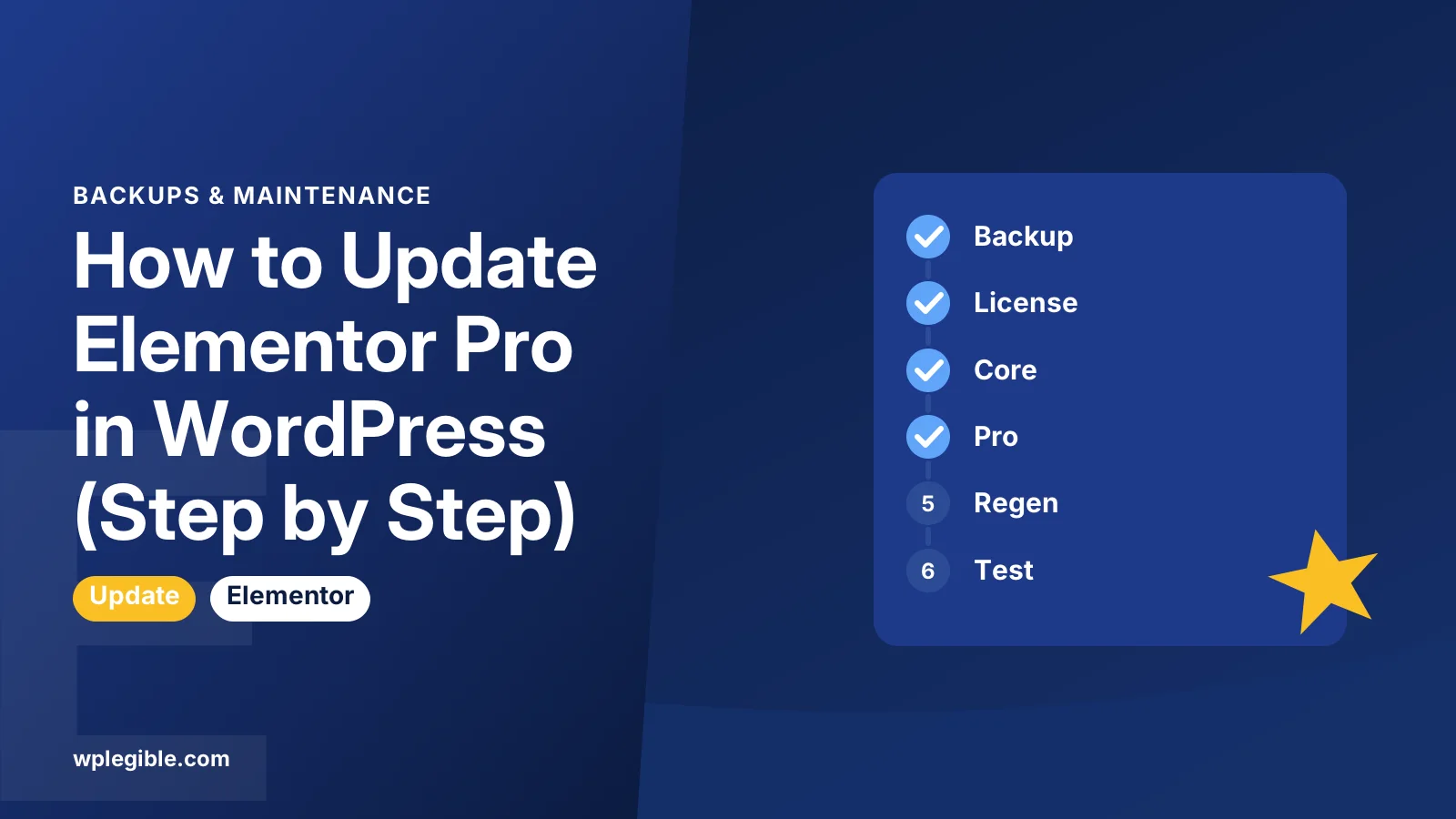
Connect your Elementor Pro license under Elementor > License, back up the site, update the free Elementor plugin, then click Update Now for Elementor Pro on the Plugins screen. Without a connected license, download the zip from your Elementor account and upload it to replace the current version.
Key takeaways
- Elementor Pro updates only appear when the license is connected.
- Back up and update the free Elementor plugin before Pro.
- Upload the zip and choose Replace current with uploaded for manual updates.
- Your designs and settings stay in the database during updates.
- Regenerate files, sync the library and clear caches after updating.
- Use Elementor > Tools > Version Control to roll back if something breaks.
How do you update Elementor Pro in WordPress?
Connect your Elementor Pro license, back up the site, update the free Elementor plugin, then click Update Now for Elementor Pro on the Plugins screen and regenerate Elementor's files afterwards.
Elementor Pro is a premium plugin, so it does not update from WordPress.org like free plugins. It gets updates from Elementor's servers, and only when your site has an active, connected license.
When the license is connected, updating looks like any other plugin update. When it is not, you need to fix the connection or upload the new version by hand.
This guide covers both methods, plus what to do before and after. For a first-time setup, see how to install Elementor Pro.
What should you do before updating Elementor Pro?
Take a full backup, check that your license is active, read the changelog, and test the update on a staging site if the site earns money.
Before you click update:
- Back up files and database. Use your host or a backup plugin.
- Check the license. Go to Elementor > License and confirm it shows as active.
- Check the free plugin. Elementor Pro needs the free Elementor plugin. Keep both on compatible versions.
- Read the changelog. Major releases can change widgets or remove old features.
- Use staging for big updates. Our staging site guide shows how.
Pick a quiet time of day. A failed update is easier to fix when few visitors are on the site.
It also helps to know which version you are on now. You can see it under Plugins > Installed Plugins. Write it down so you know which version to roll back to if needed.
Large releases sometimes follow quickly with small fix releases. On critical sites, many people wait a few days after a major version before updating.
How do you connect your license so updates appear?
Go to Elementor > License, click Connect & Activate, log in to your Elementor account, and approve the connection for this site.
Elementor explains the process in connect and activate your Elementor Pro license. Once connected, WordPress checks for Pro updates the same way it checks for others.
If the connect button fails, Elementor offers a manual connection method. Firewalls and security plugins sometimes block the connection request.
Each license covers a set number of sites. If you have reached the limit, disconnect an old site in your Elementor account first.
How do you update Elementor Pro from the dashboard?
With a connected license, go to Plugins > Installed Plugins or Dashboard > Updates, find Elementor Pro, and click Update Now.
Recommended order:
- Update the free Elementor plugin.
- Update Elementor Pro.
- Accept any database update notice Elementor shows.
- Regenerate files and clear caches.
Elementor keeps the free and Pro plugins designed to work together. Updating one far ahead of the other is a common cause of broken widgets.
If the Update Now link is missing, the license is probably not connected. Our guide on why WordPress won't show plugin updates covers other causes.
The general process for any plugin is in how to update plugins in WordPress.
How do you update Elementor Pro manually?
Download the latest Elementor Pro zip from your Elementor account, then go to Plugins > Add New Plugin > Upload Plugin, choose the file, and pick Replace current with uploaded.
Use this method when the license will not connect, or when you manage a site that cannot reach Elementor's servers.
- Log in to your Elementor account.
- Find your subscription and download the latest Elementor Pro zip file.
- In WordPress, go to Plugins > Add New Plugin and click Upload Plugin.
- Choose the zip file and click Install Now.
- WordPress detects that the plugin exists and shows a comparison of versions.
- Click Replace current with uploaded.
Do not unzip the file first. WordPress needs the zip as it was downloaded.
Your settings and designs stay in the database, so replacing the plugin files does not delete your work. The WordPress plugin management documentation explains the upload screen.
Can you update Elementor Pro over FTP?
Yes, you can replace the elementor-pro folder in wp-content/plugins over FTP, but it is easier to make mistakes, so use it only when the dashboard is unavailable.
Steps:
- Download and unzip the latest Elementor Pro on your computer.
- Connect to your site with FTP or your host's file manager.
- Rename the old
elementor-profolder toelementor-pro-old. - Upload the new
elementor-profolder. - Log in to WordPress and check that everything works.
- Delete
elementor-pro-oldonce you are sure.
Keeping the old folder for a short while gives you a quick way back. Rename it back if the new version fails.
Should you turn on automatic updates for Elementor Pro?
Automatic updates are fine for simple sites with good backups, but manual updates are safer for stores and busy sites, where a broken layout costs money.
WordPress lets you enable auto-updates per plugin from the Plugins screen. Elementor Pro shows the toggle when the license is connected. The WordPress docs on plugin and theme auto-updates explain how it works.
| Method | Best for | Risk |
|---|---|---|
| Dashboard update | Most sites | Low with a backup |
| Manual zip upload | License connection problems | Low |
| FTP replacement | Locked out of the admin | Medium |
| Automatic updates | Simple, well-backed-up sites | Medium |
If you turn auto-updates on, keep daily backups and check the site after update days. Our guide on enabling automatic plugin updates covers the trade-offs.
How do you update Elementor Pro on many sites?
Connect each site to the license, then use a management dashboard or your host's tools to run updates in batches, testing one site before the rest.
Agencies and freelancers often look after dozens of Elementor sites. Clicking through each dashboard takes time and makes it easy to miss one.
A sensible routine:
- Keep a list of every site, its Elementor versions and its license status.
- Update one low-risk site first and check it for a day.
- Roll the update out to the remaining sites in small groups.
- Check forms, headers and popups on each site afterwards.
Many hosts and site management tools can run plugin updates across several sites at once. They still rely on each site's license connection to receive Pro updates.
Keep notes on any site that needs special care, such as heavy custom code or WooCommerce. Update those last, after the release has been out for a few days.
What should you do after updating?
Regenerate Elementor's CSS, sync the template library, clear all caches and check your key pages in a private window.
Go to Elementor > Tools and click Regenerate Files & Data. Then click Sync Library to refresh template data.
Next, clear your cache plugin, host cache and CDN. Our guide on clearing cache in Elementor lists each layer.
Check the pages that matter most:
- Home page and main landing pages.
- Header and footer templates.
- Forms, popups and sliders.
- Product and checkout pages on WooCommerce sites.
Submit a test form to confirm it still sends.
What if the update breaks your site?
Roll back to the previous Elementor Pro version from Elementor > Tools > Version Control, or restore your backup, then look for the cause before updating again.
Elementor's Version Control tab lets you roll back both the free plugin and Pro to an earlier release. Pick the version you were on before and confirm.
If the admin area itself is broken, rename the elementor-pro folder over FTP to disable it, log in, and roll back or reinstall. Turning on the WordPress debug log helps you see the error.
For deeper fixes, read Elementor Pro not working after an update.
Our guide on rolling back a plugin update covers other rollback methods.
If WordPress says another update is in progress, wait a few minutes. If the message stays, see fixing another update is currently in progress.
Frequently asked questions
Why is there no update button for Elementor Pro?
The license is usually not connected or has expired. Go to Elementor > License and connect your account. If it still does not appear, check that your site can reach Elementor's servers and that your license has a free site slot.
Will updating Elementor Pro delete my pages?
No. Your pages, templates and settings are stored in the database, not in the plugin files. Updating replaces the plugin files only. Still, take a backup before every update in case something goes wrong.
Should I update Elementor or Elementor Pro first?
Update the free Elementor plugin first, then Elementor Pro. The two are designed to work as a pair, and keeping them on compatible versions avoids broken widgets and editor errors.
Can I update Elementor Pro with an expired license?
Not from the dashboard. An expired license stops automatic update delivery. You need to renew to download new versions from your Elementor account. Existing Pro features generally keep working on the version you have.
How do I roll back Elementor Pro?
Go to Elementor > Tools and open the Version Control tab. Choose the earlier Elementor Pro version from the list and confirm the rollback. Regenerate files and clear caches afterwards, then test your key pages.
Sources
- Connect and activate your Elementor Pro license Elementor
- Manually connect Elementor Pro Elementor
- Managing plugins WordPress.org Documentation
- Plugins and themes auto-updates WordPress.org Documentation
- Debugging in WordPress WordPress Developer Resources
Is your product missing, or something out of date?
Tell us what to add or correct. We read every note and reply when we need a source. A message does not buy a ranking.
Thanks — we review requests within 3 business days.
Related guides

About the editors
Researched from the primary sources listed above and checked against our editorial rules before publishing.