Backups & maintenance · Info
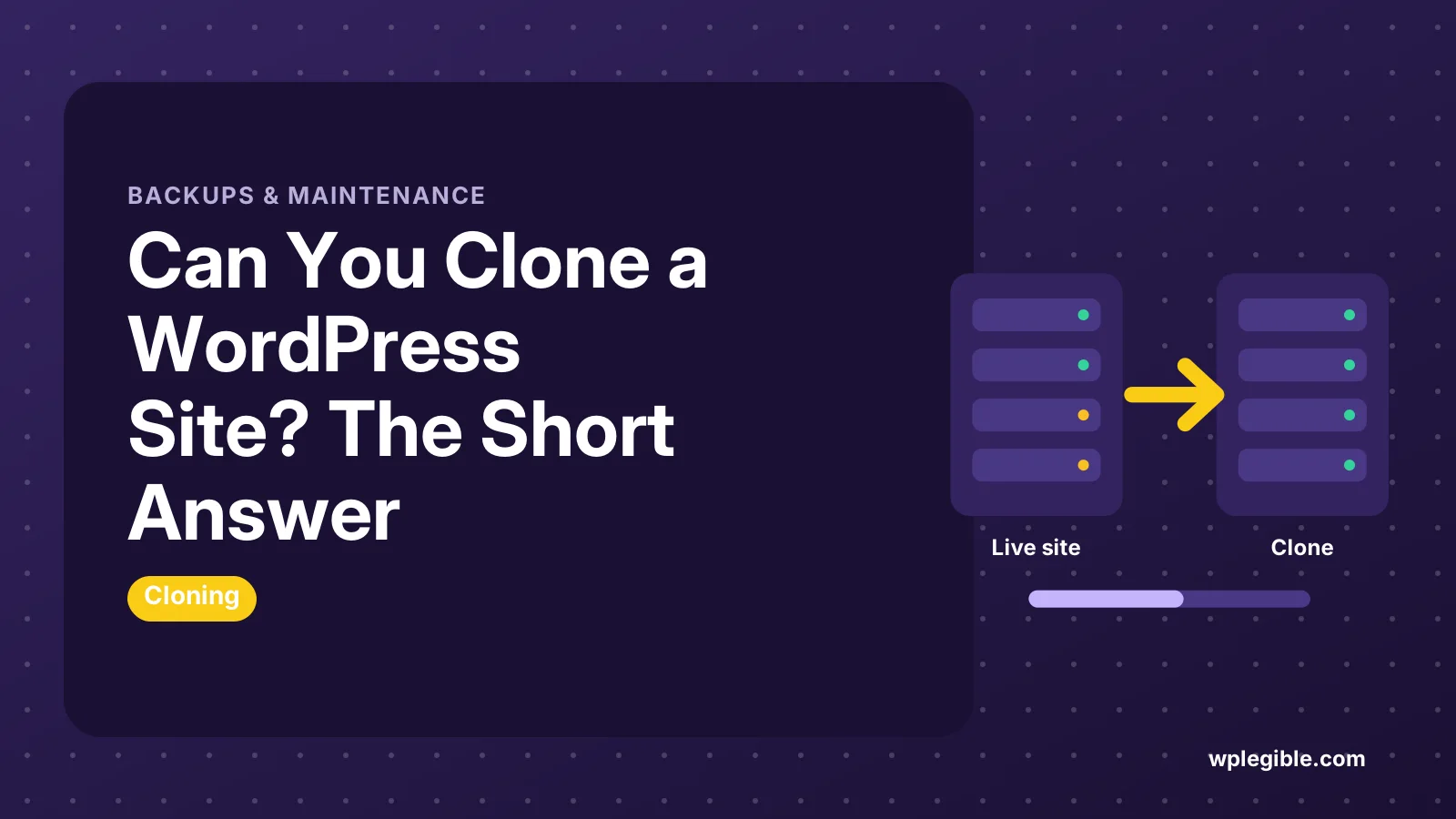
Can You Clone a WordPress Site? The Short Answer
Short answer
Yes, you can clone a WordPress site you own by copying its files and database to a new location and updating the site address. A migration plugin or your host's staging tool is the easiest route, while WP-CLI or a manual copy gives more control.
Key takeaways
- A clone is a copy of both your WordPress files and database.
- Migration plugins and host staging tools are the easiest methods.
- Use a serialized-safe search and replace when changing URLs.
- Block search engines, emails and payments on non-live copies.
- Copying a site you do not own can breach copyright.
Can you clone a WordPress site?
Yes, you can clone a WordPress site you own by copying its files and database to a new location, either with a plugin, your host's tools, or by hand.
A WordPress site is made of two parts: files and a database.
The files include WordPress itself, themes, plugins and uploads. The database holds posts, pages, settings and users. Copy both, update the site address, and you have a working clone.
People clone sites for many reasons:
- Staging. Test updates on a copy before touching the live site.
- Local development. Work on a copy on your own computer.
- Moving hosts. A migration is a clone followed by a DNS switch.
- Templates. Reuse a configured site as the base for new client projects.
- Backups you can test. Prove a backup restores correctly.
The WordPress handbook on moving WordPress explains the moving parts in detail.
What are the main ways to clone a WordPress site?
The main options are a cloning or migration plugin, your host's one-click staging or clone tool, WP-CLI commands, or a manual copy of files and the database.
| Method | Skill needed | Best for | Watch out for |
|---|---|---|---|
| Migration plugin | Low | Most small and medium sites | Size limits in free versions |
| Host staging or clone tool | Low | Sites on managed hosting | Only works within that host |
| Local app import | Low | Local development copies | Large uploads take time |
| WP-CLI | Medium | Developers and large sites | Needs command line access |
| Manual copy | Medium to high | Full control or broken plugins | Easy to miss a step |
There is no single best method. Pick the one that matches your skill level, your host and the size of the site.
How do plugins clone a WordPress site?
Plugins package your files and database into an archive, then unpack it on the new site and update URLs automatically, which makes them the easiest option for most people.
Popular choices include Duplicator, All-in-One WP Migration and UpdraftPlus. Each works slightly differently:
- Duplicator creates a package and an installer file. You upload both to the new location and run the installer. The plugin is listed on WordPress.org.
- All-in-One WP Migration exports a single file that you import on a fresh WordPress install.
- UpdraftPlus clones through its backup and restore features, with migration in paid versions.
Our step-by-step guide covers cloning with Duplicator.
If you prefer a single export file, see our guide to migrating with All-in-One WP Migration.
Free versions often limit site size or features. Check each vendor's site for current limits before you start a large clone.
Can your host clone the site for you?
Many managed hosts include one-click staging or cloning, which copies the site to a new environment on the same account with no plugin needed.
Hosts such as WP Engine, Kinsta, SiteGround and others offer staging tools. Some also let you clone a site into a brand new install under your account. Features and plan limits vary, so check your host's documentation.
Host tools are fast and avoid plugin size limits because the copy happens on the server. The downside is that they only work within that host.
Our guide on setting up a staging site for WordPress compares host tools with plugin options.
How do you clone a WordPress site manually?
Copy all files over FTP or SSH, export the database, import it on the new server, update wp-config.php with the new database details, and replace old URLs with new ones.
The steps in brief:
- Download all WordPress files, especially wp-content.
- Export the database from phpMyAdmin or with a command-line tool.
- Create a new database and user on the destination server.
- Upload the files to the new location.
- Import the database.
- Edit wp-config.php with the new database name, user and password.
- Replace the old site URL with the new one throughout the database.
- Log in, resave permalinks and test the site.
Step 7 needs care.
WordPress stores some data in serialized form, which records string lengths. A plain text find and replace breaks that data. PHP's documentation on serialize explains why.
Use a tool that understands serialized data, such as the WP-CLI search-replace command. Our full guide on migrating WordPress manually covers each step.
What should you change after cloning a site?
Update the site address, block search engines on non-live copies, stop duplicate emails and payments, and check that scheduled tasks do not run twice.
A clone is an exact copy, including things you may not want copied:
- Search engine visibility. Tick Discourage search engines under Settings > Reading on staging copies.
- Emails. Disable or redirect outgoing emails so customers do not get duplicate messages.
- Payments. Switch payment gateways to test mode on store clones.
- Scheduled tasks. Cron jobs like backups and newsletters may run on both sites.
- Analytics. Remove tracking codes so test traffic does not mix with real data.
- Licenses. Some premium plugins count the clone as another site.
For WooCommerce stores, read our guide on migrating a WooCommerce store, since orders and stock need extra care.
Will a cloned site cause duplicate content problems?
A public clone with the same content can confuse search engines, so keep staging and test copies private or blocked from indexing.
Search engines may index both versions and split ranking signals between them. Google's guide on consolidating duplicate URLs explains how it handles duplicates.
Good practice:
- Password-protect staging sites.
- Use the Discourage search engines setting.
- Never point two public domains at identical content without canonical tags.
Our guide on fixing duplicate content in WordPress covers fixes if a copy was already indexed.
Can you clone a WordPress site you do not own?
You can copy a site's design ideas or rebuild a similar layout, but copying another site's content, images or code without permission can break copyright law; this is general information, not legal advice.
Tools that save web pages only capture front-end HTML and images. They cannot copy the WordPress database, plugins or settings, so the result is not a working WordPress site anyway.
If you like a site's look, find out which theme it uses and build your own version with your own content. Our guide on finding the WordPress theme a website uses shows how. For anything beyond inspiration, ask the owner or a legal adviser.
What problems happen when cloning a WordPress site?
The most common problems are broken links and images from old URLs, upload or timeout limits on large sites, and plugins that do not like being moved.
| Problem | Likely cause | Fix |
|---|---|---|
| Images missing | Old URLs still in content | Run a serialized-safe search and replace |
| Redirect to the old site | Site URL not updated | Update siteurl and home values |
| Import stuck | File too large for the server | Use host tools, WP-CLI or a paid plugin tier |
| Error establishing database connection | Wrong details in wp-config.php | Check name, user, password and host |
| Page builder layouts broken | Cached CSS with old URLs | Regenerate builder CSS and clear caches |
Our guide on fixing broken links after migration covers the URL problems in detail.
Is cloning the same as migrating or backing up?
They overlap, but they are not the same: a backup stores a copy for recovery, a clone creates a second working site, and a migration moves the site and retires the old location.
| Task | Result | Old site afterwards |
|---|---|---|
| Backup | A stored archive | Still live |
| Clone | A second working site | Still live |
| Migration | The site at a new location | Usually removed |
The same tools often handle all three. Our explainer on WordPress migration covers the moving side in more depth.
For most site owners, the short answer is simple. Yes, you can clone your WordPress site, and a well-known migration plugin or your host's staging tool is the easiest way to do it.
Frequently asked questions
Is cloning a WordPress site free?
It can be. Free plugins handle many small sites, and many hosts include staging or cloning on their plans. Large sites may need a paid plugin tier or command-line tools. Check each vendor's site for current limits and prices.
How long does it take to clone a WordPress site?
A small site can be cloned in minutes with a plugin or host tool. Large sites with many images or a big database can take much longer, mainly because of upload and download times. Server-side tools are usually the fastest option.
Can I clone a WordPress site to another domain?
Yes. Copy the files and database to the new domain, then replace the old URL with the new one using a tool that handles serialized data. Migration plugins do this automatically. Update the site address settings and test every page afterwards.
Will cloning my site affect the original?
No, cloning only reads from the original site and creates a separate copy. The original keeps running as normal. Just be careful if both sites share a database, email settings or scheduled tasks, which can cause duplicate actions.
Can I clone a WordPress.com site?
You can export content from WordPress.com and import it into a self-hosted site. Full cloning with plugins and themes depends on your plan, since only some plans allow installing plugins. Check WordPress.com's current plan details for export options.
Sources
- Moving WordPress WordPress Developer Resources
- wp search-replace WordPress Developer Resources
- Duplicator plugin WordPress.org
- serialize PHP Manual
- Consolidate duplicate URLs Google Search Central
Is your product missing, or something out of date?
Tell us what to add or correct. We read every note and reply when we need a source. A message does not buy a ranking.
Thanks — we review requests within 3 business days.
Related guides

About the editors
Researched from the primary sources listed above and checked against our editorial rules before publishing.