Backups & maintenance · Explainer
What Is WordPress Migration? Explained
Short answer
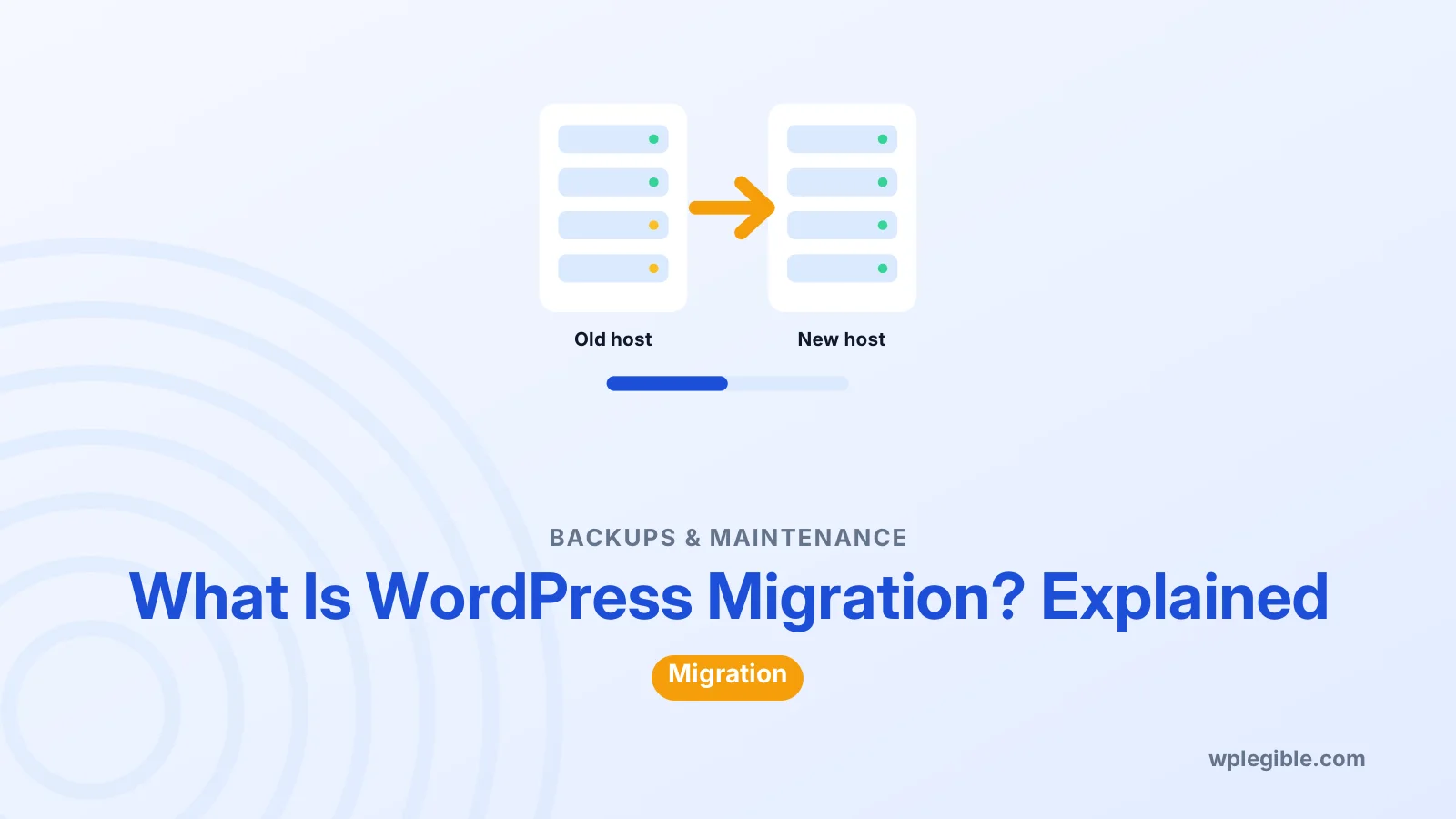
WordPress migration is the process of moving a WordPress site's files and database from one location to another, such as a new host, domain or server. It involves copying both parts, updating database details and URLs, testing, then pointing the domain to the new server.
Key takeaways
- A migration moves both the files and the database.
- Common types are host moves, domain changes and staging to live.
- Plugins, host services, WP-CLI or manual copies can all work.
- URL changes need a serialization-safe search and replace.
- Keep the old host active until the new site is tested.
What is WordPress migration?
WordPress migration means moving a WordPress site, its files and its database, from one place to another, such as a new host, a new domain or a new server.
A WordPress site is two things working together. The files hold WordPress core, themes, plugins and uploads. The database holds posts, pages, settings, users and comments.
A migration copies both pieces, connects them again in the new location, and updates any addresses that changed.
The term is also used for moving to WordPress from another platform, such as Wix or Blogger. That is a content import rather than a copy, and it works differently.
What are the main types of WordPress migration?
The common types are host to host, domain change, local to live, staging to live, HTTP to HTTPS, and moving from another platform into WordPress.
| Type | What moves | Address changes | Main risk |
|---|---|---|---|
| Host to host | Files and database | No | DNS timing and downtime |
| Domain change | Files and database | Yes | Broken links and lost SEO |
| Local or staging to live | Files and database | Yes | Overwriting live data |
| HTTP to HTTPS | Nothing, settings only | Protocol only | Mixed content warnings |
| Platform to WordPress | Content only | Usually yes | Lost formatting and URLs |
Each type needs a slightly different plan, but the core steps stay the same.
Why do people migrate WordPress sites?
People migrate to get faster or cheaper hosting, change domain names, launch a site built locally, merge sites, or leave a platform that limits them.
Common triggers include:
- Slow pages or frequent downtime on the current host.
- A renewal price much higher than the first-term price.
- A rebrand with a new domain.
- Moving from a builder platform to self-hosted WordPress for more control.
- Finishing a redesign on staging and pushing it live.
Migration is routine work. Thousands of sites move every day without problems when the steps are followed.
How does a WordPress migration work?
You back up the old site, copy the files and database to the new location, update wp-config.php with new database details, fix URLs if the domain changed, then point DNS to the new server.
In practice the order looks like this:
- Back up the current site, files and database.
- Copy the files to the new server.
- Export the database and import it into a new, empty database.
- Update wp-config.php with the new database name, user and password.
- Replace old URLs if the domain or path changed.
- Test the site on the new server before going live.
- Update DNS so the domain points to the new host.
The WordPress project explains these steps in its official moving WordPress guide.
What tools can you use to migrate WordPress?
You can use a migration plugin, your host's migration service, WP-CLI, or a manual copy with FTP and phpMyAdmin; plugins are easiest for most people.
Migration plugins. Tools such as Duplicator and All-in-One WP Migration bundle the site into a file and unpack it on the new host.
Host migration services. Many managed hosts move sites for free. You hand over access, and their team does the work.
WP-CLI. Developers can export and import the database and run search-replace from the command line. See how to migrate WordPress with WP-CLI.
Manual migration. Copy files with FTP, move the database with phpMyAdmin or mysqldump, and edit wp-config.php by hand. Our guide on how to migrate WordPress manually shows every step.
The MySQL manual documents mysqldump, the command-line tool many hosts use behind the scenes to export databases for large moves.
Why is changing URLs the tricky part?
WordPress stores full URLs in the database, sometimes inside serialized data, so a plain text find-and-replace can corrupt settings when the domain changes.
Serialized data records the length of each string. If you replace a short domain with a longer one without updating the length, the setting breaks. PHP's serialize documentation shows the format.
Migration plugins and the WP-CLI search-replace command handle serialized data safely.
For the full process, read how to search and replace in the WordPress database.
How long does a WordPress migration take?
A small site can move in under an hour, while large sites or stores can take several hours, plus up to a day or two for DNS changes to reach everyone.
The time depends on:
- Site size, mainly the uploads folder and database.
- Upload and download speeds between servers.
- Whether the domain changes.
- How long DNS records take to update for visitors.
Lowering the DNS TTL a day before the move can shorten the switchover window.
What can go wrong during a migration?
The usual problems are database connection errors, broken links or images, mixed content warnings, lost emails, and new orders placed on the old site during the move.
Most issues have clear fixes:
- Error establishing a database connection means wp-config.php has the wrong details. See how to fix error establishing a database connection.
- Broken links and images usually mean old URLs remain. Read fix broken links after migration.
- 404 errors on inner pages often clear after saving permalinks again.
- Store orders lost happen when the old store keeps taking orders after the copy. Pause orders or use a maintenance window.
For shops, follow the separate checklist in how to migrate a WooCommerce store.
Does migration hurt SEO?
A host move with the same domain should not hurt SEO, but a domain change can cause a temporary drop unless you set up 301 redirects from every old URL.
When only the host changes, URLs stay identical, and search engines rarely notice beyond the IP address.
When the domain changes, redirect each old URL to its new match, keep the same page paths where possible, and tell search engines about the new address in their webmaster tools.
Keep the old domain registered and redirecting for a long time. Removing redirects early throws away links pointing to the old site.
What is the difference between migrating and importing?
Migrating copies a whole WordPress site, including theme, plugins and settings, while importing only brings content such as posts and pages into another site.
WordPress has a built-in export tool under Tools > Export. It creates an XML file with posts, pages, comments and media references.
That file does not contain your theme, plugin settings or widgets. It is useful for moving content between sites, not for cloning a whole site.
Moving from another platform is also an import. See how to migrate a website to WordPress for that process.
How do you prepare for a safe migration?
Take a full backup, note your current settings, check the new host's PHP version, and plan the move for a quiet traffic period.
Make sure you can restore if something fails. Our guide on how to restore a WordPress site from backup is worth reading before you start.
Keep the old hosting active until the new site is tested and DNS has fully switched. Cancelling too early leaves you with no fallback.
Frequently asked questions
Is WordPress migration difficult?
For most small sites it is straightforward with a migration plugin or a host's free migration service. It gets harder with very large sites, busy stores or domain changes, where careful planning and testing matter more.
Can I migrate WordPress for free?
Yes. Free plugins, free host migration services and manual migration with FTP and phpMyAdmin all cost nothing. Some plugins charge for large sites or extra features, so check their limits first.
Will my site go down during migration?
It does not have to. If you copy the site to the new host first, test it, then switch DNS, visitors keep seeing the old site until the new one takes over.
What is the difference between migration and backup?
A backup is a copy kept for recovery. A migration uses a copy to rebuild the site somewhere else. Many backup plugins can also migrate, because both rely on copying files and the database.
Do I need to change URLs when moving hosts?
Not if the domain stays the same. URLs only need replacing when the domain, subdomain, protocol or folder path changes. Then use a tool that handles serialized data safely.
Sources
- Moving WordPress WordPress Developer Resources
- wp search-replace WordPress Developer Resources
- Duplicator WordPress.org Plugins
- All-in-One WP Migration and Backup WordPress.org Plugins
- serialize PHP Manual
Is your product missing, or something out of date?
Tell us what to add or correct. We read every note and reply when we need a source. A message does not buy a ranking.
Thanks — we review requests within 3 business days.
Related guides

About the editors
Researched from the primary sources listed above and checked against our editorial rules before publishing.