Backups & maintenance · Guide
How to Edit WordPress Staging Site (Step by Step)
Short answer
Log in at your staging site's own address followed by wp-admin and edit it like any WordPress site. Test themes, plugins and code there, back up live, then push files, database or both to production with your host's staging tool or a staging plugin, and clear caches afterward.
Key takeaways
- Staging has its own URL, files, database and login.
- Mark staging clearly so you never edit live by mistake.
- Refresh staging from live before each round of changes.
- Push files only when you changed code, to protect new content.
- Back up live before every push and clear caches after.
How do you edit a WordPress staging site?
Open the staging site's own wp-admin URL, log in, and edit it like a normal WordPress site, then test your changes and push them to live with your host or staging plugin.
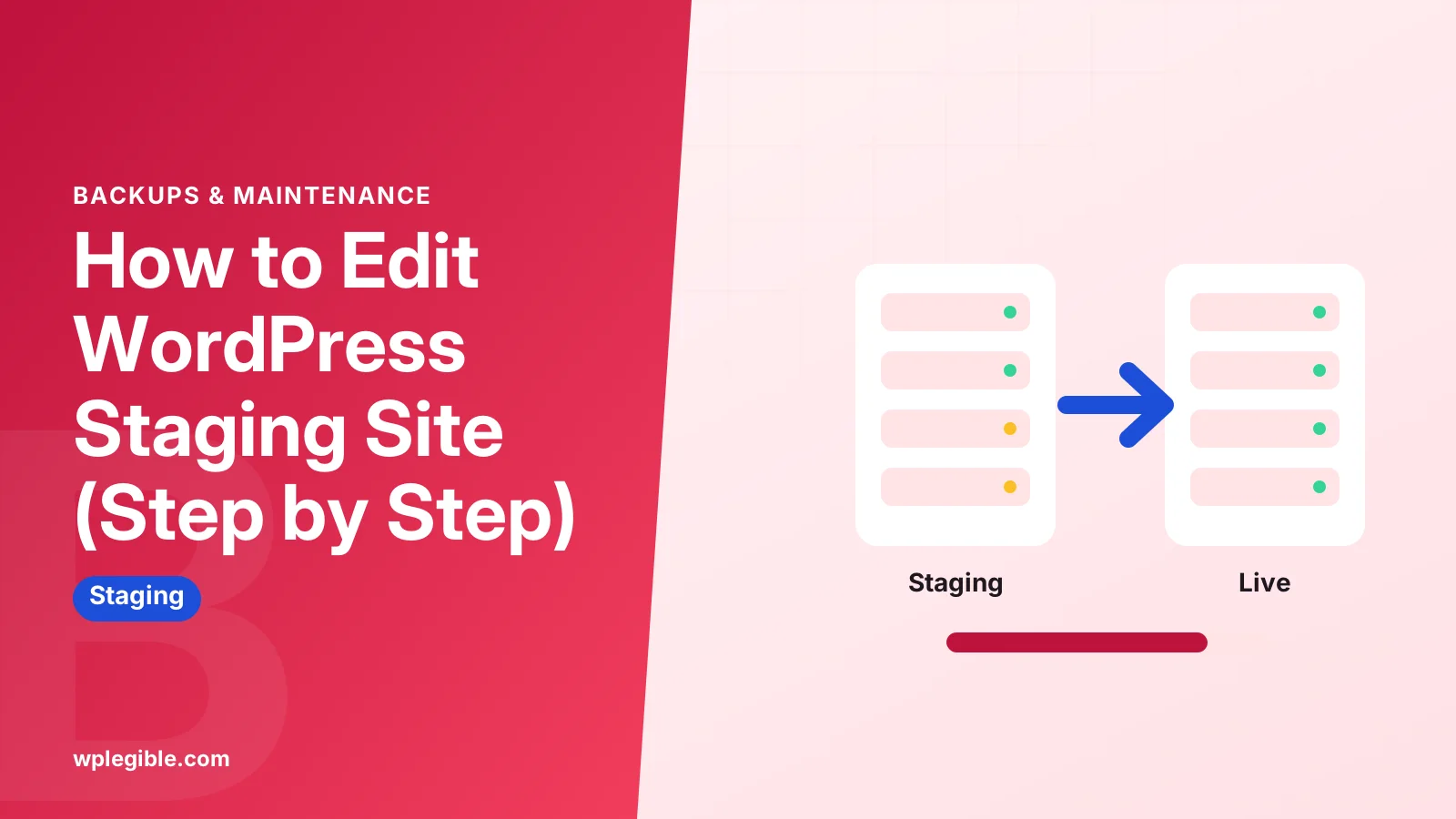
A staging site is a private copy of your live site. It has its own files, its own database and its own login page. Anything you change there stays there until you push it to production.
The basic workflow looks like this:
- Create or refresh the staging copy so it matches live
- Log in to the staging site's dashboard
- Make and test your changes
- Check the site on desktop and mobile
- Back up the live site
- Push the changes from staging to live
- Check the live site and clear caches
If you have not made a staging copy yet, start with our guide on how to set up a staging site for WordPress.
How do you find and log in to your staging site?
Your staging site has a separate address, usually a subdomain or subfolder, and you log in by adding /wp-admin to that address.
Where you find the address depends on how staging was created:
| Staging method | Where to find the staging URL |
|---|---|
| Host staging tool | Hosting dashboard, under Staging or the site's environment list |
| WP Staging plugin | WP Staging menu in the live site's dashboard |
| Other staging plugins | The plugin's main screen in wp-admin |
| Local copy | Your local tool, such as Local or XAMPP |
Hosts often use addresses like staging.example.com or a temporary domain on their own servers. Plugins often create a subfolder like example.com/staging.
Login details usually match the live site at the moment the copy was made. If you changed your live password later, the old one may still work on staging.
Some hosts add a password prompt in front of staging. That extra login is separate from WordPress and comes from your host panel.
How do you know you are editing staging, not live?
Check the URL in your browser bar before every change, and add a visible marker such as a different admin color scheme or a staging notice in the toolbar.
Editing the wrong site is the most common staging mistake. Both dashboards look identical.
Simple ways to tell them apart:
- Pick a different admin color scheme for your user on staging under Users > Profile
- Change the site title on staging to include STAGING
- Use a staging plugin that adds a colored admin bar
- Keep staging and live in separate browser profiles
WordPress also supports environment types. Developers can set WP_ENVIRONMENT_TYPE to staging in wp-config.php, and plugins can read it with wp_get_environment_type. Some plugins turn off emails or payments automatically on non-production sites when this is set.
What can you safely change on a staging site?
You can safely change anything on staging, including themes, plugins, code, layouts and settings, because none of it touches your live visitors until you push.
Good uses for staging:
- Updates. Test WordPress core, theme and plugin updates before running them live.
- Design changes. Try a new theme, new header or new page layouts.
- New plugins. Install and configure a plugin without risking the live site.
- Code edits. Edit functions.php or a child theme and watch for errors.
- PHP upgrades. Switch PHP versions on staging first if your host allows it.
Edit with the same tools you use on live: the block editor, the Site Editor, your page builder, the Customizer, or file access over SFTP.
For theme files, use a child theme so your edits survive theme updates. The child themes handbook shows how to set one up.
How do you edit staging site files and the database?
Use SFTP, your host's file manager or the staging plugin's folder, and the staging database in phpMyAdmin, taking care to pick the staging copy and not the live one.
On most hosts, staging has its own SFTP user or its own folder. Look in the staging section of your host panel for file and database access details.
With WP Staging and similar plugins, the staging site usually lives in a subfolder of your live install. Its database tables share the live database but use a different table prefix, such as wpstg0_ instead of wp_.
That makes phpMyAdmin risky. Before you edit a table, confirm the prefix. A change to wp_options instead of wpstg0_options hits your live site.
How do you keep staging content in sync with live?
Refresh staging from live before you start a new round of edits, because posts, orders and comments added to live after the copy was made are not on staging.
Staging is a snapshot. Live keeps changing while you work. If you push an old staging database back to live, you can overwrite new posts, comments, form entries or WooCommerce orders.
To avoid that:
- Refresh or recreate staging right before starting work
- Keep the work window short
- Avoid adding content on live while a big staging change is in progress
- Push only files, not the database, when you changed only code or the theme
Most host staging tools let you choose what to push: files only, database only, or both. Some also allow selected tables.
How do you push staging edits to the live site?
Back up the live site first, then use your host's push button or your staging plugin's push feature, choosing files, database or both based on what you changed.
The general steps:
- Take a full backup of live, including files and database
- Open your host's staging tool or staging plugin
- Choose Push to live or the equivalent
- Pick what to push, such as files only or files plus database
- Confirm and wait for the process to finish
- Clear all caches, including any CDN
On the plugin side, the free WP Staging plugin creates staging copies, while pushing to live is a feature of the paid version. Our guide on whether the WP Staging plugin is free covers which features need a license.
If anything breaks after the push, restore the backup you took. Our guide on how to restore a WordPress site from backup explains the steps.
What should you test before pushing changes?
Test the key pages, forms, checkout, menus and mobile view on staging, and look for PHP errors, because a push copies problems as well as fixes.
A quick pre-push checklist:
| Area | What to check |
|---|---|
| Home page and key pages | Layout, images, menus |
| Forms | Submit a test entry |
| WooCommerce | Add to cart, checkout in test mode |
| Mobile | Header, menus, buttons |
| Errors | Debug log and browser console |
| Speed | Page load feels normal |
Turn on the debug log on staging to catch hidden warnings. The WordPress debugging guide shows how.
Be careful with anything that talks to the outside world. Staging can send real emails, charge real cards through a live payment key, or post to social accounts. Switch payment gateways to test mode and use an email logging tool on staging.
How do you stop search engines indexing your staging site?
Turn on Discourage search engines from indexing this site in Settings > Reading on staging, and add password protection if your host offers it.
Duplicate copies of your site in search results can confuse visitors and split ranking signals. Most host staging tools and plugins turn on the search engine setting automatically, but check it every time.
The setting is a request, not a lock. The Settings Reading screen documentation notes it is up to search engines to honor it. A password in front of staging is stronger, and Google's guide to blocking indexing explains why password protection beats a robots rule.
Make sure you do not push that setting back to live. If the live site suddenly drops out of search after a push, check Settings > Reading first.
What problems come up when editing a staging site?
Common problems are logging in to the wrong site, being redirected to live, missing images, and pushes that overwrite fresh live content.
| Problem | Likely cause | Fix |
|---|---|---|
| Staging redirects to live | Site URL or cache points to live | Check siteurl and home, clear cache |
| Cannot log in | Password changed after copy | Reset password on staging |
| Images missing | Media not copied or wrong URLs | Recopy uploads or run search-replace |
| Live orders lost after push | Old database pushed over live | Push files only, or restore backup |
| Staging shows in Google | Indexing not discouraged | Turn on setting and add a password |
When you are done with a staging copy, remove it so it does not use space or become an unpatched target. See how to delete a WordPress staging site.
Frequently asked questions
How do I log in to my WordPress staging site?
Add wp-admin to the staging address shown in your host panel or staging plugin. The username and password usually match your live site at the time the copy was made. Some hosts add a separate password prompt in front.
Do changes on staging affect my live site?
No. Staging has its own copy of files and database, so edits stay there until you push them. The exception is outside services, such as live payment keys or email, which can still act on real customers.
Can I edit staging with Elementor or another page builder?
Yes. Page builders work on staging the same way they do on live. Make sure the license allows staging use, and clear the builder's CSS cache after you push changes to production.
Will pushing staging overwrite new orders and posts?
It can if you push the database. Anything added to live after you created staging would be replaced. Push files only for code and design changes, or refresh staging right before you start editing.
Should staging be hidden from Google?
Yes. Turn on the discourage search engines setting under Settings > Reading and add password protection if your host allows it. Check that the setting is not copied back to live when you push.
Sources
- wp_get_environment_type() WordPress Developer Resources
- Child themes WordPress Developer Resources
- WP Staging WordPress.org Plugins
- Settings Reading screen WordPress.org Documentation
- Block search indexing with noindex Google Search Central
- Debugging in WordPress WordPress Developer Resources
Is your product missing, or something out of date?
Tell us what to add or correct. We read every note and reply when we need a source. A message does not buy a ranking.
Thanks — we review requests within 3 business days.
Related guides

About the editors
Researched from the primary sources listed above and checked against our editorial rules before publishing.