Plugin how-tos · Guide
How to Add Contact Form 7 in Elementor (Step by Step)
Short answer
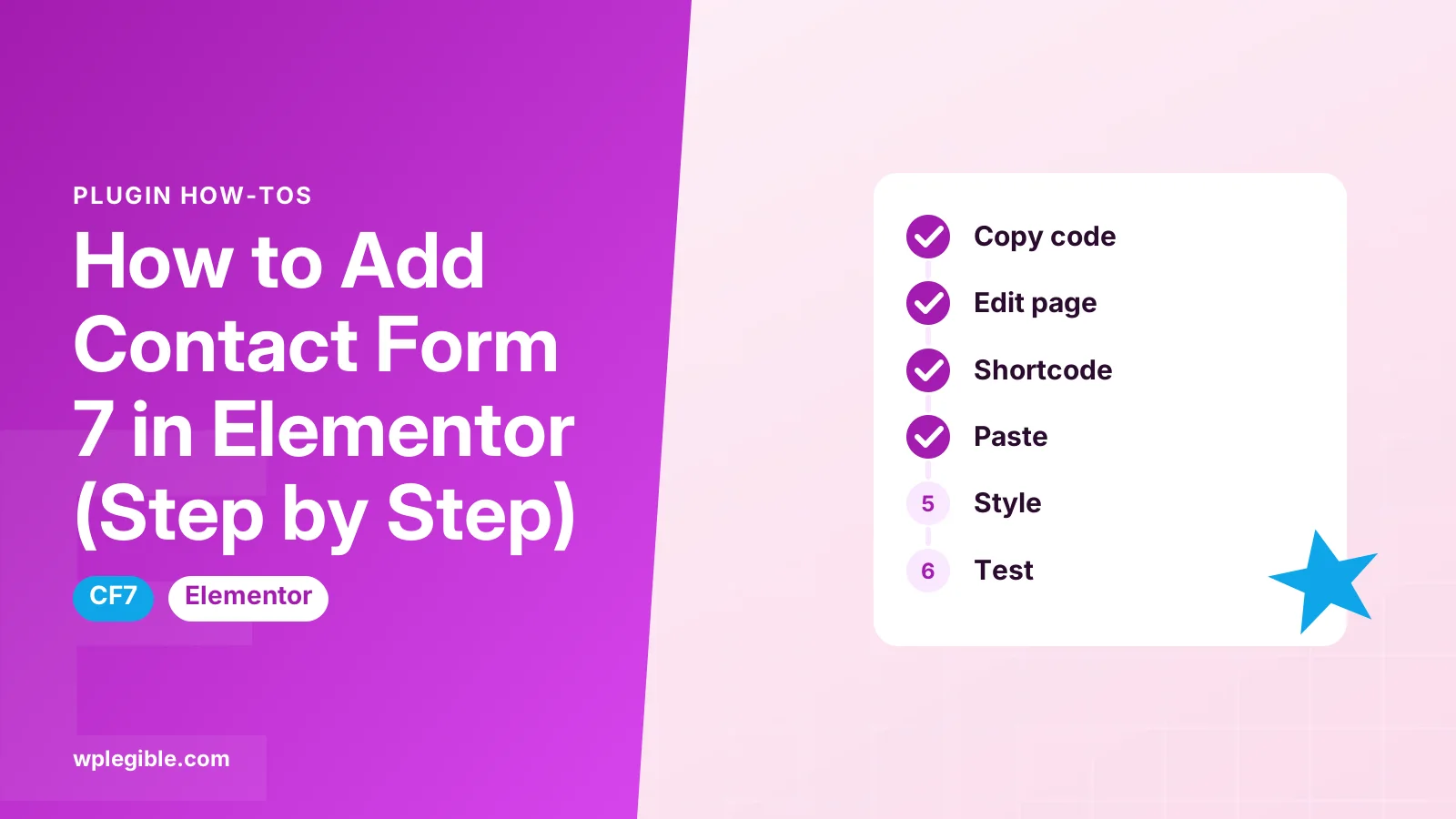
Go to Contact, Contact Forms and copy your form's shortcode. Edit the page with Elementor, drag the Shortcode widget into a section, paste the shortcode and click Update. This works in free Elementor, and you can style the form with CSS or an add-on widget.
Key takeaways
- Elementor's free Shortcode widget displays Contact Form 7.
- Copy the exact shortcode from Contact, Contact Forms.
- Add an html_class attribute to target the form with CSS.
- Add-on widgets offer visual styling at the cost of a plugin.
- Test submissions and email delivery on the live page.
How do you add Contact Form 7 in Elementor?
Copy the form's shortcode from Contact, Contact Forms, then drag Elementor's Shortcode widget onto your page and paste the shortcode into it.
Elementor does not need a special integration for Contact Form 7. The form plugin outputs a shortcode, and Elementor's free Shortcode widget can display any shortcode.
This works in the free version of Elementor. You do not need Elementor Pro or an add-on.
Below are the full steps, plus how to style the form, fix it when it does not appear, and when an add-on widget helps.
What do you need before you start?
You need Contact Form 7 and Elementor installed and active, at least one form created, and edit access to the page you want to place it on.
- Install Contact Form 7 from Plugins > Add New Plugin and activate it.
- Install Elementor the same way if it is not already active.
- Create or open a form under Contact > Contact Forms.
If you have never built a form, our guide on how to use Contact Form 7 covers fields, mail settings and messages.
Contact Form 7 also has an official getting started guide on its own site.
How do you copy the Contact Form 7 shortcode?
Open Contact, Contact Forms in wp-admin, find your form in the list, and copy the shortcode shown in the Shortcode column.
The shortcode looks similar to this:
[contact-form-7 id="a1b2c3d" title="Contact form 1"]Copy the whole line, including the square brackets. Newer versions of Contact Form 7 use a short hash for the ID rather than a plain number. Both formats work, as long as you copy the exact code from your site.
Paste it into a plain text editor first if you are unsure. Smart quotes added by word processors, such as curly quotation marks, can break the shortcode, so make sure the quotes stay straight.
If you manage several forms, give each one a clear title in Contact Form 7. That title appears in the shortcode and helps you spot the right form later inside Elementor.
You can also open the form's edit screen. The shortcode appears just below the form title.
How do you add the Shortcode widget in Elementor?
Edit the page with Elementor, search the widget panel for Shortcode, drag it into a section, and paste the Contact Form 7 code into its field.
- Go to Pages, hover over your page and click Edit with Elementor.
- In the left panel, type Shortcode into the widget search box.
- Drag the Shortcode widget into the column where the form should appear.
- Paste your shortcode into the Enter your shortcode field.
- Click Update or Publish.
The form may show inside the editor preview straight away. If it does not, check the live page. Some shortcodes only render fully on the front end.
Our guide on how to edit a shortcode in WordPress Elementor shows how to change it later.
Can you use the Text Editor widget instead?
Yes, pasting the shortcode into Elementor's Text Editor widget also works, but the Shortcode widget is cleaner because it adds no extra paragraph tags or formatting.
The Text Editor can wrap the shortcode in paragraph tags. That sometimes adds stray spacing above or below the form.
Use the Text Editor only if you want a short intro sentence and the form in the same widget.
A neater layout is to stack three widgets in the same column: a Heading widget for the form title, a Text Editor widget for one or two lines of context, and the Shortcode widget for the form itself. Each piece can then be styled and spaced on its own.
How do you style a Contact Form 7 form in Elementor?
Elementor's Shortcode widget has no form style controls, so you style Contact Form 7 with CSS, either in Elementor's custom CSS area or your theme's Additional CSS.
Start by giving the form a class. Add an html_class attribute to the shortcode:
[contact-form-7 id="a1b2c3d" title="Contact form 1" html_class="cf7-elementor"]Then add CSS such as:
.cf7-elementor input[type="text"],
.cf7-elementor input[type="email"],
.cf7-elementor textarea {
  width: 100%;
  padding: 12px;
  border: 1px solid #ccc;
  border-radius: 6px;
}
.cf7-elementor input[type="submit"] {
  background: #1e6fd9;
  color: #fff;
  padding: 12px 24px;
  border: 0;
  border-radius: 6px;
}
On classic themes, add this under Appearance > Customize > Additional CSS. Elementor Pro users can also paste it into the widget's Advanced > Custom CSS panel.
Contact Form 7's own page on styling contact forms lists the classes it uses. MDN explains attribute selectors like input[type="email"].
Should you use an add-on with a Contact Form 7 widget?
Add-ons such as Elementor widget packs offer a dedicated Contact Form 7 widget with visual style controls, which helps if you dislike writing CSS but adds another plugin.
These widgets let you pick the form from a dropdown and style fields, labels and buttons with sliders and color pickers.
| Method | Cost | Styling | Extra plugin |
|---|---|---|---|
| Shortcode widget | Free | CSS only | No |
| Text Editor widget | Free | CSS only | No |
| Add-on CF7 widget | Free or paid | Visual controls | Yes |
| Elementor Pro Form widget | Paid | Visual controls | No, replaces CF7 |
If you only have one or two forms, a few lines of CSS are usually lighter than a full add-on.
Every extra plugin adds updates to manage and code to load. If you already run a widget pack for other reasons, using its Contact Form 7 widget costs nothing extra. If not, think twice before installing one only for form styling.
Why is Contact Form 7 not showing in Elementor?
The shortcode may be wrong or from another site, the form may have been deleted, the plugin may be inactive, or caching may be serving an old page.
Check these first:
- Contact Form 7 is active under Plugins.
- The shortcode matches the one in Contact > Contact Forms exactly.
- You used the Shortcode widget, not a Heading widget.
- Page cache and Elementor's CSS cache are cleared.
For a deeper list of causes, see Contact Form 7 not showing in Elementor.
How do you test the form after adding it?
Open the live page in a private window, fill in every field, submit the form, and check that the success message appears and the email arrives.
If the message says it failed to send, the problem is usually email delivery, not Elementor. Read how to fix Contact Form 7 not sending.
Also confirm where submissions go. Contact Form 7 does not store entries by default. Our guide on how to see Contact Form 7 submissions explains your options.
How do you reduce spam on the form?
Turn on Contact Form 7's reCAPTCHA or Turnstile integration, or add a quiz or acceptance field, so bots cannot submit it as easily.
Integrations live under Contact > Integration. You add the keys from the service once, and they apply to every form.
Our guide to stopping contact form spam in WordPress covers more options.
Can you add the same form to an Elementor popup or footer?
Yes, the Shortcode widget works anywhere Elementor lets you place widgets, including templates, popups and footers built with Elementor Pro's Theme Builder.
Place the Shortcode widget in the template, paste the same shortcode, and save.
Using the same form in several places is fine. All submissions use the mail settings of that one form, which keeps maintenance simple.
In a popup, keep the form short. Name, email and a message field are usually enough. Long forms inside popups feel cramped, especially on phones.
The WordPress Shortcode API is what makes this work anywhere shortcodes are processed.
How do you make the form look good on mobile?
Set form fields to full width with CSS, use Elementor's responsive controls for column padding, and preview the page in the mobile view before publishing.
Contact Form 7 fields have a default size that can look narrow inside wide Elementor columns. The width: 100% rule in the CSS example above fixes this on every screen size.
In Elementor, click the responsive mode icon at the bottom of the panel and switch to mobile. Check that labels, fields and the submit button are easy to tap and that nothing overflows the screen.
If you placed the form in a two-column section, consider stacking the columns on mobile so the form gets the full screen width.
Frequently asked questions
Do I need Elementor Pro to add Contact Form 7?
No. The Shortcode widget is part of free Elementor, and it displays Contact Form 7 forms on any page. Elementor Pro only adds extras such as custom CSS per widget and its own Form widget.
Why does my form show as plain text in Elementor?
You probably pasted the shortcode into a Heading or a widget that does not process shortcodes, or Contact Form 7 is inactive. Use the Shortcode widget and confirm the plugin is enabled.
How do I change the button color of Contact Form 7 in Elementor?
Add a class to the form with the html_class attribute, then target the submit input with CSS in Additional CSS or Elementor's custom CSS panel. Set the background, text color and padding there.
Can I use one Contact Form 7 form on several Elementor pages?
Yes. Paste the same shortcode into a Shortcode widget on each page. Every copy sends messages using the mail settings of that single form.
Should I switch to the Elementor Pro Form widget instead?
If you already pay for Elementor Pro and want visual styling and built-in actions, its Form widget is convenient. If you are happy with Contact Form 7, the Shortcode widget works fine.
Sources
- Contact Form 7 WordPress.org Plugins
- Getting Started with Contact Form 7 Contact Form 7
- Styling Contact Form Contact Form 7
- Elementor Website Builder WordPress.org Plugins
- Shortcode API WordPress Developer Resources
- Attribute selectors MDN Web Docs
Is your product missing, or something out of date?
Tell us what to add or correct. We read every note and reply when we need a source. A message does not buy a ranking.
Thanks — we review requests within 3 business days.
Related guides



About the editors
Researched from the primary sources listed above and checked against our editorial rules before publishing.