Plugin how-tos · Guide
How to See Contact Form 7 Submissions in WordPress
Short answer
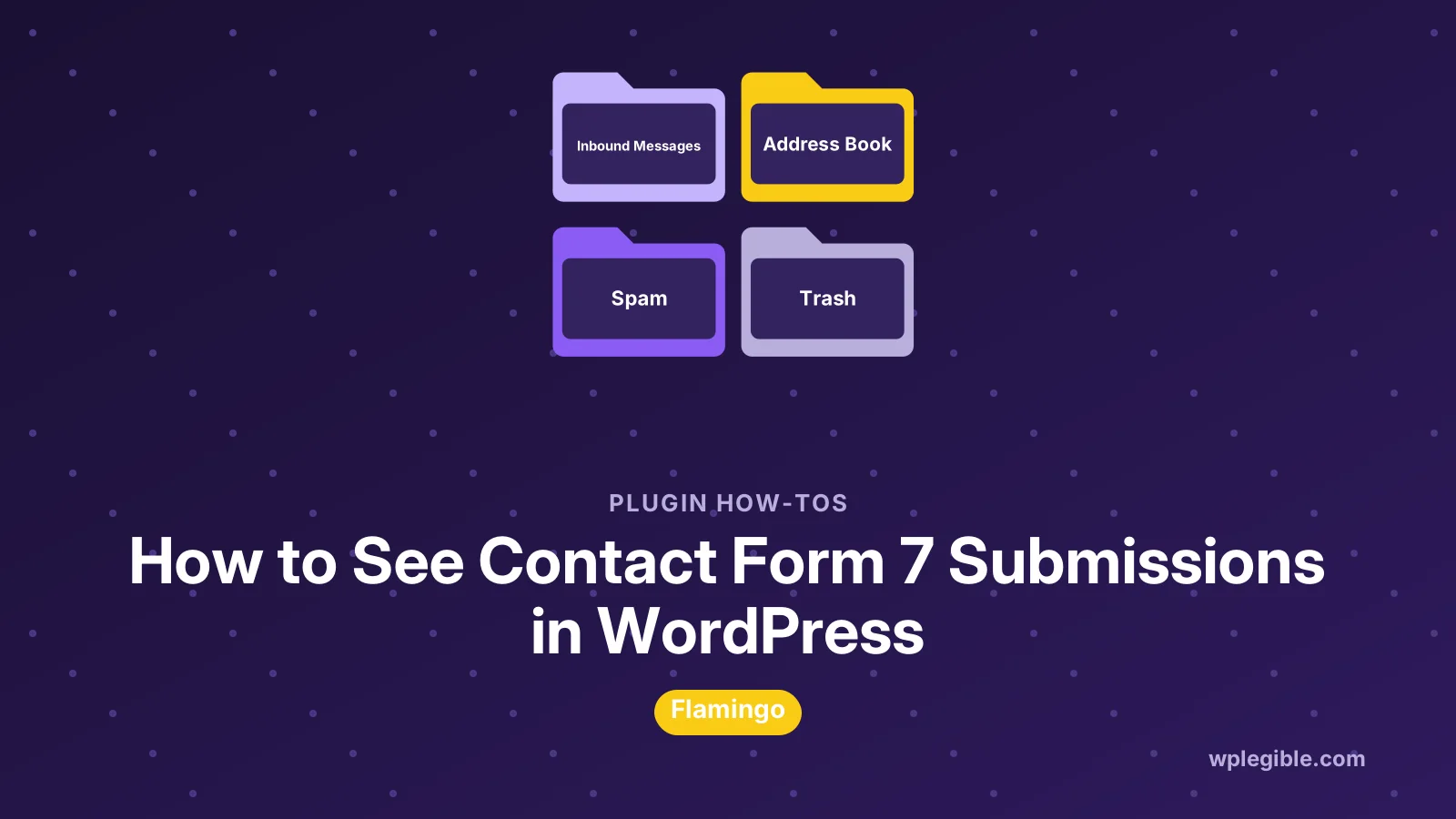
Contact Form 7 does not save submissions in WordPress by default; it only emails them. To see submissions in the dashboard, install the free Flamingo plugin from the same developer, and every new message appears under Flamingo > Inbound Messages. Flamingo cannot recover messages sent before it was installed, so check your inbox or email logs for older ones.
Key takeaways
- Contact Form 7 only emails submissions; it does not store them on its own.
- The free Flamingo plugin saves new submissions under Flamingo > Inbound Messages.
- Flamingo cannot show messages sent before it was activated.
- Inbound messages can be searched, filtered and exported to CSV.
- Keep only the submissions you need and delete old ones for privacy.
Does Contact Form 7 save submissions?
No. Contact Form 7 sends each submission by email using the settings in the form's Mail tab, but it does not keep a copy in the WordPress database.
This keeps the plugin lightweight, but it means that if an email is lost, filtered as spam or deleted, there is no record of the message on your site.
The official Contact Form 7 plugin page lists more than 10 million active installations, so this is a very common situation.
If you are setting up a form from scratch, our guide on how to use Contact Form 7 covers the Form and Mail tabs in detail.
How do you save submissions with Flamingo?
Install and activate the free Flamingo plugin from Plugins > Add New Plugin; from then on, every Contact Form 7 submission is saved and listed under Flamingo > Inbound Messages.
- Go to Plugins > Add New Plugin
- Search for Flamingo
- Click Install Now on Flamingo by Takayuki Miyoshi, then Activate
- Submit a test message through your form
- Open Flamingo > Inbound Messages to see it
Contact Form 7's documentation on saving submitted messages with Flamingo explains how the two plugins work together.
No extra configuration is needed for basic use. Flamingo detects Contact Form 7 automatically and starts saving messages straight away.
If a form should not be stored, for example because it collects sensitive information, Contact Form 7 lets you turn storage off for that form with the do_not_store setting in its Additional Settings tab.
How do you view and search inbound messages?
Open Flamingo > Inbound Messages, use the channel filter to pick a specific form, search by name, email or text, and click a message to read every field.
Each form appears as its own channel, so sites with several forms can view messages from one form at a time.
Flamingo also creates Address Book entries for people who contact you, which is handy for spotting repeat enquiries.
Mark messages as spam or move them to the trash to keep the list manageable and easy to scan.
How do you export submissions to CSV?
In Flamingo > Inbound Messages, filter the list if needed and click the Export button at the top to download the messages as a CSV file.
The export suits spreadsheets, reporting and moving leads into a CRM. Open it in a spreadsheet app with UTF-8 encoding so accented characters display correctly.
Export regularly if your team works from spreadsheets, such as weekly or monthly. It is easier than copying messages from the dashboard one by one.
Can you see submissions sent before Flamingo was installed?
No. Flamingo only records submissions made after it is activated, so older messages exist only in the inboxes they were sent to, or in an email log if you had one.
Check the To address in each form's Mail tab, then search that inbox, including spam and archived folders.
If you use an SMTP or email logging plugin, its log may show the sent messages, sometimes with their full content.
Going forward, keep Flamingo active so this situation does not happen again.
How do you check that emails are being sent?
Submit a test message, check the inbox and spam folder, and if nothing arrives, look at Flamingo to confirm the submission was saved and then fix email delivery.
If the message appears in Flamingo but not in your inbox, the form works and the problem is email delivery. Our guide on fixing Contact Form 7 not sending covers the usual causes.
Sending WordPress email through an SMTP service solves most delivery problems. Our guide on setting up SMTP in WordPress explains how.
Are there alternatives to Flamingo?
Yes. Other plugins can store Contact Form 7 submissions in the database, send them to Google Sheets or a CRM, or add a more detailed entries screen, though Flamingo is the simplest free option.
If you want built-in entry storage without add-ons, a form plugin that saves entries by default may suit you better. Our comparison of Contact Form 7 vs WPForms covers that trade-off.
Integrations with CRMs or spreadsheets often run through automation services. They send each submission to the right place as it arrives.
How do you send submissions to a spreadsheet or CRM?
Use an integration plugin or automation service that listens for Contact Form 7 submissions and adds each one to a Google Sheet, CRM or help desk, alongside or instead of Flamingo.
This suits teams that work outside WordPress. Sales staff can follow up from their CRM without logging in to the dashboard.
Map each form field to the right column or CRM field during setup. Use clear form field names, since they become the labels in the connected tool.
Keep Flamingo active as a backup even when an integration is running. If the connection fails, you still have every message in WordPress.
How do you know which form a message came from?
Flamingo groups messages by channel, which matches each Contact Form 7 form, and you can add a hidden field or use the form title in the email subject to make the source even clearer.
Clear form titles, such as Contact page or Quote request, make the channel list easy to understand at a glance.
If the same form appears on several pages, the page URL in the submission details shows exactly where it was sent from.
How do you reply to a submission?
Reply from your email client using the Reply-To address set in the form's Mail tab, which should be the visitor's email; Flamingo itself is for viewing and exporting, not for sending replies.
Set Reply-To in Additional Headers to the visitor's email field. Then a simple Reply in your inbox goes straight to the person who filled in the form.
Record important replies in your CRM or help desk, so the whole conversation stays in one place.
How do you keep submissions secure and private?
Limit who can access Flamingo, delete messages you no longer need, avoid collecting sensitive data through contact forms and describe what you store in your privacy policy.
Flamingo stores messages in the WordPress database, so anyone with access to that data can read them. Keep administrator accounts to the people who really need them.
WordPress includes tools for exporting and erasing personal data on request, under Tools > Export Personal Data and Erase Personal Data. The WordPress documentation on privacy tools explains how they work.
Data protection laws such as the GDPR apply to contact form messages. Set a simple retention rule, such as deleting messages after a year, and stick to it.
How do you stop spam from filling Flamingo?
Turn on a spam integration in Contact Form 7, such as reCAPTCHA v3, Cloudflare Turnstile or Akismet, so fewer junk submissions are sent and saved.
Flamingo marks messages flagged by Akismet or other checks as spam, which keeps the main list cleaner.
Our guide on stopping contact form spam compares the main protection methods.
Does Flamingo slow down the site?
Not noticeably for most sites, since Flamingo works only when a form is submitted and in the dashboard, but a very large number of stored messages can make the database bigger.
Delete old messages and spam regularly. A tidy database keeps backups smaller and the admin area responsive.
If you receive thousands of submissions a month, consider sending them to a dedicated CRM instead of storing them all in WordPress.
What should you do after setting up Flamingo?
Submit a test from each form, confirm each one appears in Flamingo and arrives by email, then add a reminder to export and clean up messages regularly.
Test again after major WordPress or plugin updates. A quick check catches problems before real enquiries are lost.
With Flamingo in place, you always have a second copy of every message, even when email fails.
Frequently asked questions
Where are Contact Form 7 submissions stored?
By default, nowhere on your site. Contact Form 7 only emails submissions. Install the free Flamingo plugin to store new submissions under Flamingo then Inbound Messages.
Can I recover old Contact Form 7 messages?
Flamingo cannot recover messages sent before it was installed. Check the inbox set in the form's Mail tab, including spam folders, or an email log plugin if you had one.
How do I export Contact Form 7 submissions?
With Flamingo installed, go to Flamingo then Inbound Messages, filter the list if needed, and click Export to download the messages as a CSV file.
Is Flamingo free?
Yes. Flamingo is a free plugin from the same developer as Contact Form 7 and is available in the WordPress plugin directory.
Why do submissions appear in Flamingo but not in my inbox?
The form works, but email delivery is failing. Set up SMTP, use a From address on your own domain and check spam folders and your domain's email records.
Sources
- Contact Form 7 plugin WordPress.org Plugins
- Save submitted messages with Flamingo Contact Form 7 Docs
- Tools Export Personal Data Screen WordPress.org Documentation
- Flamingo plugin WordPress.org Plugins
- Data protection European Commission
Is your product missing, or something out of date?
Tell us what to add or correct. We read every note and reply when we need a source. A message does not buy a ranking.
Thanks — we review requests within 3 business days.
Related guides


About the editors
Researched from the primary sources listed above and checked against our editorial rules before publishing.