Affinity is the best GIMP alternative for most people, with full layers, masks and RAW editing free with a Canva account. Photopea is the closest free browser match for PSD files, and Krita is the best free pick for digital painting.
How we make this list: we compare pricing pages, product documentation and public user reviews, then re-check every price before each update. No product paid for a place. Disclosure.
Affinity is now free with a Canva account, so the strongest desktop editor here costs $0.
Photopea opens PSD files in the browser for free, and Premium is only $5 a month.
Photoshop costs $22.99 a month, more than double any other paid plan in this list.
Six of the nine tools have a free plan, and two of them, Affinity and Krita, have no paid plan at all.
Pixelmator Pro at $49.99 once and PaintShop Pro at $79.99 once are the only one-time purchases here.
How do you pick the right GIMP alternative?
Most GIMP users leave for one of three reasons: the interface, missing AI tools, or PSD files that do not round-trip cleanly.
Free does not mean weak here. Six of the nine editors in this list have a free plan, and Affinity and Krita charge nothing at all for their full desktop apps.
If the edited image ends up on a website, file size matters as much as layers. Our guide on optimizing images for WordPress shows how to export without losing quality.
Price spreads are wide. Paid plans here run from $1.99 a month for Pixlr Plus to $22.99 a month for Photoshop, and two desktop editors cost a single one-time payment.
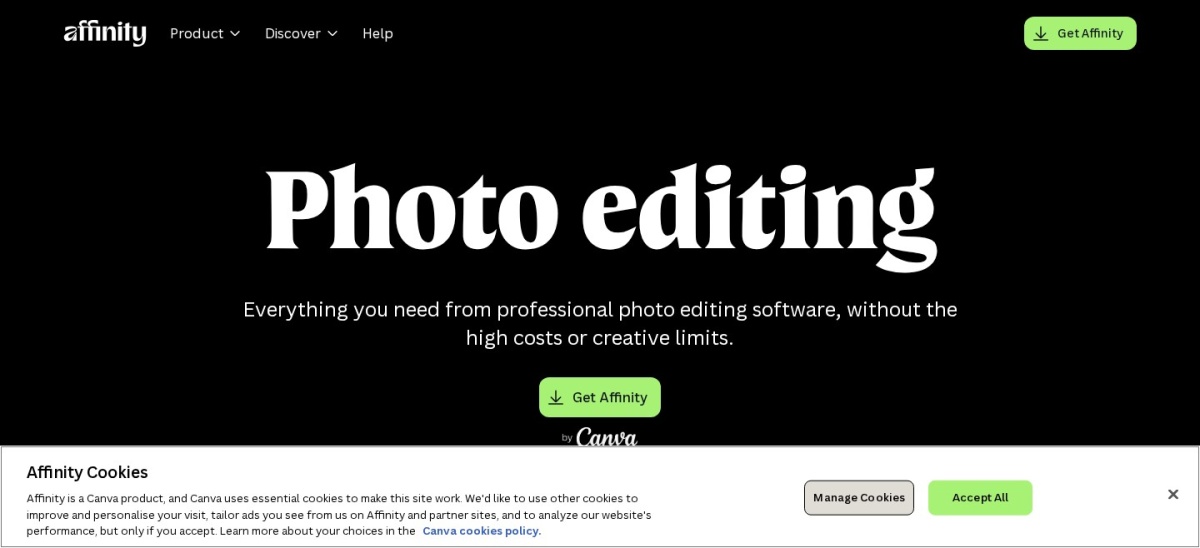
Affinity is a professional desktop editor with layers, masks, RAW developing and 32-bit HDR editing. Canva merged its Photo, Designer and Publisher apps into one unified Affinity app in October 2025 and made the core app free for individuals with a free Canva account.
The trade off is the AI tools. Generative Fill, Expand and Remove Background need a paid Canva plan, and the old $69.99 Photo 2 licence is no longer sold. It suits photographers and designers who want pro-grade tools without a monthly bill.
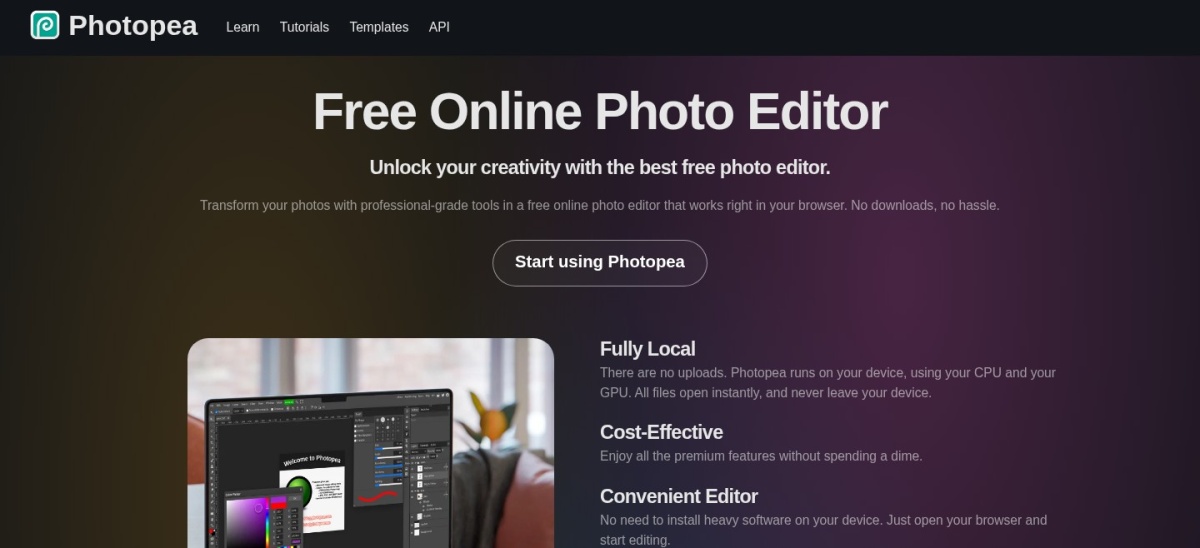
Photopea is a free browser editor that opens PSD, XCF and RAW files with layers intact, and needs no install or account. It covers layers, masks, smart objects, blending modes and batch actions, so it feels closest to GIMP and Photoshop in a browser tab.
The trade off is ads and speed. The free plan shows ads and large files can feel slow, while Premium at $5 a month removes ads and adds extra AI tools. It suits anyone who edits on shared or locked-down computers.
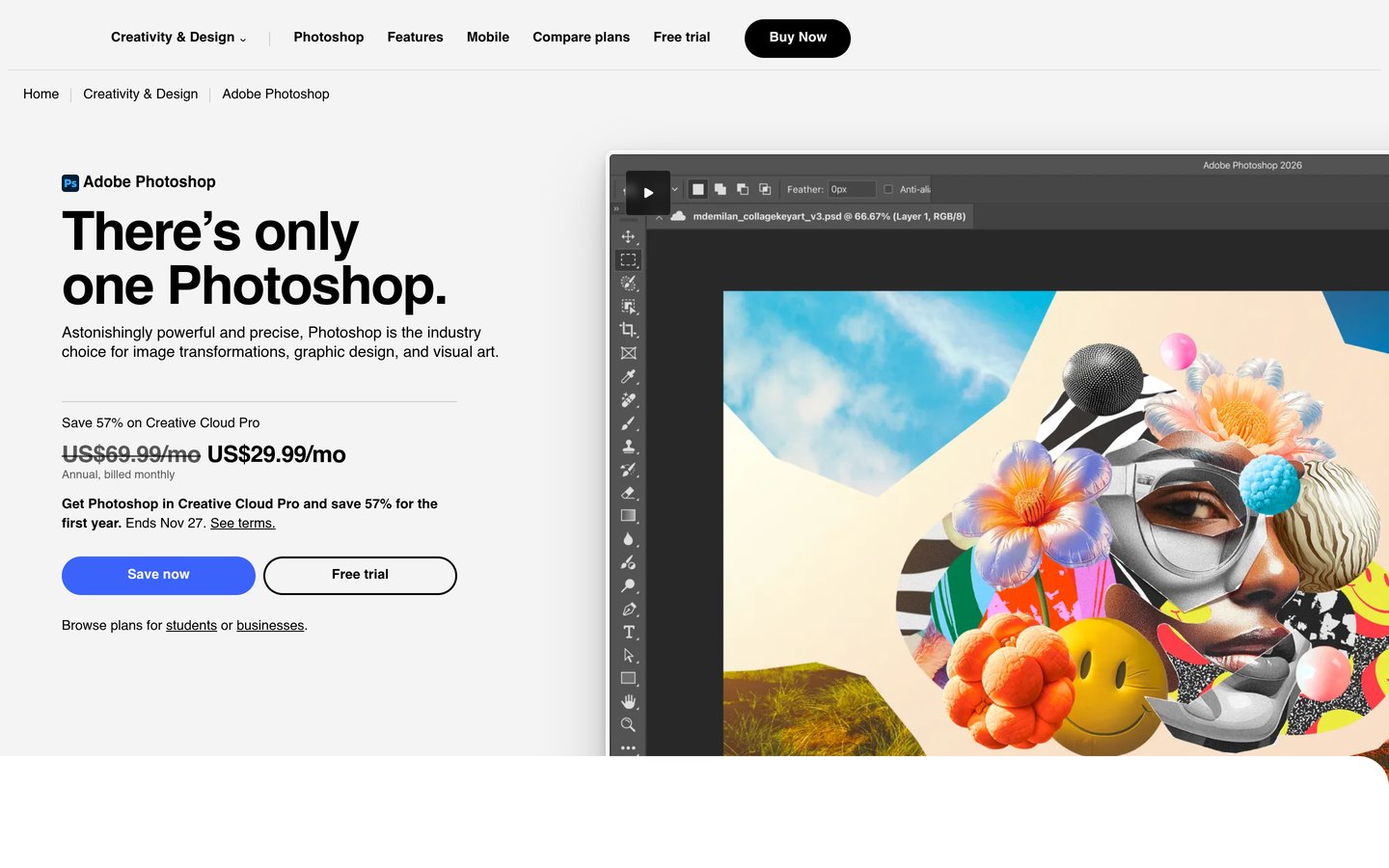
Adobe Photoshop is the industry standard for photo editing, retouching and compositing, with layers, masks, smart objects and the widest plug-in library. It includes Generative Fill and other AI tools, and its PSD files open almost everywhere.
The trade off is the subscription. The single-app plan costs $22.99 a month, the highest price in this list, and it stops working if you cancel. It suits professionals whose clients and collaborators already work in PSD.
What we like
Most powerful editor in this list
Best PSD compatibility anywhere
Generative Fill and AI tools included
Watch out for
Highest price here at $22.99 a month
Subscription only, no one-time purchase
The subscription includes Photoshop on desktop and iPadVisit adobe.com
04
Krita
4.4/5on G2 (64 reviews, checked Nov 2026)
PriceFree
Best free pick for painting
PriceFree, open source
Best forDigital painting
Layers and masksYes, full toolkit
PlatformsWindows, Mac, Linux
krita.org
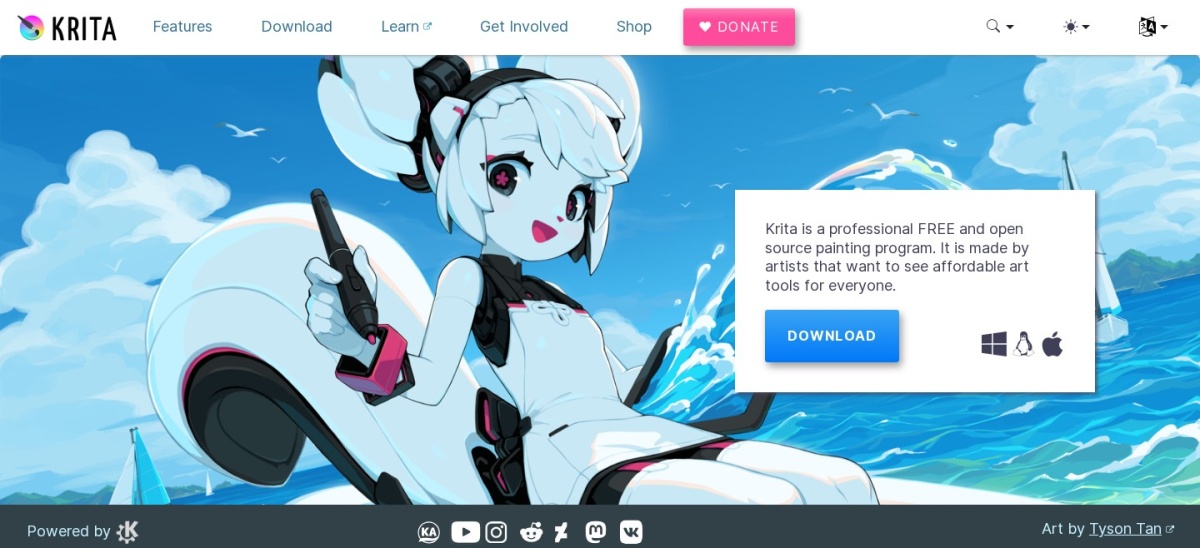
Krita homepage, captured Nov 2026.
Krita is a free, open-source editor built for digital painting and illustration, with a customizable brush engine, layers, masks and animation tools. It runs on Windows, Mac and Linux, costs nothing, and needs no account.
The trade off is photo editing depth. Krita handles layers and colour well, but it has no built-in RAW developing or photo cataloguing. It suits illustrators and comic artists who paint more than they retouch photos.
What we like
Completely free, no paid tier
Best brushes in this list for painting
Animation tools built in
Watch out for
No built-in RAW developing
Photo retouching is thinner than GIMP
There is no paid plan; donations fund developmentVisit krita.org
05
Pixlr
4.4/5on G2 (750 reviews, checked Nov 2026)
Paid from$1.99/mo
Cheapest paid plan here
PriceFree, Plus $1.99/mo
LayersYes, in the browser
AI toolsBackground remover
PlatformsBrowser, no install
pixlr.com
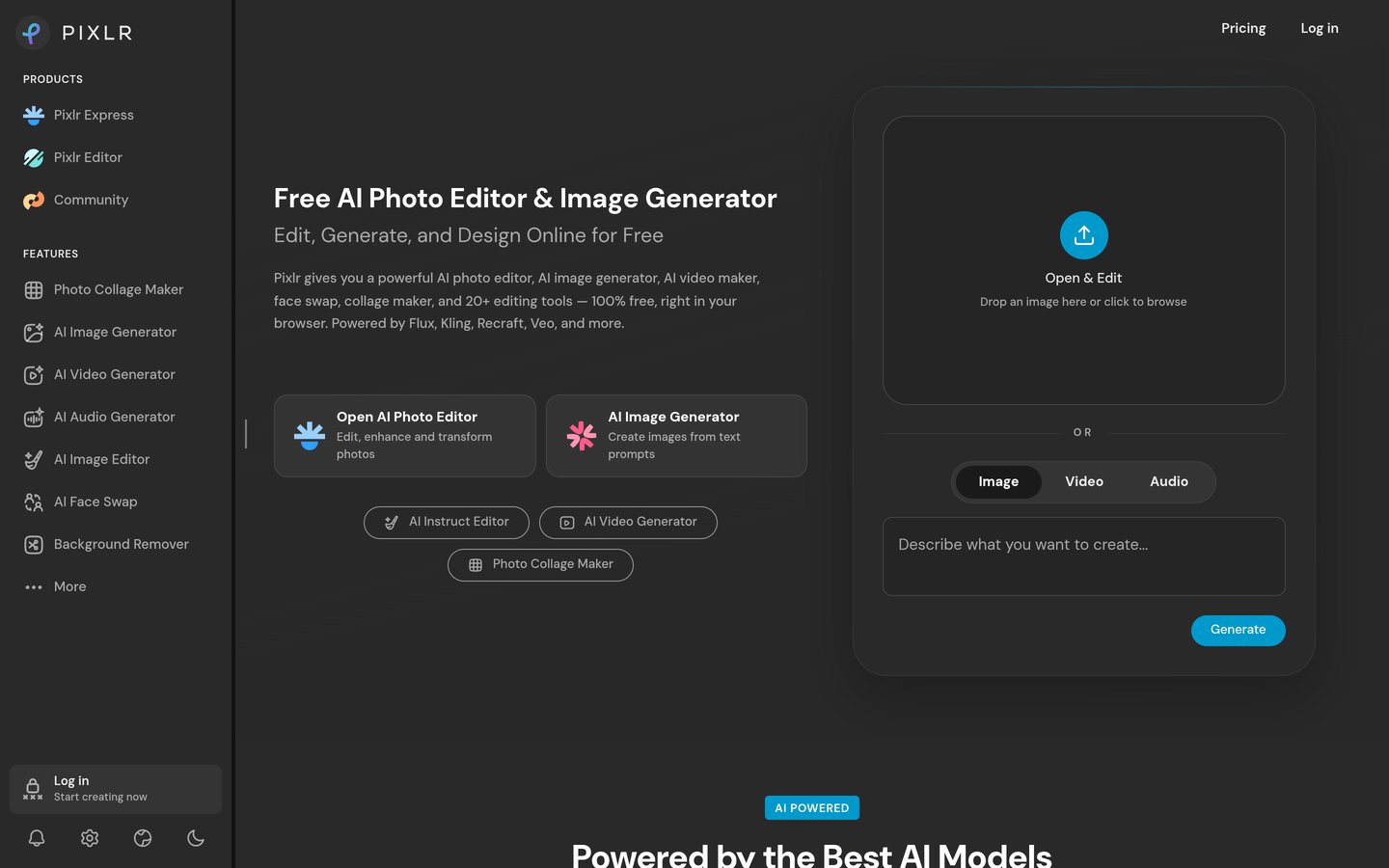
Pixlr homepage, captured Nov 2026.
Pixlr is a browser photo editor with layers, blending modes and AI tools, and nothing to install. The free plan covers core editing with ads, and Plus costs $1.99 a month billed annually for ad-free editing and 80 AI credits a month.
The trade off is depth. Pixlr handles quick and mid-level edits well, but it cannot match a desktop editor for large files or heavy retouching. It suits anyone who wants layers in a browser for very little money.
What we like
Layers in the browser, no install
Free plan covers core editing
Plus is only $1.99 a month
Watch out for
Free plan has ads and limits
Struggles with very large files
Plus adds ad-free editing and AI credits for $1.99 a monthVisit pixlr.com
06
Canva
4.7/5on G2 (7,660 reviews, checked Nov 2026)
Paid from$120/yr
Best for quick social graphics
PriceFree, Pro $120/yr
Templates1.6M-plus
Photo editingFilters, background remover
PlatformsBrowser, mobile apps
canva.com
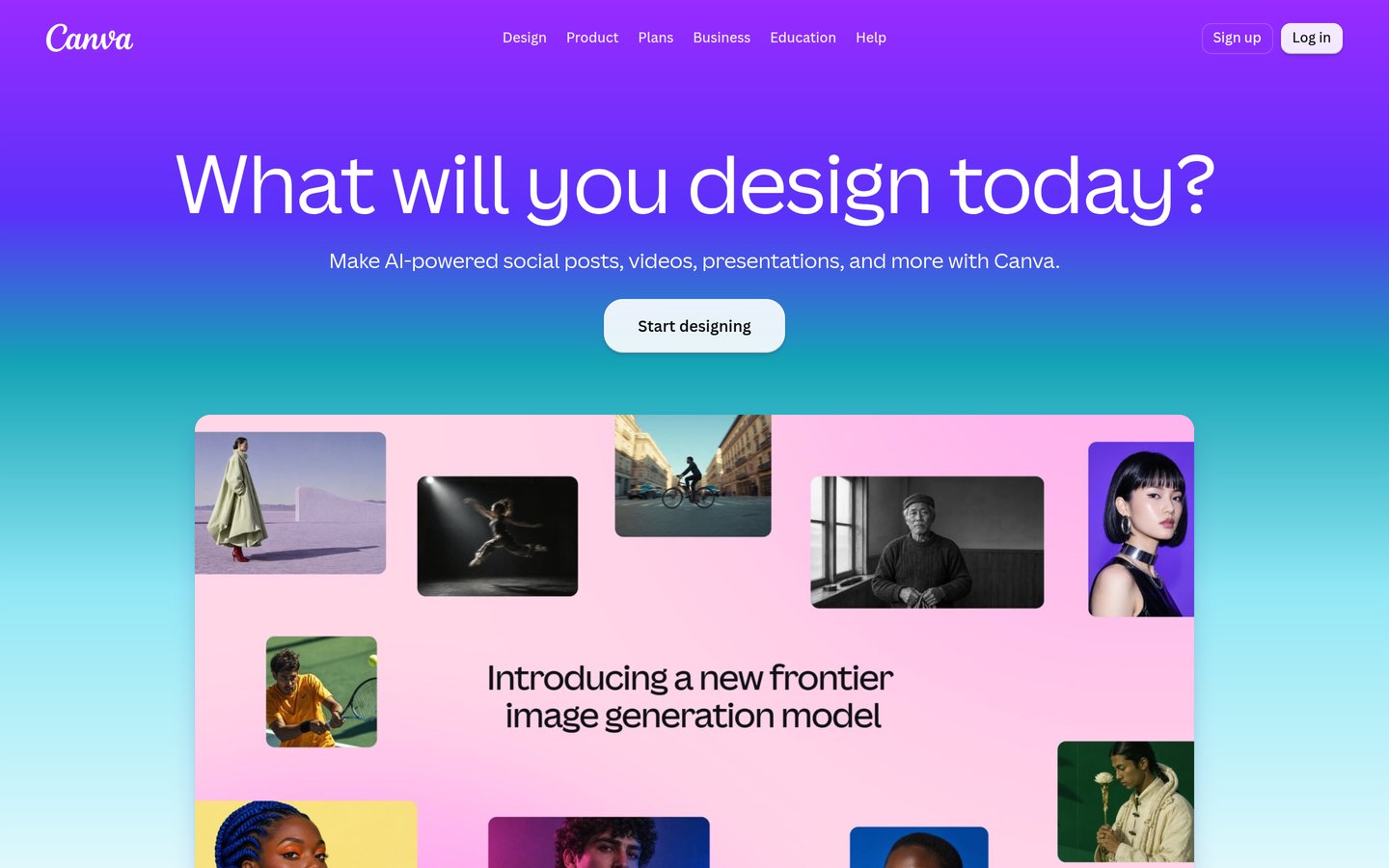
Canva homepage, captured Nov 2026.
Canva is a browser design platform with photo editing built in, covering filters, background removal and more than a million templates. The free plan covers basic editing, and Pro costs $120 a year for one person.
The trade off is depth. Canva cannot do layered retouching, RAW development or print-grade colour work. It suits anyone who needs a steady stream of social posts, flyers and presentations.
What we like
Fastest route to a finished social post
Huge template and stock library
Free plan is genuinely usable
Watch out for
No layered retouching or RAW editing
Background remover needs Pro
Pro adds background removal and premium assets for $120 a yearVisit canva.com
07
Pixelmator Pro
4.4/5on G2 (91 reviews, checked Nov 2026)
Starts at$49.99/once
Best one-time purchase on Mac
Price$49.99 once
PlatformMac only
RAW editingYes, built in
Free trial30 days
pixelmator.com
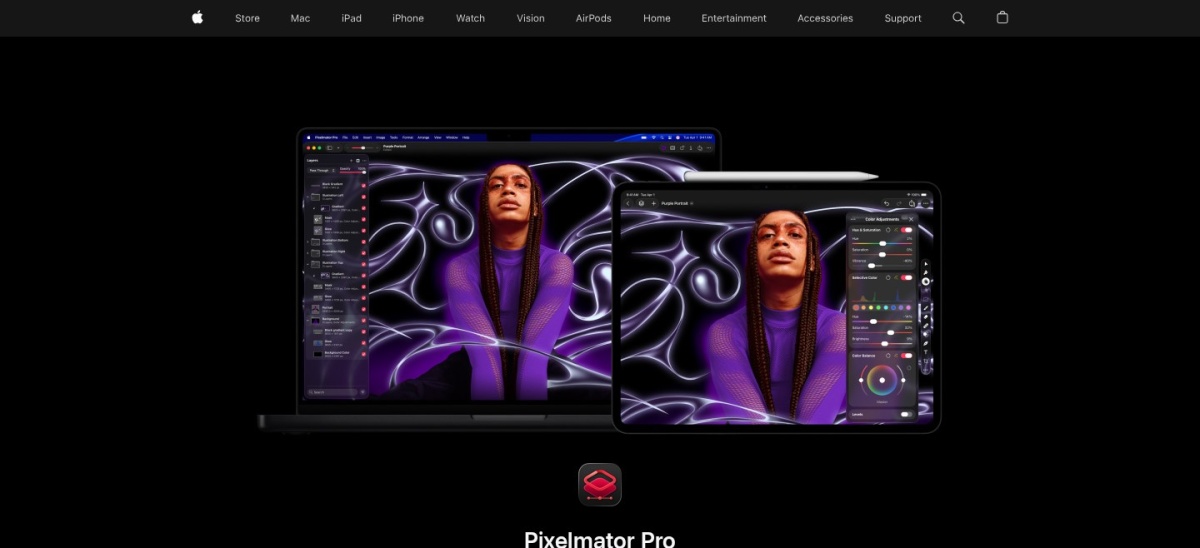
Pixelmator Pro homepage, captured Nov 2026.
Pixelmator Pro is a native Mac editor you buy once on the App Store for $49.99. It covers layers, masks, RAW editing and machine-learning tools in a clean Mac interface, and it handles most of what casual and serious photographers need.
The trade off is the platform. It needs a Mac, and the iPad version is only available through an Apple Creator Studio subscription at $12.99 a month. It suits Mac owners who want a fast, elegant editor without a subscription.
What we like
Cheapest one-time purchase in this list
Fast native Mac app
Machine-learning retouching built in
Watch out for
Mac only, no Windows version
iPad version needs a subscription
Creator Studio adds the iPad app and AI tools for $12.99 a monthVisit pixelmator.com
08
PaintShop Pro
4.1/5on G2 (207 reviews, checked Nov 2026)
Starts at$79.99/once
Best one-time purchase on Windows
Price$79.99 once
PlatformWindows only
RAW processingYes, included
Free trial30 days
paintshoppro.com
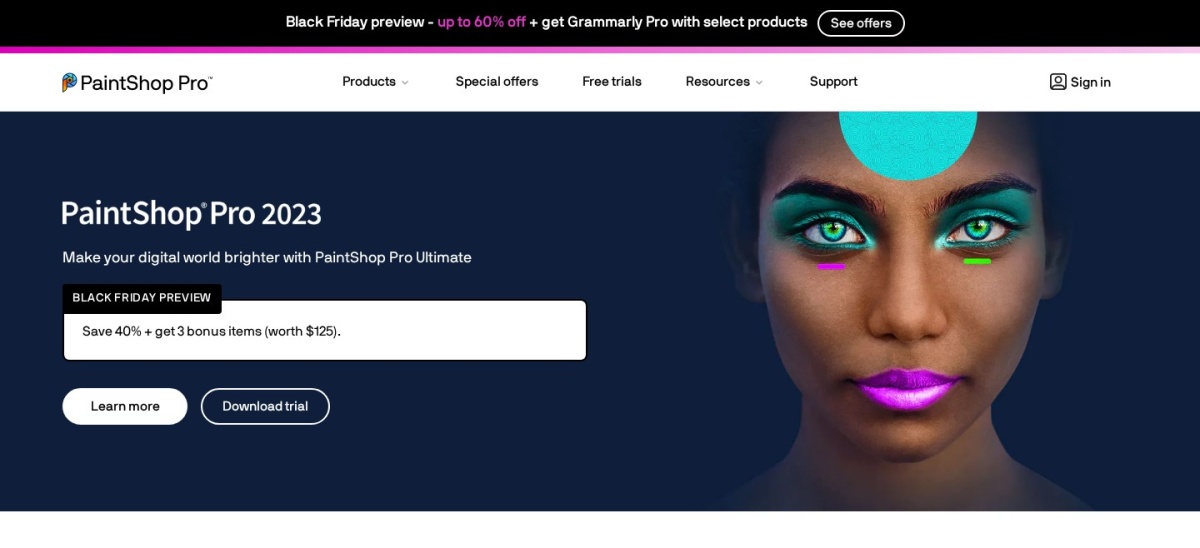
PaintShop Pro homepage, captured Nov 2026.
PaintShop Pro is the budget Windows alternative to Photoshop, sold as a one-time purchase covering photo editing, RAW processing, graphic design tools and batch processing. The standard version costs $79.99 once, and Ultimate at $99.99 adds AI styles, brushes and the AfterShot RAW editor.
The trade off is freshness. Corel is still selling the 2023 version in 2026, with no newer release in sight, and it never came to the Mac. It suits Windows power users who want a complete toolkit without a subscription.
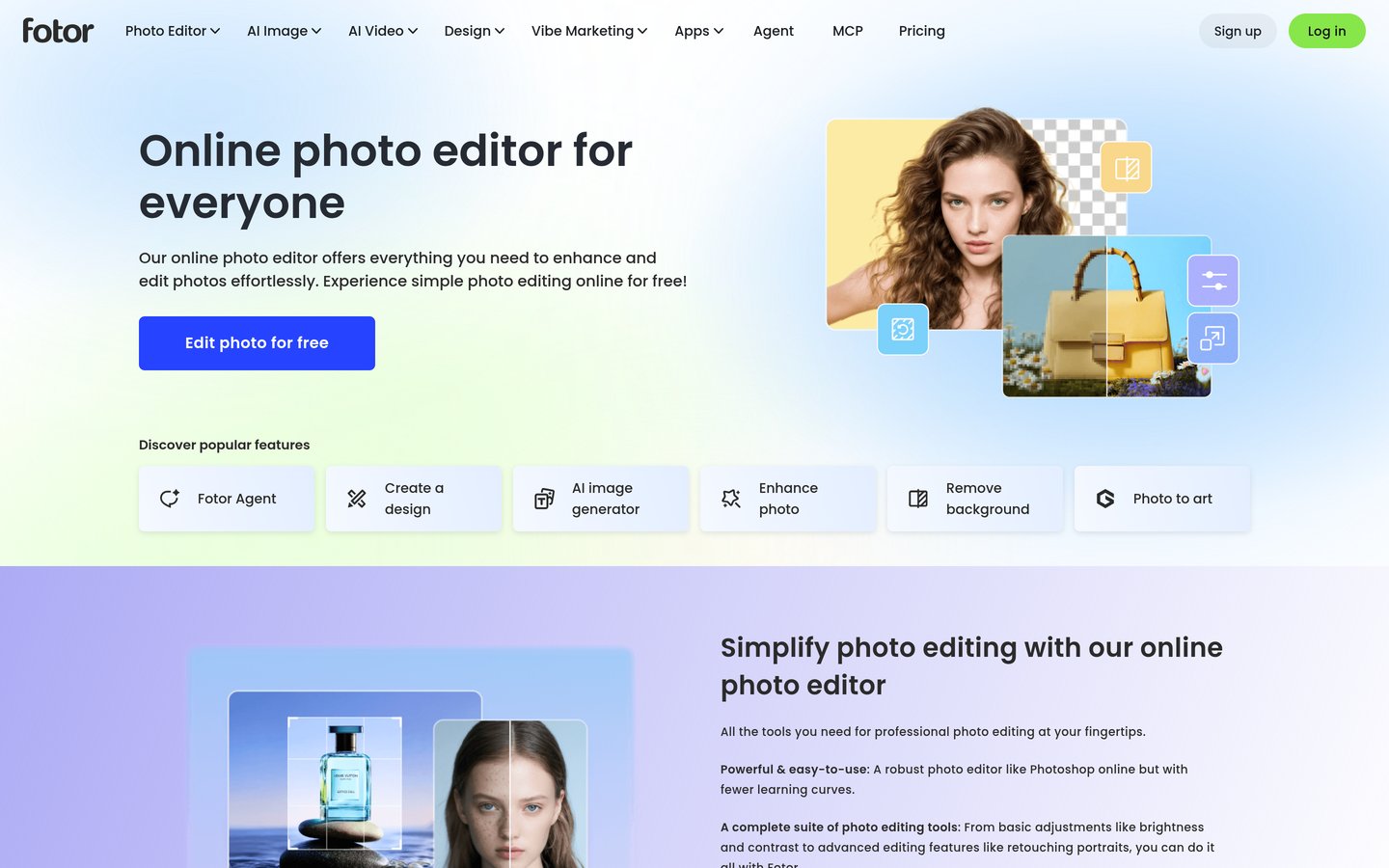
Fotor is a browser photo editor built around AI tools, with one-click enhance, background removal and batch editing. The free plan covers basic edits, and Pro costs $39.99 a year for the full AI toolkit and no ads.
The trade off is control. Fotor is fast for quick fixes and social images, but it has no real layer-based retouching for detailed work. It suits anyone who wants polished photos in minutes without learning a desktop editor.
What we like
One-click AI enhance and background removal
Batch editing for many photos at once
Free plan covers basic edits
Watch out for
No layer-based retouching
Ads and limits on the free plan
Pro unlocks the full AI toolkit for $39.99 a yearVisit fotor.com
Before you switch from GIMP
Export a few real files first and open them in the new editor. Layers, masks and text usually survive, but smart objects and some adjustment layers may flatten or change.
Check the plug-ins you rely on. GIMP scripts and plug-ins rarely move across, so list the ones you use every week before you switch.
Try the free plan for a real job, not a test image. A week of normal edits shows whether the interface and export options fit your work.
How we chose
We started from the most named GIMP alternatives in buyer guides and review sites, then kept nine with a public rating and published pricing.
Prices come from each vendor's pricing page or a pricing check that read it, checked on 29 November 2026. Ratings and review counts come from G2 on the same day. Where a vendor shows a sale, the list shows the regular price.
We left out editors with no public rating. No vendor paid for a place, and we do not claim to have used these tools ourselves.
How to choose a GIMP alternative
Start with the files you already have, then match the editor to the work you do most.
Check your file formats first. If you work in PSD or XCF, pick an editor that opens them with layers intact. Photopea and Affinity handle PSD best here.
Decide between free and paid. Six tools here have a free plan. Pay only if you need the AI tools, cloud storage or support that free plans leave out.
Match the editor to the job. Pick Krita for painting, Canva or Fotor for quick social images, and Affinity or Photoshop for layered retouching.
Try it on a real project. Export a finished file and check the result before you commit. Our guide on optimizing images for WordPress shows what to check in the export.
FAQ
What is the best GIMP alternative in 2026?
Affinity is the best GIMP alternative for most people in 2026. Its core app is free with a Canva account and covers layers, masks, RAW developing and HDR editing, and it is rated 4.5 out of 5 on G2 from 234 reviews.
Is there a free alternative to GIMP?
Yes. Affinity, Photopea and Krita are all free and cover layers and masks. Photopea runs in the browser and opens PSD files, Krita is best for painting, and Affinity is the closest full desktop replacement.
What is the best free GIMP alternative for beginners?
Photopea is the easiest free start, because it runs in the browser with no install and looks familiar to Photoshop users. Canva is even simpler if you only need quick edits and templates, but it has no real layers.
How much does a good GIMP alternative cost?
Nothing, for most people. Six of the nine tools here have a free plan, and Affinity and Krita charge nothing at all. Paid plans start at $1.99 a month for Pixlr Plus and reach $22.99 a month for Photoshop.
Which GIMP alternative is best for PSD files?
Photopea is best for PSD files on a free plan, because it opens and saves them with layers intact in the browser. Affinity and Photoshop also handle PSD well, while Canva and Fotor flatten layered files.
Affinity vs Photopea: which GIMP alternative should I pick?
Pick Affinity if you want a full desktop editor with RAW developing and offline work for free. Pick Photopea if you edit on different computers or cannot install software, since it runs in any browser.
Can I use a GIMP alternative on Linux?
Yes. Krita and Photopea both run on Linux, and Photopea works in any browser. Affinity, Pixelmator Pro and PaintShop Pro do not offer Linux versions, so check the platform before you switch.
SaaS SEO and WordPress specialist with about 8 years of experience. Rakib compares WordPress plugins, themes, hosting and software using public pricing, documentation and user reviews. See how we rank.