Macrium Reflect is a top clone software pick for reliable disk imaging and recovery, holding a 4.7/5 rating across 95 G2 reviews. Acronis True Image suits users wanting cloud backup and anti-ransomware tools starting at $49.99/yr, while EaseUS Todo Backup starts at $39.95/yr for simpler Windows cloning.
How we make this list: we compare pricing pages, product documentation and public user reviews, then re-check every price before each update. No product paid for a place. Disclosure.
EaseUS Todo Backup starts at $39.95/yr regular price for Windows disk cloning and backup, with a 4.5/5 rating from 94 Capterra reviews.
Acronis True Image lists Essentials from $49.99/yr regular price (with promotional first-year pricing noted on its purchasing page) and holds 4.3/5 across 71 G2 reviews.
AOMEI Backupper offers one-time lifetime licenses alongside yearly plans, starting at $49.95 one-time on Capterra and $69.95 lifetime for Professional on AOMEI.
Clonezilla runs free and open source from bootable media, earning 4.7/5 across 22 Capterra reviews for IT admins comfortable with text-based menus.
Iperius Backup starts at €29 one-time for Basic on Capterra and G2, holding a 4.5/5 rating across 189 Capterra reviews.
How do you choose the right clone software for your drives?
Disk cloning copies partitions, boot sectors, and operating systems so you can move to a larger SSD or recover from drive failure without reinstalling apps. Choosing the right utility starts with matching the tool to your operating system and recovery workflow.
Licensing models split sharply between recurring annual subscriptions and one-time perpetual or lifetime fees. Subscriptions often bundle cloud storage, ransomware protection, or ongoing major upgrades, whereas one-time licenses avoid renewal bills if you do not need cloud space.
Live cloning lets you migrate a running Windows or macOS drive with minimal downtime, while bootable media tools operate outside the host OS. Bootable utilities are helpful when a drive has filesystem or boot issues, though they require rebooting into rescue media.
Before buying, check whether a plan covers a single computer, multiple machines, or server editions. Many vendors advertise low home prices while charging more for workstation, server, or technician licenses.
For combining cloning with partition management on Windows
$24.95/yr
No free plan
4.6/5
Price ladder: cheapest paid plan per year
List prices, USD, checked Nov 2026
ClonezillaFree
Paragon HDM$25
IperiusFREE$33
EaseUSFREE$40
AOMEIFREE$50
Acronis$50
Macrium$65
The 7 best clone software tools
01
Macrium Reflect
4.7/5on G2 (95 reviews, checked Nov 2026)
Starts at$65/yr
Best for fast Windows disk imaging and recovery
OS focusWindows (x86 and ARM)
Trial30-day free trial
Key featureRapid Delta Restore & Image Guardian
G2 rating4.7/5 (95 reviews)
macrium.com
Macrium Reflect homepage, captured Nov 2026.
Macrium Reflect is disk imaging and cloning software built for Windows PCs and workstations, backed by a 4.7/5 rating across 95 G2 reviews. It includes a 30-day free trial covering direct disk cloning, WinPE 11 rescue media, and backup image creation.
The trade off is subscription-based licensing—listed at $65/yr for Reflect Workstation on G2 and Capterra, with promotional first-term pricing such as £18.50 (50% off £36.99) shown on Macrium's buy page—rather than a perpetual license. It suits Windows users and IT teams who prioritize fast recovery and ransomware backup protection.
What we like
Supports direct disk cloning, WinPE 11 rescue media, and Rapid Delta Restore
Includes Image Guardian to help protect backup files from ransomware
Covers both traditional x86 and ARM-based Windows devices
High 4.7/5 rating on G2 across 95 reviews
Watch out for
Subscription-based licensing rather than a perpetual one-time purchase
Interface can feel utilitarian compared with consumer backup suites
Paid plans add ongoing support, updates, and commercial workstation or ReDeploy options.Visit macrium.com
02
Acronis True Image
4.3/5on G2 (71 reviews, checked Nov 2026)
Starts at$49.99/yr
Best for combined cloning, cloud backup, and cyber protection
OS supportWindows, macOS, iOS, Android
UsersOver 5.5 million daily users
Regular entry$49.99/yr (Essentials)
G2 rating4.3/5 (71 reviews)
acronis.com
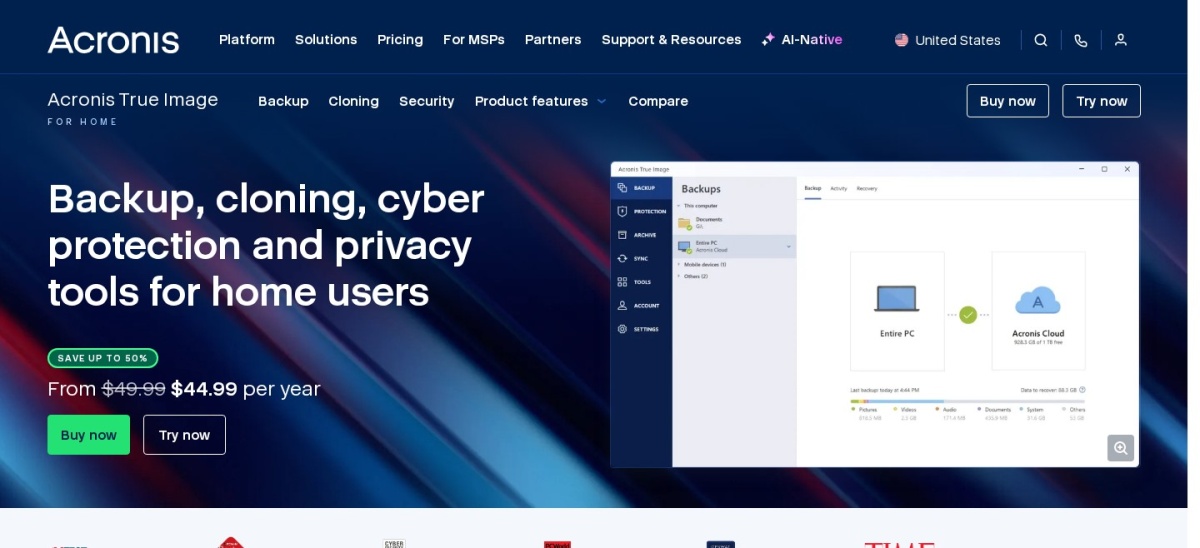
Acronis True Image homepage, captured Nov 2026.
Acronis True Image is a backup, cloning, and cyber protection suite used by over 5.5 million users daily, with a 4.3/5 rating across 71 G2 reviews. Its Essentials plan starts at $49.99/yr regular price, while promotional first-year discounts appear on Acronis's purchasing page.
The trade off is paying an annual subscription—and stepping up to higher tiers for cloud storage capacity—even if you only need occasional drive cloning. It suits households and small offices that want real-time cloning alongside cloud backup and anti-malware tools.
What we like
Supports real-time disk cloning and full image backups across Windows and macOS
Bundles anti-ransomware, anti-malware, and optional cloud backup tiers
Includes bootable recovery media and Universal Restore for different hardware
Used by over 5.5 million users with a 30-day free trial
Watch out for
Requires an ongoing annual subscription rather than a one-time fee
Bundled security features can add overhead for users who only want a cloner
Higher tiers add cloud storage allocations up to 10 TB and expanded security features.Visit acronis.com
03
EaseUS Todo Backup
4.5/5on Capterra (94 reviews, checked Nov 2026)
Paid from$39.95/yr
Best for straightforward Windows SSD upgrades on a budget
OS focusWindows (with Mac and server tiers)
Free optionFree plan and trial available
Entry price$39.95/yr (Basic)
Capterra rating4.5/5 (94 reviews)
easeus.com
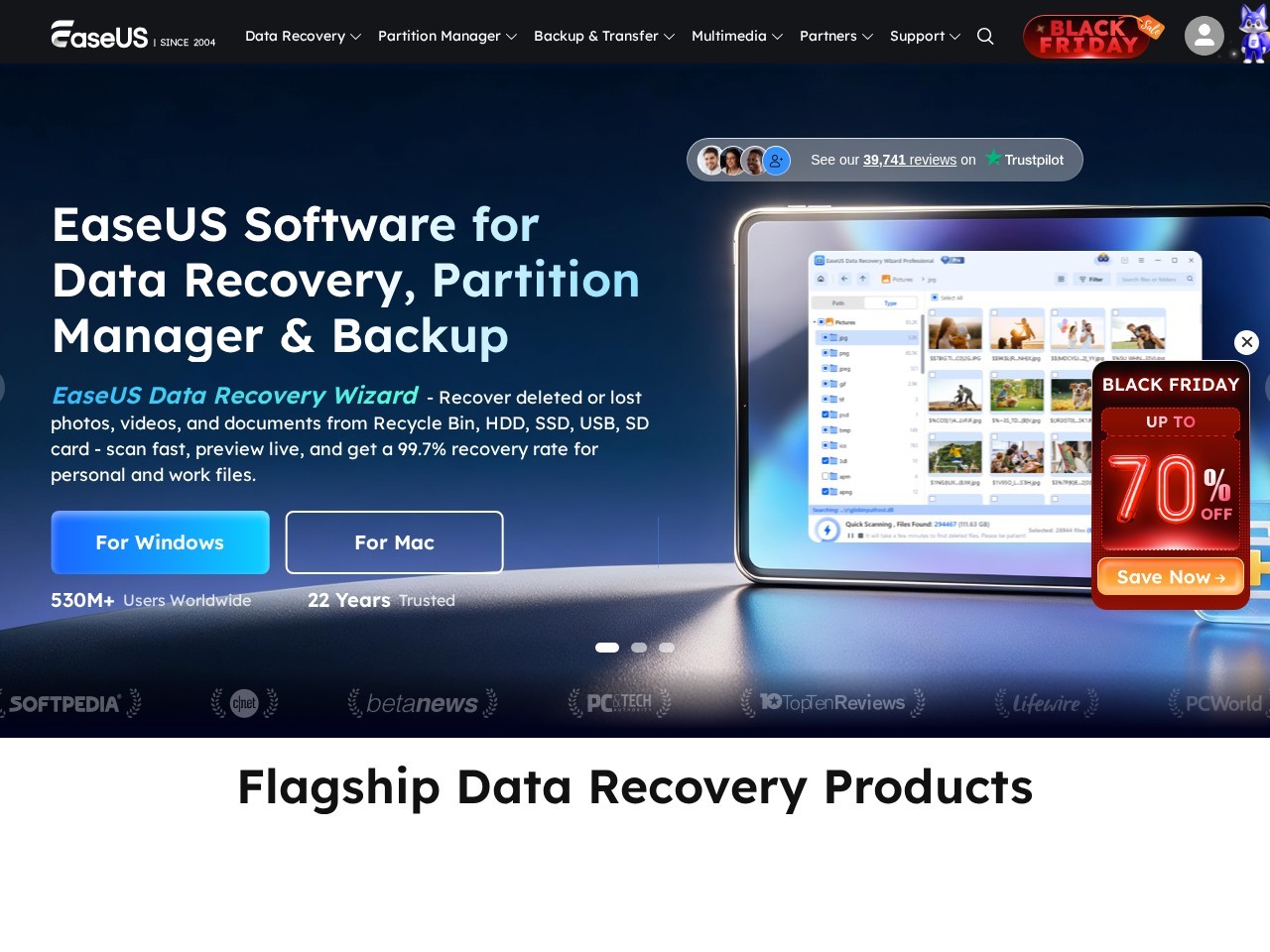
EaseUS Todo Backup homepage, captured Nov 2026.
EaseUS Todo Backup is a Windows backup and disk cloning utility that holds a 4.5/5 rating across 94 Capterra reviews. It offers a free version for basic system, disk, and file backup and recovery, with paid plans starting at $39.95/yr for Basic.
The trade off is that some advanced cloning options and specialized editions cost extra, and reviewers sometimes note interface quirks or upgrade prompts. It suits everyday Windows users migrating to a new SSD who want a guided wizard.
What we like
Low entry price starting at $39.95/yr with a free tier available
Supports disk cloning, partition backup, incremental/differential schedules, and recovery
Offers lifetime upgrade and workstation/server options on EaseUS's store
4.5/5 rating across 94 Capterra reviews
Watch out for
Some specialized migration features and editions require higher-tier licenses
Some users report occasional UI clunkiness or promotional prompts
Paid plans expand cloning and recovery capabilities, support, and multi-device or business options.Visit easeus.com
AOMEI Backupper is a Windows backup, sync, and disk cloning tool rated 4.3/5 across 46 Capterra reviews. It provides a free Standard edition alongside paid tiers starting at $49.95 one-time on Capterra, with AOMEI's store listing Professional Lifetime at $69.95.
The trade off is that the free edition limits advanced cloning features, and server or technician tiers cost significantly more. It suits Windows users who prefer paying once for lifetime upgrades rather than renewing every year.
Includes a free Standard edition and a 90-day money-back guarantee on AOMEI's store
Covers system, disk, and partition cloning as well as file sync
4.3/5 rating across 46 Capterra reviews
Watch out for
Free tier restricts advanced cloning and deployment features
Server and Technician licenses carry much higher price tags
Paid editions unlock full cloning features, ongoing upgrades, and business or server capabilities.Visit aomeitech.com
05
Iperius Backup
4.5/5on Capterra (189 reviews, checked Nov 2026)
Paid from$33 one-time
Best for low-cost perpetual licensing in small IT setups
Pricing modelFree version and one-time licenses
Entry editionBasic from €29 one-time
Capterra rating4.5/5 (189 reviews)
G2 rating4.5/5 (49 reviews)
iperiusbackup.com
Iperius Backup homepage, captured Nov 2026.
Iperius Backup is a backup and drive imaging program rated 4.5/5 across 189 Capterra reviews and 4.5/5 across 49 G2 reviews. It offers a free version and paid editions starting at €29 one-time for Basic.
The trade off is that specialized virtual machine, database, and full editions cost substantially more, and some users find parts of the configuration dense. It suits small businesses and technicians who want perpetual licensing across local, network, and cloud targets.
What we like
Starts with a free version and a low €29 one-time Basic license
Supports drive imaging, disk cloning, bare metal restore, and cloud or NAS targets
Strong 4.5/5 rating across 189 Capterra reviews
Offers modular editions for databases, virtual machines, and Microsoft 365
Watch out for
Advanced editions jump in price up to €299 one-time
Configuration menus can feel less streamlined for first-time home users
Higher editions add virtual machine, database, Exchange, or Microsoft 365 backup modules.Visit iperiusbackup.com
06
Clonezilla
4.7/5on Capterra (22 reviews, checked Nov 2026)
PriceFree
Best free open-source cloner for technical users and IT labs
LicenseFree and open source
How it runsBoots from USB or CD/DVD
Capterra rating4.7/5 (22 reviews)
G2 rating4.3/5 (15 reviews)
clonezilla.org
Clonezilla homepage, captured Nov 2026.
Clonezilla is a free, open-source disk imaging and cloning utility that boots from a USB drive or disc, rated 4.7/5 across 22 Capterra reviews. Because it runs outside the host operating system, it can clone or image drives across Windows, Linux, and macOS filesystems at no cost.
The trade off is a text-based terminal interface and manual steps that require comfort with partitions and boot media, with no live OS desktop during cloning. It suits IT administrators, technicians, and advanced users who want zero licensing fees.
What we like
Completely free and open source with no paid tier or seat limits
Boots from live media to image or clone drives independently of the installed OS
Supports encryption and many common filesystems
4.7/5 rating across 22 Capterra reviews
Watch out for
Text-based menus have a steeper learning curve than graphical Windows wizards
System cannot be used normally while booted into Clonezilla media
No paid plan exists; community forums and documentation provide support.Visit clonezilla.org
07
Paragon Hard Disk Manager
4.6/5on G2 (27 reviews, checked Nov 2026)
Starts at$24.95/yr
Best for combining cloning with partition management on Windows
OS focusWindows (separate Mac products)
Regular annual$24.95/yr (1-Year Advanced)
Perpetual option$79.95 (3-PC Advanced)
G2 rating4.6/5 (27 reviews)
paragon-software.com
Paragon Hard Disk Manager homepage, captured Nov 2026.
Paragon Hard Disk Manager is a Windows disk management suite that pairs drive cloning and backup with partition resizing and recovery media tools, holding a 4.6/5 rating across 27 G2 reviews. Paragon lists the 1-Year Advanced license at a regular price of $24.95/yr alongside a $79.95 3-PC perpetual license.
The trade off is that Windows Server and virtual machine operations are excluded from the home Advanced editions, and trial access replaces a permanent free tier. It suits Windows users who want partitioning and cloning together in one utility.
What we like
Low $24.95/yr regular single-PC price plus a $79.95 3-PC perpetual option
Combines disk cloning and backup with partition management and recovery media
Supports live disk cloning workflows on Windows
4.6/5 rating on G2 across 27 reviews
Watch out for
No permanent free version once the trial period ends
Home Advanced editions do not support Windows Server or VM operations
Higher editions and separate business licenses cover multi-device or server environments.Visit paragon-software.com
Should you clone from inside your OS or from bootable media?
Cloning from inside a running operating system is convenient because you can start the transfer without preparing a bootable USB drive first. Utilities such as Acronis True Image and Macrium Reflect support live imaging or cloning workflows.
Bootable media—such as Clonezilla or WinPE rescue drives—runs independently of your installed OS. That makes bootable tools useful when a drive has boot errors or when you want an isolated environment, though you cannot use the computer for everyday work while it runs.
What to check before cloning to a new SSD
Verify that your target SSD has enough capacity for the used data on your source drive, not just the total drive size. If you move from a larger drive to a smaller SSD, make sure the software supports resizing partitions or copying only used data.
After cloning, disconnect or re-order your old boot drive before booting so Windows or your OS does not get confused by duplicate drive identifiers. Keep your original drive intact until you confirm the cloned drive boots cleanly.
How we chose
We selected well-known disk cloning and imaging utilities by reviewing vendor product pages, public pricing pages, and software review directories.
Ratings, review counts, and regular prices were checked on 30 Nov 2026 from sources including G2, Capterra, and official vendor pages, noting promotional discounts separately from regular prices.
We excluded unmaintained tools, quote-only enterprise software without published entry prices, and products where current pricing or review figures could not be verified directly.
No vendor paid for a place, and we do not claim testing for this list.
How to pick the right clone software in 4 steps
Follow these four checks before you download or buy:
Confirm your operating system and hardware layout. Check whether the software supports your version of Windows or macOS, BIOS or UEFI boot mode, and your drive interface.
Compare yearly subscriptions against one-time licenses. Decide if you want ongoing cloud storage and updates on an annual plan or a one-time license such as AOMEI Backupper or Iperius Backup.
Check source-to-target drive size rules. Ensure the cloner can handle moving to a larger or smaller SSD and creates bootable rescue media in case a system fails to boot.
Verify multi-PC or business licensing terms. Confirm how many computers one license covers and whether you need workstation, server, or commercial support terms.
FAQ
What is the best clone software in 2026?
Macrium Reflect is a top choice for reliable Windows disk imaging and recovery, with a 4.7/5 rating across 95 G2 reviews. Acronis True Image fits users who want cloud backup and security starting at $49.99/yr, while EaseUS Todo Backup starts at $39.95/yr.
How much does clone software usually cost?
Entry paid plans for individual users generally range from around $24.95/yr to $65/yr depending on the tool and license type, while one-time options like Iperius Backup Basic start at €29 and AOMEI Backupper starts at $49.95 on Capterra. Some utilities are free or offer a free tier.
Is there good free clone software?
Clonezilla is completely free and open source and holds a 4.7/5 rating across 22 Capterra reviews, though it uses a text-based interface. EaseUS Todo Backup and AOMEI Backupper also offer free editions with basic backup and cloning limits.
Which clone software is easiest for beginners?
EaseUS Todo Backup and Acronis True Image offer guided interfaces that are easier for first-time SSD upgraders than terminal-based tools like Clonezilla. EaseUS Todo Backup starts at $39.95/yr regular price for Basic.
Macrium Reflect vs. Acronis True Image: which should I pick?
Choose Macrium Reflect if your priority is fast Windows disk imaging and recovery with a 4.7/5 G2 rating across 95 reviews. Choose Acronis True Image if you want macOS and Windows support bundled with cloud backup and anti-ransomware tools starting at $49.99/yr.
Do I need a subscription to clone a hard drive?
No, you can use a free tool like Clonezilla or buy a one-time license such as Iperius Backup Basic at €29 or AOMEI Backupper starting at $49.95 on Capterra. Subscriptions mostly make sense if you want cloud backup or continuous feature updates.
SaaS SEO and WordPress specialist with about 8 years of experience. Rakib compares WordPress plugins, themes, hosting and software using public pricing, documentation and user reviews. See how we rank.