Best System Image Software in 2026: 7 Tools Compared
WLWPLegible EditorsLast verified 24 Nov 2026How we rank11 min read
★ Short answer
Macrium Reflect X is the best system image software for most users, at $49.99 a year with fast, reliable restores, rated 4.7/5 on G2. Pick EaseUS Todo Backup for the friendliest interface at $39.95 a year, and Veeam Agent if you want a free full-system image.
How we make this list: we compare pricing pages, product documentation and public user reviews, then re-check every price before each update. No product paid for a place. Disclosure.
Macrium Reflect X costs $49.99 a year and is rated 4.7/5 on G2, the imaging specialist pick for reliable restores.
EaseUS Todo Backup Home costs $39.95 a year and includes 1 TB of cloud storage for one PC.
AOMEI Backupper Professional costs $39.95 a year, with a free Standard edition for basic imaging.
Veeam Agent for Windows is free and covers full-system imaging with bare-metal restore.
What good system image software should do
A system image is a complete copy of a drive, including Windows, programs and settings. When a drive fails, you restore the image to a new drive and the PC works again.
The restore matters more than the backup. A tool that images fast but fails to boot from rescue media is useless, so test a restore on a spare drive before you trust it.
Free editions cover basic imaging well. Paid plans add scheduling, incremental images, cloning to a smaller drive and universal restore to different hardware.
Cloud storage is rarely included. Most of these tools back up to a local drive, a NAS or an external disk, so plan where the image will live.
Macrium Reflect X is the imaging specialist. It takes full, incremental and differential images of a Windows disk, restores only the blocks that changed with Rapid Delta Restore, and builds Windows PE rescue media that boots on difficult hardware. Image Guardian blocks other programs from changing backup files.
The trade off is the price model. Reflect X Home costs $49.99 a year with no perpetual licence, and there is no cloud storage, so off-site copies need another tool. It suits Windows users who want the most reliable restore.
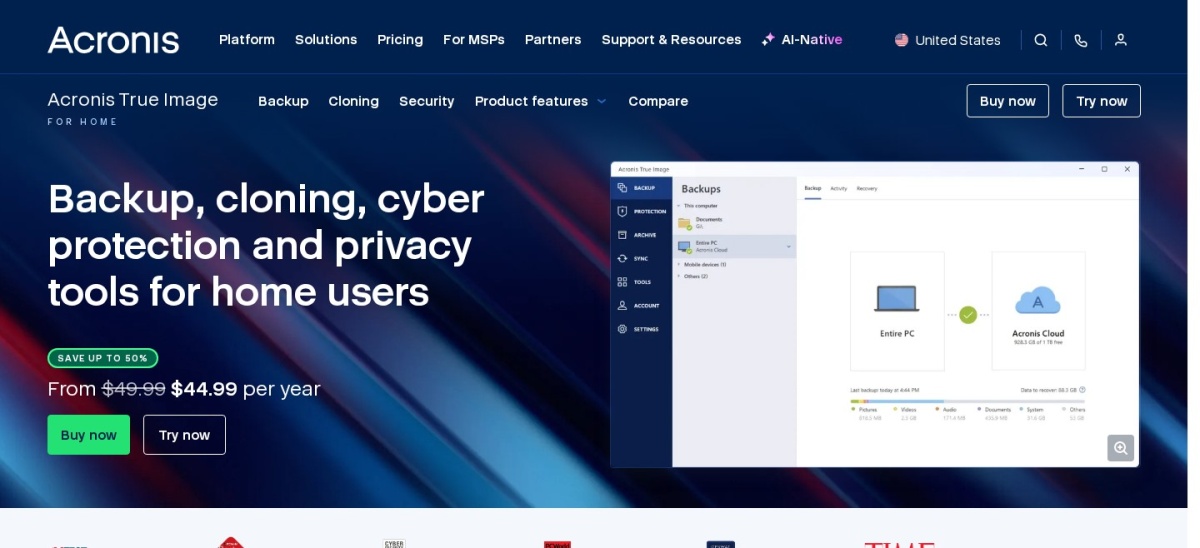
Acronis True Image, now sold as Acronis Cyber Protect Home Office, pairs full-disk imaging with anti-malware and anti-ransomware protection in one agent. Essentials costs $49.99 a year for one computer and covers imaging, cloning, local backup and vulnerability checks.
The trade off is the upsell. Cloud backup, Microsoft 365 backup and real-time anti-malware sit on the pricier Advanced and Premium plans. It suits households that want backup and security from one vendor.
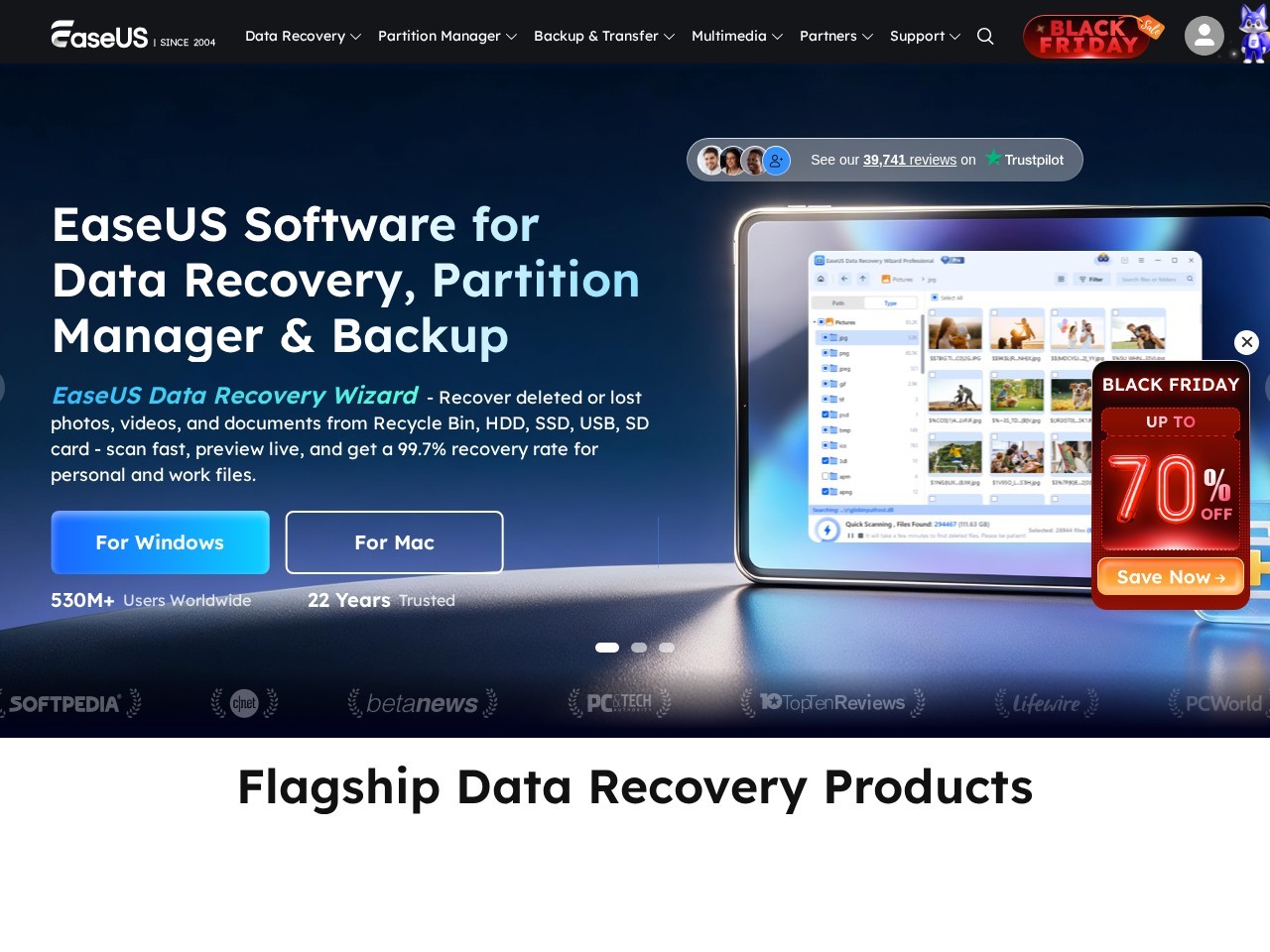
EaseUS Todo Backup Home is the friendliest imaging tool here. The yearly licence costs $39.95 for one PC and includes 1 TB of cloud storage, so an off-site copy needs no second subscription. A free edition covers basic disk imaging, file backup and scheduling.
The trade off is the upsell prompts. The free edition regularly prompts you to upgrade, and system cloning and universal restore need the paid Home edition. It suits home users who want simple imaging with cloud storage included.
AOMEI Backupper Standard is free for personal use and covers system, disk and partition backup, file backup, cloning and bootable rescue media. Professional costs $39.95 a year for one PC and adds system clone, universal restore to different hardware, real-time sync and automatic cleanup of old images.
The trade off is the interface. It is less polished than EaseUS, and the lifetime licence at $69.95 costs more up front. It suits budget buyers who want a generous free edition and a cheap paid upgrade.
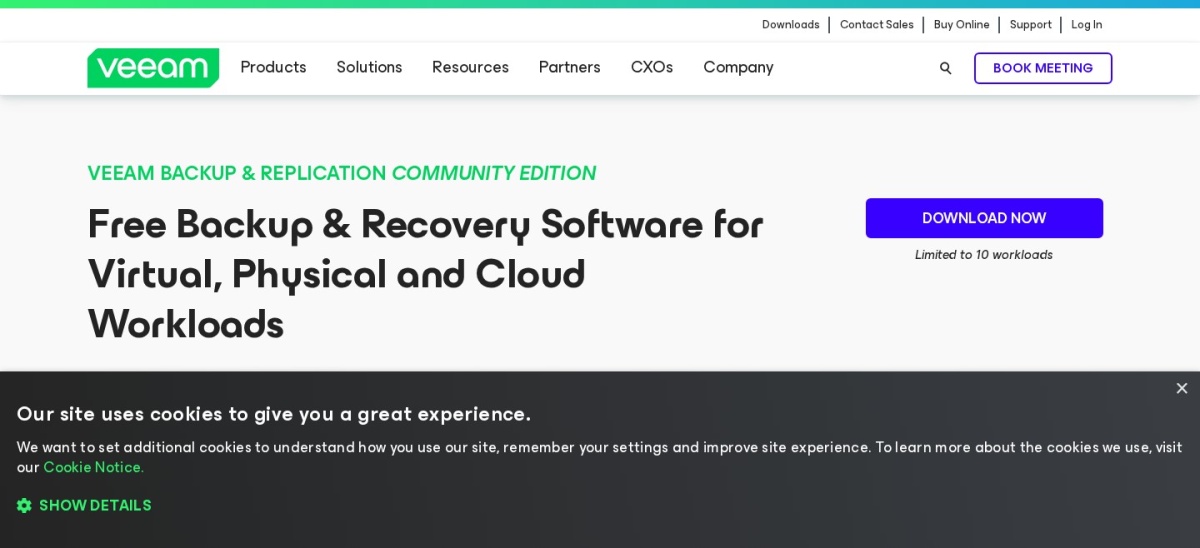
Veeam Agent for Windows homepage, captured Nov 2026.
Veeam Agent for Windows is free and covers full-system imaging, file-level backup and bare-metal restore for one PC. It creates a recovery image that can restore a failed PC to the same or different hardware, and it stores backups locally, on a network share or in a Veeam repository.
The trade off is polish. The interface is built for IT users rather than home users, and support comes from the community unless you pay for a business edition. It suits technical users who want a free, dependable image tool.
What we like
Free full-system imaging
Bare-metal restore included
Works with NAS and network shares
Watch out for
Interface is built for IT users
No support on the free edition
Business editions add central management and supportVisit veeam.com
06
Clonezilla
4.2/5on G2 (— reviews, checked Nov 2026)
PriceFree
Best free open-source imaging
PriceFree
PlatformsWindows, Linux, macOS
InterfaceBootable, text-based
SchedulingNo
clonezilla.org
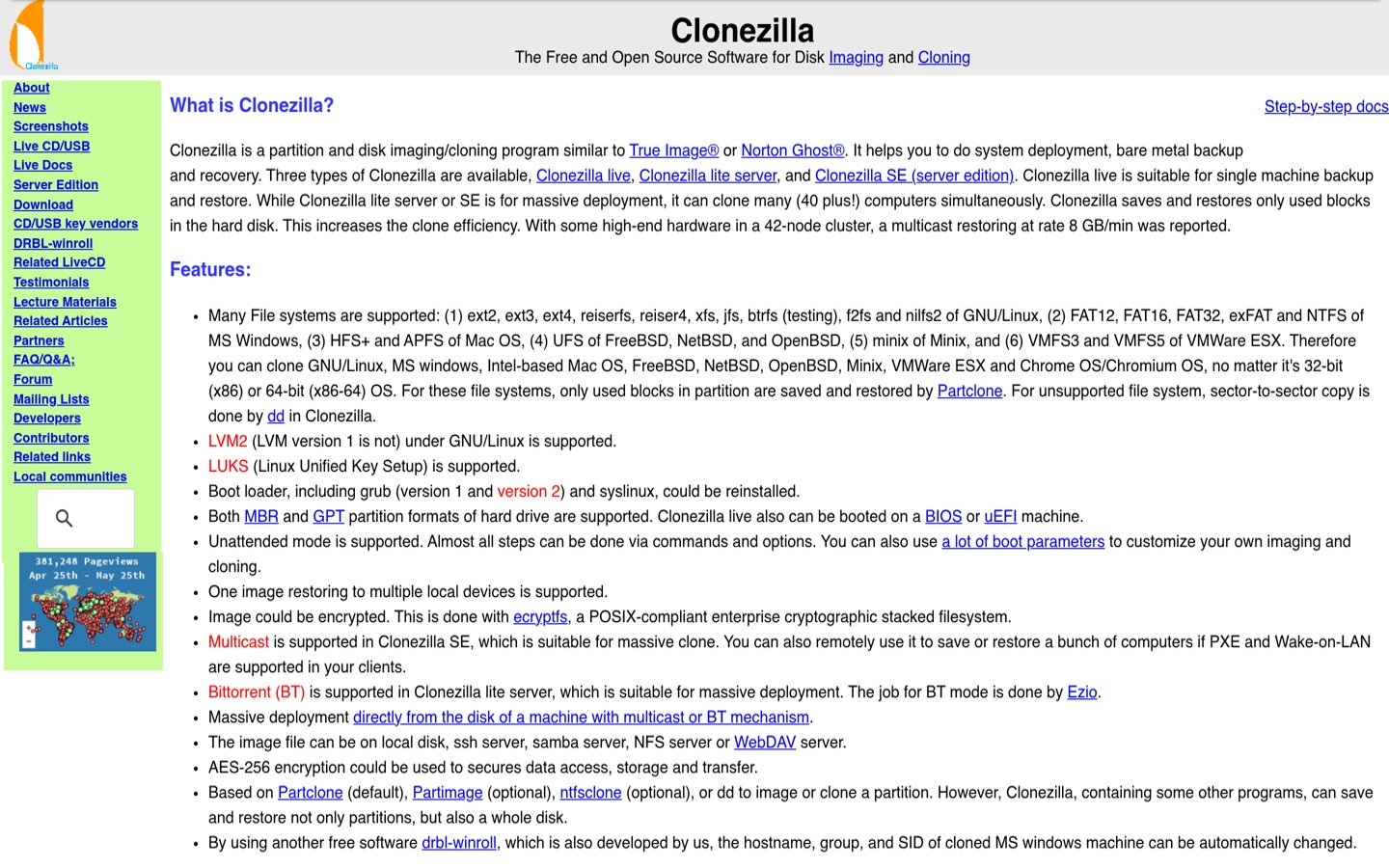
Clonezilla homepage, captured Nov 2026.
Clonezilla is a free, open-source disk imaging tool that runs from a bootable USB stick or CD. It copies whole disks and partitions sector by sector, supports many file systems, and works on Windows, Linux and macOS machines, with no licence cost at all.
The trade off is usability. There is no Windows installer or friendly dashboard; you boot into a text-based interface and follow prompts. It suits technical users and IT teams who image many machines for free.
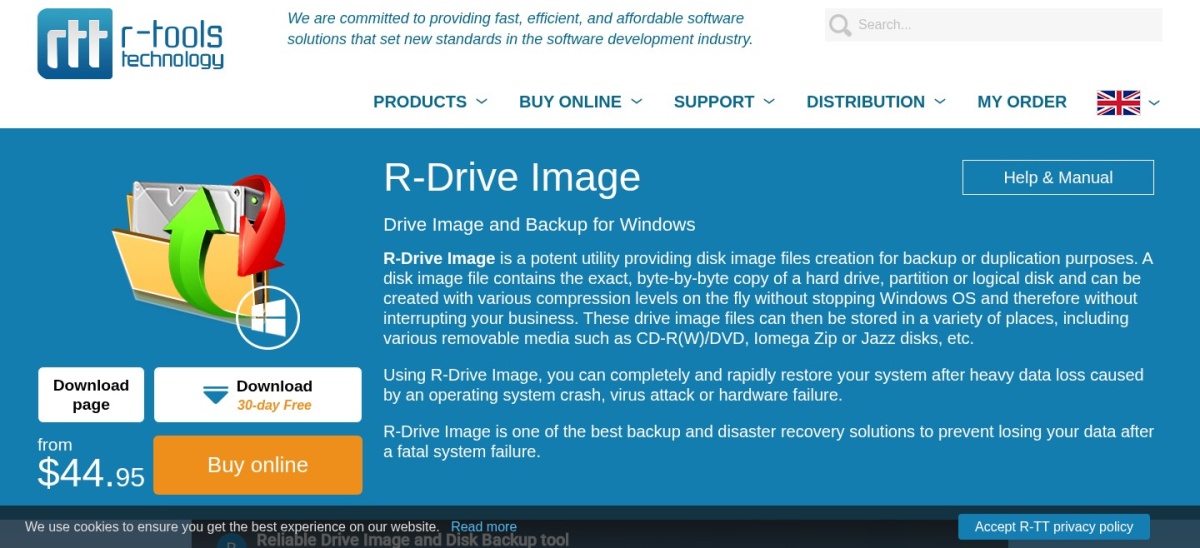
R-Drive Image is a lightweight disk imaging tool for home users and professionals. It creates images of whole disks and partitions, compresses them, and restores them to the same or a different drive, with a low resource footprint that suits older PCs.
The trade off is scope. It costs $44.95 as a one-time licence and has no cloud storage, scheduling depth or free edition beyond a trial. It suits users who want a simple, fast imaging tool without a subscription.
Free editions from EaseUS, AOMEI, Veeam and Clonezilla cover full-system imaging, which is enough for a home PC with one drive.
Paid plans add scheduled incremental images, cloning to a smaller SSD and universal restore, which matters when you move to a new PC.
Macrium Reflect X and Acronis True Image have no free edition, only a 30-day trial, so budget $49.99 a year for either.
If you only need one image before a drive swap, a free tool does the job and you pay nothing.
How we chose
We started from the disk imaging tools most often recommended for Windows backup, then kept eight that are actively maintained and cover home and small-office use.
Prices come from vendor pricing pages and dated November 2026 checks, with regular prices shown. Ratings and review counts come from G2 or Capterra, checked in November 2026.
We left out tools that only back up files, not full system images. No vendor paid for a place, and we do not claim hands-on testing for this list.
How to choose system image software
Start with one question: are you imaging one PC, or many, and do you need to restore to different hardware?
Decide how many PCs you protect. Home tools are priced per PC, so a family with three PCs pays three licences unless the tool covers several machines.
Check the free edition first. Veeam Agent, EaseUS Free and AOMEI Standard cover a single image at no cost, so try one before paying.
Test the rescue media. Boot from the rescue USB on the machine you protect and confirm it sees the drive and the backup file.
Schedule incremental images. A full image weekly plus daily incremental images keeps restores fast and storage low.
FAQ
What is the best system image software?
Macrium Reflect X is the best pick for most users, at $49.99 a year with fast incremental images and reliable restores, rated 4.7/5 on G2. EaseUS Todo Backup is the friendliest option at $39.95 a year.
Is there free system image software?
Yes. Veeam Agent for Windows is free and covers full-system imaging with bare-metal restore. EaseUS Todo Backup Free and AOMEI Backupper Standard are also free for basic imaging.
Can I restore a system image to a different PC?
Only with universal restore, which is a paid feature in EaseUS and AOMEI. It injects drivers for the new hardware so Windows boots on a different machine.
Does Windows have built-in system imaging?
Windows includes a system image backup tool, but it is basic and no longer developed. Dedicated tools add scheduling, incremental images and rescue media that boots on difficult hardware.
How much space does a system image need?
A compressed image of a typical Windows install is 30 to 60 GB. Keep at least twice the size of the used space on the destination drive.
What is the difference between cloning and imaging?
Cloning copies a drive directly to another drive, which is useful for a drive swap. Imaging saves the copy as a file, which you can store, schedule and restore later.