AOMEI Backupper is the best SSD cloning software for most Windows users, with disk migration and backup capabilities starting at $39.95 per year. Choose EaseUS Partition Master if you also need partition resizing, or Acronis True Image for ongoing backup protection after migrating to your new SSD.
How we make this list: we compare pricing pages, product documentation and public user reviews, then re-check every price before each update. No product paid for a place. Disclosure.
AOMEI Backupper Professional costs $39.95 per year and combines SSD cloning with scheduled backups.
EaseUS Partition Master has a 4.9/5 G2 rating from 476 reviews.
Acronis True Image includes disk cloning and local backup for a regular price of $49.99 per year.
EaseUS Disk Copy offers a $19.90 monthly license for occasional drive upgrades.
MiniTool Partition Wizard Pro costs $59 per year and includes operating system migration.
DiskGenius offers a free edition alongside its $69.90 monthly Professional license.
What matters when cloning an SSD
SSD cloning transfers an existing drive's contents to another storage device. Unlike copying files manually, cloning can preserve operating system partitions, installed applications, boot records and system settings.
An important distinction is whether the software supports intelligent cloning or requires a sector-by-sector copy. Intelligent cloning can make migration to a smaller SSD possible when the destination has enough space for the actual data.
Check whether the software supports your partition scheme, storage interface and operating system. A successful copy does not automatically guarantee that the destination drive will boot.
Free backup software does not necessarily include free operating system cloning. Check the exact edition before downloading, especially when migrating a Windows installation rather than a secondary data drive.
Consider whether you need a cloning utility for a single upgrade or a backup application that will remain useful afterward. Monthly licenses suit occasional migrations, while annual backup subscriptions offer continued protection.
AOMEI Backupper is a Windows backup and disk migration application that combines drive cloning with system recovery and file synchronization. Its Professional edition costs $39.95 per year for one PC, making it a practical option for replacing a system drive and maintaining backups afterward.
The trade off is that some migration features require the Professional edition rather than the free Standard edition. It suits home users who want to transfer Windows to a new SSD without buying separate cloning and backup applications.
What we like
Disk cloning and backup in the same application
Supports operating system migration
Scheduled backup capabilities
Public annual and lifetime licensing options
Watch out for
Free edition has cloning restrictions
Professional license is intended for personal use
Windows-focused application
Professional adds system cloning and additional backup options.Visit aomeitech.com
02
EaseUS Partition Master
4.9/5on G2 (476 reviews, checked Nov 2026)
Paid from$29.95/mo
Best for SSD migration with partition resizing
PlatformWindows
Partition resizingYes
Operating system migrationPaid edition
Entry licenseMonthly, 2 PCs
easeus.com
EaseUS Partition Master homepage, captured Nov 2026.
EaseUS Partition Master is a disk management application that handles partition resizing, drive cloning and operating system migration. Its entry monthly license covers two PCs, and the product has a 4.9/5 rating from 476 G2 reviews.
The trade off is that the regular monthly price of $29.95 becomes expensive when maintained throughout the year, although the pricing page displays a discounted rate. It suits users who need to reorganize their partitions as part of an SSD upgrade.
What we like
Cloning and partition management in one application
Supports disk conversion tasks
Useful for adjusting destination partitions
Large G2 review sample
Watch out for
Operating system migration requires paid access
Monthly billing is expensive over extended periods
Not a replacement for scheduled backup software
Pro adds operating system migration and advanced disk management.Visit easeus.com
03
Acronis True Image
4.3/5on G2 (71 reviews, checked Nov 2026)
Starts at$49.99/yr
Best for SSD cloning and ongoing backup protection
Entry planEssentials, 1 computer
Disk cloningIncluded
Local backupIncluded
Cloud storageNot in Essentials
acronis.com
Acronis True Image homepage, captured Nov 2026.
Acronis True Image is a personal backup and recovery application with integrated disk cloning. The Essentials subscription covers one computer and includes local backups, disk cloning and universal restore for a regular annual price of $49.99.
The trade off is that cloud backup storage requires a higher subscription tier, and the entry plan renews annually. A first-year promotion was displayed during verification, but the comparison uses the regular price. It suits users who want continued backup protection after installing a new SSD.
What we like
Disk cloning included in the entry subscription
Local backup and recovery capabilities
Universal restore functionality
Additional cloud backup options on higher tiers
Watch out for
No permanent free plan
Cloud storage excluded from Essentials
More features than a single migration requires
Higher plans add cloud backup and additional protection features.Visit acronis.com
04
EaseUS Disk Copy
4.9/5on Trustpilot (39,777 reviews, checked Nov 2026)
Starts at$19.90/mo
Best for a single SSD replacement
PlatformWindows
Primary functionDisk and partition cloning
Entry license1 computer
Rating scopeEaseUS company profile
easeus.com
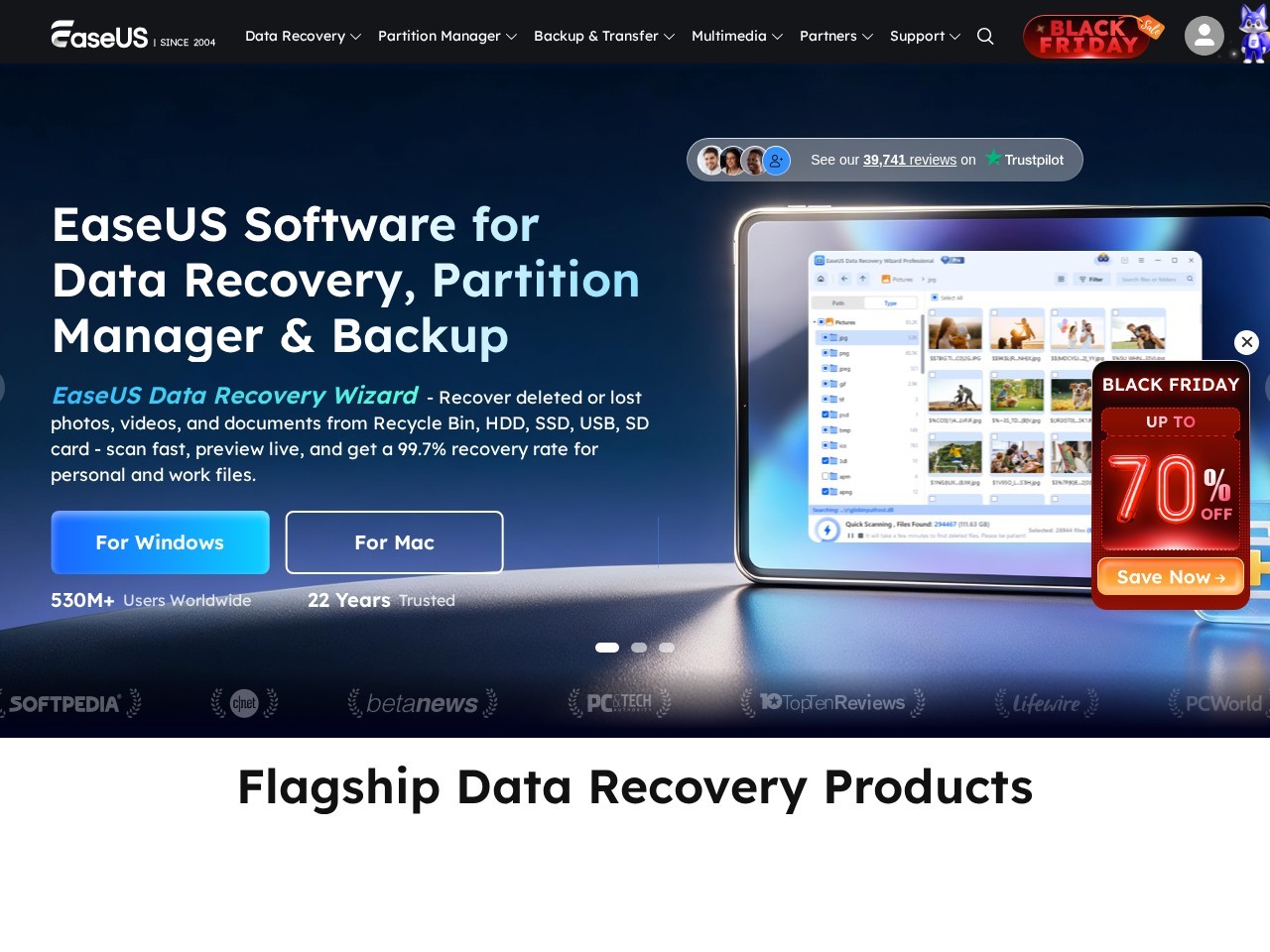
EaseUS Disk Copy homepage, captured Nov 2026.
EaseUS Disk Copy is a dedicated storage migration utility for transferring operating systems, applications and files between drives. Its monthly home license costs $19.90 for one computer, providing an option for users who only need cloning temporarily.
The trade off is that completing a clone requires paid access, and the monthly license renews automatically unless canceled. The Trustpilot rating covers EaseUS as a company rather than Disk Copy alone. It suits users who want a focused migration application without an ongoing backup suite.
What we like
Dedicated disk migration workflow
Monthly licensing suits occasional use
Supports disk and partition copying
Annual and lifetime upgrade options available
Watch out for
Free download is not a permanent free cloning plan
Monthly price is expensive when annualized
Review score covers the vendor rather than this product alone
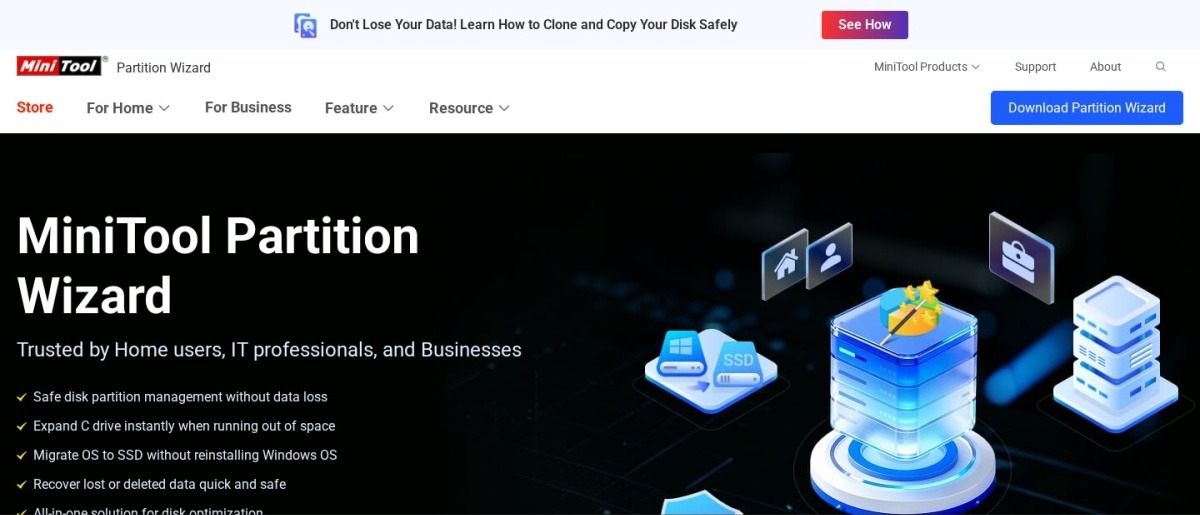
MiniTool Partition Wizard homepage, captured Nov 2026.
MiniTool Partition Wizard is a Windows storage management application that supports operating system migration, partition modification and disk conversion. Its $59 annual Pro subscription covers one PC and includes migration tools alongside bootable media creation.
The trade off is that the free edition does not include every migration feature, while advanced recovery capabilities require a higher plan. It suits experienced Windows users who need more control over disk layouts when moving to a replacement SSD.
What we like
Operating system migration wizard
Partition resizing and conversion tools
Bootable media creation
Free edition for basic disk management
Watch out for
System migration requires a paid edition
Advanced recovery requires higher tiers
Multiple disk management options can confuse beginners
Best for combining migration with scheduled backups
Entry planHome, 1 computer
System backupYes
Disk migrationPaid features
Backup schedulingYes
easeus.com
EaseUS Todo Backup homepage, captured Nov 2026.
EaseUS Todo Backup is a backup and recovery application with disk migration capabilities for Windows computers. Its Home subscription costs $39.95 per year for one computer, while the free edition provides basic system, file and disk backup options.
The trade off is that advanced cloning and migration features require paid access, and the subscription is unnecessary for users who only need occasional file backups. It suits users replacing their primary SSD who also want scheduled backups of important data.
What we like
Combines migration with backup management
Free edition for basic backups
Supports scheduled backup jobs
Perpetual licensing option available
Watch out for
Free backup does not guarantee free system cloning
Additional cloud storage can increase costs
Less focused than a dedicated cloning application
Home adds advanced migration and backup capabilities.Visit easeus.com
07
DiskGenius
3.8/5on Trustpilot (51 reviews, checked Nov 2026)
Paid from$69.90/mo
Best for free disk utilities and technical users
PlatformWindows
Disk managementIncluded
Partition alignmentSupported
Entry paid licenseProfessional, 1 PC
diskgenius.com
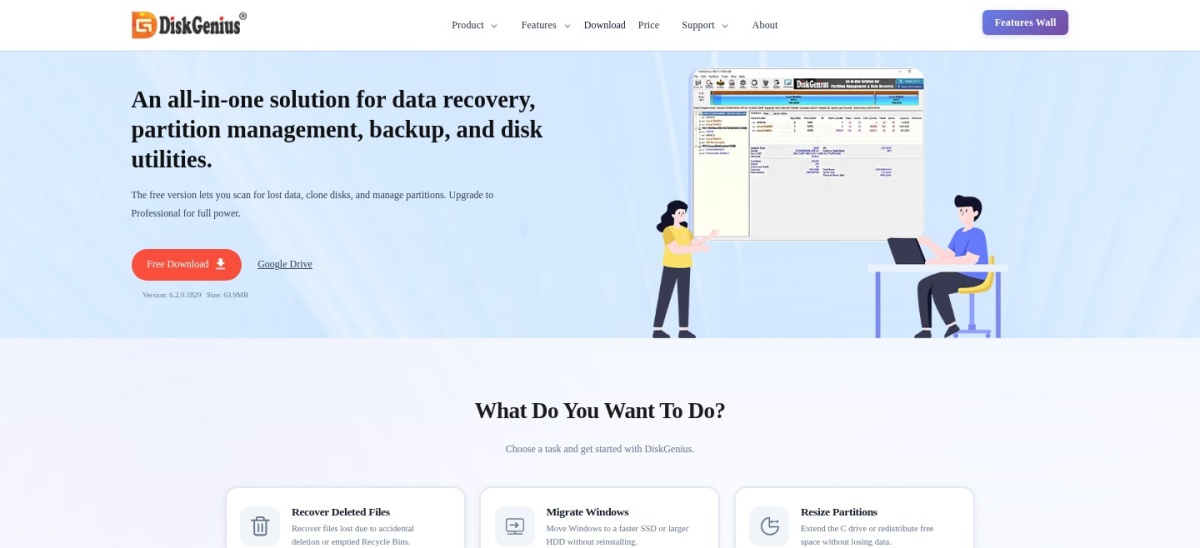
DiskGenius homepage, captured Nov 2026.
DiskGenius is a disk management utility that combines drive cloning, partition operations and data recovery features. Its free edition provides storage management functions, while the Professional edition starts at $69.90 for a one-month license covering one PC.
The trade off is that Professional access is relatively expensive if purchased repeatedly, although the monthly license does not renew automatically. Its interface also requires more familiarity with storage terminology. It suits technical users who want several disk maintenance functions in one application.
What we like
Free edition available
Disk cloning and partition management
Partition alignment checking
Monthly paid license does not renew automatically
Watch out for
High entry paid price
Interface requires storage management knowledge
Lower public review rating than most alternatives
Professional adds advanced recovery and disk management functions.Visit diskgenius.com
SSD cloning vs disk imaging: Which do you need?
Disk cloning creates a direct copy of a source drive on another storage device. It is typically the more practical choice when replacing an existing SSD or transferring Windows from an older hard drive.
Disk imaging stores drive contents in an image file that can be restored later. This approach is better suited to scheduled backups, recovery points and long-term storage protection.
A cloning application may support both methods. Choose direct cloning for hardware migration, but keep a separate image backup or file backup to protect against errors during the upgrade.
What to check before cloning your SSD
Back up important files to a separate device before starting. The cloning process normally overwrites partitions and existing files on the destination SSD.
Confirm that the destination drive has sufficient capacity for the selected partitions and data. Check your computer's storage interface, partition scheme and firmware boot configuration.
Save any disk encryption recovery keys before migrating. Follow the software vendor's instructions for handling encrypted partitions and creating bootable recovery media.
After cloning, verify that the replacement SSD boots correctly and that your applications and files remain accessible. Keep the original drive unchanged until you have confirmed that the migration succeeded.
How we chose
We started with established disk cloning, backup and partition management applications. Products were evaluated on their suitability for SSD migration, operating system transfer, partition management, licensing options and public customer feedback.
We checked official pricing pages and public review profiles on 29 Nov 2026. Prices use the cheapest publicly listed regular paid license rather than promotional discounts, and monthly prices are multiplied by twelve for the price ladder. The EaseUS Disk Copy rating is company-wide, which limits its usefulness for evaluating that individual product.
We excluded Macrium Reflect because its regular price was not visible in the official page content we could retrieve. We also excluded products without sufficient verifiable review information or relevant cloning capabilities. Rankings reflect suitability for SSD migration rather than measured performance. No vendor paid for a place, and we do not claim testing for this list.
How to choose SSD cloning software
Compare your migration requirements, drive configuration, licensing preferences and future backup needs before selecting an application.
Identify the drive you need to clone. Determine whether you are copying a secondary data SSD or the drive containing Windows. System disk migration requires support for operating system partitions and boot information.
Check the destination SSD's capacity. Choose software that supports partition resizing or intelligent cloning if the replacement SSD has less capacity than the original. Ensure all required data fits.
Compare the actual migration license. Check whether the free edition supports your required cloning operation. Compare monthly, annual and perpetual licenses according to how frequently you expect to use the software.
Prepare a recovery option. Create a separate backup, save encryption recovery keys and prepare bootable recovery media where appropriate. Verify the replacement drive before deleting anything from the original SSD.
FAQ
What is the best SSD cloning software?
AOMEI Backupper is our top recommendation for Windows SSD upgrades because it combines disk migration with ongoing backup capabilities. EaseUS Partition Master is preferable for users who need partition resizing, while Acronis True Image is better suited to continued backup protection.
Is there free SSD cloning software?
Yes. DiskGenius offers a free edition with storage management and migration capabilities. AOMEI Backupper and MiniTool Partition Wizard also offer free editions, although operating system cloning and advanced migration features can require a paid license.
Can I clone a larger hard drive to a smaller SSD?
Yes, provided the cloning software supports intelligent copying or partition resizing and the destination has enough capacity for the actual data. Remove unnecessary files and check the software's requirements before attempting the migration.
Does cloning an SSD copy Windows and installed programs?
A complete system disk clone can transfer Windows, installed applications, personal files, settings and required boot partitions. Successful startup also depends on the destination drive, firmware settings and whether the necessary partitions were copied correctly.
Can I clone a SATA SSD to an NVMe SSD?
Yes, when your computer supports the destination drive and the cloning software recognizes both storage devices. Confirm motherboard compatibility and boot support before migrating Windows, especially when replacing an older SATA system drive.
How long does SSD cloning take?
Cloning duration depends on the amount of data, drive speeds, connection interface, source disk condition and copying method. Intelligent cloning generally avoids copying unused storage space, while sector-by-sector copying can take longer because it processes the entire selected area.
Will cloning erase my destination SSD?
Yes, disk cloning generally overwrites existing partitions and data on the destination drive. Copy any important destination files to another storage device first, and carefully verify the selected source and destination before confirming the operation.
Do I need to format a new SSD before cloning?
Usually not. Most disk cloning utilities can create the necessary destination partitions during migration. Follow the selected application's instructions, since some workflows require the destination disk to be initialized before the cloning wizard can recognize it.
SaaS SEO and WordPress specialist with about 8 years of experience. Rakib compares WordPress plugins, themes, hosting and software using public pricing, documentation and user reviews. See how we rank.