Macrium Reflect is the top OS migration software for Windows, backed by a 4.7/5 G2 rating across 95 reviews and bare-metal recovery tools. Choose Clonezilla for zero-cost open-source cloning, or AOMEI Backupper for an affordable $39.95/yr Windows suite.
How we make this list: we compare pricing pages, product documentation and public user reviews, then re-check every price before each update. No product paid for a place. Disclosure.
Macrium Reflect holds a 4.7/5 G2 rating (95 reviews) and includes bare-metal recovery media for Windows migrations.
Clonezilla is completely free under GPL v2 and supports multicast deployment across 40+ machines simultaneously.
AOMEI Backupper Pro starts at $39.95/yr (or $59.95 lifetime) and includes a free Standard edition for basic disk tasks.
Acronis True Image starts at $49.99/yr (regular price) and bundles full-disk cloning with active anti-ransomware defense.
Laplink PCmover Professional costs $69.95 one-time and transfers installed apps and user profiles between two separate PCs.
What to look for in OS migration software
Moving an operating system from an aging hard drive to a faster NVMe or SATA SSD saves hours compared to reinstalling Windows and every application from scratch. Good migration tools copy boot records, hidden recovery partitions, and system files accurately so the new drive starts on the first attempt.
Check whether you are upgrading a drive inside the same computer or moving to an entirely new PC. Sector-level disk cloners work best for same-PC drive swaps, while profile-transfer tools are built to move apps and settings onto dissimilar hardware without driver conflicts.
Pay close attention to capacity handling and licensing terms. If you are moving from a large hard drive onto a smaller SSD, you need intelligent block cloning that skips empty space and resizes partitions automatically rather than demanding an identical target disk size.
Macrium Reflect is a Windows backup and disk cloning suite built for dependable operating system transfers. The Home plan starts at $39.99/yr (often discounted during seasonal sales) and includes live disk imaging, Rapid Delta Restore, Macrium Image Guardian ransomware defense, and bootable rescue media.
The trade off is that Macrium no longer offers a perpetually free home edition and lacks native macOS support, with annual renewals required for ongoing updates at $39.99/yr. It suits Windows users and IT technicians who prioritize first-boot reliability.
What we like
High 4.7/5 rating on G2 across 95 verified reviews
Creates bootable WinPE rescue media for offline recovery
ReDeploy feature adapts Windows drivers for new hardware
Fast incremental imaging with Rapid Delta Restore
Watch out for
No free edition for new home users
Windows-only with no macOS application
Paid license unlocks full live cloning, ReDeploy hardware migration, and scheduled incremental backups.Visit macrium.com
02
Acronis True Image
4.3/5on G2 (71 reviews, checked Nov 2026)
Starts at$49.99/yr
Best for cloning plus malware protection
OS supportWindows & macOS
Clone modeActive in-OS disk cloning
SecurityReal-time anti-ransomware
Cloud option50 GB to 500 GB on higher tiers
acronis.com
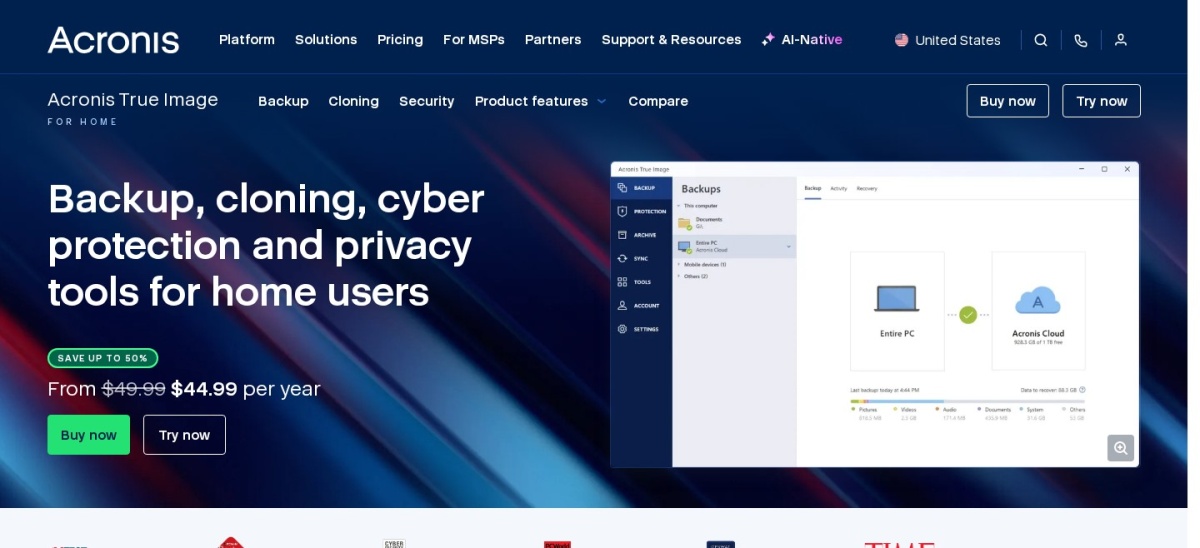
Acronis True Image homepage, captured Nov 2026.
Acronis True Image is an all-in-one system migration and cyber protection suite for Windows and macOS. Its Essentials subscription is regularly $49.99/yr for one computer (sometimes discounted to $44.99 for the first year) and supports active drive cloning while the OS runs, universal restore, and bootable rescue media.
The trade off is that Essentials omits cloud storage and full antivirus features, which require upgrading to Advanced ($72.99/yr regular) or Premium ($124.99/yr regular). It suits home users who want ongoing backup and ransomware security after finishing their SSD upgrade.
What we like
Clones active system drives without rebooting first
Supports both Windows PCs and Mac systems
Includes built-in anti-ransomware protection on all tiers
Watch out for
Subscription-only pricing with no free version
Interface includes heavy security extras beyond simple cloning
Essentials ($49.99/yr regular) enables full-disk cloning and local system image recovery for 1 PC.Visit acronis.com
03
AOMEI Backupper
4.3/5on G2 (17 reviews, checked Nov 2026)
Paid from$39.95/yr
Best budget Windows cloning suite
OS supportWindows 11, 10, 8.1, 8, 7
Clone modeSystem, disk, and partition clone
SSD features4K partition alignment
Lifetime option$59.95 one-time (1 PC)
aomeitech.com
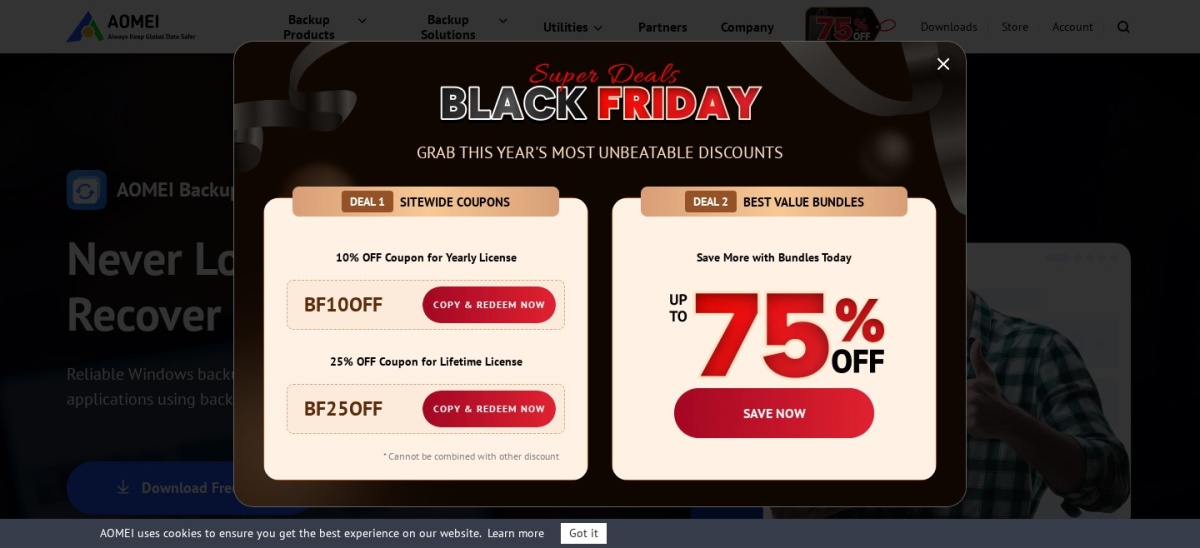
AOMEI Backupper homepage, captured Nov 2026.
AOMEI Backupper is a Windows backup and migration utility offering both a free Standard edition and a paid Pro tier. The free version handles basic data disk cloning and system image backups, while Pro costs $39.95/yr (or $59.95 for a lifetime license) to unlock direct OS system cloning and MBR-to-GPT conversion.
The trade off is that direct system disk cloning is locked behind the paid Pro license, meaning free users must create and restore an image instead. It suits budget-conscious Windows owners who want a simple wizard and an optional one-time license.
What we like
Free Standard tier covers system imaging and data disk cloning
Affordable $39.95/yr annual or $59.95 lifetime Pro license
Automatic 4K alignment optimizes SSD read and write speeds
Clones larger drives onto smaller SSDs when data fits
Watch out for
Direct OS system clone requires upgrading to Pro
Windows-only with no macOS support
Pro ($39.95/yr) unlocks one-click OS migration, dynamic disk cloning, and universal restore.Visit aomeitech.com
04
Clonezilla
4.3/5on G2 (15 reviews, checked Nov 2026)
PriceFree
Best free open-source cloning tool
LicenseGNU GPL v2 (100% free)
OS supportWindows, Linux, macOS (Intel)
File systemsNTFS, ext4, XFS, HFS+, APFS
Scale40+ PCs via multicast SE
clonezilla.org
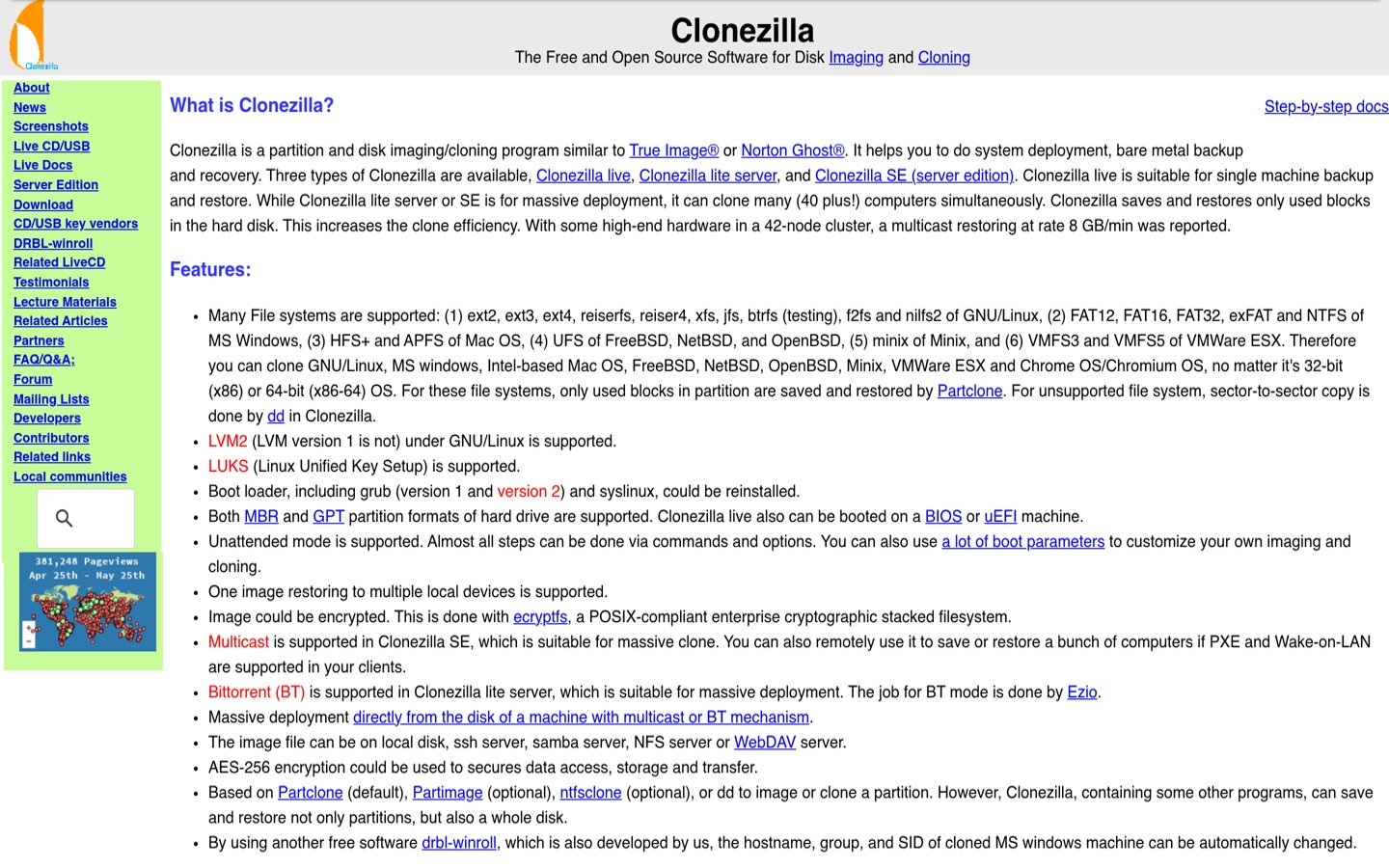
Clonezilla homepage, captured Nov 2026.
Clonezilla is an open-source partition and disk imaging utility distributed under the GNU GPL v2 license at zero cost. Running from a bootable USB drive, it copies only used blocks across NTFS, ext4, XFS, and HFS+ file systems, and scales to 40 or more machines simultaneously via Clonezilla SE multicast.
The trade off is its text-based terminal menu and strict requirement that the destination partition be equal to or larger than the source partition. It suits sysadmins and technical users comfortable booting from USB media without a graphical Windows app.
What we like
Completely free and open source with no paid tiers
Supports Windows, Linux, and macOS file systems
AES-256 image encryption and unattended scriptable modes
Multicast server edition deploys images to 40+ PCs at once
Watch out for
Text-only interface intimidates beginners
Cannot clone directly to a smaller destination partition
All editions—Live, Lite Server, and Server Edition—are free with no commercial restrictions.Visit clonezilla.org
05
EaseUS Disk Copy
4.7/5on Trustpilot (40,000+ reviews, checked Nov 2026)
Starts at$39.90/yr
Best for simple step-by-step SSD swaps
OS supportWindows 11, 10, 8, 7
Clone modeDisk, System, and Partition
Bad sectorsSector-by-sector skip support
Billing options$19.90/mo, $39.90/yr, $69.95 life
easeus.com
EaseUS Disk Copy homepage, captured Nov 2026.
EaseUS Disk Copy is a focused Windows drive-cloning application designed solely for migrating operating systems and disks without extra backup clutter. Paid plans cost $19.90/mo, $39.90/yr, or $69.95 for lifetime upgrades on one PC, featuring automatic partition resizing, WinPE bootable media, and sector-by-sector bad-sector handling.
The trade off is that the free download only lets you preview the workflow and requires a paid license key before executing an actual OS clone. It suits home users who want a clean, single-purpose wizard for a one-time SSD upgrade.
What we like
Focused interface without bloated backup or antivirus menus
Flexible monthly ($19.90), annual ($39.90), or lifetime ($69.95) tiers
Handles failing hard drives by skipping unreadable sectors
Automatically adjusts partition sizes to fit new SSDs
Watch out for
Free trial cannot complete an actual disk clone
No scheduled incremental backup features included
Paid license unlocks full OS migration, sector-by-sector cloning, and WinPE bootable disk creation.Visit easeus.com
06
Laplink PCmover Professional
3.9/5on Trustpilot (33 reviews, checked Nov 2026)
Starts at$69.95 one-time
Best for migrating to a brand-new PC
OS supportWindows 11, 10, 8.1, 7
MethodApp, profile, and file transfer
ConnectionWi-Fi, LAN, or USB cable
Multi-pack5-pack for $230 ($46/PC)
laplink.com
Laplink PCmover Professional homepage, captured Nov 2026.
Laplink PCmover Professional is a PC-to-PC migration tool that moves installed applications, user accounts, settings, and files onto a new Windows computer without overwriting the new OS. A single digital download license costs $69.95 one-time and transfers data over Ethernet, Wi-Fi, or a USB transfer cable.
The trade off is that it does not create bootable bare-metal disk clones and is priced per migration rather than unlimited personal use. It suits buyers setting up a brand-new laptop or desktop who want their old programs ready without reinstalling.
What we like
Moves installed programs and registry settings to different hardware
Preserves the new PC's preinstalled Windows license and drivers
Includes free 24/7 transfer assistance from Laplink technicians
Supports selective app and folder exclusion before transfer
Watch out for
Single-use license per migration at $69.95
Not designed for raw disk cloning or disaster recovery imaging
One-time $69.95 license covers transferring one old Windows PC environment to one new PC.Visit laplink.com
07
MiniTool ShadowMaker
3.3/5on G2 (2 reviews, checked Nov 2026)
Paid from$12.99/mo
Best for scheduled Windows backup and clone
OS supportWindows 11, 10, 8.1, 8, 7
Clone modeData disk clone (Free) / OS (Pro)
Boot mediaWinPE bootable USB builder
Perpetual tier$158.00 regular ($79.00 promo)
minitool.com
MiniTool ShadowMaker homepage, captured Nov 2026.
MiniTool ShadowMaker is a Windows backup and cloning program that pairs scheduled disk imaging with hard drive migration. Its Free edition supports basic data disk cloning and WinPE bootable media, while Pro starts at $12.99/mo (regularly $20.00/mo) or $158.00 regular ($79.00 on sale) for a 3-PC perpetual license.
The trade off is that monthly billing adds up to $155.88/yr at promo rates and cloning the active OS system disk requires upgrading to Pro. It suits Windows users who want automated backup retention alongside occasional drive upgrades.
What we like
Free tier includes data disk cloning and WinPE recovery media
Monthly plan ($12.99/mo) is costly compared to annual rivals
Pro unlocks OS system disk cloning, universal restore to dissimilar hardware, and AES encryption.Visit minitool.com
Disk cloning vs. PC-to-PC transfer: which method fits?
Disk cloning creates an exact mirror of your existing drive—including the Windows installation, hidden boot partitions, installed apps, and personal files—onto a new SSD inside the same computer. Tools like Macrium Reflect, AOMEI Backupper, and Clonezilla handle this cleanly because the underlying motherboard and chipset drivers remain identical.
PC-to-PC transfer software such as Laplink PCmover works differently: it leaves the new computer's factory Windows installation intact and migrates your user profiles, documents, and compatible programs across a network or USB cable. Choose disk cloning when swapping drives in one machine, and PC-to-PC transfer when moving onto a newly purchased computer.
How we chose
We selected established operating system migration, disk cloning, and PC transfer utilities actively maintained in 2026 for Windows, macOS, and Linux environments. Each candidate had to support full OS transfer or bootable disk imaging rather than simple file syncing.
All prices, license terms, and public review ratings from G2 and Trustpilot were verified directly against vendor pricing pages and review profiles on 22 Nov 2026. Regular non-sale prices are listed as primary figures, with active seasonal promotions noted in the descriptions.
We excluded discontinued utilities, hardware-locked OEM tools restricted to a single SSD brand, and products without transparent public pricing on their official websites. No vendor paid for a place, and we do not claim testing for this list.
How to choose OS migration software
Follow these four steps before purchasing or running a migration tool:
Confirm whether you are swapping drives or switching PCs. Use a sector or block cloner like Macrium Reflect or Clonezilla to upgrade an internal SSD in the same computer, or choose Laplink PCmover when moving apps to a brand-new machine.
Compare used data size against your new drive capacity. Verify that your new SSD has more total space than the used data on your current drive, and pick a tool with automatic partition resizing if the new drive is smaller.
Check if direct OS cloning is included in the free tier. Many free backup tools allow data disk cloning or image-and-restore workflows but require a paid Pro license for one-click live OS migration.
Build bootable rescue media before starting the clone. Create a WinPE or Linux bootable USB stick first so you can recover or complete the migration offline if Windows refuses to boot mid-process.
FAQ
Can I migrate Windows to a smaller SSD?
Yes, provided the total used data on your current drive is smaller than the capacity of the new SSD. Tools like Macrium Reflect, AOMEI Backupper, and EaseUS Disk Copy copy only used blocks and shrink partitions automatically, whereas Clonezilla requires the target partition to be equal or larger.
What is the best completely free OS migration software?
Clonezilla is the top completely free option under the open-source GPL v2 license, supporting Windows, Linux, and Intel Mac file systems via bootable USB. If you prefer a graphical Windows interface, AOMEI Backupper Standard lets you create a full system image and restore it to a new drive for free.
Do I need to reinstall Windows after cloning my hard drive to an SSD?
No. A complete disk clone copies your Windows installation, boot records, installed programs, drivers, and personal files intact. Once the clone finishes, swap the old drive for the new SSD (or change the boot order in BIOS/UEFI) and your system boots into the exact same desktop.
Should I choose disk cloning or a fresh Windows install?
Choose disk cloning when your current Windows installation runs smoothly and you want to avoid reinstalling dozens of programs and licenses. Choose a fresh install if your existing system suffers from severe registry corruption, persistent malware, or years of accumulated software conflicts.
Can I clone my OS drive while Windows is still running?
Yes. Windows tools like Macrium Reflect, Acronis True Image, AOMEI Backupper, and EaseUS Disk Copy use Microsoft Volume Shadow Copy Service (VSS) to snapshot and clone open system files while you work. Offline tools like Clonezilla require booting from a USB flash drive first.
SaaS SEO and WordPress specialist with about 8 years of experience. Rakib compares WordPress plugins, themes, hosting and software using public pricing, documentation and user reviews. See how we rank.