Setup & site building · Explainer
Why Does WordPress Use Blocks? The Reasons Behind the Block Editor
Short answer
WordPress uses blocks to give every kind of content one consistent, visual building unit. Blocks replaced a mix of the classic editor, shortcodes, widgets and custom fields with a single system you can see while editing. The same blocks now build posts, pages, patterns and, with block themes, whole site templates.
Key takeaways
- Blocks became the default editor in WordPress 5.0 in December 2018.
- They replaced shortcodes, widgets and many custom fields with one system.
- Blocks make editing visual, so the editor looks close to the live page.
- The same blocks power patterns, templates and full site editing.
- The Classic Editor plugin remains available for sites that need it.
Why does WordPress use blocks?
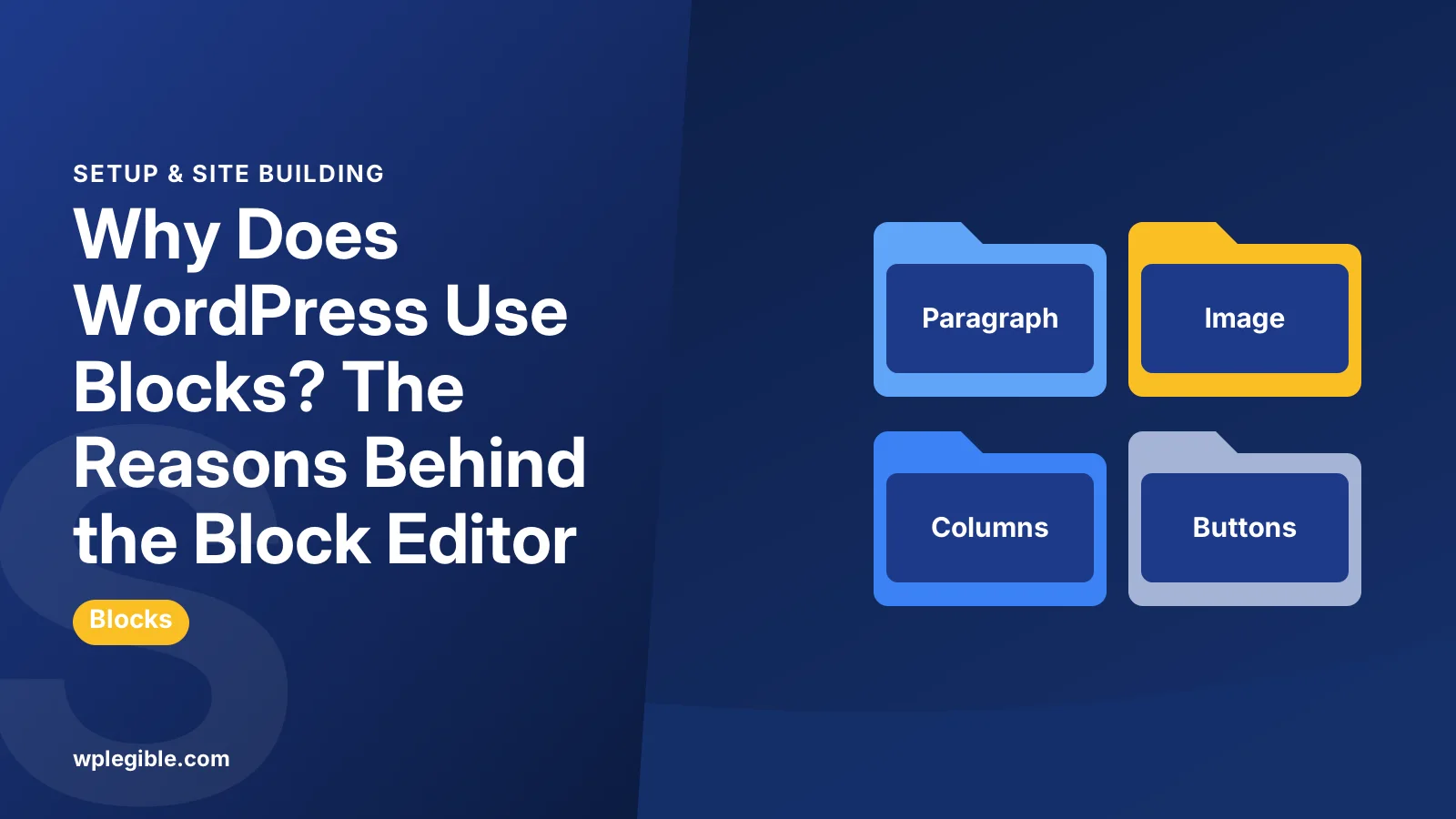
WordPress uses blocks so that every piece of content, from a paragraph to a whole header, is built with one consistent and visual system instead of several separate tools.
Before blocks, a single page could mix the classic text editor, shortcodes, widgets, theme options and custom fields. Each worked differently.
Blocks bring those jobs together. You add, move and style everything the same way, and you see roughly what visitors will see.
The block editor handbook describes this goal and how blocks are built.
When did WordPress switch to blocks?
The block editor, developed under the project name Gutenberg, became the default editor in WordPress 5.0 in December 2018, and block-based site editing arrived with WordPress 5.9.
The change was one of the biggest in WordPress history. It replaced an editor that had worked in much the same way for over a decade.
Development continues in the Gutenberg plugin, where new features are tested before they reach WordPress core.
Our explainer on what the WordPress block editor is covers the editor's interface and main features.
What problems did blocks solve?
Blocks fixed inconsistent editing, hidden shortcode syntax, layouts that needed code, and a gap between what editors saw in the dashboard and what visitors saw on the site.
The classic editor was essentially one large text box. Anything beyond text and images needed shortcodes, page builders or developer help.
Shortcodes were easy to break with one wrong character, and they showed as raw code in the editor.
Custom fields and meta boxes added yet another layer. Editors often had to fill in boxes below the content without seeing how the result would look.
Our explainer on what a shortcode is shows how they worked and why blocks replaced many of them.
How did blocks change widgets?
Widgets became blocks too. Since WordPress 5.8, widget areas in classic themes use blocks, and block themes replace widget areas with template parts edited in the Site Editor.
That means the same blocks you use in posts can appear in sidebars and footers.
How do blocks make editing more visual?
Each block shows its real content and styling inside the editor, so headings, images, columns and buttons look close to the final page while you work on them.
You no longer need to preview repeatedly to check a layout. Most changes appear instantly.
Each block also has its own settings panel. Colors, spacing and typography sit next to the content they affect.
Global styles take this further. Change a color or font once in the Site Editor, and every block that uses it updates across the site.
Our guide on whether WordPress is drag and drop explains how far visual editing goes with blocks alone.
How are blocks stored?
Blocks are saved as normal HTML in the post content, wrapped in small HTML comments that tell WordPress which block each part is and which settings it uses.
This design keeps content readable even without the editor. If a block plugin is removed, the HTML usually still displays.
The comment delimiters are ordinary HTML comments, which browsers ignore when showing the page.
That is different from many page builders, which store layouts in their own formats that depend on the plugin.
Why do blocks matter for themes?
Blocks let themes build headers, footers and templates from the same building units as posts, which made full site editing possible and changed how modern themes are made.
Block themes use templates and template parts made of blocks, plus a theme.json file for global styles.
Our comparison of block themes vs classic themes explains which approach fits different sites.
Classic themes still work. They simply use blocks for content while keeping PHP templates for layout.
Hybrid approaches exist as well. Some classic themes add block template parts or theme.json support without becoming full block themes.
How do patterns build on blocks?
Patterns are ready-made groups of blocks, such as a hero section or pricing table, that you insert in one click and then edit like any other blocks.
Themes and plugins ship patterns, and you can save your own. That speeds up design without needing a page builder.
Synced patterns update everywhere at once. Our guide on creating synced patterns shows how to make one.
Why do developers like blocks?
Blocks give developers a standard way to add custom content types, with a defined structure, settings and front-end output, instead of custom shortcodes and meta boxes for every feature.
Each block can be described in a block.json file. WordPress then handles registration, loading assets and editor support.
Newer APIs build on the same system. Our explainer on the Block Bindings API shows how blocks can display custom field data.
The open-source Gutenberg repository on GitHub is where the editor and its APIs are developed in public.
What are the downsides of blocks?
Blocks have a learning curve, some older plugins and themes were built for the classic editor, and long or complex pages can feel slower to edit than a plain text box.
People used to writing in one text area sometimes find blocks fussy for simple posts.
Distraction-free mode hides most of the interface. It brings back a calmer writing space while keeping blocks underneath.
Keyboard shortcuts and typing slash commands help. Type a slash, then the block name, to insert blocks without leaving the keyboard.
Some sites rely on old custom fields or shortcodes. Those need planning before moving fully to blocks.
Can you still avoid blocks?
Yes. The official Classic Editor plugin restores the old editor for posts and pages, and developers can disable the block editor for specific post types.
The Classic Editor plugin is maintained by WordPress contributors and remains widely used.
Our guide on going back to the classic editor shows how to switch and what you give up.
New WordPress features are built around blocks, though, so the classic editor is best treated as a transition tool.
Are blocks the future of WordPress?
Yes. WordPress development is focused on blocks, with ongoing work on site editing, design tools, patterns and collaboration built on the same block system.
Learning blocks now makes future updates easier to adopt.
WordPress has described its long-term roadmap in phases: easier editing, site customisation, collaboration and multilingual support. Blocks are the base for all of them.
If you are starting a new site, choose a block theme and learn the editor basics first. Add plugins only for features blocks do not cover.
Frequently asked questions
When did WordPress start using blocks?
The block editor became the default in WordPress 5.0, released in December 2018. Block-based site editing for whole themes arrived with WordPress 5.9.
What is Gutenberg in WordPress?
Gutenberg is the project name for the block editor. It also refers to the plugin where new editor features are developed and tested before reaching WordPress core.
Do blocks replace shortcodes?
Many of them, yes. Blocks handle most layouts and features that once needed shortcodes, although shortcodes still work through the Shortcode block.
Can I stop using blocks in WordPress?
Yes. The official Classic Editor plugin restores the old editor for posts and pages, but new WordPress features are built around blocks, so it works best as a transition tool.
Are blocks bad for SEO?
No. Blocks output standard HTML, so search engines see the same headings, text, links and images as they would with content written in the classic editor.
Sources
- Block Editor Handbook WordPress Developer Resources
- Gutenberg plugin WordPress.org Plugins
- Classic Editor plugin WordPress.org Plugins
- WordPress/gutenberg GitHub
- HTML comments MDN Web Docs
Is your product missing, or something out of date?
Tell us what to add or correct. We read every note and reply when we need a source. A message does not buy a ranking.
Thanks — we review requests within 3 business days.
Related guides


About the editors
Researched from the primary sources listed above and checked against our editorial rules before publishing.