Explainers · Explainer
What Is H3 in WordPress? Heading Levels Explained Simply
Short answer
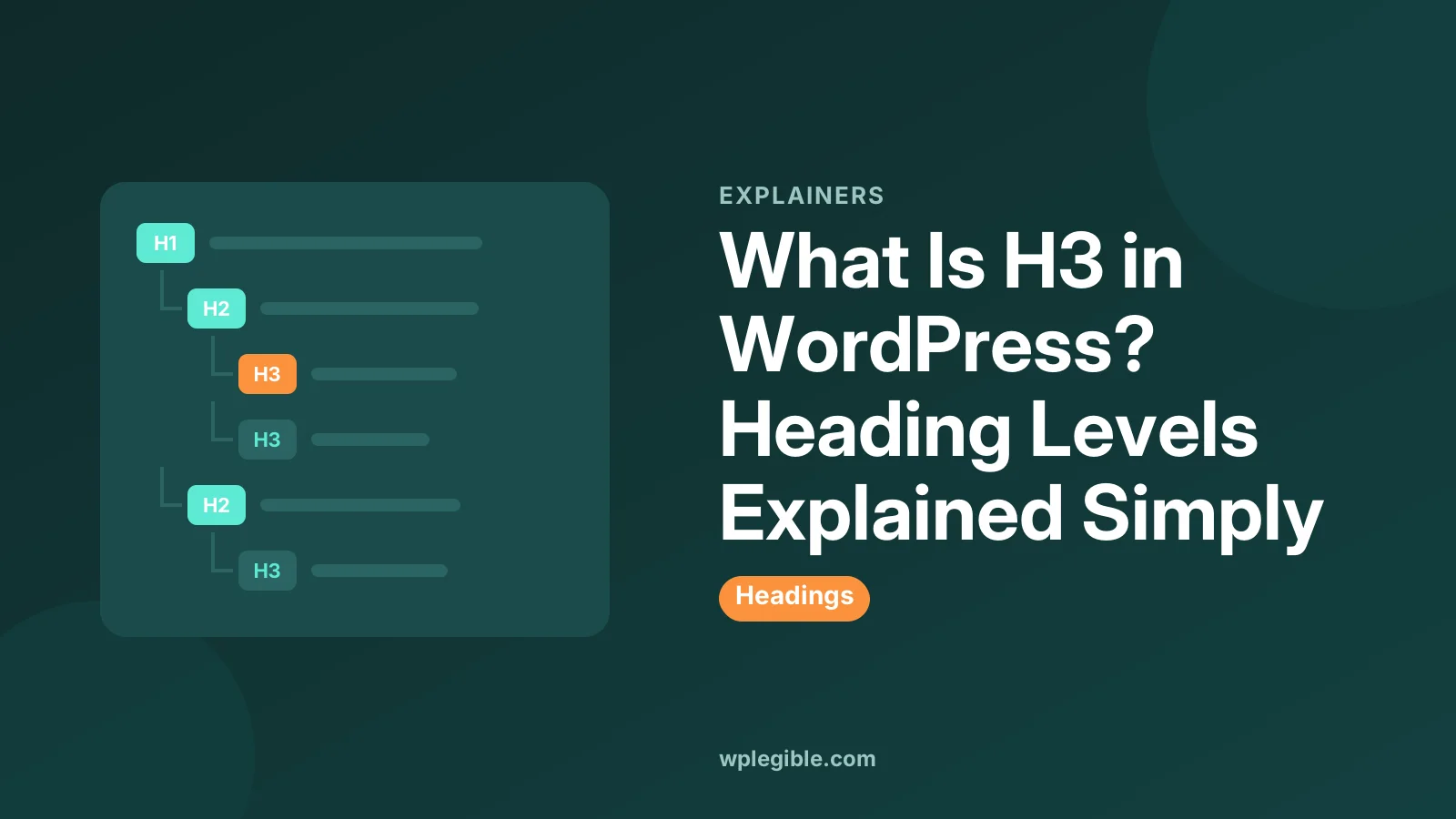
H3 in WordPress is a level-3 heading, the HTML h3 element, used for a subsection inside a section that starts with an H2. You add it with the Heading block by choosing H3 in the toolbar, or by typing ### and a space on a new line. Headings should follow a logical order: one H1 for the title, H2 for main sections and H3 for points within them.
Key takeaways
- WordPress has six heading levels, H1 to H6; H3 sits under H2 in the outline.
- The post title is normally the page's only H1, so content headings start at H2.
- Use H3 for subsections of an H2, not just to get smaller text.
- A clear heading order helps screen reader users, scanners and search engines understand the page.
- Change how H3 looks in Styles > Typography rather than picking the wrong level for its size.
What does H3 mean in WordPress?
H3 is the third level of heading, written in HTML as the h3 element, and in WordPress it marks a subsection that belongs to the H2 section above it.
Web pages use headings from H1 to H6 to show their structure, like the outline of a document. MDN's guide to heading elements explains that H1 is the highest level and H6 the lowest.
In a typical WordPress post, the levels work like this:
| Level | Typical use in WordPress |
|---|---|
| H1 | The post or page title, set by the theme |
| H2 | Main sections of the content |
| H3 | Subsections inside an H2 section |
| H4 | Smaller points inside an H3 subsection |
| H5 and H6 | Rarely needed; deep detail or sidebar labels |
Think of a cookbook: the book title is H1, each chapter is H2, each recipe in the chapter is H3, and the ingredients and method inside a recipe could be H4.
How do you add an H3 heading in the block editor?
Add a Heading block, then choose H3 from the heading level menu in the block toolbar, or type ### followed by a space on an empty line.
Step by step:
- Click the plus button or press Enter to start a new block
- Type /heading and press Enter to add a Heading block
- Click the level selector in the toolbar, which shows H2 by default
- Choose H3
- Type your heading text
The Markdown-style shortcut is faster once you know it: ## gives an H2, ### gives an H3 and #### gives an H4. The Heading block documentation covers the block's options, including anchors for links.
To change an existing heading's level, select it and pick a different level in the toolbar. The text stays the same.
Why should you not skip heading levels?
Skipping from H2 straight to H4, or using H3 without an H2 above it, breaks the page outline and makes it harder for screen reader users and search engines to follow the structure.
Many people using screen readers move through a page by jumping from heading to heading. The W3C's headings tutorial explains that a logical order helps them understand how sections relate.
A good rule is simple: every H3 should sit under an H2, and every H4 under an H3. You can go back up to H2 at any time to start a new main section.
Sighted readers benefit too. Most people scan headings before deciding whether to read a section, so a clear hierarchy makes long posts easier to use.
Do H3 headings help SEO?
Headings help search engines understand what each part of a page covers, and clear, descriptive H3s make sections easier to match to specific searches, but there is no ranking bonus for using H3 itself.
Google's SEO starter guide recommends organizing content with headings so readers and search engines can follow it. The order and wording matter more than the number of headings.
Write headings that describe the section in plain words, ideally phrased the way people search. Question-style headings with a short answer right below them are easy for search engines and AI assistants to quote.
Avoid stuffing keywords into every H3. Repetitive headings read badly and do not help rankings.
How do you write good H3 headings?
Write H3s that say exactly what the subsection covers, keep them short, and make each one useful on its own, because many readers only scan the headings.
A few habits make headings work harder:
- Put the most important words first, so the point is clear at a glance
- Use plain language your readers would use, not internal jargon
- Phrase headings as questions when the section answers one
- Keep parallel headings in the same pattern, such as all starting with a verb
- Avoid vague labels like More info or Other things
Then answer straight away. The first sentence after a heading should deliver what the heading promises. That helps readers who skim, and it gives search engines and AI tools a clean answer to quote.
If two H3s under the same H2 say almost the same thing, merge the sections. Thin, repetitive subsections make a page longer without making it more useful.
How do you add H3 headings in the classic editor?
In the classic editor, select the line of text and choose Heading 3 from the paragraph format dropdown, or switch to the Text tab and wrap the text in h3 tags.
The dropdown on the left of the classic editor toolbar shows Paragraph by default. Change it to Heading 3 for the selected line.
The same hierarchy rules apply in both editors. If you move content from the classic editor into blocks, WordPress converts the headings into Heading blocks with the same levels.
Why does your H3 look too big or too small?
Each theme sets its own sizes for heading levels, so if H3 looks wrong, change its style in Styles > Typography rather than switching to a different level just for size.
Choosing H4 because it looks nicer than H3 confuses the outline. Keep the right level for the structure and adjust the look separately.
In a block theme, go to Appearance > Editor > Styles > Typography > Headings and pick H3 to change its font, size, weight and spacing site-wide. Our guide on changing fonts in WordPress covers these settings.
In a classic theme, use the Customizer's typography options if the theme has them, or add CSS for h3 in Additional CSS.
Should you use H3 in a table of contents?
Yes, table of contents blocks and plugins can include H3 headings as sub-items under each H2, which helps readers jump to specific parts of long guides.
Most table of contents tools let you choose which levels to include. For long articles, listing H2s and H3s works well. Including H4s often makes the list too long to be useful.
Add an HTML anchor to important headings so you can link straight to them from other pages. The Heading block's Advanced panel has an HTML anchor field.
How do you check your heading structure?
Use the editor's Document Overview panel, which lists every heading in order and warns about issues, or an accessibility checker on the published page.
Open the Document Overview from the editor toolbar and choose Outline. You will see each heading with its level indented, so skipped levels and missing H2s stand out.
Check pages built with page builders too. Some builder widgets let you set the visible size separately from the HTML tag, so make sure the tag matches the structure.
Our guide on writing a blog post in WordPress shows how headings fit into a well-structured post from start to finish.
Frequently asked questions
What is the difference between H2 and H3 in WordPress?
H2 marks a main section of your content, and H3 marks a subsection inside that section. H3 should always sit under an H2, like a sub-point under a main point in an outline.
Can I use H3 without H2?
It is better not to. Skipping H2 breaks the page outline for screen readers and search engines. Start content sections with H2 and use H3 for points within them.
How many H3 headings can a WordPress post have?
There is no limit. Use as many H3s as the content needs, as long as each one introduces a real subsection under an H2 and the structure stays easy to follow.
Why is my H3 the same size as normal text?
Your theme may style H3 small. Change its size in Styles > Typography > Headings in a block theme, or with the Customizer or CSS in a classic theme, rather than changing the heading level.
Should the post title be H1 or H2 in WordPress?
The post title should be the page's H1, which most themes handle automatically. Start the headings inside your content at H2, then use H3 for subsections.
Sources
- Heading elements MDN Web Docs
- Heading Block WordPress.org Documentation
- Headings tutorial W3C Web Accessibility Initiative
- SEO Starter Guide Google Search Central
Is your product missing, or something out of date?
Tell us what to add or correct. We read every note and reply when we need a source. A message does not buy a ranking.
Thanks — we review requests within 3 business days.
Related guides
About the editors
Researched from the primary sources listed above and checked against our editorial rules before publishing.