Explainers · Explainer
What Is WordPress Core? Files, Updates and Why Not to Edit It
Short answer
WordPress core is the base WordPress software, the files you download from WordPress.org before adding any themes or plugins. It includes the wp-admin and wp-includes folders and the main PHP files in the site root. Core provides the dashboard, editor, users, media and APIs, while themes and plugins build on top of it.
Key takeaways
- Core means the standard WordPress files, separate from your themes, plugins and uploads in wp-content.
- Core is updated in major releases a few times a year and in smaller maintenance and security releases between them.
- Minor core updates install automatically on most sites by default.
- Never edit core files; every update overwrites them, and changes belong in plugins or themes.
- Core is built in the open by volunteers and company-sponsored contributors.
What does “WordPress core” mean?
WordPress core is the standard WordPress software itself, the same for every site, before you add your own themes, plugins, uploads and settings.
When people say “core”, they mean the code maintained by the WordPress project. Anything you or other developers add on top, such as a theme or a plugin, is not core.
The WordPress philosophy explains the idea behind it. Core aims to include features that most users need, and leaves the rest to plugins and themes so each site can add only what it uses.
That split is why updates are safe in most cases. Core can change without touching your content or your extensions, as long as those extensions follow WordPress's APIs.
Which files are part of WordPress core?
Core is the wp-admin and wp-includes folders plus the PHP files in the root of your WordPress install, while the wp-content folder holds your own themes, plugins and uploads.
| Location | Part of core? | What it contains |
|---|---|---|
| /wp-admin/ | Yes | The dashboard screens and admin code |
| /wp-includes/ | Yes | The main libraries, APIs and block editor files |
| Root files such as wp-login.php, index.php | Yes | Loading, login and request handling |
| wp-config.php | No, it is your site's settings | Database details, keys and custom constants |
| /wp-content/themes/ | No, except bundled default themes | Your themes |
| /wp-content/plugins/ | No | Your plugins |
| /wp-content/uploads/ | No | Your images and files |
The database is not core either. It holds your posts, pages, users and settings, and core reads from it.
What does WordPress core do?
Core runs everything a site needs to work: the dashboard, the block editor, users and roles, media, menus, comments, permalinks, updates and the APIs that themes and plugins use.
Some of the main pieces built into core:
- The block editor and Site Editor
- User accounts, roles and capabilities
- The media library and responsive images
- Permalinks, RSS feeds and XML sitemaps
- The REST API, used by the editor and external apps
- WP-Cron for scheduled tasks
- Automatic background updates for security fixes
The WordPress developer resources document these APIs. Plugins and themes use them instead of changing core directly.
How do WordPress core updates work?
WordPress ships a few major releases a year with new features, and minor releases in between for maintenance and security fixes; minor releases install automatically by default.
Major versions have numbers like 7.0, 7.1 and 7.2. In 2026, WordPress planned three major releases, and the WordPress 7.2 release page shows the schedule for the last one of the year.
Minor versions, such as 7.1.1, fix bugs and security issues. WordPress installs these on its own unless a site turns automatic updates off.
You can also enable automatic major updates in Dashboard > Updates. The upgrade guide explains automatic and manual updates in detail.
Always keep a recent backup before a major update. If something breaks, our guide on fixing a site broken after a WordPress update walks through recovery.
Should you stay on an older version of core?
No, running an outdated version of core leaves known security holes open and blocks newer plugins and themes, so keep core on the current release.
Plugin and theme developers test against current WordPress versions. Many set a minimum WordPress version, so an old core can stop you from installing or updating them.
Old versions also lag behind on PHP support. Hosts retire old PHP versions over time, and an outdated core may not run well on the newer PHP your host moves you to.
If you delay a major update to test it first, keep the gap short:
- Back up the site, then test the update on a staging copy
- Check the plugins and theme you rely on for compatibility notes
- Update the live site once testing passes, ideally within a few weeks
- Keep minor security releases automatic even while you wait
Sites that never update usually end up needing a large, risky jump later. Small regular updates are easier and safer.
Why should you never edit WordPress core files?
Every core update replaces the core files, so any change you make there is wiped out, and edited core files can also break updates or open security holes.
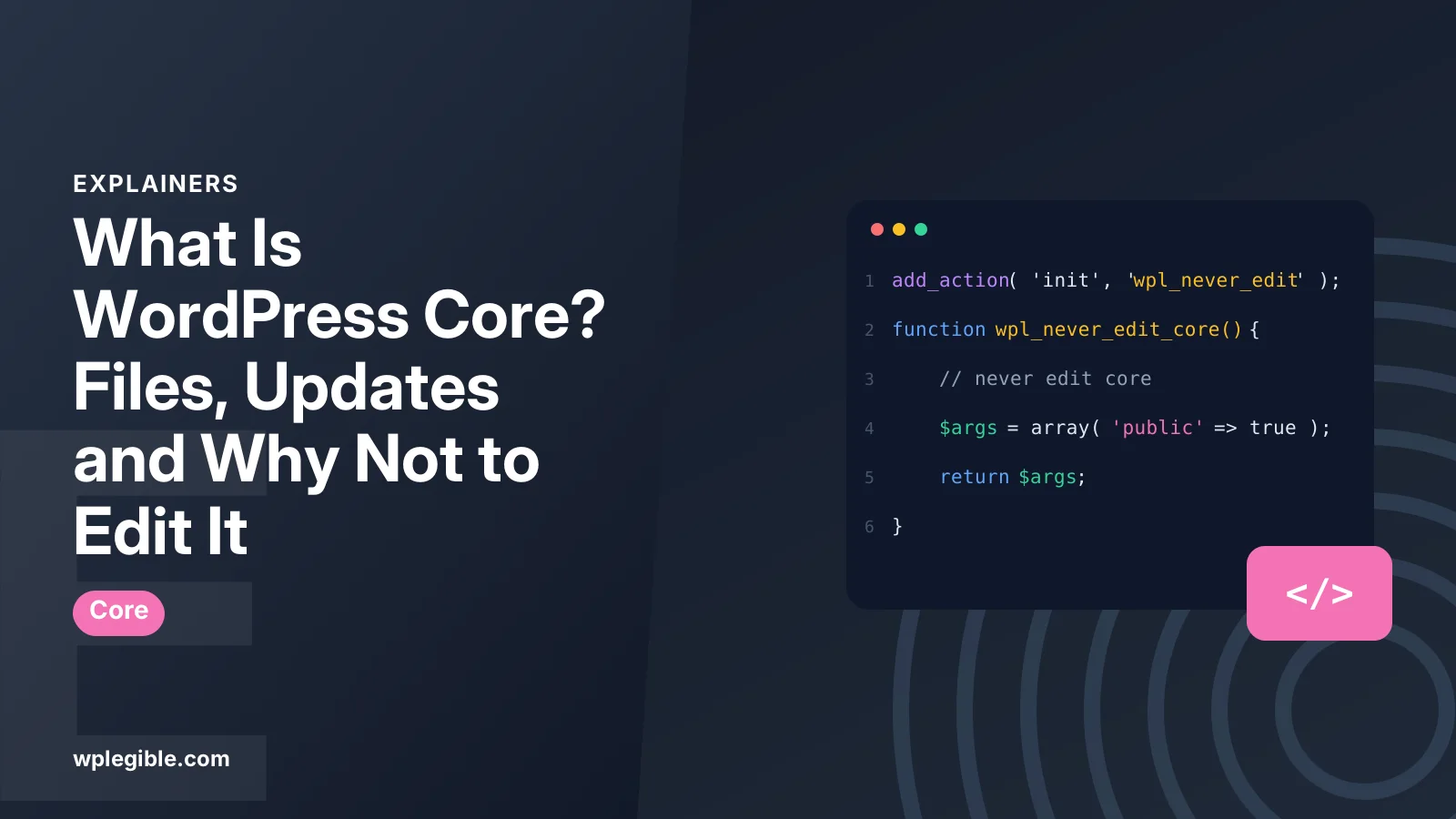
Editing core is often called “hacking core” in the WordPress community, and it is strongly discouraged. Even a small change can stop working, or quietly vanish, after the next automatic update.
Almost anything you might want to change has a proper place:
- Change behavior: use a hook in a plugin
- Change design: use a theme, child theme or the Site Editor
- Change settings: use the dashboard or wp-config.php constants
- Add features: install or write a plugin
Our guide on how to code in WordPress explains hooks and where custom code belongs.
How do you check if core files have been changed?
Compare your core files with the official checksums using WP-CLI or a security plugin, which flags any core file that differs from the original release.
With WP-CLI, the command wp core verify-checksums compares every core file against the official version and lists files that were modified or added.
Many security plugins run the same check from the dashboard. Unexpected changes to core files are a common sign of a hacked site, so treat them seriously.
To fix modified core files, reinstall core. Go to Dashboard > Updates and click Re-install, which replaces core files without touching wp-content or the database.
Who builds WordPress core?
Core is built in the open by a global community of contributors, both volunteers and people sponsored by companies, coordinated on the Make WordPress Core team.
Anyone can follow along or take part. The source code is mirrored on GitHub in the wordpress-develop repository, where you can read every change. Discussions and release planning happen on the Make WordPress Core blog, and bugs and changes are tracked publicly.
Each major release has a release squad that manages features, testing and the final launch. Hundreds of people contribute code, testing, design, documentation and translations to a single release.
That open process is also why WordPress is free to use under the GPL license.
What is the difference between core, themes and plugins?
Core is the base system shared by every site, themes control how your site looks, and plugins add features; you choose themes and plugins, while core is the same everywhere.
A useful way to picture it: core is the operating system, themes are the wallpaper and layout, and plugins are the apps.
Our guide on themes vs plugins explains where different kinds of features should live.
For long-term version support questions, see our explainer on WordPress LTS.
Frequently asked questions
Is WordPress core the same as WordPress.org?
WordPress.org is the website where the core software is published, documented and downloaded. Core is the software itself, which you install on your own hosting or which a service like WordPress.com runs for you.
Does updating WordPress core delete my content?
No. Core updates replace the core files only. Your posts, pages and settings live in the database, and your themes, plugins and uploads live in wp-content, which updates do not overwrite.
Should I turn on automatic core updates?
Minor security updates are automatic by default and should stay on. Automatic major updates are safe for many sites with good backups, but complex sites may prefer to test major releases on staging first.
What happens if I edit a WordPress core file?
Your change works until the next core update, which replaces the file and removes it. Edited core files can also cause errors or security problems. Put custom code in a plugin or theme instead.
How do I reinstall WordPress core?
Go to Dashboard > Updates and click Re-install. This replaces the core files with a fresh copy of the current version without changing your content, themes, plugins or uploads.
Sources
- Philosophy WordPress.org
- Upgrading WordPress WordPress Developer Resources
- WordPress 7.2 development cycle Make WordPress Core
- Make WordPress Core WordPress.org
- wp core verify-checksums WP-CLI Commands
Is your product missing, or something out of date?
Tell us what to add or correct. We read every note and reply when we need a source. A message does not buy a ranking.
Thanks — we review requests within 3 business days.
Related guides
About the editors
Researched from the primary sources listed above and checked against our editorial rules before publishing.