Plugin how-tos · Guide
How to Use WP All Import: A Beginner's Guide
Short answer
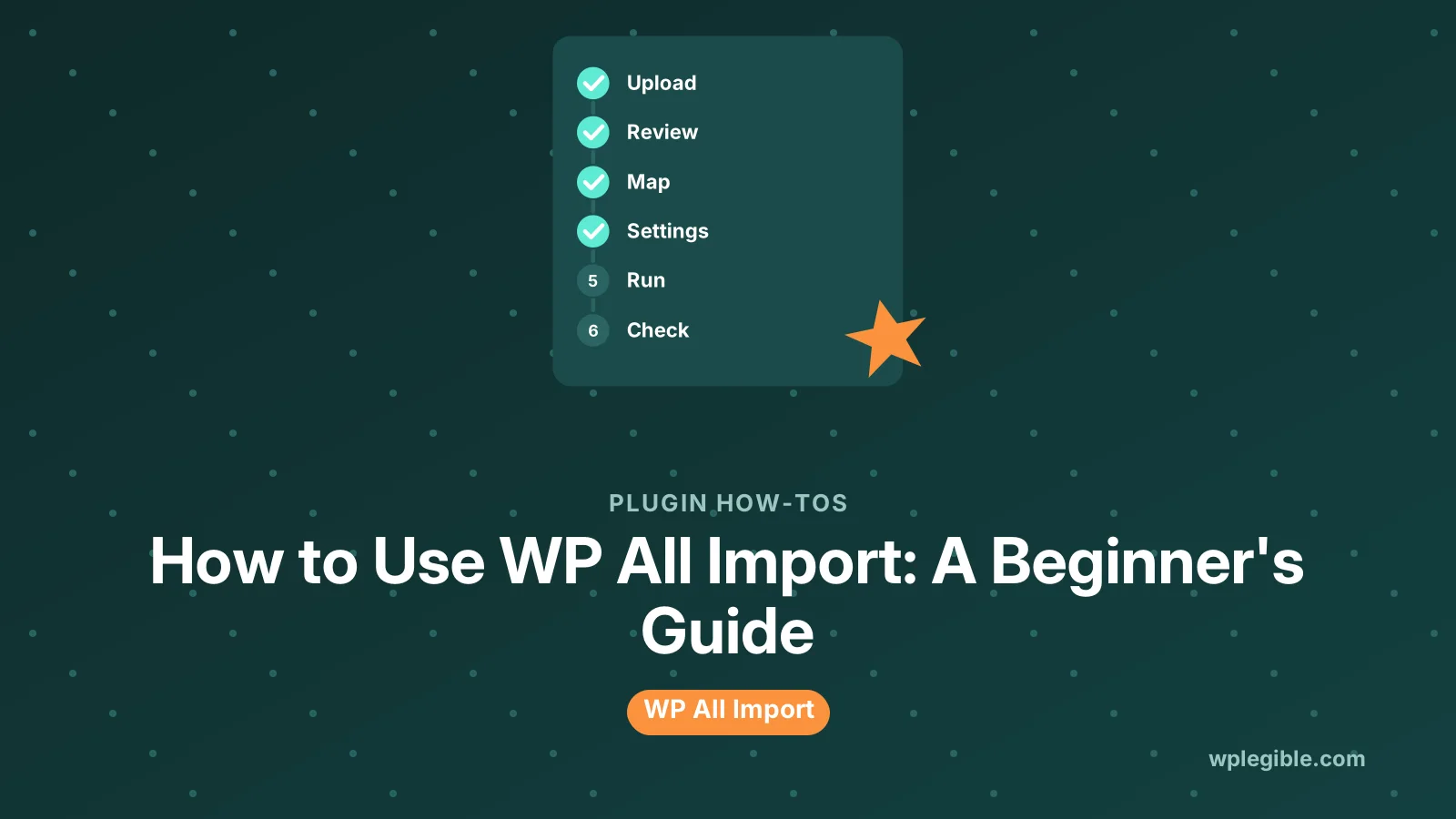
To use WP All Import, go to All Import > New Import, upload your CSV, XML or spreadsheet, and choose the post type. Review the records, drag file columns into the title, content, image and custom field boxes, set a unique identifier, then run the import and check the results.
Key takeaways
- Clean your file first: one row per item, clear headers and UTF-8 encoding.
- Drag columns from your file onto WordPress fields in step 3.
- A stable unique identifier prevents duplicates on later runs.
- Lower records per iteration on slow hosts to avoid timeouts.
- Back up the site before large imports and test on staging.
What is WP All Import used for?
WP All Import is a WordPress plugin that brings data from CSV, XML, Excel or Google Sheets files into posts, pages, products and custom post types using a drag-and-drop field mapper.
It is popular for jobs that would take hours by hand, such as moving a product catalog, loading property or job listings, or updating hundreds of posts from a spreadsheet.
The free version on WordPress.org handles core imports into posts, pages and custom post types. The paid version and add-ons add more, such as deeper custom field support, WooCommerce product imports, ACF integration and scheduled imports. Feature splits change, so check the vendor's current comparison before you buy.
If you have not installed it yet, follow our guide on how to install WP All Import first.
How should you prepare your import file?
Clean your file before importing: one row or element per item, clear column headers, consistent formats and full image URLs, because messy files cause most failed imports.
Spend a few minutes on the file. It saves much more time later.
A good CSV or spreadsheet has:
- One header row with short, clear column names
- One row per post or product
- A unique ID column, such as a SKU or reference number
- Dates in one consistent format
- Full image URLs starting with https
- Categories and tags separated by a consistent character, such as a pipe or comma
- UTF-8 encoding, so accented characters import correctly
CSV files follow a simple standard described in RFC 4180. Text that contains commas must be wrapped in quotes. Spreadsheet apps usually handle this when you export.
WP All Import publishes example files you can use to practice before importing your own data.
How do you start a new import?
Go to All Import > New Import, upload your file or give a URL, then choose whether to create new items or update existing ones and pick the post type.
Step by step:
- Go to All Import > New Import
- Choose Upload a file, Download from URL or Use existing file
- Select your CSV, XML or spreadsheet
- Choose New Items to create content, or Existing Items to update
- Pick the post type, such as Posts, Pages or a custom post type
- Click Continue to Step 2
Before a large import, take a full backup. Imports write directly to your database. If something goes wrong, a backup lets you roll back in minutes.
It also helps to test on a staging site first. Our guide on how to install an import plugin in WordPress compares WP All Import with other import tools if you are still choosing.
How do you review the file in step 2?
Step 2 shows your file one record at a time, so you can confirm the plugin read the columns correctly and filter out rows you do not want.
Use the arrows to browse records. Check that each column shows the right data and that special characters look correct.
For XML files, you may need to pick the element that represents one item. The plugin usually guesses, but check that one record equals one post or product.
You can add filters here too. For example, import only rows where a status column equals active, or skip rows with an empty price.
How do you map fields with drag and drop?
In step 3, drag column names from the right-hand panel into the title, content, images, custom fields and taxonomy boxes on the left to build your import template.
This is the heart of WP All Import. Each box on the left is a part of the WordPress post. Each item on the right is a column from your file.
Common mappings:
| WordPress field | Typical file column |
|---|---|
| Title | name or title |
| Content | description |
| Excerpt | short_description |
| Images | image_url |
| Categories | category |
| Custom fields | price, location, sku |
| Post date | date |
You can combine columns and add text. For example, a title could be the brand column, a space and the model column.
For images, choose whether to download them from URLs or use files already in your media library. Downloading many large images is the slowest part of most imports.
For taxonomies, set the separator your file uses for multiple categories. You can also build hierarchical categories from a column that contains parent and child names.
What import settings matter most?
In step 4, set a unique identifier, decide what happens to existing and missing items, and choose how many records to process per batch.
The unique identifier is the most important setting. WP All Import uses it to recognize items on later runs. Pick a column that never changes, such as a SKU or an ID from your source system.
Other settings to review:
- Record matching for updates to existing items
- Which fields to update on later runs, so you do not overwrite manual edits
- What to do with missing items, such as delete or set to draft
- Records per iteration, lower on slow hosts to avoid timeouts
- Post status, such as publish or draft
If your host has low limits, lower the records per iteration. Small batches are slower but much less likely to time out.
How do you run and check the import?
Confirm the summary, click to run the import, keep the browser tab open while it runs, then check a sample of imported items on the front end and in the admin.
Running time depends on file size, image downloads and your server. A few hundred text-only posts finish quickly. Thousands of products with images can take much longer.
After the import:
- Open five or ten imported items
- Check titles, content, images and custom fields
- Confirm categories and tags landed correctly
- Look at the import log for warnings
- Clear your site cache
The log lists skipped records and errors. Fix them in the file or template, then run the import again.
WP All Import's in-depth overview covers each screen in more detail, and their guide to importing WordPress posts walks through a full example.
How do you update or re-run an import later?
Open All Import > Manage Imports, choose the import, and run it again with a new file; the unique identifier lets the plugin update matching items instead of creating duplicates.
This is useful for price lists, stock levels and listings that change often. Upload the new version of the file and run the same template.
Paid versions can schedule imports to run on their own from a URL. On a schedule, make sure WordPress cron or a real server cron is reliable. Our guide on disabling WP-Cron and using a real cron job explains why that helps.
Can you import into custom post types and WooCommerce?
Yes, WP All Import can target any registered post type, and WooCommerce product imports use a dedicated add-on with fields for prices, stock and variations.
Custom post types appear in the post type list in step 1 if they are registered with public settings. WordPress's post types documentation explains how they work.
For WooCommerce, the product add-on maps prices, SKUs, stock, attributes and variations. Variable products need careful file structure, usually one row per variation with a parent ID.
If you only need to move products between WooCommerce stores, WooCommerce's built-in importer may be enough. Our guide on how to export WooCommerce products covers the export side.
What are common WP All Import problems?
The usual issues are timeouts on large files, broken characters from the wrong encoding, duplicate posts from a missing unique identifier, and images that fail to download.
Quick fixes:
- Timeouts. Lower the records per iteration and ask your host about execution limits.
- Broken characters. Save the file as UTF-8 and import again.
- Duplicates. Set a stable unique identifier before the first run.
- Missing images. Check the URLs open in a browser and are not blocked by hotlink protection.
Imports that stop halfway can usually be resumed from Manage Imports. If problems continue, turn on WordPress debug logging and read the log for errors.
Frequently asked questions
Is WP All Import free?
There is a free version on WordPress.org that imports into posts, pages and custom post types. A paid version and add-ons add features such as WooCommerce products, ACF support and scheduling. Check the vendor's site for current features and prices.
What file types does WP All Import support?
It imports CSV and XML files, and also works with Excel spreadsheets and Google Sheets. You can upload a file, give a URL, or use a file already on your server.
How do I stop WP All Import creating duplicates?
Set a unique identifier based on a column that never changes, such as a SKU or source ID, before the first run. Later runs then match and update existing items instead of creating new ones.
Can WP All Import update existing posts?
Yes. Choose Existing Items in step 1, or re-run an import from Manage Imports. You can pick which fields to update so manual edits in WordPress are not overwritten.
Why does my WP All Import keep timing out?
Large files, image downloads and low server limits cause timeouts. Lower the number of records processed per iteration, and ask your host about PHP execution time and memory limits.
Sources
- WP All Import plugin WordPress.org Plugins
- WP All Import in-depth overview WP All Import
- How to import WordPress posts WP All Import
- Example files WP All Import
- Post types WordPress Developer Resources
- RFC 4180: CSV format RFC Editor
Is your product missing, or something out of date?
Tell us what to add or correct. We read every note and reply when we need a source. A message does not buy a ranking.
Thanks — we review requests within 3 business days.
Related guides



About the editors
Researched from the primary sources listed above and checked against our editorial rules before publishing.