Backups & maintenance · Guide
How to Update WPBakery Page Builder Manually (Step by Step)
Short answer
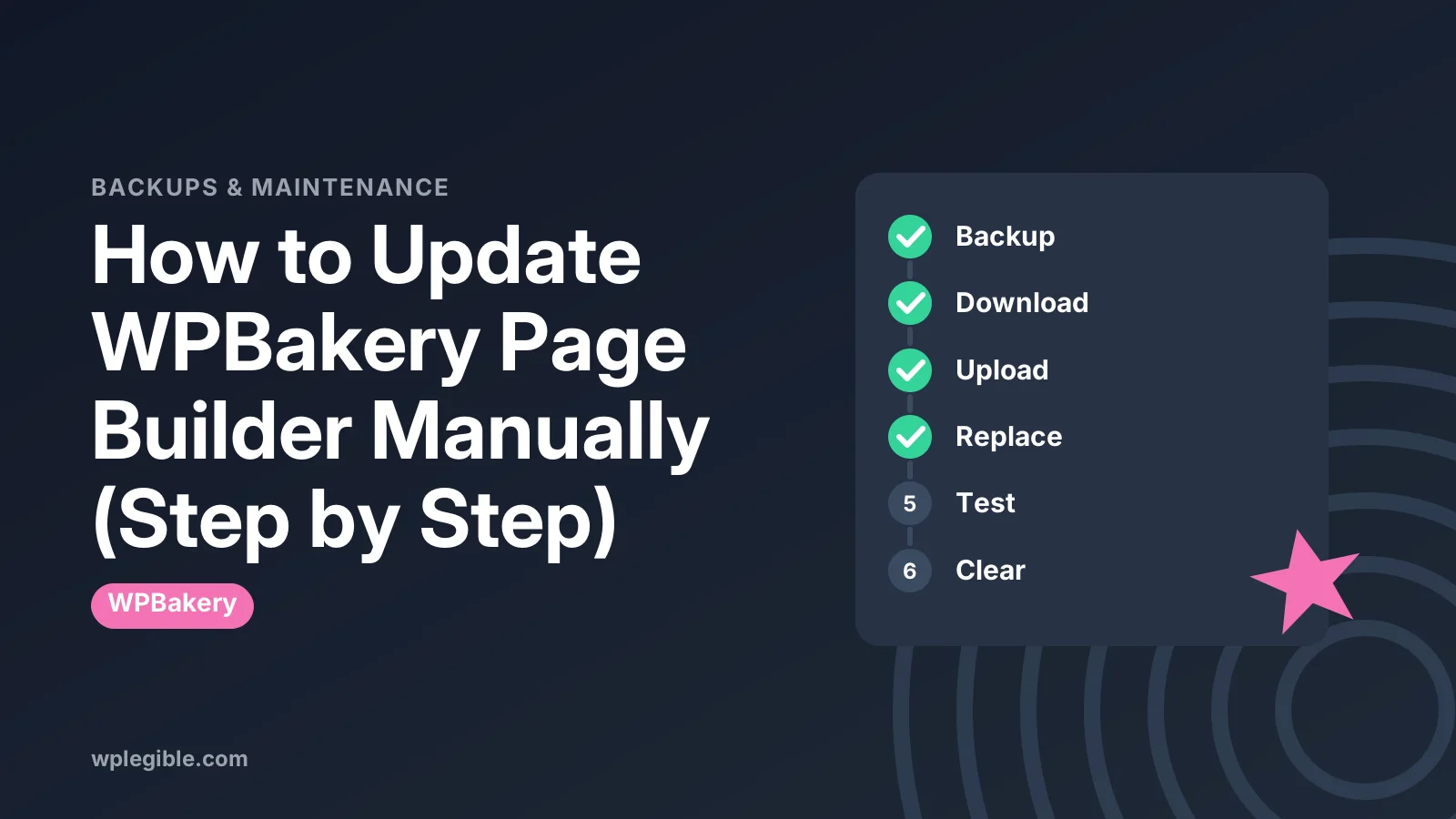
Back up your site, then download the latest WPBakery zip from CodeCanyon or your theme package. Go to Plugins > Add New Plugin > Upload Plugin, upload the zip and click Replace current with uploaded. If WPBakery came with your theme, update it through the theme instead.
Key takeaways
- WPBakery is a premium plugin, so WordPress cannot update it without an active license.
- Bundled copies get updates through the theme author, not WPBakery.
- Uploading a zip and choosing Replace current with uploaded is the easiest manual method.
- FTP works when the dashboard upload fails, and renaming the old folder gives you a fallback.
- Your layouts are stored in the database, so replacing plugin files does not delete them.
- Always back up first and clear caches after the update.
Why would you update WPBakery Page Builder manually?
You update WPBakery manually when the one-click update in Plugins is not available, usually because the plugin came bundled with a theme or the license is not activated on that site.
WPBakery is a premium plugin sold through CodeCanyon. It does not live in the WordPress.org plugin directory, so WordPress cannot fetch new versions for it on its own.
Automatic updates only work when you activate a valid WPBakery license on the site. If you bought the plugin directly, you can activate it under WPBakery Page Builder > Product License, and updates then arrive like any other plugin.
Many people never bought WPBakery directly, though, because it ships inside lots of ThemeForest themes.
In that case the theme author holds the license and passes updates to you through the theme. The WPBakery knowledge base has a page on manually updating without active support that covers this situation.
Common reasons for a manual update:
- You see Update package not available when you click update.
- The plugin is bundled with your theme and the theme asks you to install a newer bundled version.
- Your license is used on another domain.
- You are moving a site and want the latest version before going live.
What should you do before updating WPBakery?
Take a full backup, check which version you have, and confirm where your copy of WPBakery came from before you replace any files.
A page builder touches almost every page on the site. If an update goes wrong, layouts can break across the whole site, so preparation matters more than usual.
Work through this list first:
- Back up files and the database. Use your host's backup tool or a plugin. Our guide on how to restore a WordPress site from backup shows what you need if you have to roll back.
- Note the current version. Go to Plugins > Installed Plugins and read the version number under WPBakery Page Builder.
- Check your source. Look in your theme's documentation or its plugin installer screen. If WPBakery came with the theme, the new zip usually comes from the theme author.
- Read the changelog. The WPBakery changelog lists new versions and fixes. Big jumps between versions deserve more care.
- Check your PHP and WordPress versions. Newer builder versions drop support for very old PHP versions.
If you can, run the update on a staging copy first. Our guide to setting up a staging site walks through the options.
Where do you get the latest WPBakery zip file?
Download the latest zip from your CodeCanyon downloads page if you bought WPBakery yourself, or from your theme package or theme author if it came bundled with a theme.
Here are the usual sources:
| How you got WPBakery | Where to get the update | Automatic updates? |
|---|---|---|
| Bought on CodeCanyon | CodeCanyon > Downloads > Installable WordPress file only | Yes, after license activation |
| Bundled with a theme | Updated theme package or the theme's plugin installer | No, follow theme updates |
| Bought from the theme author's site | Your account on that site | Depends on the theme |
| Agency or client build | Ask whoever holds the license | No |
When you download from CodeCanyon, pick the installable WordPress file. The full package includes extra documentation and is not a plugin zip.
Never download WPBakery from file-sharing or free premium plugin sites. Those copies are often modified and can carry malware. Our explainer on nulled plugins covers the risks.
How do you update WPBakery by uploading a zip in the dashboard?
Go to Plugins > Add New Plugin > Upload Plugin, choose the new WPBakery zip, click Install Now, then click Replace current with uploaded on the comparison screen.
This is the easiest manual method, and it works on any modern WordPress install. WordPress shows a screen comparing the installed version with the uploaded one before it replaces anything.
Step by step:
- Log in to your WordPress dashboard as an administrator.
- Go to Plugins > Add New Plugin.
- Click Upload Plugin at the top.
- Click Choose File and select the WPBakery zip, often named js_composer.zip.
- Click Install Now.
- WordPress notices that the plugin already exists. Check the version numbers on the comparison screen.
- Click Replace current with uploaded.
- Wait for the success message, then return to the Plugins screen.
The WordPress documentation on managing plugins explains the upload screen in more detail.
Your page content is not stored in the plugin folder. It lives in the database as shortcodes, so replacing the plugin files does not delete your layouts.
If the upload fails with a size error, your host limits upload size. Use the FTP method below, or ask your host to raise the limit.
How do you update WPBakery with FTP or the file manager?
Unzip the new version on your computer, rename the old js_composer folder in wp-content/plugins as a fallback, upload the new folder, then check the site.
Use this method when the dashboard upload fails or when you cannot reach the admin area.
- Unzip the WPBakery package on your computer. You should get a folder named js_composer.
- Connect to your site with an FTP client like FileZilla or open your host's file manager.
- Go to wp-content/plugins.
- Rename the existing js_composer folder to something like js_composer-old.
- Upload the new js_composer folder.
- Log in to WordPress and visit Plugins. Activate WPBakery if it shows as inactive.
- Test the site, then delete the js_composer-old folder once you are happy.
Renaming instead of deleting gives you a quick way back. If something breaks, delete the new folder and rename the old one back.
The FileZilla project site has the client and its own documentation if you have never used FTP before.
How do you update WPBakery when it came with your theme?
Update the theme first, then install the bundled WPBakery version through the theme's plugin installer or the zip included in the new theme package.
Theme authors test their themes against a specific WPBakery version. Installing a newer version than the theme expects can cause styling problems in theme-specific elements.
The typical process looks like this:
- Download the latest theme package from where you bought it, often your ThemeForest downloads page.
- Update the theme, ideally with a child theme in place so your custom code stays safe. Our guide on what a child theme is explains why.
- Look for a notice such as This theme requires the following plugins or a menu like Appearance > Install Plugins.
- Update WPBakery from that screen, or upload the js_composer zip found inside the theme package.
You may see a WPBakery notice asking you to activate a license. With a bundled copy you can usually ignore it, because the theme author covers updates. You only need your own license if you want direct support or automatic updates from WPBakery.
What should you check after the update?
Clear all caches, open the WPBakery editor on a few key pages, and look at the front end on desktop and mobile to confirm layouts still look right.
Updates sometimes change element markup or CSS, and cached files can hide problems or create new ones.
Run through these checks:
- Purge your caching plugin, server cache and CDN cache.
- Open the homepage and two or three busy pages.
- Edit one page with the Backend Editor and the Frontend Editor.
- Check custom elements added by your theme or add-ons.
- Look at a page on a phone, since responsive settings can shift.
If the editor fails to load after the update, our guide on WPBakery not showing the backend editor covers the usual causes.
For wider problems, such as elements not rendering at all, see WPBakery not working.
Add-ons for WPBakery, such as extra element packs, may need updating too. Check each one's version notes after the main plugin update.
What if the WPBakery update breaks your site?
Restore the old plugin folder or your backup, then find the conflict, often an outdated theme or add-on, before you try the update again.
If you see a critical error, WordPress may email the admin address with a recovery mode link. That link lets you log in and deactivate the plugin causing trouble.
Your rollback options:
| Problem | Quick fix |
|---|---|
| White screen or critical error | Rename the js_composer folder over FTP to deactivate it |
| Layouts look broken | Restore js_composer-old or reinstall the previous zip |
| Editor will not load | Clear cache, disable add-ons, check browser console |
| Theme elements missing | Update the theme to a version that supports this WPBakery version |
For a deeper look at broken sites, read how to fix a critical error in WordPress. To find the cause, turn on debugging as described in the WordPress debugging documentation.
Keep the old zip somewhere safe until you are sure the new version works. It is the quickest way back.
How do you keep WPBakery updated in the future?
Activate a license if you own one so updates arrive automatically, or follow your theme's update schedule if your copy is bundled.
A few habits keep things smooth:
- Check for updates monthly. Look at Dashboard > Updates and your theme author's changelog.
- Keep one backup before every update. Make it part of the routine.
- Update add-ons together. Builder add-ons often release fixes alongside builder updates.
- Avoid stacking builders. Running two page builders adds conflicts.
If you are tired of manual updates, you could also move to another builder. Our guide on converting WPBakery to Elementor explains what that involves.
Outdated page builders are a common target for attackers, so do not let WPBakery fall many versions behind. Security fixes only help if you install them.
Frequently asked questions
Will updating WPBakery manually delete my pages?
No. WPBakery stores your layouts as shortcodes inside your posts and pages in the database. Replacing the plugin files only changes the code that renders them. Still take a backup first, because a version mismatch with your theme can make pages look broken until you fix it.
Why does WPBakery say update package not available?
This message usually means the plugin is not activated with a valid license on that site, or it came bundled with your theme. WordPress has nowhere to download the new version from. Download the zip yourself and upload it, or update through your theme author.
Do I need a WPBakery license to update it?
You need a license for automatic one-click updates and direct support. If WPBakery came with your theme, the theme author provides updated copies inside new theme releases, so you can update manually without buying your own license.
What is the WPBakery plugin folder called?
The plugin folder is named js_composer, which comes from the plugin's old name, Visual Composer. You will find it inside wp-content/plugins. The zip file you upload is often called js_composer.zip as well.
Can I go back to an older WPBakery version?
Yes, if you kept the old zip or folder. Upload the older zip with the replace option, or swap the folders over FTP. Restoring from a full backup is the safest route if database changes were made during the update.
Sources
- How can I manually update WPBakery Page Builder if I don't have an active support WPBakery Knowledge Base
- When trying to update I receive message update package not available WPBakery Knowledge Base
- Manage Plugins WordPress.org
- Debugging in WordPress WordPress Developer Resources
- FileZilla FileZilla Project
Is your product missing, or something out of date?
Tell us what to add or correct. We read every note and reply when we need a source. A message does not buy a ranking.
Thanks — we review requests within 3 business days.
Related guides

About the editors
Researched from the primary sources listed above and checked against our editorial rules before publishing.