Setup & site building · Guide
How to Install the OceanWP Theme in WordPress (and Set It Up)
Short answer
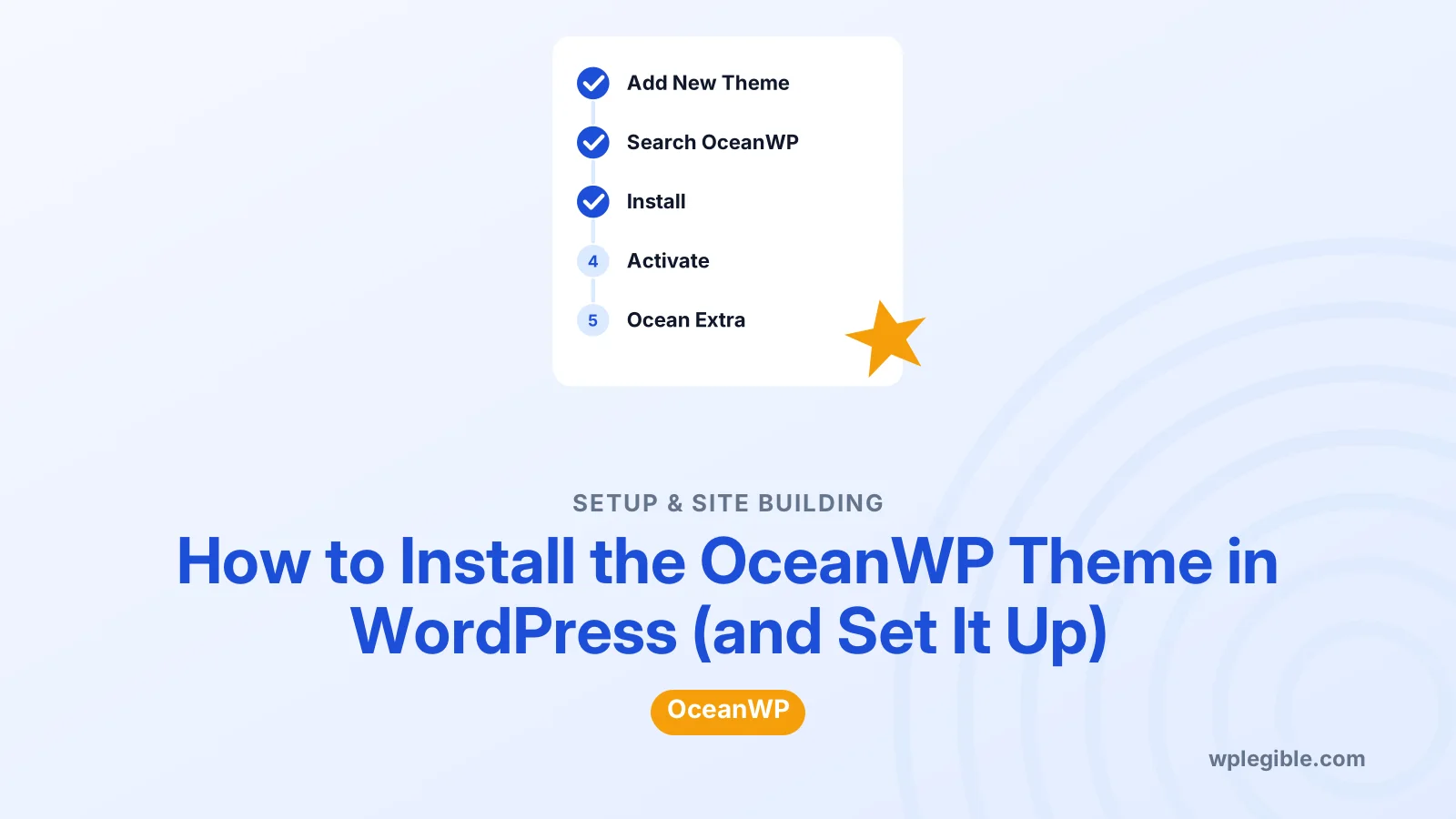
To install OceanWP, go to Appearance > Themes > Add New Theme, search for OceanWP, click Install and then Activate. Next, install the free Ocean Extra plugin when prompted, which adds per-page settings, widgets and website template imports. Finally, customise the header, colours, fonts and layout under Appearance > Customize.
Key takeaways
- OceanWP is a free, multi-purpose theme on WordPress.org with paid extensions.
- Install it from Appearance > Themes > Add New Theme like any other free theme.
- The free Ocean Extra plugin adds per-page settings, widgets and template imports.
- Global design settings live in the Customizer; page builders handle page content.
- Use a child theme if you plan to edit OceanWP's code.
What is OceanWP?
OceanWP is a free, lightweight, multi-purpose WordPress theme for blogs, business sites, portfolios and WooCommerce stores, with paid extensions for extra features.
The OceanWP listing on WordPress.org shows more than 400,000 active installations and lists compatibility with page builders such as Elementor, Beaver Builder and others. It is free to use, with paid upgrades and support available from the OceanWP website.
OceanWP is a classic theme, so you design it through the Customizer and a page builder rather than the Site Editor. Our comparison of block themes vs classic themes explains what that means in practice.
What do you need before installing OceanWP?
You need a self-hosted WordPress site or a WordPress.com plan that allows themes, a recent WordPress version and PHP 7.4 or newer, plus a backup if you are replacing an existing theme.
Switching themes on a live site can change menus, widgets and layouts. Our guide on how to change a WordPress theme explains what to check before the switch.
If the site is new, there is nothing to lose. Install OceanWP first, then add content, so you build pages with the final design from the start.
How do you install OceanWP from the dashboard?
Go to Appearance > Themes, click Add New Theme, search for OceanWP, click Install on the OceanWP result, then click Activate once installation finishes.
- Log in to your WordPress dashboard
- Go to Appearance > Themes
- Click Add New Theme
- Type OceanWP in the search box
- Hover over the OceanWP theme and click Install
- Click Activate
After activation, OceanWP usually shows a notice recommending its companion plugins. You can install them straight from that notice.
Only install themes from trusted sources. The official WordPress theme directory reviews themes before listing them, which is safer than downloading copies from unknown websites. The WordPress guide to using themes covers the basics.
How do you install OceanWP from a zip file?
If you downloaded OceanWP as a zip file, go to Appearance > Themes > Add New Theme, click Upload Theme, choose the zip, click Install Now and then Activate.
This route is mainly for premium bundles or when your dashboard cannot reach WordPress.org. Upload the theme zip itself, not a larger package that contains several zips.
If the upload fails with a file size error, your host's upload limit is too low. Install from the theme directory instead, or ask your host to raise the limit.
What is Ocean Extra and do you need it?
Ocean Extra is OceanWP's free companion plugin that adds per-page layout settings, extra widgets, website template imports, custom headers and footers, and more; the theme works without it, but most setups use it.
The Ocean Extra plugin page says it only works with OceanWP. Its metabox lets you change the layout, sidebar, header and footer for individual pages, which is one of the most useful parts of the theme.
Install it from the notice after activating OceanWP, or search for Ocean Extra under Plugins > Add New Plugin.
How do you import an OceanWP website template?
After installing Ocean Extra, open the theme panel, choose a website template, select what to import, such as content, Customizer settings and widgets, then click Import and wait for it to finish.
Templates give you a finished design with sample pages and posts, which you then replace with your own content. Some templates need a page builder, such as Elementor, and the importer will tell you which plugins it needs.
Some templates are premium. Ocean Extra notes that premium template content will not display without a premium licence, so check a template's label before importing.
Import templates on a fresh site where possible. On a site with existing content, the import adds sample pages and may change menus and settings.
How do you customise OceanWP?
Open Appearance > Customize to set global options for colours, typography, header style, top bar, blog layout, sidebar and footer, then click Publish to save.
Start with the big decisions: header style, main colours and fonts. These set the look of every page, and changing them later is quick.
Then work through the smaller panels. Set the blog layout and how many posts show per page, choose whether the sidebar sits on the left or right, and write your footer copyright text. Check the mobile menu style too, since many visitors will see your site on a phone first.
Ocean Extra adds tools to search the Customizer and to import or export settings. Export your settings once the design is finished, so you can restore them if something goes wrong.
For individual pages, scroll down the page editor to the OceanWP Settings box. There you can hide the title, change the layout to full width or pick a different header for that page alone.
How do you build pages with OceanWP?
Use the block editor for simple pages, or a page builder such as Elementor for more visual layouts; OceanWP handles the header, footer and sidebar around your content.
For landing pages, set the page layout to 100% Full Width in the OceanWP Settings box and hide the title. That gives the page builder the whole width of the screen.
Our guide on how to use Elementor in WordPress covers building pages with the most popular builder used alongside OceanWP.
Should you use an OceanWP child theme?
Use a child theme if you plan to edit OceanWP's template files or add PHP code, so your changes survive theme updates; for Customizer changes and custom CSS, you do not need one.
OceanWP updates replace its files. Any edits made directly to the theme would be lost.
OceanWP's makers offer a ready-made child theme you can upload and activate. Our explainer on what a child theme is explains when this is worth doing.
How do you set up OceanWP for WooCommerce?
Install and set up WooCommerce first, then open Appearance > Customize > WooCommerce in OceanWP to choose shop layout, product columns, cart style and other store options.
OceanWP includes WooCommerce styling and store features out of the box. The free version covers the basics, while some advanced store features come from paid extensions.
Test your shop, cart and checkout on a phone after setup, and place one test order from start to finish so you see exactly what customers will see. Small layout issues are easier to spot and fix before customers see them.
How do you keep an OceanWP site fast?
OceanWP is light by default, so most speed problems come from what you add: heavy templates, sliders, many fonts, large images and too many plugins.
Keep an eye on the Core Web Vitals, Google's measures of loading speed, responsiveness and visual stability. They show how real visitors experience your pages.
Use only the fonts you need, ideally one family for headings and one for body text. Ocean Extra can host Google Fonts locally, which removes a request to an outside server.
Compress images before uploading, and avoid putting a large slider at the top of the homepage. A single strong image with a clear headline usually loads faster and converts better.
If you add a caching plugin, enable it after the design is finished, then clear the cache whenever you change Customizer settings. Our guide to passing Core Web Vitals in WordPress covers the fixes that matter most.
What should you do after installing OceanWP?
Check your homepage and a few posts on desktop and mobile, set up menus and widgets, test page speed, and remove any themes you no longer use.
Keep OceanWP, Ocean Extra and any extensions updated. Theme updates often include bug fixes and compatibility improvements for new WordPress versions.
Finally, measure speed with PageSpeed Insights. Imported templates sometimes add sliders or animations you do not need, and removing them often gives a quick improvement.
Frequently asked questions
Is OceanWP free?
Yes. OceanWP is free on the WordPress theme directory. Paid extensions and premium templates add extra features, but the free theme and the Ocean Extra plugin are enough for many sites.
Do I need Ocean Extra for OceanWP?
It is not required, but it adds useful features such as per-page layout settings, extra widgets, custom headers and footers, and website template imports. Most OceanWP sites install it.
Does OceanWP work with Elementor?
Yes. OceanWP is designed to work closely with Elementor and also supports other page builders. Many of its website templates are built with Elementor.
Will importing an OceanWP template delete my content?
Importing usually adds sample pages, posts and settings rather than deleting existing content, but it can change menus, widgets and Customizer options. Import on a fresh site or after taking a backup.
Can I switch away from OceanWP later?
Yes. Your posts and pages stay when you change themes. Theme-specific settings, widgets and page builder layouts may need adjusting with the new theme.
Sources
- OceanWP theme WordPress.org Themes
- Ocean Extra plugin WordPress.org Plugins
- Work with themes WordPress.org Documentation
- PageSpeed Insights Google
- OceanWP OceanWP
- Web Vitals web.dev
Is your product missing, or something out of date?
Tell us what to add or correct. We read every note and reply when we need a source. A message does not buy a ranking.
Thanks — we review requests within 3 business days.
Related guides


About the editors
Researched from the primary sources listed above and checked against our editorial rules before publishing.