Plugin how-tos · Guide
How to Install Elementor in WordPress (Step by Step)
Short answer
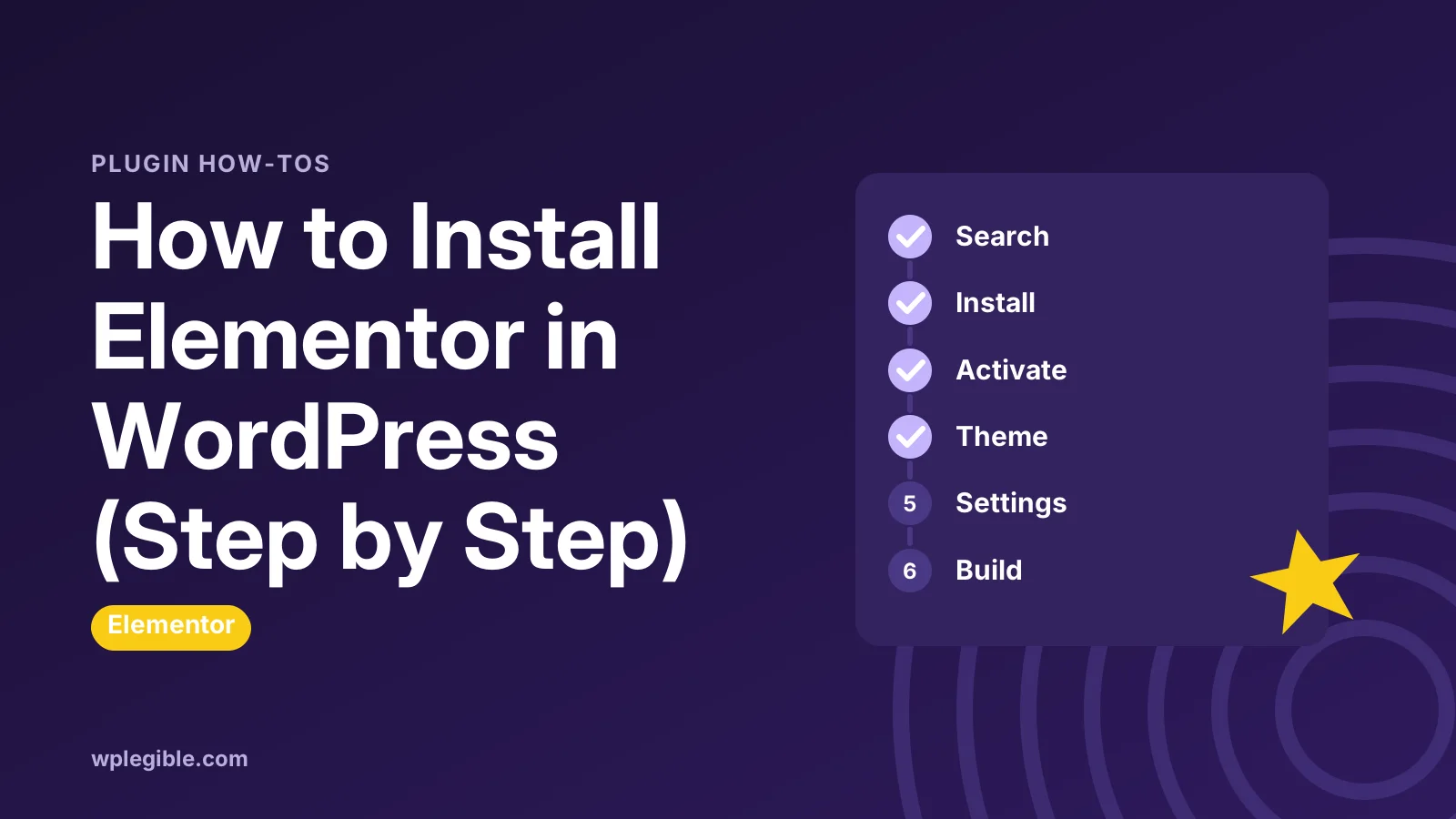
To install Elementor, log in to WordPress, go to Plugins > Add New Plugin, search for Elementor and click Install Now on Elementor Website Builder. Then click Activate. You can also upload the plugin zip, copy it by FTP, or use WP-CLI if the dashboard method fails.
Key takeaways
- The free Elementor plugin installs from the WordPress plugin directory like any other plugin.
- Check the author is Elementor.com so you do not install an add-on by mistake.
- Use zip upload, FTP or WP-CLI when the dashboard install fails.
- Elementor Pro is a separate zip that needs the free plugin active.
- Most install errors come from upload limits, old PHP versions or plugin conflicts.
What do you need before installing Elementor?
You need a self-hosted WordPress site (or a hosted plan that allows plugins), admin access, and a server that meets Elementor's PHP and WordPress version requirements.
Elementor is a plugin, so it runs on any WordPress install where you can add plugins. On WordPress.com, plugin installs are only available on plans that support them, so check your plan first.
Elementor lists its current minimums on its system requirements page. Those numbers change as new versions ship, so compare them with your own setup rather than relying on an old tutorial.
You can see your WordPress version, PHP version and memory limit under Tools > Site Health > Info. The Server and WordPress Constants sections show the values that matter most.
Take a full backup before you add any page builder to a live site. If something clashes with your theme or another plugin, a backup gets you back to a working site in minutes.
How do you install Elementor from the WordPress dashboard?
Go to Plugins > Add New Plugin, search for Elementor, click Install Now on Elementor Website Builder, then click Activate.
This is the easiest method and works for most sites. The free plugin lives in the WordPress plugin directory, so WordPress downloads it straight from there.
- Log in to your WordPress admin area
- Go to Plugins > Add New Plugin
- Type Elementor in the search box
- Find Elementor Website Builder by Elementor.com
- Click Install Now and wait for the button to change
- Click Activate
Check the author name before you click install. Many add-ons have Elementor in their name, and installing one of those instead of the main plugin is a common mix-up.
After activation, Elementor adds its own menu to the admin sidebar. It may also open a short onboarding screen that offers to install the Hello theme and connect an account. You can finish it or skip it.
If you are new to plugins in general, our guide on what a WordPress plugin is covers the basics of installing, updating and removing them.
How do you install Elementor by uploading a zip file?
Download the Elementor zip from WordPress.org, then go to Plugins > Add New Plugin > Upload Plugin, choose the file, click Install Now and activate it.
Use this method when the dashboard search fails, when your host blocks outbound connections, or when you need a specific older version for testing.
- Open the Elementor page on WordPress.org and click Download
- Keep the file zipped; do not extract it
- In WordPress, go to Plugins > Add New Plugin
- Click Upload Plugin at the top
- Click Choose File and select the zip
- Click Install Now, then Activate Plugin
Safari on macOS can unzip downloads automatically. If WordPress says the package could not be installed, check that you uploaded the original zip and not a folder.
If the upload fails with a size error, your server's upload limit is too low. Our guide on how to increase the maximum upload file size explains the fix.
How do you install Elementor with FTP or file manager?
Unzip Elementor on your computer, upload the elementor folder to wp-content/plugins on your server, then activate it under Plugins in WordPress.
This manual route is useful when the admin upload keeps timing out. It skips PHP upload limits completely because the files go straight to the server.
- Download and unzip the Elementor zip on your computer
- Connect with an FTP client or open your host's file manager
- Go to wp-content/plugins
- Upload the whole elementor folder
- In WordPress, go to Plugins and click Activate under Elementor
The folder should sit directly inside plugins, so the path looks like wp-content/plugins/elementor/elementor.php. An extra folder level, such as elementor/elementor/, stops WordPress from finding the plugin.
If you have not used FTP before, our walkthrough on how to get FTP access to WordPress shows how to connect safely.
Can you install Elementor with WP-CLI?
Yes, run wp plugin install elementor --activate from your site's root folder, and WP-CLI downloads, installs and activates the plugin in one step.
WP-CLI is the command-line tool for WordPress. Many managed hosts include it over SSH. The wp plugin install command also accepts a --version flag if you need a specific release.
This is the fastest option when you set up many sites or work on a staging server. For a single site, the dashboard method is usually simpler.
Which installation method should you use?
Use the dashboard search for almost every site, and switch to zip upload, FTP or WP-CLI only when the standard method fails or you manage sites in bulk.
| Method | Best for | What you need |
|---|---|---|
| Dashboard search | Most users | Admin login |
| Zip upload | Blocked outbound requests, specific versions | Admin login, zip file |
| FTP or file manager | Upload limits or timeouts | Hosting or FTP access |
| WP-CLI | Developers, many sites | SSH access |
All four methods install the same free plugin. The only difference is how the files reach your server.
What should you set up right after activating Elementor?
Pick a theme that works well with Elementor, set your site's global colors and fonts, and check a few settings under Elementor's menu before you build pages.
Elementor works with most well-coded themes. Lightweight themes such as Hello Elementor, Astra or GeneratePress leave the design to the builder. Our guide on how to install the Hello Elementor theme covers the official option.
Next, open the settings screen under the Elementor menu. Check which post types can be edited with Elementor. Pages and posts are usually enabled by default.
Then open any page with Edit with Elementor and visit Site Settings. Set global colors, fonts and layout widths once here, so every page uses the same styles.
Finally, look at the Features tab. Elementor ships experiments and performance options there. Leave unfamiliar experiments alone until you know what they change.
How do you open the Elementor editor for the first time?
Go to Pages > Add New Page, give the page a title, and click the Edit with Elementor button to load the drag-and-drop editor.
You can also hover over any existing page in the Pages list and click Edit with Elementor. The editor opens full screen with the widget panel on one side and a live preview of the page.
Drag a widget, such as Heading or Image, onto the canvas to start. When you are done, click Publish. For a full tour of the editor, read our guide on how to use Elementor in WordPress.
How do you add Elementor Pro after installing the free plugin?
Elementor Pro is a separate zip you download from your Elementor account and upload under Plugins, and it needs the free plugin to stay active.
Pro adds the Theme Builder, form widget, popups and more. It is not on WordPress.org, so you install it with the upload method and then connect your license.
Our step-by-step guide on how to install Elementor Pro walks through the download and license activation.
If you are still deciding, compare Elementor Free vs Pro first.
Why won't Elementor install or activate?
Most install failures come from low server limits, an outdated PHP version, a plugin conflict, or a broken upload, and each has a quick check.
- The package could not be installed: you uploaded an unzipped folder or a damaged file. Download the zip again.
- The uploaded file exceeds the upload_max_filesize directive: raise the upload limit or install by FTP.
- Plugin requires a newer PHP version: ask your host to update PHP. Most hosts let you switch versions in the control panel, and the PHP supported versions page shows which branches still get security fixes.
- White screen or critical error after activation: another plugin or the theme may clash. Rename the elementor folder by FTP to deactivate it, then test for conflicts.
- Editor stuck on the loading screen: usually a memory limit or a script conflict, not an install problem.
WordPress has an official guide to managing plugins that explains manual installs and deactivation in more detail.
If the editor does not load after a clean install, our guide to fixing the Elementor editor not loading goes through the common fixes step by step.
How do you keep Elementor updated safely?
Update Elementor from Dashboard > Updates or the Plugins screen, after taking a backup, and test major version updates on a staging site first.
Elementor ships frequent updates with new features and security fixes. Running an old version for months raises the risk of security issues and conflicts with newer WordPress releases.
Major updates can change how layouts render. Elementor keeps a version history under its Tools screen, which lets you roll back to an earlier release if an update breaks your pages.
If you use Elementor Pro, update the free plugin and Pro together. A large gap between their versions is a frequent cause of missing widgets and editor errors.
Frequently asked questions
Is Elementor free to install?
Yes. The core Elementor Website Builder plugin is free and installs from the WordPress plugin directory. Elementor Pro is a paid add-on with extra widgets, the Theme Builder and forms, and you install it separately.
Can I install Elementor on WordPress.com?
Only on WordPress.com plans that allow plugin installs. Free and lower plans do not let you add third-party plugins, so check your plan's features before you try to install Elementor there.
Do I need a special theme to install Elementor?
No. Elementor works with most well-coded themes. Lightweight themes such as Hello Elementor, Astra or GeneratePress are popular because they leave layout and design to the builder and load little extra code.
Will installing Elementor change my existing pages?
No. Installing and activating Elementor does not change existing content. Pages only change when you open them with Edit with Elementor and save new layouts in the builder.
Why does the Elementor editor not load after installing?
The most common causes are a low PHP memory limit, a plugin conflict or a script blocked by a caching or security plugin. Raise the memory limit, then disable other plugins one by one to find the clash.
Sources
- Elementor Website Builder WordPress.org
- Elementor System Requirements Elementor Help Center
- Manage Plugins WordPress.org Documentation
- wp plugin install WordPress Developer Resources
Is your product missing, or something out of date?
Tell us what to add or correct. We read every note and reply when we need a source. A message does not buy a ranking.
Thanks — we review requests within 3 business days.
Related guides



About the editors
Researched from the primary sources listed above and checked against our editorial rules before publishing.