Plugin how-tos · Guide
How to Add Menu in WordPress Elementor (Step by Step)
Short answer
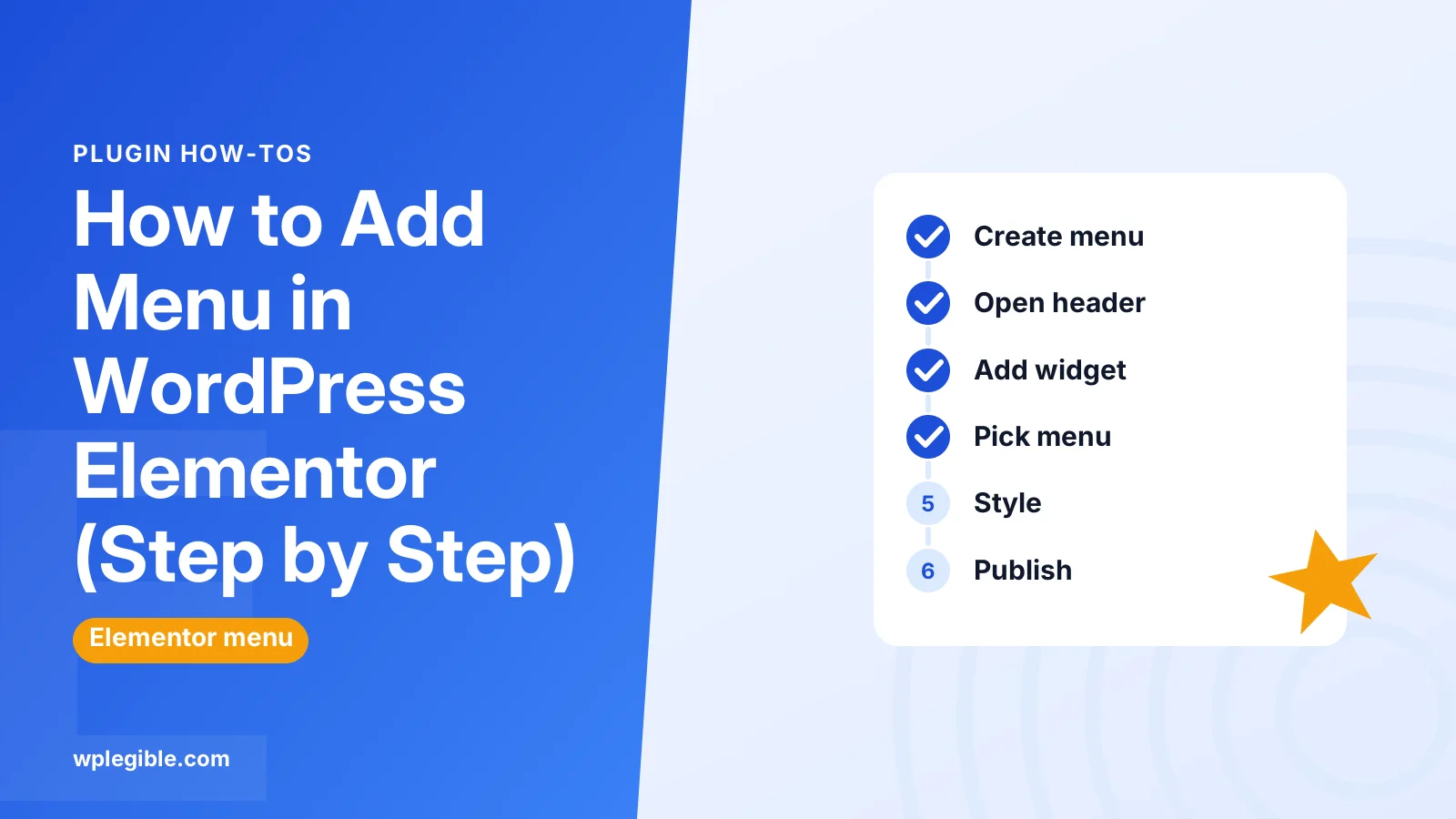
Create your menu under Appearance > Menus, then open your header template or page in Elementor and drag in the WordPress Menu widget, which needs Elementor Pro. Pick your menu, set the layout and mobile breakpoint, and publish. Free Elementor users can use the Navigation Menu widget, the theme's menu location or a header add-on.
Key takeaways
- Most Elementor menus pull their links from Appearance > Menus.
- Elementor Pro has the WordPress Menu widget and a Menu widget for mega menus.
- Free Elementor can use the basic Navigation Menu widget or a free header add-on.
- Set a mobile breakpoint so the menu turns into a toggle on phones.
- Header templates need display conditions to appear across the site.
How do you add a menu in WordPress with Elementor?
Create the menu in WordPress first, then edit your header or page in Elementor, drag in a menu widget, choose that menu, and style it for desktop and mobile.
Elementor does not store regular navigation menus by itself. In most setups, the list of links lives in WordPress under Appearance > Menus, and Elementor displays it with a widget. The exception is Elementor Pro's newer Menu widget, which lets you build menu items inside Elementor.
Which widget you use depends on whether you have Elementor Pro:
| Option | Needs Pro? | Where menu items live | Best for |
|---|---|---|---|
| WordPress Menu widget (formerly Nav Menu) | Yes | Appearance > Menus | Standard headers with dropdowns |
| Menu widget | Yes | Inside the Elementor widget | Mega menus with rich content |
| WordPress Navigation Menu widget | No | Appearance > Menus | Simple lists in free Elementor |
| Header and footer add-on plugins | No | Appearance > Menus | Free header builds with styled menus |
If you are unsure what the free and paid versions include, see our comparison of Elementor Free vs Pro.
How do you create the menu in WordPress first?
Go to Appearance > Menus, create a new menu, add pages, posts, categories or custom links, arrange them, and save.
Step by step:
- Go to Appearance > Menus in your dashboard
- Click create a new menu, give it a name like Main Menu and save it
- Tick the pages you want from the left column and click Add to Menu
- Use Custom Links for external URLs or anchor links such as #contact
- Drag items to reorder them, or drag an item slightly right to make it a dropdown under the item above
- Click Save Menu
The WordPress.org guide to menus in classic themes explains every option on this screen. If your menu changes refuse to save, our guide on fixing a menu that is not saving covers the usual causes.
Note that some block themes hide the Menus screen. Elementor sites usually run a classic theme such as Hello Elementor, so the screen is normally there.
How do you add the menu with Elementor Pro?
Open your header template or page in Elementor, search for the WordPress Menu widget, drag it into place, and pick your menu in the Content tab.
Here is the full process:
- Go to Templates > Theme Builder and open your Header template, or edit any page with Elementor
- In the widget panel, search for menu
- Drag the WordPress Menu widget into a container or column
- In the Content tab, choose your menu from the Menu dropdown
- Pick a layout: horizontal, vertical or dropdown
- Set alignment and the pointer or hover effect
- Click Publish or Update
Elementor's help article on the WordPress Menu widget lists each setting. If you have not added a header template yet, our guide on how to edit the header in WordPress Elementor shows how to create one.
How do you add a menu with the free version of Elementor?
In free Elementor, open the WordPress section of the widget panel and drag in the Navigation Menu widget, or use a free header and footer add-on that includes a styled menu widget.
The free Elementor plugin shows classic WordPress widgets in its panel under a WordPress category. The Navigation Menu widget there lets you pick a menu, but styling options are limited. It outputs a plain list that your theme styles.
For a proper header in the free version, many people use a free add-on plugin. Several on WordPress.org add a header builder and a navigation menu widget with dropdowns and a mobile toggle. Check the plugin's reviews, update history and compatibility before installing.
Another option is to let your theme handle the header. In Hello Elementor and many other themes, you assign the menu under Appearance > Menus > Manage Locations, and the theme displays it without Elementor.
How do you style the menu?
Use the Style tab of the menu widget to change fonts, colors, hover effects, spacing and dropdown colors for the main menu and the submenus.
The main style groups usually include:
- Main menu: typography, text color, hover color, active item color and padding
- Pointer: underline, overline, framed or background effects on hover
- Dropdown: background color, text color, width and borders for submenus
- Toggle button: icon color and size for the mobile menu button
Set your typography once in Site Settings so menus and other widgets share the same fonts. That keeps the design consistent and reduces the number of overrides you need. Our guide on how to change font in WordPress covers font choices more broadly.
How do you make the Elementor menu work on mobile?
Set the mobile breakpoint in the menu widget's Content tab so the menu turns into a toggle button on smaller screens, then test it in responsive mode.
Elementor Pro's menu widgets have a breakpoint setting. Below that width, the menu collapses into a hamburger icon that opens a dropdown. You can choose whether the dropdown stretches full width and how it aligns.
Check the result with the responsive mode switcher at the bottom of the editor panel. Then test on a real phone, since tap targets and scrolling feel different there.
Tips for a usable mobile menu:
- Keep the top level short, around five to seven items
- Make sure dropdown items are tappable, not just hoverable
- Use enough padding so fingers do not hit the wrong link
- Avoid very long labels that wrap onto two lines
How do you add a dropdown or submenu?
Create the dropdown in Appearance > Menus by dragging items slightly to the right under a parent item, and the Elementor menu widget will show them as a submenu.
The parent item can be a real page or a custom link with # as the URL if it should not go anywhere. In the widget, set a submenu indicator icon so visitors know there is more under that item.
For large sites, Elementor Pro's newer Menu widget can build mega menus. Each item can open a container with any Elementor content, such as columns of links, images or buttons.
How do you add a menu to only one page?
Drag the menu widget straight onto that page in Elementor, or create a separate menu in WordPress and select it only in that page's widget.
This is useful for landing pages or one-page sites. Create a second menu such as Landing Menu under Appearance > Menus. Then select it in the widget on that page only.
For one-page sites, use custom links with anchors. Give each section an ID in its Advanced tab under CSS ID, then add links like #pricing to the menu.
How do you assign the header with the menu to the whole site?
In Elementor Pro, publish the header template and set display conditions to Entire Site, or to the specific pages where it should appear.
When you click Publish on a header template, Elementor asks for conditions. Choose Entire Site for a normal header. You can add exclusions, such as a landing page that should have no navigation. Elementor's help page on setting conditions for site parts explains include and exclude rules.
If the new header does not show, check that no other header template has conflicting conditions. Our guide to changing the header in WordPress covers theme-level headers too.
Why is the Elementor menu not showing?
The menu usually fails to show because no menu is selected in the widget, the menu has no items, the header template has no display conditions, or a cache is serving an old page.
Work through these checks:
- Open the widget and confirm a menu is selected
- Open Appearance > Menus and confirm the menu has items and is saved
- Check the header template's display conditions
- Clear your page cache, plugin cache and CDN cache
- Regenerate Elementor's CSS files under Elementor > Tools and clear files and data
If the editor itself will not load, start with our guide on fixing the Elementor editor not loading.
Which menu setup should you choose?
Use Elementor Pro's WordPress Menu widget for most business sites, the Menu widget for mega menus, and a theme or free add-on header if you use free Elementor.
There is no single right answer. A simple brochure site with five pages works fine with the theme's own menu location. A store or publication with many categories benefits from mega menu layouts.
Whatever you choose, keep menu labels short, put your most important pages first, and test on mobile before you publish. The Elementor menu feature page shows examples of common layouts if you want ideas.
For a broader introduction to the builder, see our guide on how to use Elementor in WordPress.
Frequently asked questions
Can I add a menu in Elementor without Pro?
Yes, but with fewer options. Use the Navigation Menu widget from the WordPress section of the widget panel, let your theme show the menu in its header location, or install a free header and footer add-on that includes a menu widget.
Where do I edit the menu items in Elementor?
For the WordPress Menu widget and the free Navigation Menu widget, edit the items under Appearance > Menus. Only the Pro Menu widget stores its items inside Elementor itself.
Why does my Elementor menu not show on mobile?
Check the widget's breakpoint and toggle settings, and make sure the widget is not hidden on mobile in its Advanced tab. Then clear caches and regenerate Elementor's CSS files.
How do I make a dropdown menu in Elementor?
Drag menu items slightly to the right under a parent item in Appearance > Menus and save. The Elementor menu widget shows nested items as a dropdown and can add an indicator icon.
Can I have a different menu on one page?
Yes. Create a second menu in Appearance > Menus, then select it in the menu widget on that page only. In Elementor Pro you can also use a separate header template with its own display conditions.
Sources
- WordPress Menu widget Elementor Help Center
- Set conditions for site part templates Elementor Help Center
- Menus Screen WordPress.org Documentation
- wp_nav_menu() function reference WordPress Developer Resources
- Navigation menus W3C Web Accessibility Initiative
Is your product missing, or something out of date?
Tell us what to add or correct. We read every note and reply when we need a source. A message does not buy a ranking.
Thanks — we review requests within 3 business days.
Related guides


About the editors
Researched from the primary sources listed above and checked against our editorial rules before publishing.