Troubleshooting
Why Is My WordPress Site Not Updating? Causes and Fixes
Short answer
A WordPress site usually looks like it is not updating because a cache is still serving the old version of the page. Clear your caching plugin, server cache, CDN and browser cache, then check the page again. If WordPress itself will not install updates, the cause is usually file permissions, a stuck update lock or low disk space.
Key takeaways
- Most “changes not showing” problems are caching, not a broken site.
- A site can have four cache layers: browser, caching plugin, host server cache and CDN.
- Check you edited the right page, template or widget, since block themes keep design in templates.
- Failed core or plugin updates usually come from file permissions, disk space or a stuck update lock.
- Always take a backup before forcing or retrying a failed update.
Are your changes saved but not showing?
If the editor saved your change but visitors still see the old page, a cache is almost always serving an older copy.
First confirm the change really saved. Reopen the post in the editor and check that your edit is there and the status says Published or Updated, not Draft or Scheduled.
Then view the page in a private browser window. If the private window shows the change and your normal browser does not, only your browser cache is old. If both show the old version, a server-side cache is the cause.
Which cache do you need to clear?
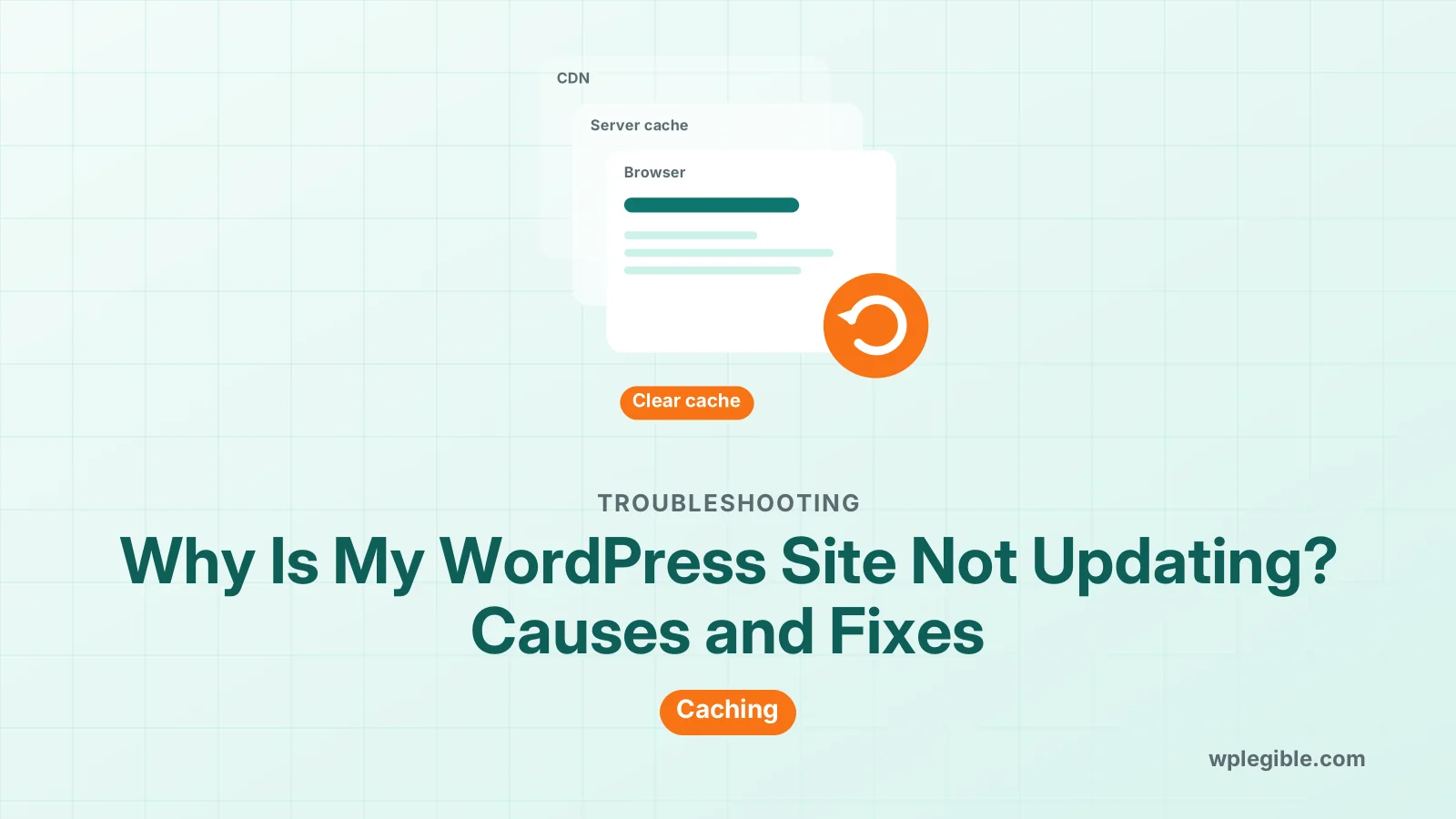
Clear every cache layer between you and the visitor: your browser, the caching plugin, the host's server cache and any CDN.
Work from the server outward:
| Cache layer | How to clear it |
|---|---|
| Caching plugin | Use its “Purge all” or “Clear cache” button in the admin bar |
| Host server cache | Use the purge option in your hosting panel or WordPress admin bar |
| CDN | Purge the page or the whole zone in the CDN dashboard |
| Browser | Hard refresh, or clear cached files for the site |
If you use Cloudflare, its guide to purging the cache explains single-URL and full purges.
On LiteSpeed servers, our guide to LiteSpeed Cache settings shows which purge options to set so pages refresh automatically when you publish.
Why does the browser keep showing the old page?
Browsers store copies of pages, images and styles so sites load faster, and they keep using those copies until they expire or you force a refresh.
The server tells the browser how long to keep each file through the Cache-Control header. Long cache times are good for speed but mean returning visitors may see old CSS or images.
A hard refresh fixes it for you: Ctrl+Shift+R on Windows or Cmd+Shift+R on Mac. If design changes still do not appear, the theme or optimization plugin may be serving an old combined CSS file, so clear that plugin's cache too.
When you replace an image with a file of the same name, browsers may keep the old one. Upload the new image with a different file name to avoid the problem.
Did you edit the right place?
Sometimes the change saved somewhere other than the page you are looking at, especially with block themes, page builders and widgets.
Common mix-ups include:
- Editing a page template in the Site Editor when you meant to edit one page, or the reverse
- Changing a draft copy or a revision while the live page is a different post
- Editing a synced pattern or reusable block that is not the one shown on the page
- Updating a header or footer in the theme settings when a page builder controls it
- Editing the site on a staging copy that has not been pushed live
In the Site Editor, look at the breadcrumb at the top of the screen. It shows whether you are editing a template, a template part or a page.
Could you be looking at an old server?
Yes, after a move to a new host or a DNS change, some networks can still reach the old server, so you see a copy of the site that never gets your new edits.
This is easy to miss. You log in and edit on the new server, but your own computer or office network still resolves the domain to the old IP address.
Signs that DNS is the cause:
- The change shows on mobile data but not on your Wi-Fi, or the reverse
- The old site has content you deleted weeks ago
- Your hosting panel shows very little traffic on the new server
Check where the domain points with a public DNS checker, and compare the IP address with the one your new host gave you. Our guide on pointing a domain to WordPress hosting shows the records to check.
Once DNS is correct everywhere, cancel the old hosting account so nobody edits the wrong copy again.
Is a plugin stopping your changes from saving?
If your edit disappears after you click Update, the save itself failed, which usually means a plugin, firewall or REST API error blocked it.
Watch for a message like “Updating failed” at the top of the editor. A security plugin or web application firewall can block a save that contains code, iframes or scripts because it looks like an attack.
Our guide to a WordPress editor not working covers save failures, REST API checks and plugin conflicts step by step.
Why will WordPress not install updates?
When core, plugin or theme updates fail, the usual causes are wrong file permissions, low disk space, a stuck update lock, a server timeout or a blocked connection to WordPress.org.
Read the exact message on the update screen. Each one points to a cause:
| Message | Likely cause |
|---|---|
| “Another update is currently in progress” | Update lock left behind by an interrupted update |
| “Could not create directory” | File permissions or ownership |
| “Download failed” | Server cannot reach WordPress.org or a firewall blocks it |
| Update hangs then stops | PHP timeout or memory limit |
| “Disk full” or failed write | Hosting storage is full |
For the lock message, follow our guide to fixing “Another update is currently in progress”. It usually clears on its own after about 15 minutes.
The official upgrade guide also covers manual updates over FTP when the one-click update cannot run.
Why are automatic updates not running?
Automatic updates depend on WP-Cron, which only runs when someone visits the site, so low-traffic sites and disabled cron can leave updates waiting.
Check Tools > Site Health for a warning about scheduled events or background updates. Also look in wp-config.php for lines that turn updates off, such as AUTOMATIC_UPDATER_DISABLED.
Some managed hosts run updates on their own schedule instead of WordPress's. If your host does this, the update timing in your dashboard may not match what you expect.
For plugins and themes, auto-updates are off until you turn them on. Use the “Enable auto-updates” link on the Plugins and Themes screens.
What if the site breaks after an update?
If the site shows errors after an update, roll back the plugin or theme that changed, or restore your backup, then find the conflict before updating again.
The most common cause is a plugin that is not yet compatible with the new WordPress or PHP version. Our guide on fixing a site broken after a WordPress update walks through recovery mode and rollbacks.
If the problem started after your host changed PHP, see our guide on updating the PHP version for how to test compatibility first.
How do you stop this from happening again?
Set your cache to clear automatically on publish, keep a staging site for big changes, and take a backup before every update.
A short routine helps:
- Turn on automatic purge on publish in your caching plugin
- Exclude logged-in users and admin pages from caching
- Update plugins in small groups instead of all at once
- Check the site in a private window after each important change
- Keep at least one recent off-site backup
These habits make it easy to tell a caching delay from a real problem.
Frequently asked questions
Why do my WordPress changes show when logged in but not for visitors?
Logged-in users usually bypass the page cache, so you see the fresh version while visitors get the cached copy. Purge the caching plugin, host cache and CDN so visitors receive the updated page.
How long does it take for WordPress changes to appear?
Saved changes appear straight away unless a cache serves an older copy. Depending on cache settings, that copy can last from minutes to days. Purging the caches makes the change visible within a minute or two.
Why is my WordPress CSS not updating?
Old CSS usually comes from browser caching, an optimization plugin that combines files, or a CDN. Clear the optimization plugin cache, purge the CDN and hard refresh your browser to load the new styles.
Is it safe to update WordPress plugins all at once?
It usually works, but updating in small groups makes it easier to find the cause if something breaks. Take a backup first, and test major updates on a staging copy for important sites or stores.
Why does WordPress say updates are available but nothing happens when I click?
The update may be blocked by file permissions, a stuck update lock, a firewall stopping downloads from WordPress.org, or a PHP timeout. Check the exact message, then fix the matching cause or update manually.
Sources
- Upgrading WordPress WordPress Developer Resources
- Cache-Control MDN Web Docs
- Purge cache Cloudflare Docs
- Configuring automatic background updates WordPress.org Documentation
Is your product missing, or something out of date?
Tell us what to add or correct. We read every note and reply when we need a source. A message does not buy a ranking.
Thanks — we review requests within 3 business days.
Related guides
About the editors
Researched from the primary sources listed above and checked against our editorial rules before publishing.