Troubleshooting
Why Is My WordPress Page Not Showing? 9 Causes and Fixes
Short answer
A WordPress page usually does not show because it is still a draft, scheduled or private, it is not added to the menu, the permalinks need refreshing, a cache is serving an old version, or the page template hides the content. If the page works but is missing from Google, it may be set to noindex or simply not crawled yet.
Key takeaways
- Check the page status first: only Published pages are visible to visitors.
- New pages do not appear in menus automatically unless your menu is set to add them.
- A 404 on a published page is usually fixed by re-saving the permalinks.
- Blank pages often come from a template without a content block or a page builder that is switched off.
- Missing from Google is a different problem from missing on your site.
What exactly is not showing?
Start by naming the symptom, because a page missing from the menu, a 404 error, a blank page and a page missing from Google all have different causes.
| Symptom | Most likely cause |
|---|---|
| Page works by direct link but is not in the menu | Not added to the navigation |
| “Page not found” or 404 | Not published, wrong slug or permalinks need refreshing |
| Page shows to you but not to visitors | Draft, private, scheduled or cache |
| Page loads but the content area is empty | Template without content block or builder plugin off |
| Changes not visible | Cache serving an old copy |
| Page live but not in Google | Noindex, not crawled yet or blocked |
Always test in a private browser window while logged out. Logged-in administrators can see drafts and private pages that visitors cannot.
Is the page actually published?
Only pages with the Published status are visible to visitors, so check that the page is not a draft, pending review, scheduled for later or set to private.
Go to Pages > All Pages and look at the status next to the title. Words like Draft, Pending, Scheduled or Private explain why visitors cannot see it.
Open the page and check the status in the settings panel. Scheduled pages show the future date they will go live. If the date is in the past but the page is still scheduled, WordPress missed the schedule, usually because WP-Cron did not run.
WP-Cron only runs when someone visits the site, so low-traffic sites and sites with cron disabled can miss scheduled times. Publish the page by hand, then ask your host to set up a real server cron job so future schedules run on time.
The content visibility documentation explains Private and Password protected options. Change the status to Public and click Update.
If your whole site, not just one page, is hidden, see our guide on why a WordPress site is private.
Why is the page not in the menu?
WordPress does not add new pages to custom menus unless you tell it to, so you need to add the page to the navigation yourself.
In a block theme, go to Appearance > Editor > Navigation, open your menu and add a Page Link block for the new page. In a classic theme, go to Appearance > Menus, tick the page in the Pages box, click Add to Menu and save.
Classic menus have an option to add new top-level pages automatically. It is off by default, and you can turn it on under Menu Settings.
If the page is in the menu but the menu itself does not show, the menu may not be assigned to a location in your theme, or a new theme is using a different menu.
Why does the published page show a 404 error?
A 404 on a page that is published usually means the permalink rules need refreshing, the slug changed, or a plugin or server rule is blocking the URL.
The quickest fix is to refresh permalinks. Go to Settings > Permalinks and click Save Changes without changing anything. This rebuilds the rewrite rules.
If that does not help, check the slug in the page settings. Editing the title can change the slug, and old links then point to an address that no longer exists.
Our guide to fixing permalinks that are not working covers .htaccess and server rules.
For posts and pages that return a 404 after a migration or slug change, see our guide to fixing 404 errors on posts. It also explains when to add a redirect from the old address.
Is your homepage setting hiding the page?
If the page should be your homepage or blog page but does not appear there, check Settings > Reading, where you choose which page shows on the front page.
WordPress can show either your latest posts or a static page on the homepage. The Reading Settings documentation explains both options.
Choose “A static page”, select your page for the homepage and another page for posts if you have a blog, then save.
A page used as the Posts page shows the blog archive instead of its own content. That surprises many people who write content on that page and never see it.
Why is the page blank or missing its content?
A page that loads with an empty content area usually uses a template without a Post Content block, or was built with a page builder that is now deactivated.
Check the template first. Open the page, look at the Template setting, and open that template in the Site Editor. It needs a Post Content or Content block to display what you wrote.
If the page was built with a page builder, make sure the builder plugin is still active. Without it, the page may show shortcodes as plain text or nothing at all.
A blank white screen across the whole page is different. That usually means a PHP error, covered in our guide to a WordPress website not working.
Is a cache showing an old version?
Yes, if you recently published or changed the page, a caching plugin, server cache or CDN may still serve an old copy without your page or edits.
Purge every cache layer: your caching plugin, your host's cache and any CDN, in that order. Then reload the page in a private window.
If visitors still see an old menu or a 404 after purging, the CDN may have cached the error itself. Purge that URL specifically in the CDN dashboard.
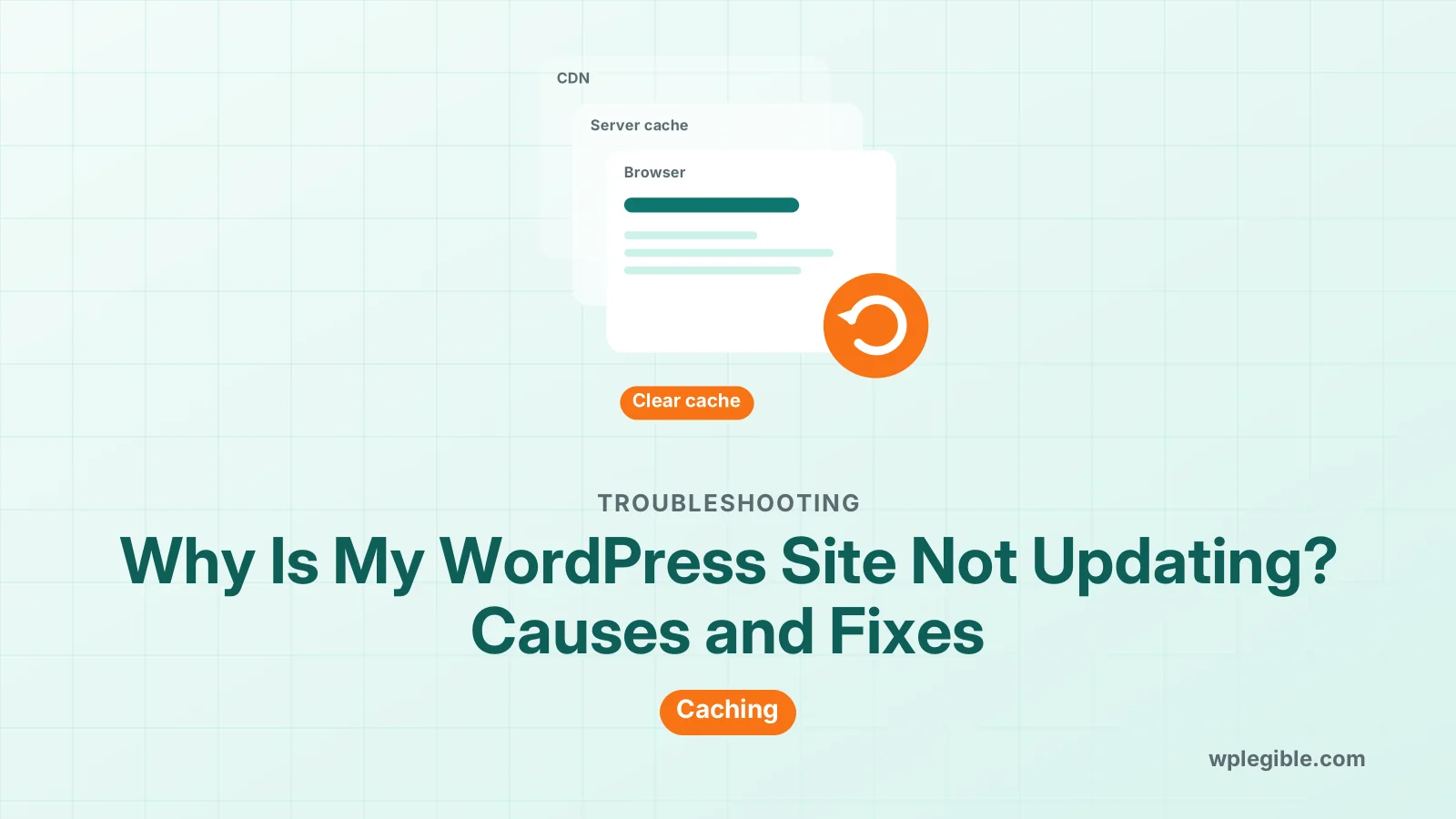
Our guide on why a WordPress site is not updating explains each cache layer and how to clear it.
Why is the page not showing in Google?
If the page works on your site but not in search results, it may be set to noindex, blocked by robots.txt, missing from the sitemap, or simply not crawled yet.
Check your SEO plugin's settings for that page. A noindex setting tells search engines to leave it out. Also check that Settings > Reading does not discourage search engines.
Then use the URL Inspection tool in Search Console. Google's help page on URL Inspection explains how it shows whether the page is indexed and why not.
New pages can take days or weeks to appear. Linking to them from other pages on your site helps. Our guide to getting WordPress pages indexed faster covers more steps.
What if the page only fails for some visitors?
When a page shows for you but not for certain visitors, look at membership or security plugins, country blocking, caching by device, and browser problems on their side.
Membership and restriction plugins can hide pages from visitors who are not logged in or do not have the right level. Security plugins and firewalls can block some countries or IP ranges.
Some caching setups keep separate copies for mobile and desktop. Purge both if mobile visitors see an old version.
If only one person reports a problem, ask them to try a private window or another browser. A missing page for one visitor is often a stale browser cache.
Frequently asked questions
Why can I see my WordPress page but visitors cannot?
You are logged in, so you can see drafts, private pages and pages behind coming soon screens. Check the page status, make sure it is Published and Public, and test it in a private browser window.
Why is my new WordPress page not in the menu?
WordPress does not add new pages to custom menus by default. Add the page to your Navigation block in the Site Editor, or to your menu under Appearance > Menus in a classic theme.
How do I fix a 404 error on a WordPress page?
Go to Settings > Permalinks and click Save Changes to rebuild the rewrite rules. Then check the page slug and status. If the error remains, check .htaccess, redirects and your security plugin.
Why is my WordPress page blank?
The page template may lack a Post Content block, or the page builder used to create it may be deactivated. If the whole screen is white, a PHP error is more likely, so check the error log.
How long does it take for a new WordPress page to show on Google?
It can take from a few days to a few weeks. Make sure the page is not set to noindex, include it in your sitemap, link to it from other pages, and request indexing in Search Console.
Sources
- Content Visibility WordPress.org Documentation
- Settings Reading Screen WordPress.org Documentation
- URL Inspection tool Search Console Help
- 404 Not Found MDN Web Docs
- Rewrite API WordPress Developer Resources
Is your product missing, or something out of date?
Tell us what to add or correct. We read every note and reply when we need a source. A message does not buy a ranking.
Thanks — we review requests within 3 business days.
Related guides
About the editors
Researched from the primary sources listed above and checked against our editorial rules before publishing.