Backups & maintenance · Explainer
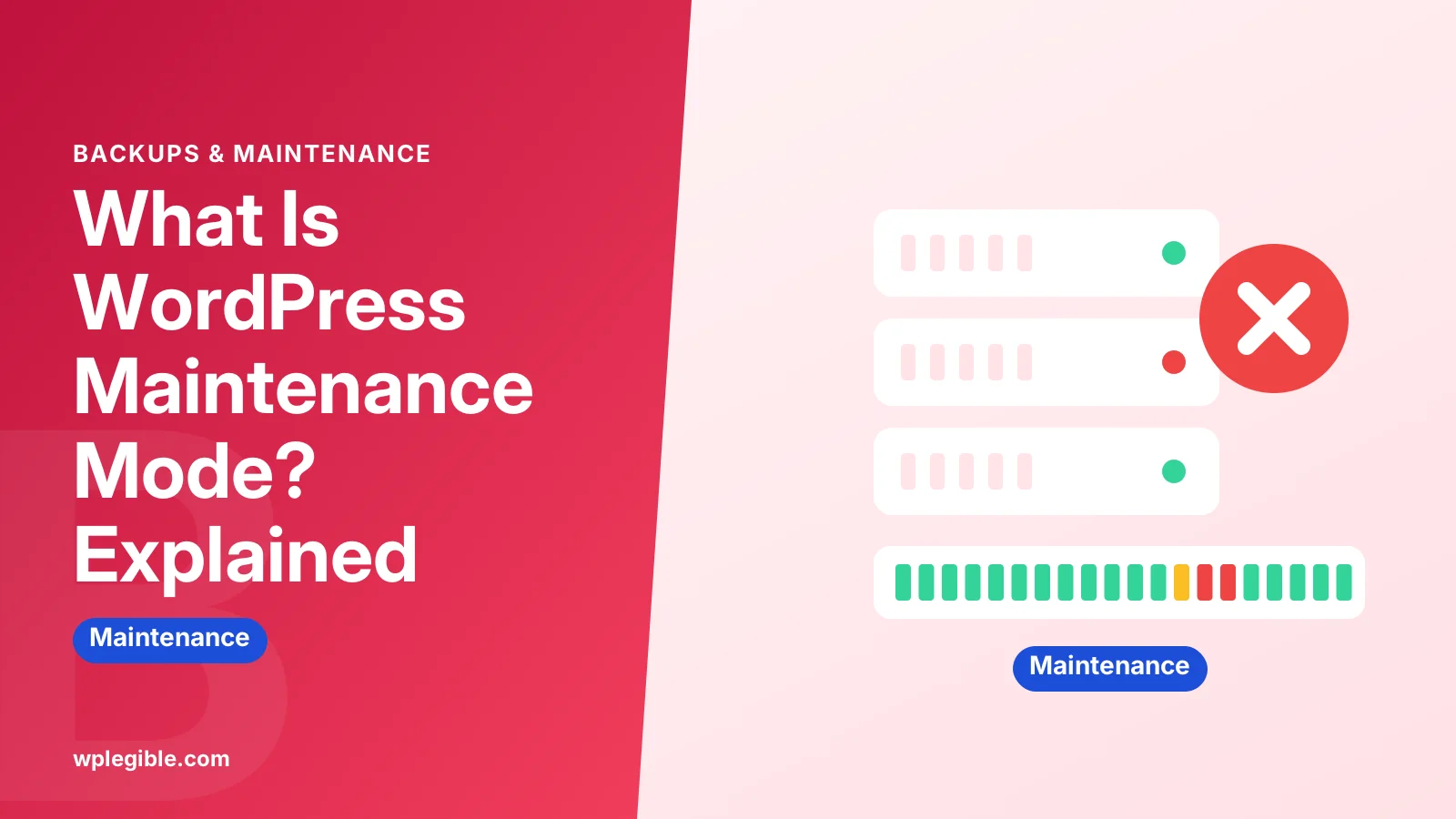
What Is WordPress Maintenance Mode? Explained
Short answer
WordPress maintenance mode is a temporary state where visitors see a short notice instead of your site. WordPress turns it on by itself for a few seconds during updates, and you can switch it on with a plugin while you redesign or fix the site.
Key takeaways
- WordPress adds a .maintenance file while updates run.
- Delete that file if the site gets stuck after an update.
- Plugins let admins work while visitors see a custom page.
- Maintenance pages should return a 503 status code.
- Use staging instead for long projects to avoid downtime.
What is WordPress maintenance mode?
WordPress maintenance mode is a temporary state where visitors see a short notice instead of your site while WordPress updates core, plugins or themes, or while you work on the site.
There are two kinds. WordPress switches on the built-in version by itself during updates, and it usually lasts only a few seconds. The second kind is one you turn on yourself, usually with a plugin, to hide a site during a redesign or a big change.
Both kinds tell visitors to come back later. They differ in how they start, how long they last and how much control you have over the page.
| Type | How it starts | Typical length | What visitors see |
|---|---|---|---|
| Built-in update mode | WordPress creates a .maintenance file during updates | Seconds to a minute | Plain Briefly unavailable for scheduled maintenance text |
| Plugin maintenance mode | You switch it on in a plugin | Hours or days | Custom branded page |
| Coming soon mode | You switch it on before launch | Until launch | Teaser or signup page |
| Host-level maintenance | Your host or server config | Varies | Host error or custom page |
How does built-in maintenance mode work?
When an update starts, WordPress writes a small file called .maintenance to the site's root folder, and every page request shows the maintenance notice until the update finishes and the file is deleted.
The file contains a timestamp of when the update began. WordPress checks that file early in every page load, before themes and most plugins run.
The core function that prints the notice is wp_maintenance(). It sends an HTTP 503 status code along with the message, which tells browsers and search engines the outage is temporary.
When the update completes, WordPress removes the .maintenance file and the site comes back. Most visitors never notice because the window is so short.
Why does WordPress get stuck in maintenance mode?
WordPress gets stuck when an update is interrupted, for example by a timeout, a closed browser tab or a server error, so the .maintenance file never gets deleted.
The fix is simple: connect with FTP or your host's file manager and delete the .maintenance file from the root folder. Our guide to fixing a site stuck in maintenance mode walks through it.
WordPress also has a safety check. If the timestamp inside the file is more than ten minutes old, WordPress ignores the file and loads the site anyway. That is why a stuck notice sometimes clears up on its own.
If you keep seeing the exact message text, read our guide on the briefly unavailable for scheduled maintenance error. It covers causes such as bulk updates that run out of memory.
After clearing the file, check that the update that was running actually finished. A half-updated plugin can break features even after the site loads again.
What is plugin-based maintenance mode?
Plugin-based maintenance mode lets you choose when to hide your site and what visitors see, while logged-in admins can still view and edit the real site.
This is what most people mean when they search for maintenance mode. You might use it during a redesign, a migration, or when fixing a serious bug.
Popular options include SeedProd, which is listed in the plugin directory as Coming Soon Page, Maintenance Mode and Landing Pages by SeedProd. Many page builders and security plugins also include a maintenance toggle.
Plugin pages are customizable. You can add your logo, a short message, a countdown timer, social links or an email signup form.
Our guide on how to enable maintenance mode in WordPress covers the setup steps, including a no-plugin option.
What is the difference between maintenance mode and coming soon mode?
Maintenance mode is for an existing site that is temporarily down, while coming soon mode is for a new site that has not launched yet.
The difference matters for search engines. A maintenance page should return a 503 status so Google keeps your existing pages indexed and checks back later.
A coming soon page usually returns a normal 200 status. That lets search engines index the teaser page while the rest of the site stays hidden.
WooCommerce has its own store coming soon setting. See how to change the WooCommerce coming soon page if your store shows a notice you did not expect.
Does maintenance mode hurt SEO?
Short maintenance windows do not hurt SEO, as long as the page returns a 503 status code; long ones lasting several days can cause pages to drop from search results.
Google's documentation on HTTP status codes and network errors explains that 5xx errors slow down crawling. If they continue for a long time, Google may remove URLs from its index.
The 503 code itself is defined in web standards as Service Unavailable. The MDN reference for 503 notes that servers can send a Retry-After header to say when the service will return.
Good plugins send 503 by default. Check your plugin settings, because some offer a choice between 503 and 200 status codes.
For long projects, a better approach is to work on a staging copy and keep the live site running. You then push changes when they are ready, with no downtime at all.
Who can see the site while maintenance mode is on?
Logged-in administrators can usually see and edit the normal site, while logged-out visitors see the maintenance page.
Built-in update mode blocks everyone, including admins, for the few seconds it runs. Plugin modes are more flexible.
Many plugins let you allow extra roles, such as editors, or whitelist IP addresses. That helps when a client or teammate needs to review the site without an admin account.
Some plugins also offer a secret bypass link. Anyone with the link can view the real site, which is handy for testers.
When should you use maintenance mode?
Use maintenance mode for short, visible changes such as theme switches, major plugin updates, database fixes or store changes that could confuse shoppers mid-checkout.
Good reasons to switch it on include:
- Changing themes, when layouts break for a few minutes.
- Migrating hosts, during the final database sync.
- Fixing a hacked site, so visitors do not see spam or malware.
- Bulk product edits in a store, to avoid wrong prices at checkout.
- Large database operations, such as search and replace after a domain change.
For routine updates of one plugin or a minor WordPress release, you rarely need it. The built-in mode handles those for you in seconds.
A regular plan helps you schedule these windows at quiet times. Our WordPress maintenance checklist suggests what to check each week and month.
Is maintenance mode the same as a site being down?
No, maintenance mode is a planned pause that shows a message, while a site being down means the server or code has failed without warning.
From a visitor's view, both stop them from using the site. The difference is control. With maintenance mode you choose the timing, the message and the status code.
An unplanned outage may show a database connection error, a blank white screen or a host error page. Those need troubleshooting rather than a toggle.
If a maintenance plugin will not turn off, the plugin itself may be the problem. Our guide on SeedProd maintenance mode not working shows how to disable a stuck plugin through the file system.
Frequently asked questions
How long does WordPress maintenance mode last?
The built-in mode during updates usually lasts a few seconds up to about a minute. If it lasts longer, the update probably failed. WordPress ignores a maintenance file older than ten minutes, but deleting it yourself is the faster fix.
Can I turn on WordPress maintenance mode without a plugin?
Yes. You can add a small code snippet to your theme functions file that shows a message to logged-out users, or create a .maintenance file manually. A plugin is easier and safer for most site owners because it handles status codes and admin access.
Will visitors lose items in their cart during maintenance mode?
Cart contents are stored in sessions or cookies, so short maintenance windows usually do not empty carts. Shoppers simply cannot check out until the site returns. Avoid long maintenance windows during busy sales periods.
What message does WordPress show in maintenance mode?
The default notice reads Briefly unavailable for scheduled maintenance. Check back in a minute. You can replace it by adding a custom maintenance.php file to the wp-content folder, which WordPress loads instead of the default text.
Does Google index my maintenance page?
Not if the page returns a 503 status code. Google treats 503 as temporary and keeps your existing pages in its index for a while. If the page returns 200, Google may index the maintenance message instead of your content.
Sources
- wp_maintenance() WordPress Developer Resources
- How HTTP status codes, and network and DNS errors affect Google Search Google Search Central
- 503 Service Unavailable MDN Web Docs
- Coming Soon Page, Maintenance Mode and Landing Pages by SeedProd WordPress.org Plugins
Is your product missing, or something out of date?
Tell us what to add or correct. We read every note and reply when we need a source. A message does not buy a ranking.
Thanks — we review requests within 3 business days.
Related guides

About the editors
Researched from the primary sources listed above and checked against our editorial rules before publishing.