Explainers · Explainer
What Is WordPress FSE? Explained
Short answer
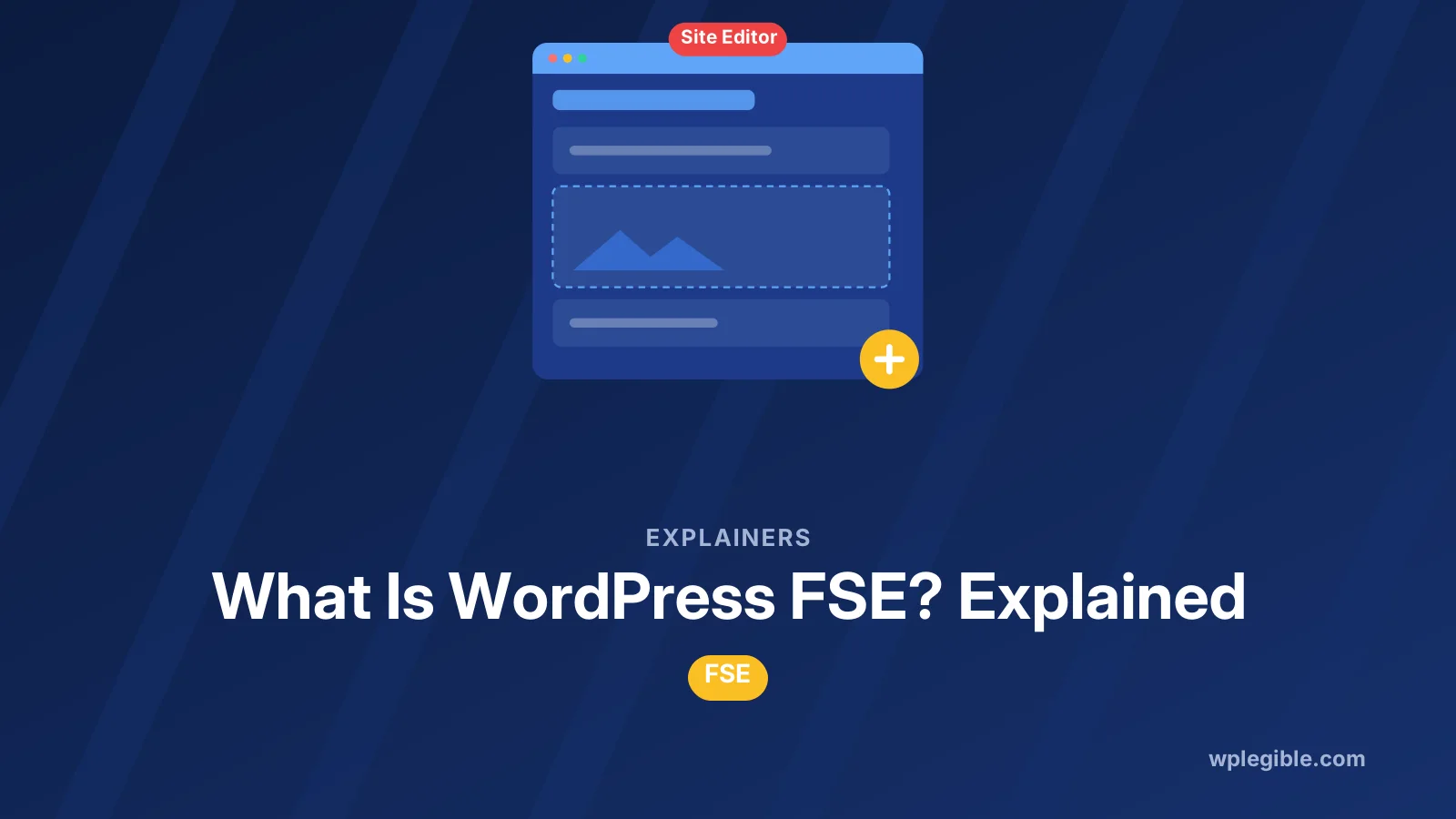
WordPress FSE, short for Full Site Editing, is a set of features that lets you design your whole site with blocks. With a block theme active, you edit headers, footers, templates and global styles visually in the Site Editor instead of using code or the Customizer.
Key takeaways
- FSE means Full Site Editing: blocks for the whole site, not just content.
- It arrived in WordPress 5.9 in January 2022 with Twenty Twenty-Two.
- You need a block theme to use the full Site Editor.
- Templates, template parts, global styles and patterns are the core parts.
- theme.json controls design settings behind the Styles panel.
What does FSE mean in WordPress?
FSE stands for Full Site Editing, the set of WordPress features that lets you design your whole site, including headers, footers and templates, with blocks in the Site Editor instead of code or the Customizer.
Before FSE, the block editor only handled the content area of posts and pages. Everything around it, like the header, footer, sidebar and archive layouts, lived in PHP theme files.
Full Site Editing extends blocks to every part of the site. The site logo, navigation menu, post title, comments and even the list of posts on your blog page are all blocks you can move and style.
The name was most common while the features were being built. Today WordPress documentation mostly talks about site editing, the Site Editor and block themes, but they describe the same idea.
When was Full Site Editing added to WordPress?
Full Site Editing arrived in WordPress core with version 5.9 in January 2022, together with the first default block theme, Twenty Twenty-Two.
The WordPress 5.9 release announcement introduced the Site Editor, global styles and the new default theme.
FSE was the second phase of the Gutenberg project. Phase one brought the block editor for posts and pages in WordPress 5.0. Phase two took blocks to the rest of the site.
Every major release since then has refined the experience. Later versions added style variations, a better pattern library, page editing inside the Site Editor and many layout improvements.
Developer notes for each release are posted on the Make WordPress Core blog, which is the best place to follow what changed in site editing and why.
What are the main parts of Full Site Editing?
Full Site Editing is built from five main pieces: block themes, templates, template parts, global styles and patterns, all managed in the Site Editor.
- Block themes: themes built for site editing, made mostly of HTML template files and a theme.json file. Our explainer on what a block theme is covers them in depth.
- Templates: layouts for types of pages, such as single posts, pages, archives, search results and the 404 page.
- Template parts: reusable sections like the header and footer that appear inside templates.
- Global styles: site-wide settings for colours, fonts, spacing and layout, controlled through the Styles panel and theme.json.
- Patterns: ready-made groups of blocks you can insert and reuse, including synced patterns that update everywhere at once.
New blocks were added to support all this. They include Site Title, Site Logo, Navigation, Post Title, Post Content, Query Loop and Template Part.
How does the Site Editor work?
The Site Editor is the screen where you edit templates, template parts, styles, navigation and patterns visually, and you reach it from Appearance > Editor when a block theme is active.
Inside the Site Editor you can:
- Open any template and change its layout with blocks.
- Edit the header or footer once and see the change on every page that uses it.
- Change fonts and colours for the whole site in the Styles panel.
- Pick a style variation the theme provides.
- Manage navigation menus and patterns.
The official Site Editor documentation explains each area of the screen.
Changes you make are saved in the database, not in the theme files. That means you can reset a template to the theme's original version if you make a mistake.
What is theme.json and why does it matter?
theme.json is a configuration file in block themes that defines the colour palette, fonts, spacing, layout widths and which design options users can change in the editor.
It is the backbone of global styles. Instead of writing long CSS files, theme authors set values in one structured file. WordPress turns those values into CSS and editor controls.
The block editor handbook has a full reference on global settings and styles.
For site owners, theme.json is mostly invisible. You change the same settings through the Styles panel. Developers who want more control can read our guide on how to use theme.json.
How is FSE different from the Customizer and classic themes?
Classic themes control layout with PHP template files and offer settings through the Customizer, while FSE themes let you change layout and design directly with blocks in the Site Editor.
| Feature | Classic theme | Block theme with FSE |
|---|---|---|
| Template files | PHP files | HTML files with block markup |
| Header and footer editing | Customizer options or code | Edit visually as blocks |
| Design settings | Customizer and theme options | Styles panel and theme.json |
| Menus | Appearance > Menus | Navigation block |
| Widgets | Widget areas | Blocks placed in templates |
| Layout changes | Need code or a page builder | Drag and drop blocks |
With a classic theme you are limited to the options the theme author added. With a block theme you can rearrange almost anything.
The trade-off is that block themes are still newer. Some older plugins expect widget areas or Customizer settings that block themes do not have. Our comparison of block themes and classic themes covers the pros and cons.
How do you start using Full Site Editing?
To use FSE, install and activate a block theme, then go to Appearance > Editor to edit your templates, header, footer and styles.
- Go to Appearance > Themes > Add New Theme.
- Use the Block themes filter, or choose a default theme such as Twenty Twenty-Five.
- Activate it. Try it on a staging site first if your site is live.
- Open Appearance > Editor.
- Start with Styles to set fonts and colours, then edit the header and footer template parts.
If you only see Appearance > Customize and no Editor item, your active theme is a classic theme. Some classic themes support parts of site editing, such as template parts or theme.json, but not the full Site Editor.
When you want a quick win, edit the header first. Our guide on editing the header in a block theme walks you through it.
What are the benefits of Full Site Editing?
The main benefits are visual control over every part of the site, less reliance on page builders, and design settings that stay consistent across pages.
- No code for layout changes: move the search box, add a banner or change the footer with blocks.
- Consistent design: global styles apply the same fonts and colours everywhere.
- Fewer plugins: many sites no longer need a separate builder for headers and footers.
- Core support: features are part of WordPress, so they are maintained by the core team.
- Lighter pages: block themes often load less CSS and JavaScript than heavy builder setups.
If you are weighing site editing against a builder, our comparison of Gutenberg and page builders helps you decide.
What are the limitations of FSE?
The main limitations are a learning curve, gaps in some advanced design controls, and weaker support for block themes in older plugins and themes.
- The Site Editor has many panels, and new users can find it hard to tell templates from pages.
- Some design effects still need custom CSS or a block plugin.
- Plugins built around widgets or the Customizer may not fit neatly into a block theme.
- Moving an existing classic-theme site to a block theme can take real work, especially if it relies on theme-specific shortcodes.
Most of these gaps get smaller with each WordPress release. The Gutenberg project on GitHub is where new site editing features are developed and tested before they reach core.
Is Full Site Editing right for your site?
FSE suits new sites, simple business sites and blogs best, while large sites built on a classic theme or page builder should only switch after careful testing.
Choose FSE if you are starting fresh, want to avoid heavy builders, or like to make design changes yourself without code.
Stay with your current setup for now if your site depends on a page builder, a complex classic theme, or plugins that need widget areas. You can still use the block editor for content in the meantime.
Whatever you choose, test theme changes on a staging site and keep a backup. That way you can explore site editing without risking the live site.
Frequently asked questions
What does FSE stand for in WordPress?
FSE stands for Full Site Editing. It is the set of features that lets you build and design every part of a WordPress site with blocks, including headers, footers and page templates, using the Site Editor.
Do I need a special theme for Full Site Editing?
Yes. The full Site Editor only appears when a block theme is active. Classic themes can adopt some site editing features, such as theme.json or template parts, but they do not give you the complete Site Editor.
Is Full Site Editing the same as Gutenberg?
Gutenberg is the name of the project that built the block editor. Full Site Editing was its second phase, which took blocks beyond posts and pages to the whole site. So FSE is part of the Gutenberg project, not a separate product.
Can I use Full Site Editing with Elementor?
You can install Elementor on a site with a block theme, but they solve the same problem in different ways. Most sites pick one approach for layout to keep things simple and avoid conflicting styles and extra page weight.
Will switching to a block theme break my site?
It can change your layout, menus and widgets, because block themes handle these differently from classic themes. Test the switch on a staging site, check every key page and keep a full backup before changing the live site.
Sources
- WordPress 5.9 Josephine WordPress.org
- Site Editor WordPress.org Documentation
- Global Settings and Styles (theme.json) Block Editor Handbook
- Gutenberg repository GitHub
Is your product missing, or something out of date?
Tell us what to add or correct. We read every note and reply when we need a source. A message does not buy a ranking.
Thanks — we review requests within 3 business days.
Related guides
About the editors
Researched from the primary sources listed above and checked against our editorial rules before publishing.