Plugin how-tos · Guide
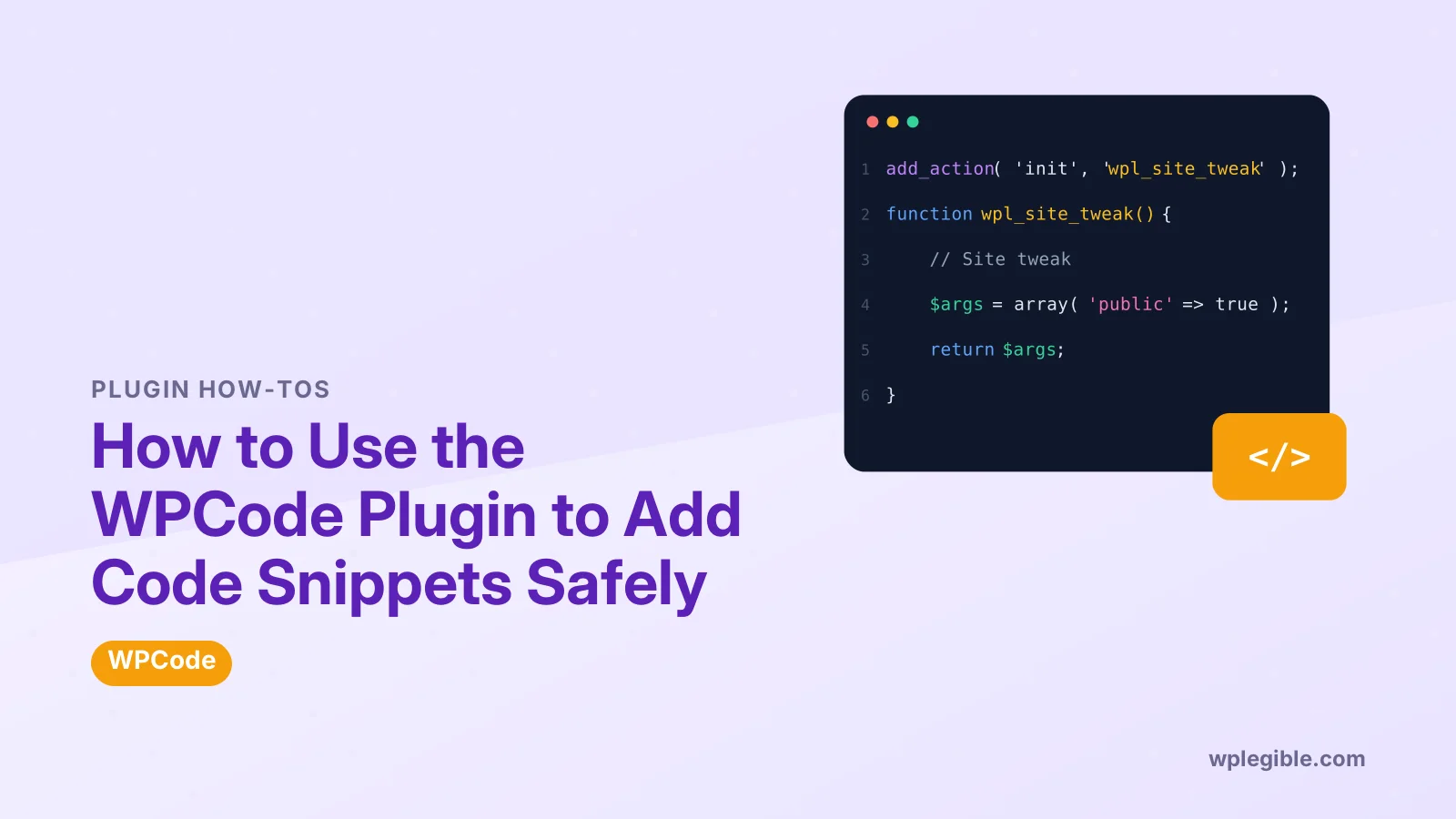
How to Use the WPCode Plugin to Add Code Snippets Safely
Short answer
To use WPCode, install the free plugin, then go to Code Snippets > Header & Footer to paste site-wide scripts such as analytics tags. For custom code, open Code Snippets > Add Snippet, choose the code type, paste your code, pick an insert location and switch the snippet to Active. WPCode replaces editing functions.php by hand.
Key takeaways
- WPCode (formerly Insert Headers and Footers) manages code snippets from the dashboard.
- The Header & Footer screen is the fastest way to add tracking and verification code.
- Snippets can be PHP, JavaScript, CSS, HTML or text, each with its own insert location.
- WPCode checks PHP snippets for errors before saving, which reduces the risk of breaking your site.
- Snippets survive theme changes because they are not stored in the theme.
What is WPCode?
WPCode is a free plugin, formerly called Insert Headers and Footers, that lets you add custom code snippets and site-wide scripts to WordPress without editing theme files.
The WPCode plugin page lists support for PHP, JavaScript, CSS, HTML and text snippets, along with tracking pixels and ad code. It is used on millions of WordPress sites.
The main benefit is safety and organisation. Instead of pasting code into functions.php, where one typo can take the site down, each snippet lives in its own entry that you can name, switch off and edit. Our broader guide on adding code to WordPress compares WPCode with the other methods.
Why use WPCode instead of editing functions.php?
Code in functions.php is lost when you switch or update a non-child theme, and an error there can break the whole site, while WPCode keeps snippets separate, survives theme changes and checks PHP before running it.
WordPress's own functions.php documentation explains that this file belongs to the theme. That makes it the wrong home for site features you want to keep regardless of design.
A child theme solves the update problem but not the organisation one. Our explainer on what a child theme is covers when that approach still makes sense.
How do you install WPCode?
Go to Plugins > Add New Plugin, search for WPCode, install and activate the plugin by WPCode, and a new Code Snippets menu appears in your dashboard.
The free version is enough for most sites. A paid Pro version adds features such as code revisions, a cloud library for saving your own snippets and more detailed conditional rules.
How do you add header and footer scripts?
Open Code Snippets > Header & Footer, paste your code into the Header, Body or Footer box, and save. WPCode then prints that code on every page of your site.
This screen is ideal for:
- Google Analytics or Google Tag Manager tags
- Site verification meta tags for search consoles
- Advertising and conversion pixels
- Chat widget scripts
Put code where its provider says. Google Tag Manager, for example, asks for one part in the head and one part right after the opening body tag, which matches WPCode's Header and Body boxes.
How do you add Google Analytics or Tag Manager with WPCode?
Copy the tag from your Google account, open Code Snippets > Header & Footer, paste the head part into the Header box and any body part into the Body box, then save and check that data arrives.
For Google Analytics, the tag is a short block of JavaScript that loads gtag.js with your measurement ID. Paste the whole block exactly as Google gives it, without editing the ID or removing lines.
Google Tag Manager uses two pieces of code. Google's Tag Manager installation guide explains that one goes high in the head and the other right after the opening body tag.
After saving, open your site in a private window and use the real-time report or Tag Assistant to confirm the tag fires. If nothing shows up, check that a caching plugin is not serving an old copy of the page.
Add tracking code in one place only. If your theme or an SEO plugin already inserts the same tag, data gets counted twice and your reports become unreliable. Our guide to optimizing Google Analytics for speed covers lighter ways to load it.
How do you create a custom snippet?
Go to Code Snippets > Add Snippet, choose Add Your Custom Code, pick the code type, paste your code, choose an insert method and location, then switch the snippet to Active and save.
Step by step:
- Open Code Snippets > Add Snippet
- Hover over Add Your Custom Code (New Snippet) and click Use snippet
- Give the snippet a clear title that says what it does
- Choose the Code Type, such as PHP Snippet or CSS Snippet
- Paste the code into the Code Preview box
- Under Insertion, choose Auto Insert and a location
- Toggle the snippet to Active and click Save Snippet
Do not include the opening PHP tag in PHP snippets. WPCode adds it for you, and pasting it again causes an error.
Which code type should you choose?
Choose PHP for code that changes WordPress behaviour, JavaScript for scripts that run in the browser, CSS for styling, and HTML for markup such as embeds or banners.
| Code type | Runs where | Typical use |
|---|---|---|
| PHP | On the server | Hooks, filters, disabling features |
| JavaScript | In the browser | Tracking, interactive behaviour |
| CSS | In the browser | Styling tweaks |
| HTML | In the page | Embeds, banners, meta tags |
| Text | In the page | Plain text with shortcodes |
For JavaScript, WPCode wraps the code in script tags automatically. Our guide to adding JavaScript to WordPress explains when to load scripts in the header or footer.
How do auto-insert locations work?
Auto-insert locations decide where a snippet runs, such as everywhere, only on the frontend, only in the admin area, before or after post content, after a set paragraph, or on archive pages.
Most PHP snippets should use Run Everywhere, because hooks and filters need to load on every request. Frontend Only suits code that only affects visitors, and Admin Only suits dashboard tweaks.
Content locations are useful for inserting a call to action or an ad after a certain paragraph of every post. If you prefer to place a snippet by hand, choose the shortcode option and paste the shortcode where you want it.
How do you use the snippet library?
Open Code Snippets > Library to browse ready-made snippets for common tasks, such as disabling comments, allowing SVG uploads or turning off XML-RPC, then click Use snippet and activate it.
The library saves you from copying code from random websites. Read each snippet's description first, because some, like disabling the REST API, can break plugins that depend on that feature.
Our guide to disabling XML-RPC in WordPress explains when that particular change is worth making.
How does WPCode stop snippets from breaking your site?
WPCode checks PHP snippets for errors when you save them, refuses to activate code with obvious problems, logs errors with the snippet and line number, and deactivates snippets that cause fatal errors in the admin area.
This is a safety net, not a guarantee. A snippet can still be valid PHP and break a page because of what it does, so test new snippets on a staging site first when you can.
If a snippet locks you out, WPCode's documentation describes a safe mode you can trigger with a URL parameter, which loads the site without running any snippets so you can fix the problem.
How do you manage snippets over time?
Give every snippet a descriptive title, add tags such as analytics or woocommerce, use the notes field to record why you added it, and deactivate snippets you no longer need.
A tidy list matters more than it seems. A year later you will not remember what a snippet called Untitled does, and guessing can lead to removing something important.
WPCode can also export snippets as a file under Tools, which you can import on another site. That makes it easy to reuse the same set of tweaks across several projects.
Where should you get snippets from?
Use code from trusted sources, such as the official WordPress developer documentation, the plugin's own library or well-known developers, and read code before you run it.
PHP snippets run with full access to your site and database. A careless or malicious snippet copied from a forum can create security holes or leak data.
The WordPress Code Reference documents every core function and hook, which helps you understand what a snippet actually does before you activate it. The OWASP Top Ten is a useful reminder of the kinds of risks careless code can introduce.
Frequently asked questions
Is WPCode free?
Yes. WPCode has a free version on WordPress.org that covers header and footer scripts, custom snippets, auto-insert locations and the snippet library. A paid Pro version adds revisions, a private cloud library and more advanced rules.
Is WPCode the same as Insert Headers and Footers?
Yes. Insert Headers and Footers was renamed WPCode and expanded into a full snippet manager. Existing header and footer code carried over when the plugin updated.
Do WPCode snippets survive a theme change?
Yes. Snippets are stored by the plugin, not in your theme, so they keep running when you switch or update themes. Code placed in a theme's functions file does not.
Does WPCode slow down a website?
Usually not in any noticeable way. Each active snippet adds a small amount of work, so the real impact depends on what your snippets do. Deactivate snippets you no longer need.
What should I do if a snippet breaks my site?
WPCode deactivates snippets that cause fatal errors in the admin area. If you are locked out, use the plugin's documented safe mode, or rename the plugin folder over FTP to switch it off.
Sources
- WPCode – Insert Headers and Footers + Custom Code Snippets WordPress.org Plugins
- Custom Functionality (functions.php) WordPress Developer Resources
- Code Reference WordPress Developer Resources
- OWASP Top Ten OWASP
- Install a web container Tag Manager Help
Is your product missing, or something out of date?
Tell us what to add or correct. We read every note and reply when we need a source. A message does not buy a ranking.
Thanks — we review requests within 3 business days.
Related guides
About the editors
Researched from the primary sources listed above and checked against our editorial rules before publishing.