Plugin how-tos · Guide
How to Use WPBakery Page Builder: A Practical Beginner Guide
Short answer
To use WPBakery Page Builder, open a page and click Backend Editor or Frontend Editor, then add rows, split them into columns and drop content elements such as text, images and buttons into each column. Edit any element with its pencil icon, save layouts as templates and click Update to publish. A theme-bundled copy gets updates through your theme.
Key takeaways
- WPBakery Page Builder is a paid drag-and-drop builder, often bundled with premium themes.
- Pages are built from rows, columns and content elements in a backend or frontend editor.
- A bundled copy works without a licence, but updates and support come from the theme author.
- Layouts are stored as shortcodes, so switching builders later leaves leftover code.
- Keep the plugin updated and limit heavy elements to protect page speed.
What is WPBakery Page Builder?
WPBakery Page Builder is a premium drag-and-drop plugin for designing WordPress pages without code, using a visual frontend editor or a block-style backend editor.
It was formerly known as Visual Composer and is one of the oldest page builders in the WordPress world. The WPBakery website lists more than 50 content elements and over 80 predefined layouts and templates, and says all of its licences are lifetime.
Many people meet WPBakery without buying it, because it ships inside thousands of premium themes. If you inherited a site built with it, this guide shows how to find your way around. For a wider view of builders, see our comparison of Gutenberg vs page builders.
Do you need a licence to use WPBakery?
You need a licence if you bought WPBakery on its own, but a copy bundled with your theme works without one; the theme author then supplies updates and support instead of WPBakery.
The WPBakery knowledge base explains that buying a theme with WPBakery inside does not give you a direct licence. In that case updates and support are managed by your theme author, and you may see a licence prompt that you can safely ignore.
A direct licence adds official support tickets, instant updates from WPBakery, access to the template library and the right to use the plugin with any theme. A regular licence covers one site at a time, and you activate it under WPBakery Page Builder > Product License.
If your bundled copy is far behind the current version, update the theme first. Theme authors usually ship the newer plugin with their own update.
How do you turn on WPBakery for posts and pages?
Go to WPBakery Page Builder > Role Manager in the dashboard and choose which user roles can use the builder and on which post types, such as pages, posts or products.
By default, the builder is usually enabled for pages. If the Backend Editor button is missing on posts or custom post types, the Role Manager is the first place to check.
You can also limit which elements each role can use. This helps on client sites, where editors should change text and images without breaking the layout.
What is the difference between the backend and frontend editor?
The backend editor shows your layout as labelled boxes inside the normal WordPress edit screen, while the frontend editor lets you edit directly on a live preview of the page.
The backend editor is faster on long or complex pages, because it does not render every element. It is also easier for spotting nesting problems, such as a row inside the wrong section.
The frontend editor is better for visual work, such as checking spacing, colours and how text wraps. Many people switch between both while building a page.
A common pattern is to lay out rows and columns in the backend editor, then fine-tune text, images and spacing in the frontend editor, where you see the result exactly as visitors will.
Remember to preview on a phone-sized screen as well, since columns stack on small screens and spacing that looks fine on desktop can feel cramped on mobile.
How do you build a page with rows and columns?
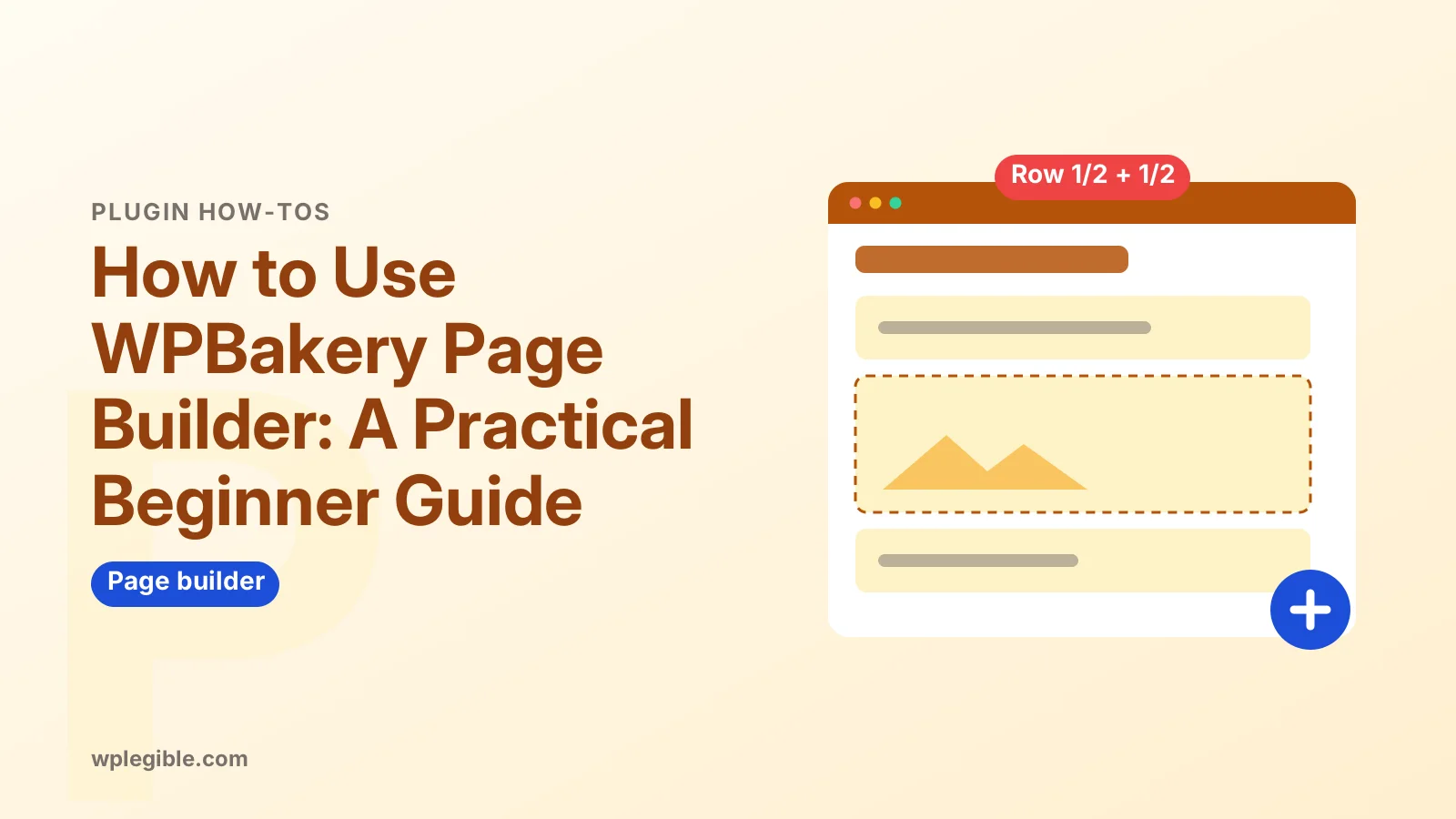
Click Add Element or the plus icon to insert a row, choose a column layout such as 1/2 + 1/2 or 1/3 + 2/3, then add elements into each column and drag them into order.
- Open the page and click Backend Editor or Frontend Editor
- Click Add Element and choose Row
- Click the column layout icon and pick a split
- Click the plus inside a column and add an element, such as Text Block
- Edit the element with its pencil icon and save the settings
- Drag rows and elements to reorder them
- Click Update or Publish
Think in sections. Each row usually holds one idea, such as a hero area, a list of services or a call to action. That structure keeps pages readable and easy to edit later.
Rows have their own settings for full-width stretching, background colours or images, padding and equal-height columns. Set these on the row rather than adding spacer elements everywhere.
Which WPBakery elements are worth knowing?
Text Block, Single Image, Button, Separator, Tabs, Accordion, Raw HTML and Widgetised Sidebar cover most everyday layouts; many themes add their own elements on top.
Text Block is a mini classic editor and handles most written content. Use real headings inside it rather than large bold text, so screen readers and search engines understand the page structure.
Tabs and Accordions are handy for FAQs and specifications, but do not hide important content behind them. Visitors often skip collapsed sections.
Raw HTML and Raw JS elements accept custom code. Use them sparingly, and only with code from trusted sources, because they run on the page as written.
How do you use templates in WPBakery?
Click the Templates icon in either editor to insert a ready-made layout, or save any page you built as a template so you can reuse it on other pages.
Saving your own templates is one of the most useful habits. A standard landing page, service page or contact layout can be inserted in seconds and then edited.
The downloadable Template Library needs a direct licence. Theme-bundled copies often include the theme's own demo layouts instead, which you import through the theme's settings.
How does WPBakery store your content?
WPBakery saves layouts as shortcodes inside the post content, which means that if you deactivate it, pages show bracketed codes such as vc_row and vc_column instead of the design.
Shortcodes are short tags in square brackets that a plugin turns into HTML. Our explainer on what a shortcode is covers how they work.
This is the main long-term drawback of WPBakery. Moving to another builder or to the block editor means rebuilding pages, or using a cleanup tool to strip leftover shortcodes. Plan for that before committing a large site.
How do you keep WPBakery pages fast?
Keep the plugin and theme updated, avoid stacking many sliders and animations on one page, compress images, and use a caching plugin to serve pages quickly.
Page builders add extra markup and CSS, so a few heavy elements can slow a page more than you expect. Test key pages with Google's PageSpeed Insights after building them.
Focus on what visitors see first. A large hero slider often hurts Largest Contentful Paint, one of the Core Web Vitals. Our guide to passing Core Web Vitals in WordPress explains the fixes that matter most.
What should you do when WPBakery will not load?
Update WPBakery and your theme, clear caches, check for plugin conflicts by deactivating other plugins one at a time, and make sure your PHP version and memory limit meet current requirements.
A blank editor or endless loading spinner is often caused by a JavaScript conflict or an outdated bundled copy. The browser console usually shows the error that points to the culprit.
Our troubleshooting guide for a page builder that will not load walks through the checks in order, and they apply to WPBakery as well.
Should you still choose WPBakery for a new site?
WPBakery still works well if your theme is built around it, but for new projects many site owners now prefer the block editor or a modern builder that does not lock content into shortcodes.
The block editor has improved steadily and stores content as clean HTML with comments, which stays readable even without plugins. The Block Editor Handbook shows how far it has come.
If you already run a WPBakery site that works, there is no urgent need to rebuild it. Keep it updated, and plan any move to another editor as part of a future redesign.
As a rule of thumb, choose the editor your theme was designed for. Fighting a theme's built-in builder usually creates more work than it saves.
Frequently asked questions
Is WPBakery Page Builder free?
No. WPBakery is a paid plugin with lifetime licences, though it offers a free trial. Many premium themes bundle it, letting you use it without buying a separate licence, with updates delivered by the theme author.
Why does WPBakery ask me to activate a licence?
The prompt appears on bundled copies too. If WPBakery came with your theme, you can usually ignore it and update through the theme. Activation is only needed if you bought a direct licence.
What happens if I deactivate WPBakery?
Your pages will show raw shortcodes, such as vc_row and vc_column tags, instead of the design. The content is still there, but you need to rebuild the layout or remove the shortcodes.
Is WPBakery the same as Visual Composer?
WPBakery Page Builder was previously called Visual Composer. The old name now belongs to a separate website builder product, so check which one a tutorial refers to before following it.
Can I use WPBakery with any theme?
A direct licence lets you use WPBakery with any theme. A bundled copy is licensed only for use with the theme it came with, so switching themes may mean buying a licence.
Sources
- WPBakery Page Builder WPBakery
- Can I update WPBakery Page Builder if I have purchased it in a theme? WPBakery Knowledge Base
- PageSpeed Insights Google
- Block Editor Handbook WordPress Developer Resources
Is your product missing, or something out of date?
Tell us what to add or correct. We read every note and reply when we need a source. A message does not buy a ranking.
Thanks — we review requests within 3 business days.
Related guides
About the editors
Researched from the primary sources listed above and checked against our editorial rules before publishing.