Plugin how-tos · Guide
How to Use the Redirection Plugin in WordPress
Short answer
To use the Redirection plugin, install and activate it, run the setup under Tools > Redirection, then add a redirect by entering the old path as the Source URL and the new address as the Target URL. Keep the 301 type for permanent moves. The plugin also logs 404 errors and can add redirects automatically when a post's permalink changes.
Key takeaways
- Redirection is a free plugin for managing 301 redirects and tracking 404 errors.
- Redirects are added under Tools > Redirection with a source path and a target URL.
- Use 301 for permanent moves and 302 or 307 only for temporary ones.
- The 404 log shows broken URLs that visitors and bots are hitting.
- Avoid redirect chains and loops by pointing each old URL straight to its final page.
What is the Redirection plugin?
Redirection is a free WordPress plugin that manages URL redirects and tracks 404 errors, so visitors and search engines who reach an old address are sent to the right page.
The Redirection plugin page describes it as the most popular redirect manager for WordPress. It is completely free, with no premium version, and full documentation lives at redirection.me.
You need redirects whenever a URL changes: you rename a post's slug, delete a page, merge two articles, move to a new domain or restructure your categories. Without a redirect, anyone following an old link lands on a 404 page.
Why do redirects matter for SEO?
A permanent 301 redirect tells search engines a page has moved for good, so they update their index and pass the old page's signals to the new address instead of treating it as a dead link.
Google's guide to redirects and Google Search explains that permanent server-side redirects are the clearest way to signal a move. Temporary redirects keep the old URL in the index.
Redirects also protect the visitor experience. Someone clicking a bookmark or an old social post should reach useful content, not an error page. Our explainer on what a 301 redirect is covers the different redirect codes in more depth.
How do you install and set up Redirection?
Install Redirection from Plugins > Add New Plugin, activate it, then open Tools > Redirection and complete the short setup, which creates the plugin's database tables and asks which features to enable.
The setup asks two useful questions. The first is whether to monitor permalink changes, which adds a redirect automatically when you change a post's URL. The second is whether to keep logs of redirects and 404 errors.
Turn both on for most sites. You can change these choices later under the Options tab.
How do you add a 301 redirect?
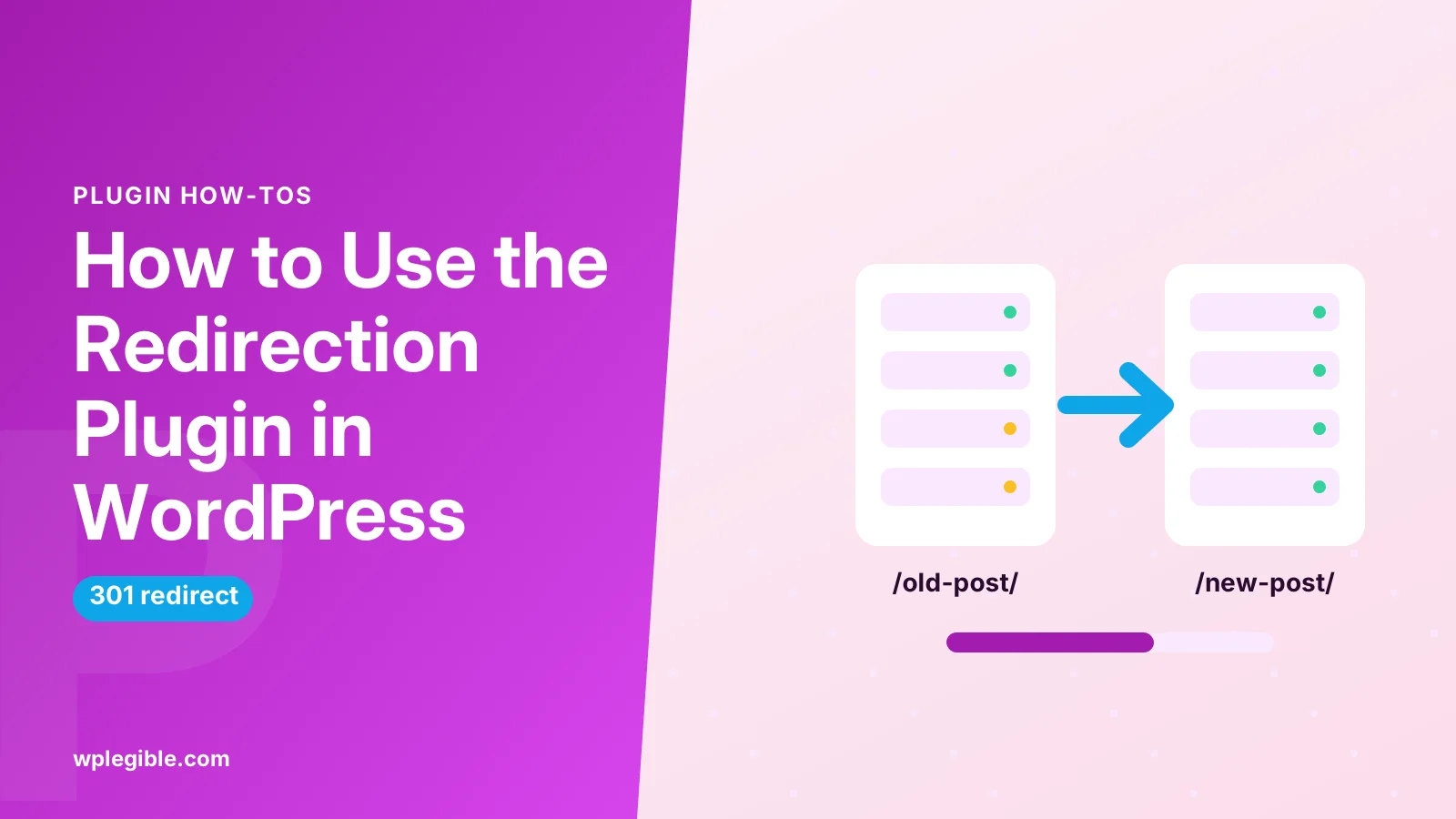
In Tools > Redirection, click Add New, enter the old path as the Source URL, enter the new address as the Target URL, choose a group, and save. The redirect type defaults to 301.
Step by step:
- Go to Tools > Redirection
- Click Add New
- In Source URL, enter the old path, such as /old-post/
- In Target URL, enter the new page, such as /new-post/
- Leave the group as Redirections unless you use your own groups
- Click Add Redirect
- Open the old URL in a private window to confirm it works
Use a relative path for the source, starting with a slash. The target can be a relative path on your site or a full URL on another domain.
Our wider guide to setting up 301 redirects in WordPress compares this plugin with server-level and SEO plugin methods.
Which redirect type should you choose?
Choose 301 for permanent moves, which is almost every case. Use 302 or 307 only when the page will come back, and 308 when you need a permanent redirect that keeps the request method.
The MDN guide to HTTP redirections explains each status code. In practice, a 301 suits renamed posts, deleted pages, merged articles and domain moves.
| Code | Meaning | Typical use |
|---|---|---|
| 301 | Moved permanently | Renamed or merged posts, domain moves |
| 302 | Found (temporary) | Short promotions, testing |
| 307 | Temporary, keeps method | Temporary moves of form endpoints |
| 308 | Permanent, keeps method | Permanent moves of form or API endpoints |
| 410 | Gone | Content removed on purpose |
Redirection can also return other responses. A 410 Gone tells search engines a page was removed on purpose and will not return, which can clear dead URLs from the index faster than a 404.
How do you find and fix 404 errors?
Open the 404s tab under Tools > Redirection to see URLs that returned not found, how often they were hit and where visitors came from, then add a redirect for any that should point somewhere useful.
Many 404s are worth fixing, such as old post URLs, typos in links from other sites, or pages you deleted without a redirect. Group the log by URL to see which errors happen most.
Ignore obvious junk. Bots constantly probe for files like wp-login backups or random PHP paths, and these do not need redirects. Our guide on fixing 404 errors for SEO explains how to tell real problems from noise.
How does monitoring permalink changes work?
When monitoring is on, Redirection notices when you change a post or page's slug and automatically creates a 301 from the old URL to the new one, so links keep working.
This is the plugin's most useful automatic feature. Editors often tweak slugs after publishing, and without monitoring those changes break every existing link.
Check which post types are monitored under the Options tab. Automatic redirects appear in a separate group so you can review them later.
How do you use regex for bulk redirects?
Tick the Regex option on a redirect to match many URLs with one pattern, such as redirecting every post under /blog/ to the same path without the folder.
For example, a source of ^/blog/(.*) with a target of /$1 sends /blog/any-post/ to /any-post/. The $1 inserts whatever the brackets matched.
Test regex rules carefully on a few URLs before relying on them. A pattern that is too broad can catch pages you never meant to redirect, including the target itself, which creates a loop.
How do you organize redirects with groups?
Groups let you sort redirects into sets, such as old blog posts, merged articles or campaign links, so a long list stays easy to search, enable and disable.
Create a group from the Groups tab, then pick it when adding a redirect. You can switch off a whole group at once, which is handy for temporary campaign links that should stop after a promotion ends.
Each group can also be tied to a module, such as WordPress or Apache, which decides how its rules run. Most sites leave every group on the default WordPress module.
Clear naming saves time later. A year from now, a group called “2026 category cleanup” explains itself far better than a list of unlabelled rules.
What else can a redirect match besides the URL?
Redirection can match conditions beyond the path, such as whether the visitor is logged in, their browser, the referring site, a cookie or their language, and send them to different targets.
These conditional redirects suit special cases, such as sending logged-in members to a dashboard or showing a different page to visitors arriving from a partner site. Use them sparingly, because rules that behave differently for different people are harder to test.
Search engines see the version for logged-out visitors, so keep that version as the main page you want indexed.
How do you avoid redirect chains and loops?
Point every old URL directly at its final destination, update old redirects when a target moves again, and never redirect a page to a URL that redirects back to it.
A chain happens when A redirects to B and B redirects to C. Each extra hop slows visitors down and wastes crawling. Edit the first rule so A goes straight to C.
A loop happens when two rules point at each other, and browsers show a too many redirects error. If that happens, our guide to fixing the too many redirects error walks through the causes.
How do you import, export and back up redirects?
Use the Import/Export tab to export your redirects as CSV, JSON or Apache .htaccess rules, and to import redirects from a CSV file or from other redirect plugins.
Export your redirects before major changes, such as a redesign or a migration. The file is small and makes it easy to restore rules if something goes wrong. Keep a copy with your regular site backups so the redirects travel with the rest of your content.
If you are switching from another plugin, the importer can read rules from several popular redirect and SEO plugins. Review the imported list for duplicates afterwards.
Should you save redirects to .htaccess?
On Apache servers, Redirection can write your redirects into the .htaccess file, which runs them before WordPress loads, but the default database method is simpler and works on every host.
The .htaccess option can be slightly faster on very busy sites. It only works on Apache or LiteSpeed servers and does not apply on Nginx.
For most sites, the speed difference is too small to notice. Keep the default unless you have a clear reason, and always back up .htaccess before changing how it is written.
Frequently asked questions
Is the Redirection plugin free?
Yes. Redirection is completely free with no premium version. All features, including 404 logging, regex redirects, import and export, are included in the plugin from WordPress.org.
Does Redirection slow down WordPress?
Not noticeably for most sites. Redirects are checked quickly from the database. Very large logs can grow over time, so set the logs to expire after a set number of days in the plugin options.
What is the difference between a 301 and 302 redirect?
A 301 redirect means the page moved permanently, so search engines update their index. A 302 means the move is temporary, so search engines usually keep the original address indexed.
Can Redirection redirect an entire domain?
It can redirect paths to another domain, but a full domain move is usually better handled at the server or host level, with the old domain sending every URL to the same path on the new one.
Why is my redirect not working?
Clear your browser and site caches, since browsers cache 301 redirects. Then check that the source path matches exactly, including trailing slashes, and that no other plugin or server rule overrides it.
Sources
- Redirection plugin WordPress.org Plugins
- Redirection documentation redirection.me
- Redirects and Google Search Google Search Central
- Redirections in HTTP MDN Web Docs
Is your product missing, or something out of date?
Tell us what to add or correct. We read every note and reply when we need a source. A message does not buy a ranking.
Thanks — we review requests within 3 business days.
Related guides



About the editors
Researched from the primary sources listed above and checked against our editorial rules before publishing.