Plugin how-tos · Guide
How to Use Kadence Theme: A Beginner's Guide
Short answer
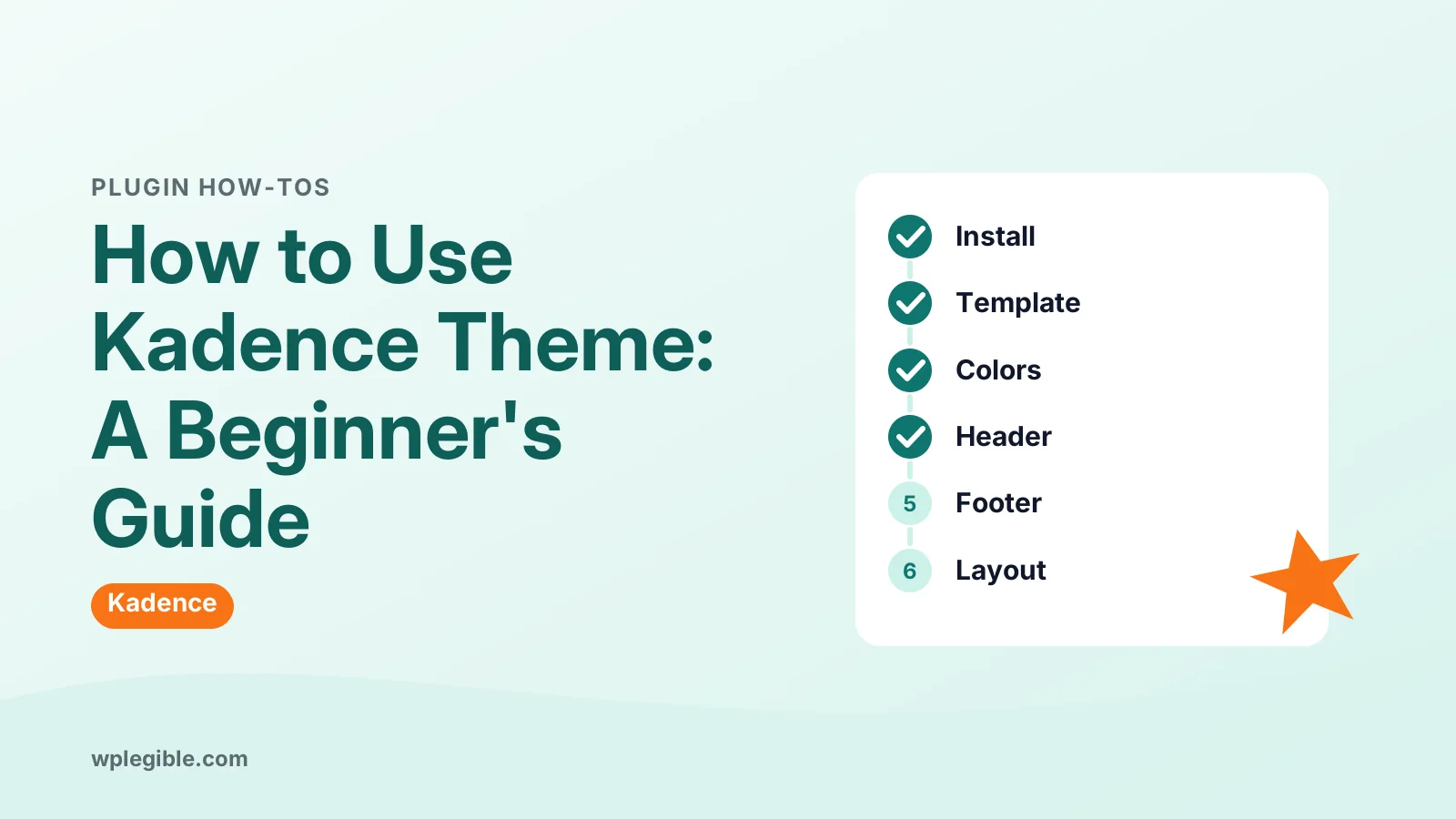
Install Kadence from Appearance > Themes and activate it. Optionally import a starter template, then use Appearance > Customize to set the global palette, fonts, header, footer and page layouts. Build pages with blocks and fine-tune each page from the Kadence settings panel in the editor.
Key takeaways
- Kadence is free on the WordPress theme directory and installs from Appearance > Themes.
- Starter templates give you a full design to edit; import them on a fresh or staging site.
- The global palette and base typography control colors and fonts across the whole site.
- Drag-and-drop header and footer builders live in Appearance > Customize.
- Per-page settings in the editor let you hide titles, remove sidebars or go full width.
- You only need a child theme if you edit theme files or add custom PHP.
How do you use the Kadence theme?
Install and activate Kadence from Appearance > Themes, optionally import a starter template, then shape the site in Appearance > Customize, where you set colors, fonts, the header, the footer and page layouts.
Kadence is a free, lightweight WordPress theme that works well with the block editor. Most of the design work happens in the WordPress Customizer, so you rarely need code.
This guide walks through the full setup in the order most people need it. You will install the theme, pick a starting design, set global styles, build the header and footer, and control layouts page by page.
If you are still deciding whether the free version is enough, read is Kadence free first.
What do you need before you start?
You need a working WordPress site, an admin login, and ideally a fresh backup, because switching themes changes how every page looks.
A short checklist before you begin:
- Admin access. Only administrators can install and customize themes.
- A backup. Take one before you switch themes on a live site.
- A plan for content. Know which pages you need, such as Home, About, Services, Blog and Contact.
- Updated WordPress. Kadence follows current WordPress releases, so update core first.
If you are switching from another theme on an existing site, test on a staging copy. Widgets, menus and page builder layouts from the old theme may not carry over cleanly. Our guide on how to change a WordPress theme covers that switch safely.
How do you install and activate Kadence?
Go to Appearance > Themes > Add New Theme, search for Kadence, click Install, then click Activate.
- Log in to your WordPress dashboard.
- Go to Appearance > Themes.
- Click Add New Theme.
- Type Kadence in the search box.
- Hover over the Kadence theme by Kadence WP and click Install.
- Click Activate once the install finishes.
The theme lives in the official WordPress.org theme directory, so it updates from your dashboard like any other free theme.
After activation, Kadence usually shows a notice that suggests installing its starter templates plugin. You can accept that now or skip it and build from a blank layout.
Should you import a Kadence starter template?
Import a starter template if you want a finished design to edit; skip it if you prefer to build pages from scratch on a clean site.
Starter templates are full demo sites with pages, colors, fonts and header settings already in place. They come from the free Kadence Starter Templates plugin.
To import one:
- Install and activate Kadence Starter Templates from Plugins > Add New Plugin.
- Open the starter templates screen from the dashboard menu the plugin adds.
- Browse the designs and choose one that matches your type of site.
- Choose whether to import the full site or only selected pages.
- Start the import and wait for it to finish.
A full import can add demo posts, images, menus and widget content. On an existing site, that can mix demo content with your real content, so a fresh or staging site is the better place for a full import.
Some templates are marked as needing paid add-ons. The free ones are enough for many blogs and small business sites.
How do you set global colors and fonts in Kadence?
Open Appearance > Customize > Colors & Fonts, set the global palette and base typography, and every part of the theme that uses those settings updates at once.
Kadence uses a global palette, a small set of colors that the theme and Kadence Blocks reuse. Change one color in the palette and buttons, links, headings and backgrounds that use it change everywhere.
Work through these settings in order:
- Global palette. Set your brand color, an accent, text colors and light background shades.
- Base font. Choose the body font, size and line height.
- Heading font. Pick a heading font and set sizes for H1 to H6.
- Buttons. Set button colors, border radius and padding.
Keep the palette small. A main color, one accent and a few neutrals cover most sites and keep pages consistent.
For a deeper walk-through of typography, see our guide on changing the theme font in Kadence.
How do you build the header with the Kadence header builder?
Go to Appearance > Customize > Header, then drag elements such as the logo, menu, button and search into the top, main and bottom rows for desktop and mobile.
The header builder shows a grid at the bottom of the Customizer preview. Each row has left, center and right areas where you drop elements.
Common steps:
- Click Site Identity or the logo element to upload a logo and set its width.
- Add Primary Navigation to the main row.
- Add a Button element for a call to action, such as a contact link.
- Switch to the mobile view and set up the Mobile Navigation trigger.
- Use the row settings to set height, background and borders.
The menu itself is built in Appearance > Menus or in the Customizer's Menus panel. Assign it to the Primary location so it appears in the header element.
The official Kadence header guide lists every header element and option. Some elements, such as extra buttons or HTML areas, need the paid Kadence Pro add-on.
How do you build the footer in Kadence?
Open Appearance > Customize > Footer and drag widgets, menus, social icons and copyright text into the footer rows, the same way the header builder works.
The footer also has top, middle and bottom rows. Each row can hold several columns.
Useful footer elements include:
- Widget areas for text, recent posts or a newsletter form.
- Footer navigation for links like Privacy Policy and Contact.
- Social icons linked to your profiles.
- Copyright text, which you can edit to show your site name and year.
Widget areas are filled in Appearance > Widgets or from inside the Customizer. Keep the footer short on small sites, since long footers add little on mobile.
How do you control layouts for posts and pages?
Set site-wide defaults in Appearance > Customize under the post, page and archive layout panels, then override them per page from the Kadence settings panel in the block editor sidebar.
Kadence separates layout settings by content type. You can give blog posts a sidebar, keep pages full width and style archive pages as a grid.
Typical defaults to set:
| Content type | Common layout choice | Where to set it |
|---|---|---|
| Pages | No sidebar, normal or full width | Customize > Page Layout |
| Blog posts | Sidebar or narrow content width | Customize > Single Post Layout |
| Blog archive | Grid or list of posts | Customize > Archive Layout |
| Landing pages | Full width, title hidden | Page settings in the editor |
In the block editor, open a page and look for the Kadence settings icon in the top toolbar or sidebar. There you can hide the title, remove the sidebar, switch to a full-width or narrow layout, or use a transparent header for that page only.
This per-page control is handy for landing pages. You can build them with blocks and remove the parts of the theme you do not want on that page.
How do you build pages with Kadence Blocks?
Install the free Kadence Blocks plugin to add row layouts, advanced headings, buttons, tabs, accordions and forms to the block editor, then build pages block by block.
The Kadence theme works with the normal block editor. The companion Kadence Blocks plugin adds layout and design blocks that match the theme's global palette.
A simple page workflow:
- Create a new page in Pages > Add New Page.
- Add a Row Layout block and choose a column structure.
- Place headings, text, images and buttons inside the columns.
- Use the block settings to set spacing and backgrounds for desktop, tablet and mobile.
- Preview, then publish.
Kadence Blocks also includes a design library with ready sections, such as heroes, feature grids and testimonials. Our guide on using Kadence Blocks in WordPress covers the blocks in more detail.
You can also use Elementor or another builder with Kadence. The theme stays out of the way when a page is set to full width with the title hidden.
Do you need a Kadence child theme?
You only need a child theme if you plan to edit theme files or add custom PHP; Customizer settings, custom CSS and blocks do not require one.
Kadence stores your Customizer choices in the database, so theme updates do not erase them. Small CSS tweaks can go in Appearance > Customize > Additional CSS.
A child theme matters when you change template files or add functions. Without one, a theme update would overwrite your edits. The WordPress child theme handbook explains how child themes load, and our guide on what a child theme is covers when you need one.
What does Kadence Pro add?
Kadence Pro is a paid add-on that adds extra header and footer elements, conditional headers, hooked elements and more design controls on top of the free theme.
The free theme already covers most small sites. The paid add-on suits people who want more control without custom code.
Features the paid add-on is known for include:
- Extra header elements, such as more buttons, HTML areas and account links.
- Conditional headers that change by page.
- Hooked elements that insert content into theme locations.
- Extra WooCommerce and archive design options.
Prices and bundle contents change, so check the Kadence theme documentation and pricing page for the current list. Our guide on how much Kadence costs gives an overview.
What should you check before launching a Kadence site?
Check the site on mobile, confirm menus and links work, review page speed, and make sure every page has the layout you intended.
A short pre-launch list:
- Mobile header. Open the site on a phone and test the menu trigger.
- Colors and contrast. Check that text is easy to read on every background.
- Fonts. Load only the font weights you use to keep pages fast.
- Page layouts. Spot-check posts, pages and archives against your defaults.
- Forms and buttons. Click every call to action and submit test forms.
- Speed. Run a test with a tool such as PageSpeed Insights and fix large images first.
Kadence is light out of the box, so most speed problems come from large images, heavy plugins or too many fonts rather than the theme itself.
Once the basics look right, keep the theme, plugins and WordPress updated. Most Kadence changes after launch happen in the same Customizer panels you used during setup.
Frequently asked questions
Is the Kadence theme free?
Yes. The core Kadence theme is free in the WordPress theme directory and includes the header and footer builders, global palette, typography controls and layout settings. A paid add-on adds extra header elements, conditional headers and hooked elements for people who need more control.
Do I need Kadence Blocks to use the Kadence theme?
No. The theme works with the standard block editor and with page builders such as Elementor. Kadence Blocks is an optional free plugin that adds row layouts, advanced buttons, tabs and other design blocks that match the theme's global palette.
Will importing a starter template delete my content?
A full import adds demo pages, posts, images and menus, and some import options can replace existing settings. It is safest to import on a fresh site or staging copy, or to import single pages instead of the whole template on an existing site.
Where are Kadence theme settings?
Most settings are in Appearance > Customize. Look for panels for colors and fonts, header, footer, and layouts for pages, posts and archives. Per-page options such as hiding the title or sidebar are in the Kadence panel inside the block editor.
Can I use Elementor with the Kadence theme?
Yes. Kadence works with Elementor and other builders. For builder pages, set the page to full width and hide the title in the Kadence page settings so the theme does not add extra spacing around your design.
Sources
- Kadence theme WordPress.org
- Customize Kadence header Kadence WP
- Kadence Starter Templates WordPress.org
- Kadence Blocks WordPress.org
- Child themes WordPress Developer Resources
Is your product missing, or something out of date?
Tell us what to add or correct. We read every note and reply when we need a source. A message does not buy a ranking.
Thanks — we review requests within 3 business days.
Related guides



About the editors
Researched from the primary sources listed above and checked against our editorial rules before publishing.