Plugin how-tos · Guide
How to Use GTranslate Plugin in WordPress: A Beginner's Guide
Short answer
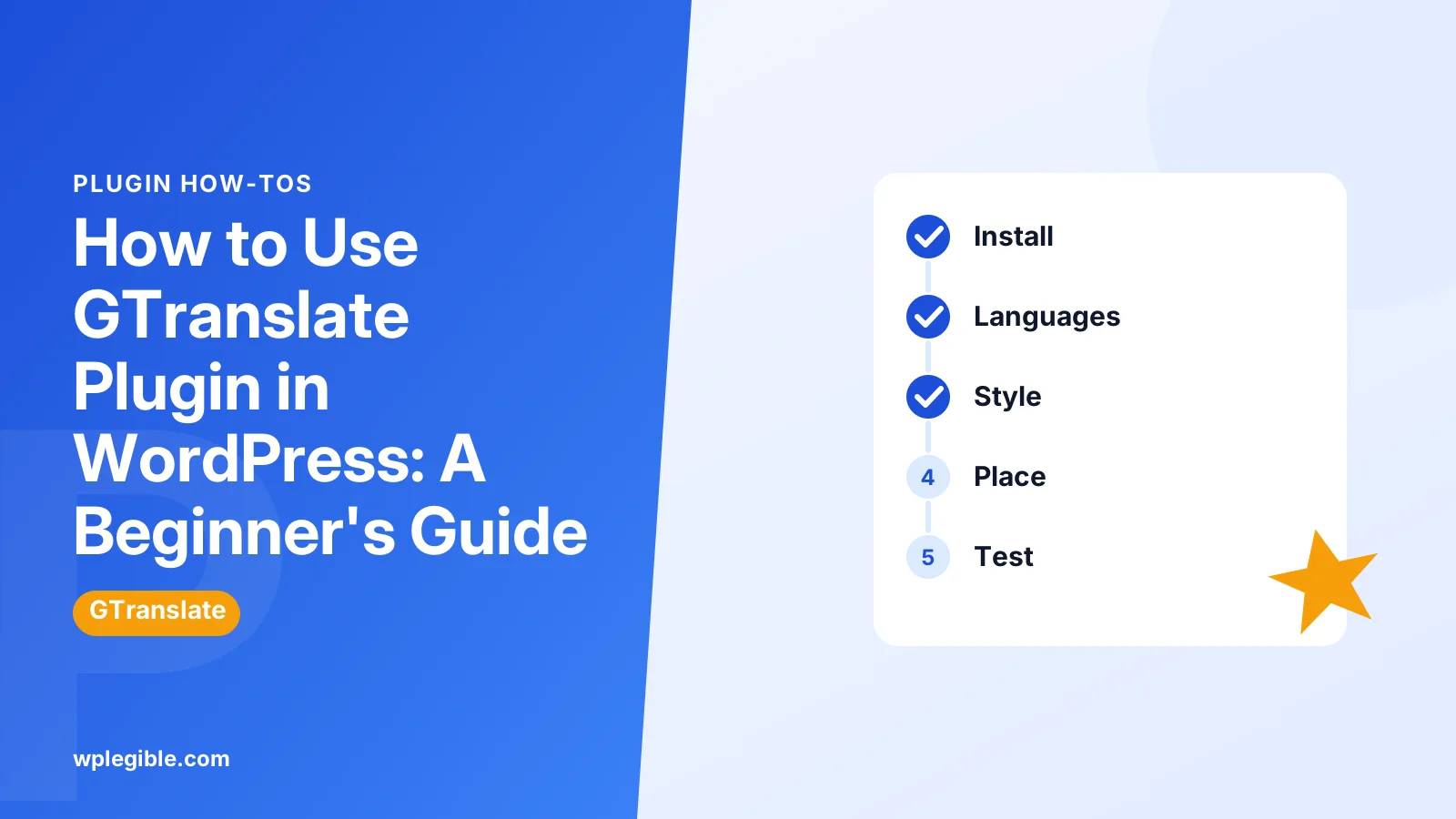
Install GTranslate from Plugins, then Add New, and open its settings screen. Set your site's original language, tick the languages you want, choose a switcher style, and place it as a floating switcher, widget, menu item or shortcode. Test each language in a private window.
Key takeaways
- GTranslate adds automatic machine translation.
- Set the original language to match your content.
- Offer a short list of languages your visitors use.
- Free translations are not indexed as separate pages.
- Paid plans add translated URLs and editing.
- Review key pages for translation mistakes.
How do you use the GTranslate plugin in WordPress?
Install GTranslate from the plugin directory, open its settings, pick your site's language and the languages to offer, choose a switcher style, then place the switcher in a menu, widget or shortcode.
GTranslate adds automatic machine translation to a WordPress site. Visitors pick a language from a switcher, and the page is translated on the fly.
It is one of the quickest ways to make a site readable in other languages. You do not write any translations yourself.
The trade-off is control and SEO. This guide covers the setup step by step, then explains what the free version can and cannot do, so you can decide whether it fits your site.
What does GTranslate do, and how is it different from other translation plugins?
GTranslate machine-translates your pages for visitors, while plugins such as Polylang store separate human-written translations that you create and manage yourself.
| Approach | Example | Who writes translations | SEO value |
|---|---|---|---|
| Automatic, on the fly | GTranslate free | Machine translation | Translated pages are not separate URLs |
| Automatic with stored URLs | GTranslate paid plans | Machine, with optional edits | Translated URLs can be indexed |
| Manual multilingual | Polylang | You or a translator | Each language has its own page |
If you want full control over every word, a manual approach is better. Our guide to using Polylang explains how that works.
If speed matters more, GTranslate gets a translated site in minutes. For a deeper look at machine options, see our guide to translating WordPress with AI.
Step 1: How do you install GTranslate?
In your dashboard go to Plugins, then Add New, search for GTranslate, click Install Now and then Activate.
The plugin is free in the WordPress.org plugin directory. Check the page for the latest version and compatibility notes before you install.
After activation, GTranslate adds a settings screen to your dashboard. On most sites it appears under the Settings menu.
Take a quick backup first if your site is live. Adding a translation script is low risk, but it is a good habit before any plugin change.
Step 2: How do you choose your languages?
On the GTranslate settings screen, set your site's original language, then tick each language you want visitors to be able to choose.
The original language must match the language your content is actually written in. If it is wrong, translations will come out garbled.
Start with a short list of languages that match your real audience. A switcher with dozens of flags looks cluttered and is harder to use.
Your analytics can tell you which countries and browser languages your visitors come from. Pick those first.
Remember that many visitors already have browser translation built in. Chrome, Edge and Safari can offer to translate a page on their own. A switcher still helps, because it shows visitors that other languages are welcome and keeps the choice visible on every page.
Step 3: How do you pick a switcher style?
Choose a widget look from the settings, such as a dropdown, a set of flags, a popup or a floating switcher, then preview it and save.
GTranslate offers several switcher designs. Some show flags, some show language names, and some combine both.
Flags are eye-catching but can confuse visitors, since a language is not the same as a country. Spanish speakers, for example, live in many countries. Showing language names is often clearer.
A floating switcher sits in a corner of every page without any extra setup. It is the easiest choice if you are not sure where to place the switcher.
Save your settings after choosing. The preview on the settings page shows how it will look.
Step 4: How do you add the switcher to your site?
Use the floating option, add the GTranslate widget or block to a sidebar or footer, add it to a menu, or paste its shortcode into any page.
You have several placement choices:
- Floating switcher. Turn it on in settings and it appears on every page.
- Widget or block. Go to Appearance, then Widgets, and add GTranslate to a sidebar or footer area.
- Menu. Some versions let you add the switcher to a navigation menu location from the settings screen.
- Shortcode. Paste the shortcode shown on the settings screen into a page, post or Shortcode block.
Our guide on adding a widget in WordPress explains the widget screen if you have not used it before.
WordPress explains the Shortcode block in its documentation. It is the cleanest way to insert the switcher inside a block layout.
Step 5: How do you test the translations?
Open your site in a private browser window, pick each language from the switcher, and read a few pages to check the translation, layout and links.
Look for text that did not translate. Text inside images is never translated, and some text loaded by scripts may be missed.
Check longer languages such as German. Translated text is often longer than English and can break buttons or menus.
Also check your contact forms and checkout, if you have them. Make sure labels translate and the forms still submit correctly.
If the switcher does not appear, clear your cache plugin and any server cache. Our guide to clearing the WordPress cache covers the common places.
Does GTranslate help SEO?
The free version mainly helps visitors read your site, because translations load in the browser and do not create separate pages that search engines index.
Search engines index translated content best when each language has its own URL. Google's guide to managing multilingual sites recommends separate URLs and hreflang tags.
GTranslate's paid plans offer translated URLs, such as language subdirectories or subdomains, which can be indexed. They also add options to edit the machine translations.
Plans and features change, so compare them on the GTranslate website before buying.
If ranking in other languages is a goal, budget for a paid plan or a manual multilingual setup. The free version alone is not built for that.
How accurate are GTranslate's translations?
Machine translation is usually good enough to understand a page, but it can get product names, idioms and technical terms wrong, so review key pages if quality matters.
For a blog or information site, rough translations are often fine. Readers get the meaning even if the wording is a little stiff.
For sales pages, legal text and checkout pages, mistakes cost more. Paid plans let you correct specific translations. Otherwise consider human translation for those pages.
You can also exclude some text from translation. Brand names and product codes are common examples, and the plugin's documentation explains how.
What should you check before relying on GTranslate?
Check speed, privacy, plugin conflicts and theme text, since a translation script adds code to every page and may send content to an outside service.
- Speed. Test page speed before and after enabling the plugin.
- Privacy. Mention the translation service in your privacy policy, since text is processed by a third party.
- Conflicts. Run only one translation plugin at a time.
- Theme and plugin strings. Fixed text such as button labels is translated on the page too, but if you also want proper language files for your theme, see our guide on translating a WordPress plugin.
The WordPress internationalization documentation explains how themes and plugins prepare their text for translation, which is separate from what GTranslate does.
Is GTranslate the right choice for your site?
GTranslate suits sites that want a quick, low-effort way to welcome visitors in other languages, while sites that need search traffic or exact wording should consider a paid plan or a manual tool.
Start with the free version on a test site or a few key pages. Watch how visitors use the switcher in your analytics.
If many visitors pick one language, that is a sign to invest in proper translated pages for it. You can then move to a paid plan or a manual tool for that language.
Whichever route you choose, keep your original content clear and simple. Short sentences, plain words and few idioms translate far better by machine, and they are easier for human translators too. Good source writing is the cheapest way to improve every translated version of your site.
Frequently asked questions
Is GTranslate free?
Yes, the core plugin is free in the WordPress plugin directory. It translates pages for visitors using machine translation. Paid plans add features such as translated URLs that search engines can index and the ability to edit translations. Check the vendor's site for current plans.
Will GTranslate translate my site for Google?
The free version translates pages in the visitor's browser, so search engines do not see separate translated pages. To have translated pages indexed, you need a setup with a separate URL for each language, such as a paid GTranslate plan or a manual multilingual plugin.
Why is the GTranslate switcher not showing?
The switcher may not be placed yet, or a cache is serving an old page. Turn on the floating switcher or add the widget, block or shortcode, then clear your cache plugin and any hosting cache and reload the page in a private window.
Can I stop GTranslate from translating certain words?
Yes. You can mark text so the translator skips it, which is useful for brand names, product codes and addresses. The plugin documentation explains the method for your version, and paid plans also let you edit specific translations.
Can I use GTranslate with Polylang?
It is best to use one translation approach per site. Running two translation plugins can produce double switchers, conflicts and confusing URLs. Choose GTranslate for quick machine translation or Polylang for manual translations, rather than combining them.
Sources
- GTranslate WordPress.org Plugins
- GTranslate GTranslate
- Managing Multi-Regional and Multilingual Sites Google Search Central
- Shortcode Block WordPress.org Documentation
- Internationalization WordPress Developer Resources
Is your product missing, or something out of date?
Tell us what to add or correct. We read every note and reply when we need a source. A message does not buy a ranking.
Thanks — we review requests within 3 business days.
Related guides



About the editors
Researched from the primary sources listed above and checked against our editorial rules before publishing.