Backups & maintenance · Guide
How to Update Yoast SEO (Step by Step)
Short answer
Back up your site, then go to Plugins and click Update Now under Yoast SEO, or use Dashboard, then Updates. Yoast SEO Premium only shows updates when your subscription is active and connected to the site, and it should be updated together with the free plugin.
Key takeaways
- Back up the site before every Yoast SEO update.
- Free Yoast SEO updates from the Plugins screen.
- Premium needs an active, connected Yoast subscription.
- Update the free and Premium plugins together.
- Run SEO data optimisation if Yoast prompts you.
- Use a zip upload or WP-CLI if one-click updates fail.
How do you update Yoast SEO?
To update Yoast SEO, go to Dashboard > Updates or the Plugins screen and click Update Now next to Yoast SEO, after taking a backup; Premium also needs an active, connected subscription.
The free plugin updates like any other plugin from the WordPress.org directory. Yoast SEO Premium and the add-ons get their updates through your Yoast account.
Yoast releases updates often, usually every couple of weeks. Each release can include bug fixes, security patches and changes to how SEO data is stored.
| Update method | Works for | Best when |
|---|---|---|
| Plugins screen, Update Now | Free and Premium | Normal day-to-day updates |
| Auto-updates | Free and Premium | Small sites, low-risk changes |
| Zip upload | Free and Premium | One-click updates fail |
| WP-CLI | Free, Premium if connected | Managing many sites over SSH |
If you have never updated a plugin before, our general guide on how to update plugins in WordPress covers the basics.
What should you do before updating Yoast SEO?
Take a full backup and, ideally, test the update on a staging site first, because SEO plugin updates touch metadata, sitemaps and schema across every page.
A short pre-update checklist:
- Back up files and the database with your host or a backup plugin.
- Check that WordPress core and PHP meet the new version's requirements.
- Read the changelog for anything that affects your setup.
- Note custom settings, such as redirects and sitemap exclusions.
The Yoast SEO plugin page lists the current version, required WordPress version and changelog.
Our guide on how to use UpdraftPlus shows one free way to back up first.
How do you update the free Yoast SEO plugin from the dashboard?
Open Dashboard > Updates or Plugins > Installed Plugins, find Yoast SEO, and click Update Now; WordPress downloads and installs the new version in a few seconds.
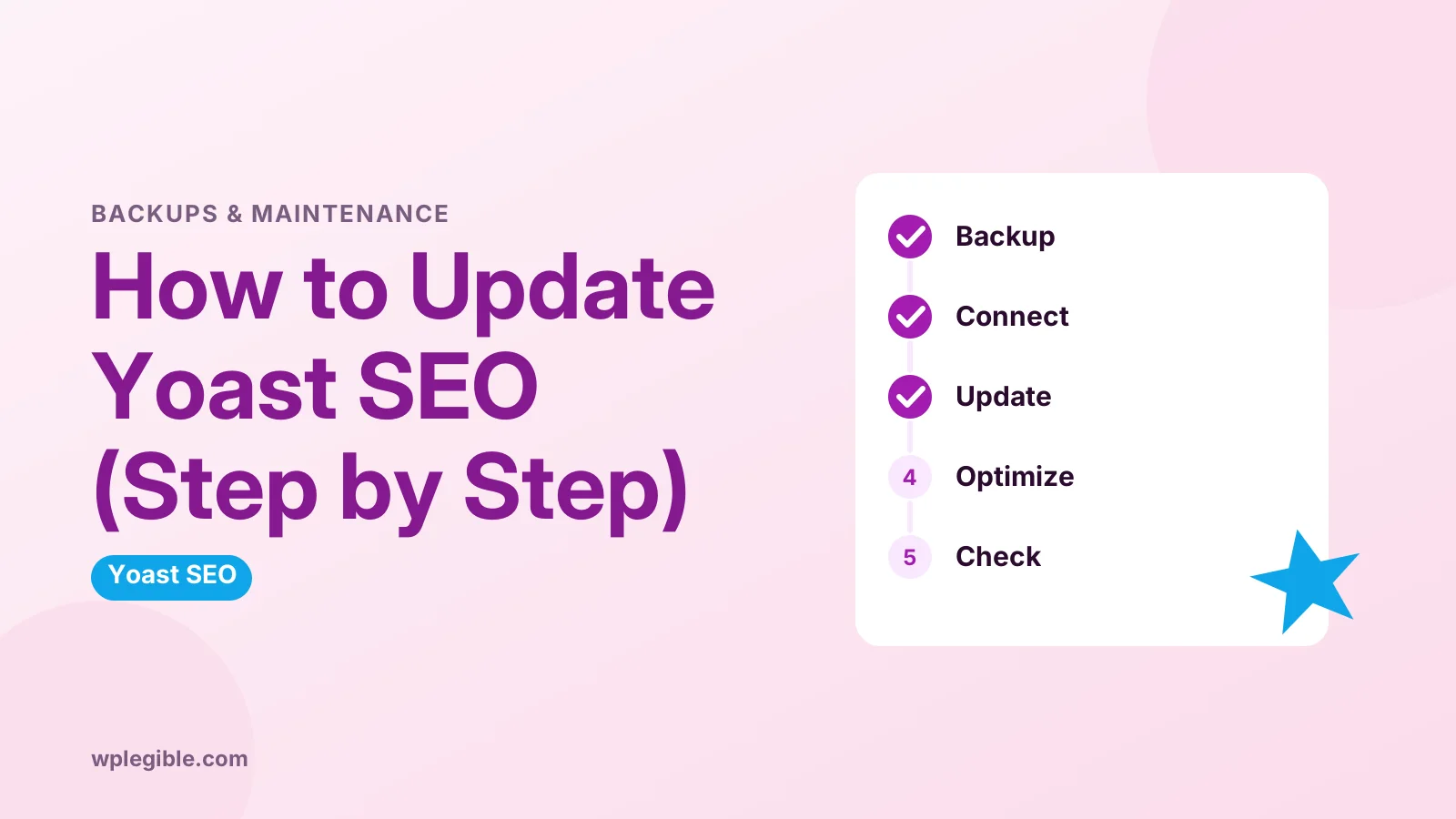
Step by step:
- Log in as an administrator.
- Go to Plugins > Installed Plugins.
- Look for the notice under Yoast SEO saying a new version is available.
- Click update now.
- Wait for the Updated! message.
You can also go to Dashboard > Updates, tick Yoast SEO in the plugins list, and click Update Plugins.
Yoast's own guide to updating the free plugin shows the same process with screenshots.
How do you update Yoast SEO Premium?
Yoast SEO Premium updates from the same Plugins screen, but only when your subscription is active and the site is connected to your Yoast account.
Premium works alongside the free Yoast SEO plugin. Both must be installed, and you should update them together so their versions match.
To make Premium updates appear:
- Log in to your Yoast account and check your subscription is active.
- Make sure the site's URL is added to the subscription.
- In WordPress, open the Yoast SEO menu and follow any prompt to activate or connect your subscription.
- Return to Plugins and run the update.
If WordPress shows Update package not available, the subscription is usually not activated for that site. Yoast's guide to updating Premium explains how to fix the connection.
Our guide on how much Yoast SEO costs covers Premium and add-on pricing if your subscription has lapsed.
How do you check which Yoast SEO version you have?
The Plugins screen shows the installed version number under the Yoast SEO name, and you can compare it with the latest version on the plugin directory page.
Knowing your version helps when you read the changelog or ask for support. Yoast support usually asks for it first.
If you run Premium, check both version numbers. They should match, or Yoast will show a notice asking you to update one of them.
Also check Tools > Site Health > Info for your WordPress and PHP versions. New Yoast releases drop support for very old versions of both over time.
How do you update Yoast add-ons?
Yoast add-ons such as Local SEO, Video SEO, News SEO and the WooCommerce add-on update the same way as Premium, through the Plugins screen once their subscriptions are connected.
Each add-on has its own version number and its own subscription. One expired add-on does not stop the others from updating.
Update add-ons in the same session as the main plugin, so every Yoast component stays compatible.
How do you turn on automatic updates for Yoast SEO?
Click Enable auto-updates in the Yoast SEO row on the Plugins screen, and WordPress will install new versions in the background as they are released.
Automatic updates keep security fixes flowing without you logging in. They suit small sites where a brief issue is low risk.
On busier sites, many owners prefer manual updates on a schedule. That way they can back up first and test on staging.
Some managed hosts handle plugin updates for you. Check your hosting dashboard before turning on WordPress auto-updates, so two systems do not fight over the same plugin.
The WordPress documentation on managing plugins explains auto-update controls.
How do you update Yoast SEO manually with a zip file?
Download the latest zip from WordPress.org or your Yoast account, then upload it through Plugins > Add New and choose to replace the current version.
This method helps when one-click updates fail because of file permissions or a temporary connection problem.
- Download the new zip file.
- Go to Plugins > Add New Plugin and click Upload Plugin.
- Choose the zip and click Install Now.
- When WordPress says the plugin is already installed, choose Replace current with uploaded.
Your settings and SEO data are stored in the database, so replacing the plugin files does not remove them.
You can also upload the folder by SFTP, but deactivate the plugin first and replace the whole folder at once to avoid a half-updated state.
Can you update Yoast SEO with WP-CLI?
Yes, if you have SSH access, the WP-CLI command wp plugin update wordpress-seo updates the free plugin in one step.
WP-CLI is handy for agencies managing many sites, or when the dashboard is slow to load.
The slug for the free plugin is wordpress-seo. Premium has its own slug and only updates this way when the subscription connection is working.
The WP-CLI plugin update reference lists all options, such as updating to a specific version.
What should you check after updating Yoast SEO?
After updating, run any data optimisation Yoast asks for, then check a few pages, your sitemap and the plugin settings to confirm nothing changed unexpectedly.
Yoast stores SEO data in its own indexable tables. Larger updates may prompt you to run an SEO data optimization process. Let it finish before judging results.
Then check:
- The sitemap loads without errors.
- Titles and meta descriptions still appear in page source.
- Schema output looks correct in Google's Rich Results Test.
- Any custom redirects still work, if you use Premium.
Clear caches so visitors and crawlers see the updated output. If your sitemap breaks, our guide on how to fix a Yoast sitemap 404 can help.
What if the Yoast SEO update fails?
If an update fails, check file permissions, PHP version and subscription status, then retry or install the zip manually; WordPress maintenance mode may need clearing if the update stalled.
Common update problems include:
- Update package not available: Premium subscription not connected.
- Could not create directory: file permission or disk space issue.
- A stuck Briefly unavailable for scheduled maintenance message after an interrupted update.
- Version mismatch warnings between free and Premium.
Yoast keeps a list of common installation and update errors with fixes.
For a stalled update, see our guide on how to fix briefly unavailable for scheduled maintenance.
If the site breaks after the update, see our guide on Yoast SEO not working for conflict tests and recovery steps.
Can you roll back a Yoast SEO update?
Yes, you can restore your backup or install an older version zip, but rolling back is a short-term fix and you should move to the latest version once the issue is solved.
Older versions of the free plugin are available from the Advanced View link on its WordPress.org page.
Because newer versions may change database tables, restoring a full backup is safer than only swapping plugin files.
Report the problem to Yoast support or the plugin's support forum, so a fix can land in the next release.
Frequently asked questions
Will updating Yoast SEO delete my settings?
No. Your settings, titles, meta descriptions and focus keyphrases are stored in the database, not in the plugin files. Updating replaces the files only. Still, take a backup first in case something goes wrong during the update.
Why can't I see an update for Yoast SEO Premium?
Premium updates only appear when the subscription is active and connected to that site's URL in your Yoast account. Renew or activate the subscription, check the site is listed, then reload the Plugins screen.
How often does Yoast SEO release updates?
Yoast releases updates frequently, often around every two weeks, with bug fixes, compatibility changes and new features. Check the changelog on the plugin page to see what changed before you update busy sites.
Should I enable auto-updates for Yoast SEO?
Auto-updates suit small sites where quick security fixes matter more than testing. On busy sites or shops, many owners prefer to update manually after a backup and a quick test on staging.
Do I need to update the free plugin if I have Yoast SEO Premium?
Yes. Premium runs on top of the free plugin, so both must be installed and kept at matching versions. Update them together to avoid version mismatch warnings or missing features.
Sources
- How to update the Yoast SEO free plugin Yoast
- How to update the Yoast SEO plugin (Premium) Yoast
- Common installation and update errors Yoast
- Yoast SEO plugin WordPress.org
- wp plugin update WordPress Developer Resources
- Rich Results Test Google Search Console
Is your product missing, or something out of date?
Tell us what to add or correct. We read every note and reply when we need a source. A message does not buy a ranking.
Thanks — we review requests within 3 business days.
Related guides

About the editors
Researched from the primary sources listed above and checked against our editorial rules before publishing.