Backups & maintenance · Guide
How to Update Gravity Forms (Step by Step)
Short answer
Back up your site, confirm your license key is valid under Forms > Settings, then go to Dashboard > Updates and update Gravity Forms and each add-on. If that fails, download the latest zip from your Gravity Forms account and upload it with the replace option.
Key takeaways
- A valid license key is required to receive Gravity Forms updates.
- Back up first and test on staging if forms take payments or feed a CRM.
- Update core Gravity Forms first, then each add-on.
- A manual zip upload replaces files without touching forms or entries.
- Test every key form after updating, including emails and integrations.
How do you update Gravity Forms?
Make a backup, confirm your license key is active, then update Gravity Forms from Dashboard > Updates or the Plugins screen, just like a free plugin.
Gravity Forms is a premium plugin, so it does not come from the WordPress plugin directory. Instead, the plugin checks the Gravity Forms servers for new versions. A valid license key is what allows those update notices and one-click updates.
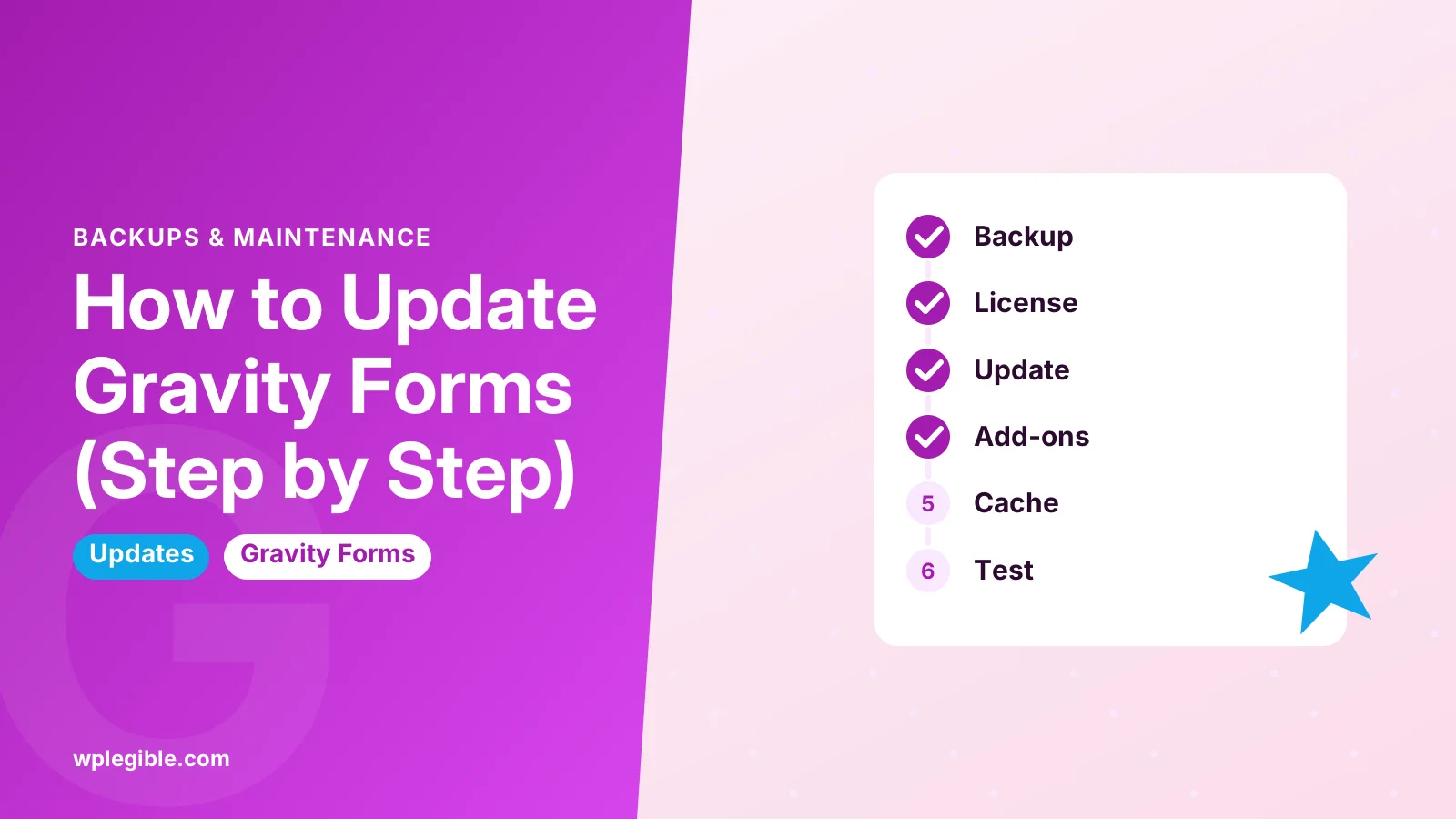
The short version:
- Back up your files and database
- Check your license under Forms > Settings
- Go to Dashboard > Updates or Plugins > Installed Plugins
- Click Update now for Gravity Forms and its add-ons
- Clear caches and test a form submission
The rest of this guide explains each step, plus manual and command line options for when the normal route fails.
Why should you keep Gravity Forms updated?
Updates fix security issues and bugs, keep the plugin compatible with new WordPress and PHP versions, and add features.
Forms collect personal data, payments and files, so they are an attractive target. Running an old version means missing security fixes. Gravity Forms explains this in its note on the importance of updates.
Compatibility matters too. WordPress core changes, new PHP versions and new browser behavior can all break old form code. Updates keep the editor, the front end and add-ons working together.
If you are weighing the cost of renewing, our review of whether Gravity Forms is worth it looks at what the license includes.
What should you do before updating?
Take a full backup, check your license, note your current versions and, for busy sites, test the update on a staging copy first.
A backup is your safety net. If an update breaks a form or clashes with another plugin, you can roll back in minutes. Our guide on restoring a WordPress site from a backup explains how that works.
Next, open Forms > System Status. Note the Gravity Forms version, each add-on version, your WordPress version and your PHP version. This record helps if you need to report a problem.
For stores, membership sites or sites that take payments through forms, test first. A staging site lets you run the update on a copy without risking live entries.
Pick a quiet time. Avoid updating during a campaign or when many people are submitting forms.
How do you check your Gravity Forms license?
Go to Forms > Settings, look at the license key field, and confirm it shows as valid and active.
If the key is missing or invalid, WordPress will not show Gravity Forms updates. Log in to your Gravity Forms account to copy the key, then paste it into the settings and save. The help article on finding and entering your license key shows where it sits.
If your license has expired, you need to renew it to receive updates. If you moved to a different plan or account, Gravity Forms explains how to change the license on a site.
Each license covers a set number of sites. A key used on too many sites can stop validating, which also stops updates.
How do you update Gravity Forms from the dashboard?
With a valid license, go to Dashboard > Updates or Plugins > Installed Plugins, find Gravity Forms and click Update now.
On the Plugins screen, Gravity Forms shows an update notice when a new version is ready. Click the link in that notice. WordPress downloads the new version and replaces the old files.
Add-ons such as Stripe, PayPal, Mailchimp or Signature are separate plugins. They show their own update notices. Update core Gravity Forms first, then each add-on.
To update several at once, tick the boxes for Gravity Forms and its add-ons on the Plugins screen, choose Update from Bulk actions, and click Apply. The general process matches the WordPress plugin management guide.
For other plugins, our guide on updating plugins in WordPress covers the same screens in more detail.
How do you update Gravity Forms manually?
Download the latest zip from your Gravity Forms account, then upload it through Plugins > Add New Plugin > Upload Plugin and choose to replace the current version.
Manual updates are useful when the dashboard update fails, the license check cannot reach the server, or you work on a site without outgoing connections.
Steps:
- Log in to your Gravity Forms account and download the latest Gravity Forms zip
- In WordPress, go to Plugins > Add New Plugin and click Upload Plugin
- Choose the zip and click Install Now
- When WordPress says the plugin exists, click Replace current with uploaded
- Repeat for any add-ons you also need to update
Your forms, entries and settings live in the database, so replacing the plugin files does not remove them. Gravity Forms describes this method in how to manually update Gravity Forms.
You can also upload the new plugin folder over SFTP. Delete the old gravityforms folder only after the new files are ready to upload, and keep a copy until you have tested.
Can you update Gravity Forms with WP-CLI?
Yes, the official Gravity Forms CLI add-on adds commands for installing and updating Gravity Forms and its add-ons from the command line.
This route suits developers and agencies managing many sites. Install the CLI add-on, which is also listed on the WordPress plugin directory, then use its commands over SSH. Its source code is public in the gravityformscli GitHub repository.
The exact commands and options are listed in the Gravity Forms guide to managing Gravity Forms and add-ons with WP-CLI. The license key can also be set from the command line.
Standard WP-CLI commands such as wp plugin update may also work once the license is active, because Gravity Forms hooks into the normal WordPress update system. Test on staging before scripting updates across many sites.
Should you turn on automatic updates for Gravity Forms?
Automatic updates are fine for simple contact forms, but sites that rely on payment, CRM or custom code integrations are safer with manual, tested updates.
Gravity Forms supports background updates, and WordPress also offers a per-plugin auto-update toggle on the Plugins screen. Either way, updates arrive without you clicking.
Here is how the options compare:
| Method | Best for | Main risk |
|---|---|---|
| Automatic updates | Small sites with simple forms | A breaking change goes live unseen |
| Dashboard update | Most sites | Needs someone to check regularly |
| Manual zip upload | Failed updates, offline sites | Easy to upload the wrong file |
| WP-CLI | Agencies and many sites | Needs SSH and command line skills |
| Staging then live | Payment and business critical forms | Takes more time |
If you enable auto-updates, keep reliable daily backups and check forms after each update arrives.
What should you check after updating?
Clear your caches, submit a test entry on each important form, and confirm notifications, confirmations and integrations still work.
Your checklist:
- Clear plugin, server and CDN caches
- Open Forms > System Status and confirm there are no database upgrade warnings
- Submit a test entry on contact, payment and signup forms
- Check that the notification email arrives
- Confirm add-on feeds, such as Mailchimp or Stripe, processed the test
- View the forms on a phone
If emails stop after an update, see our guide on Gravity Forms notifications not sending.
If a page cache serves old scripts, our guide on clearing cache in WordPress helps.
What if a Gravity Forms update breaks something?
Restore the previous plugin version from your backup or upload the older zip, then look for a conflict before trying the update again.
Start by checking the browser console and the WordPress debug log for errors. Often an outdated add-on or a theme override clashes with the new core version. Update the add-on, or test on staging with other plugins turned off.
If you need to roll back fast, upload the previous Gravity Forms zip with Replace current with uploaded. Database changes from a major version are not always reversible, so restoring a full backup is safer after big jumps.
Contact Gravity Forms support with your System Status report if the issue continues. For a broader process, our guide on fixing a plugin conflict shows how to isolate the cause.
Frequently asked questions
Will updating Gravity Forms delete my forms or entries?
No. Forms, entries and settings are stored in the database, and updates replace only plugin files. Still, back up first in case a database upgrade or conflict causes trouble.
Why don't I see Gravity Forms updates in WordPress?
The license key is usually missing, invalid or expired, or the site cannot reach the Gravity Forms update server. Check the key under Forms > Settings, then try the manual zip method.
Can I update Gravity Forms without a license?
Without an active license you cannot get automatic updates or download new versions from your account. You would need to renew the license to receive current releases and security fixes.
How often does Gravity Forms release updates?
Releases come regularly, with bug fix versions between larger feature releases. Check the Plugins screen each week or so, and read the change log before major version jumps.
Should I update add-ons at the same time as Gravity Forms?
Yes. Update core first, then the add-ons straight after. Mixing a new core with old add-ons is a common cause of errors, missing fields and failed feeds.
Sources
- How to Manually Update Gravity Forms Gravity Forms Documentation
- The Importance of Updates Gravity Forms Documentation
- Finding and Entering Your License Key Gravity Forms Documentation
- Managing Gravity Forms and Add-Ons with WP-CLI Gravity Forms Documentation
- Manage Plugins WordPress.org Documentation
- Gravity Forms CLI WordPress.org Plugins
Is your product missing, or something out of date?
Tell us what to add or correct. We read every note and reply when we need a source. A message does not buy a ranking.
Thanks — we review requests within 3 business days.
Related guides

About the editors
Researched from the primary sources listed above and checked against our editorial rules before publishing.