Setup & site building · Guide
How to Unpublish a Page in WordPress (Without Deleting It)
Short answer
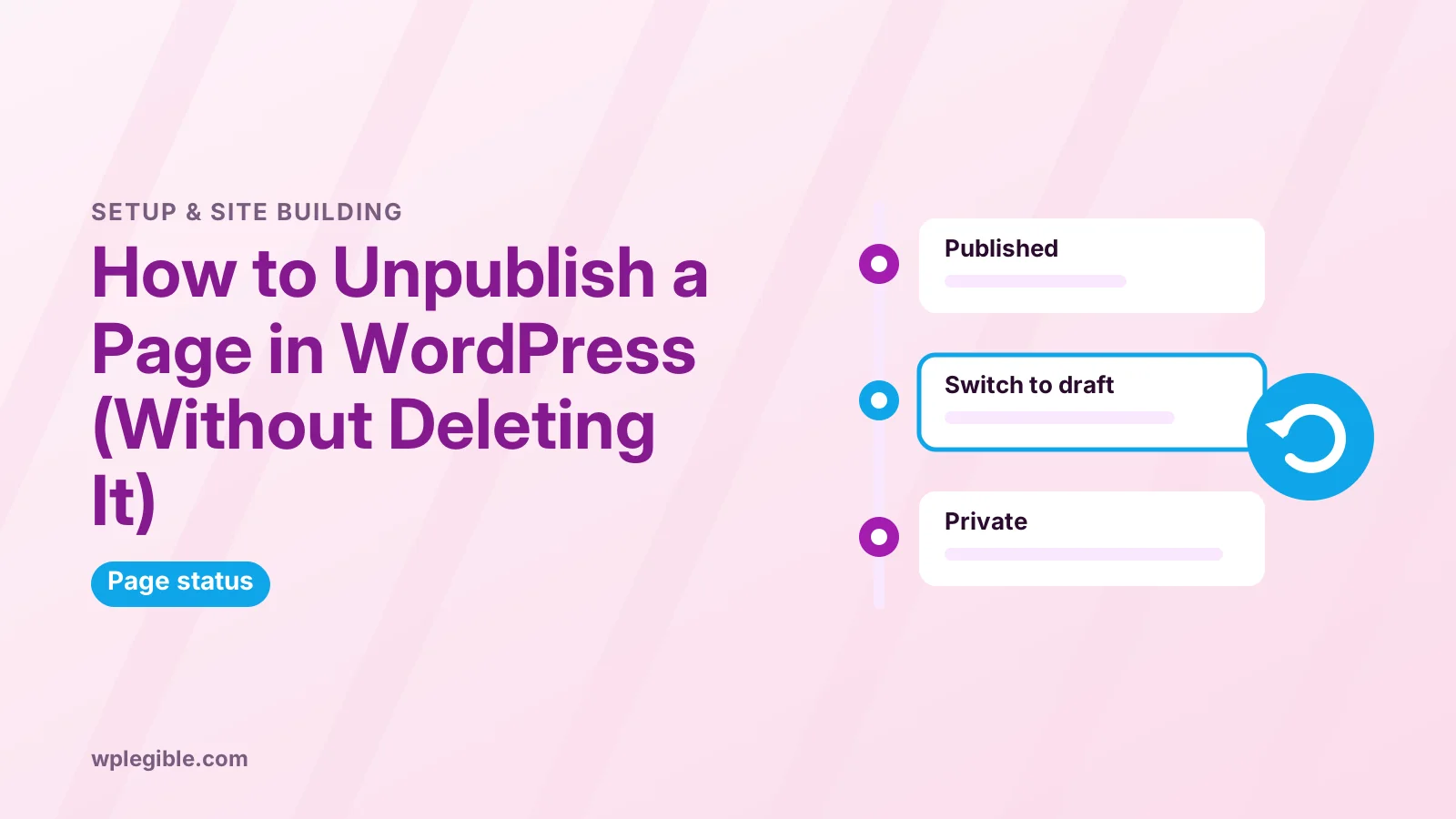
To unpublish a page in WordPress, open it in the editor and click Switch to draft in the top toolbar, then confirm. The page disappears from your site but stays saved under Pages as a draft. To hide it only from the public, set its visibility to Private instead, or use Quick Edit on the Pages screen to change the status.
Key takeaways
- Switch to draft removes a page from the live site but keeps it for later.
- Private pages stay visible only to logged-in editors and administrators.
- Password protection keeps a page public in the address bar but locks its content.
- Unpublished pages return a 404, so update menus and add a redirect if the page had traffic.
- Moving a page to Trash also unpublishes it, and WordPress deletes trashed items after 30 days by default.
What does unpublishing a page mean in WordPress?
Unpublishing means taking a page off your live site without deleting it, usually by changing its status from Published to Draft, so visitors can no longer see it but you can edit or republish it later.
WordPress gives every post and page a status, such as published, draft, pending, private or scheduled. The WordPress documentation on post status explains what each one means.
Unpublishing is the right choice for seasonal pages, offers that have ended or pages you are rewriting. If you want a page gone for good, our guide on how to remove a page in WordPress covers deletion.
How do you switch a page to draft in the block editor?
Open the page under Pages, click Edit, then click Switch to draft in the top toolbar and confirm; the page goes offline immediately and appears as a draft in your Pages list.
- Go to Pages > All Pages
- Hover over the page and click Edit
- Click Switch to draft near the top-right of the editor
- Confirm when WordPress asks
- Check the Pages list, where the page now shows as Draft
In some WordPress versions, Switch to draft sits in the status panel in the sidebar rather than the toolbar. Look for the Status option in the page settings if you do not see the button.
The page keeps its content, featured image and settings. Click Publish later to bring it back. Revisions are kept too, so you can still compare or restore earlier versions of the text while the page is offline.
How do you unpublish a page with Quick Edit?
On Pages > All Pages, hover over the page, click Quick Edit, change Status to Draft or Private and click Update; this is faster when you need to unpublish several pages.
Quick Edit also lets you change the slug, parent page and template. It is a handy way to tidy many pages without opening each one.
For several pages at once, tick their boxes, choose Edit from the Bulk actions menu, set the status and apply. Check the list afterwards to confirm every page changed.
When should you make a page private instead?
Make a page private when your team still needs to see it on the live site, because private pages are visible only to logged-in administrators and editors, and hidden from everyone else.
Private pages are useful for internal notes, staff instructions or pages under review. Anyone not logged in with the right role sees a not found page instead.
In the editor, open the page's Status or Visibility setting, choose Private and save. If your whole site seems hidden, our guide on why a WordPress site is private explains the different causes.
When should you password protect a page?
Use password protection when specific people without accounts need access, such as clients reviewing a draft or customers receiving a download; the page stays published but shows a password form.
Set it under Visibility by choosing Password protected and entering a password. Share the password only with the people who need it, and change it when the review or access period ends.
This is light protection. The page title stays visible and the password is shared, so do not use it for sensitive data. A membership plugin suits real access control better.
What happens when you move a page to Trash?
Trashing a page unpublishes it and moves it to the Trash, where you can restore it; WordPress permanently deletes trashed items after 30 days by default.
Trash is a safety net, not storage. If you want to keep a page for later, switch it to draft instead.
The 30-day period can be changed by your host or with a setting in wp-config.php. The wp-config.php documentation lists the EMPTY_TRASH_DAYS constant that controls it.
What should you update after unpublishing a page?
Remove the page from menus, update internal links that point to it, and check widgets, buttons and footer links, because visitors following old links will otherwise reach an error.
WordPress removes unpublished pages from menus automatically in many cases, but custom links and links inside other posts stay as they are. Search your content for the page's address to find them.
If the page was the homepage or posts page under Settings > Reading, choose a new page there. Otherwise your site's front page may break.
Do you need a redirect for an unpublished page?
If the page had visitors, backlinks or search traffic, add a 301 redirect to the most relevant live page, so people and search engines land somewhere useful instead of a 404 error.
A redirect also passes on most of the page's search value to the new destination. Our guide on setting up 301 redirects in WordPress shows several ways to add one.
If you plan to republish the same page soon, you can skip the redirect. Search engines usually recover once the page returns, though rankings may take time.
How do you remove an unpublished page from Google?
Google drops a page from its index after it starts returning a 404 or redirect, but if you need it gone faster, use the Removals tool in Google Search Console.
The Search Console Removals tool hides a URL from Google Search for about six months. It is meant for urgent cases, such as a page published by mistake.
For lasting removal, the page must stay unavailable or carry a noindex tag. Our guide to fixing 404 errors for SEO explains how search engines treat missing pages.
Should you unpublish an outdated page or update it?
Update the page if its topic still matters to visitors and it brings traffic or links; unpublish it only when the subject itself is gone, such as a closed service, an ended event or a discontinued product.
Refreshing old content is often better for search than removing it. A page that already ranks keeps its links and history, and a few updated facts can restore its usefulness.
When a page truly has no future, decide what happens to its address. A redirect to a close match keeps visitors on your site, while a 410 Gone status tells search engines the removal is deliberate. The MDN reference for the 410 status explains how browsers and crawlers read it.
How do you keep track of unpublished pages?
Use the Drafts and Private filters at the top of Pages > All Pages to see everything that is offline, and add a short note in each page's title or content explaining why it was taken down.
A simple naming habit, such as adding the month you unpublished it, makes clean-ups easier later. Review drafts every few months and delete the ones you will never use, since a long list of old drafts makes the Pages screen harder to manage.
If several people edit the site, agree who decides when a page goes offline. That prevents someone republishing an outdated offer by mistake.
Who can unpublish pages in WordPress?
Administrators and Editors can unpublish any page, while Authors and Contributors cannot manage pages, because pages require the edit_pages capability.
WordPress uses roles and capabilities to control who can do what. The Roles and Capabilities documentation lists exactly which actions each role allows.
If you cannot see the Switch to draft option, your role may not allow it. Ask a site administrator to change the page status or adjust your role.
How do you republish a page later?
Open the draft from Pages > Drafts, review the content, then click Publish; the page returns at the same address unless you changed its slug while it was offline.
If you added a redirect while the page was offline, remove that redirect first. Otherwise visitors will keep being sent elsewhere.
Update any dates or offers before republishing. A seasonal page that returns with last year's prices does more harm than good.
Frequently asked questions
Does unpublishing a page delete it?
No. Switching a page to draft removes it from your live site but keeps all its content, settings and images. You can edit it or publish it again at any time from the Pages screen.
What do visitors see when a page is unpublished?
Visitors who open the old address see your site's not found page, a 404 error. Add a redirect if the page had traffic so they reach a relevant live page instead.
What is the difference between draft and private in WordPress?
A draft is not visible on the site at all. A private page is published but visible only to logged-in administrators and editors, which suits internal content.
Why can't I unpublish a page?
Your user role may not have permission to manage pages. Only administrators and editors can change page status by default. A plugin or custom role settings may also restrict it.
Can I schedule a page to unpublish automatically?
WordPress core can schedule publishing but not unpublishing. Plugins that add post expiration let you set a date when a page switches to draft, goes private or moves to Trash.
Sources
- Post Status WordPress.org Documentation
- Roles and Capabilities WordPress.org Documentation
- Editing wp-config.php WordPress Developer Resources
- Removals and SafeSearch reports Tool Search Console Help
- 410 Gone MDN Web Docs
Is your product missing, or something out of date?
Tell us what to add or correct. We read every note and reply when we need a source. A message does not buy a ranking.
Thanks — we review requests within 3 business days.
Related guides


About the editors
Researched from the primary sources listed above and checked against our editorial rules before publishing.