Setup & site building · Guide
How to See Drafts in WordPress (Step by Step)
Short answer
Go to Posts, then All Posts in your WordPress dashboard and click the Drafts link above the list. For pages, open Pages, then All Pages and click Drafts. Administrators and Editors see every user's drafts, while Authors and Contributors only see their own.
Key takeaways
- The Drafts link sits above the list on Posts and Pages screens.
- Admins and Editors see all drafts; Authors and Contributors see only their own.
- Check Pending, Scheduled and Trash if a draft seems missing.
- Custom post types have their own Drafts filter under their menu.
- WP-CLI can list drafts with a single command.
How do you see drafts in WordPress?
Go to Posts, then All Posts in your dashboard and click the Drafts link above the list; for pages, go to Pages, then All Pages and click Drafts there.
That is the fastest way to see every unpublished post on the site. The Drafts link only appears when at least one draft exists, and it shows a count in brackets.
WordPress keeps drafts as normal posts with a status of draft. They live in the same database table as published content, so nothing is hidden in a separate folder.
Below we cover the dashboard method, the editor, drafts from other users, custom post types, previews, and what to do when a draft seems to be missing.
Where is the Drafts list in the dashboard?
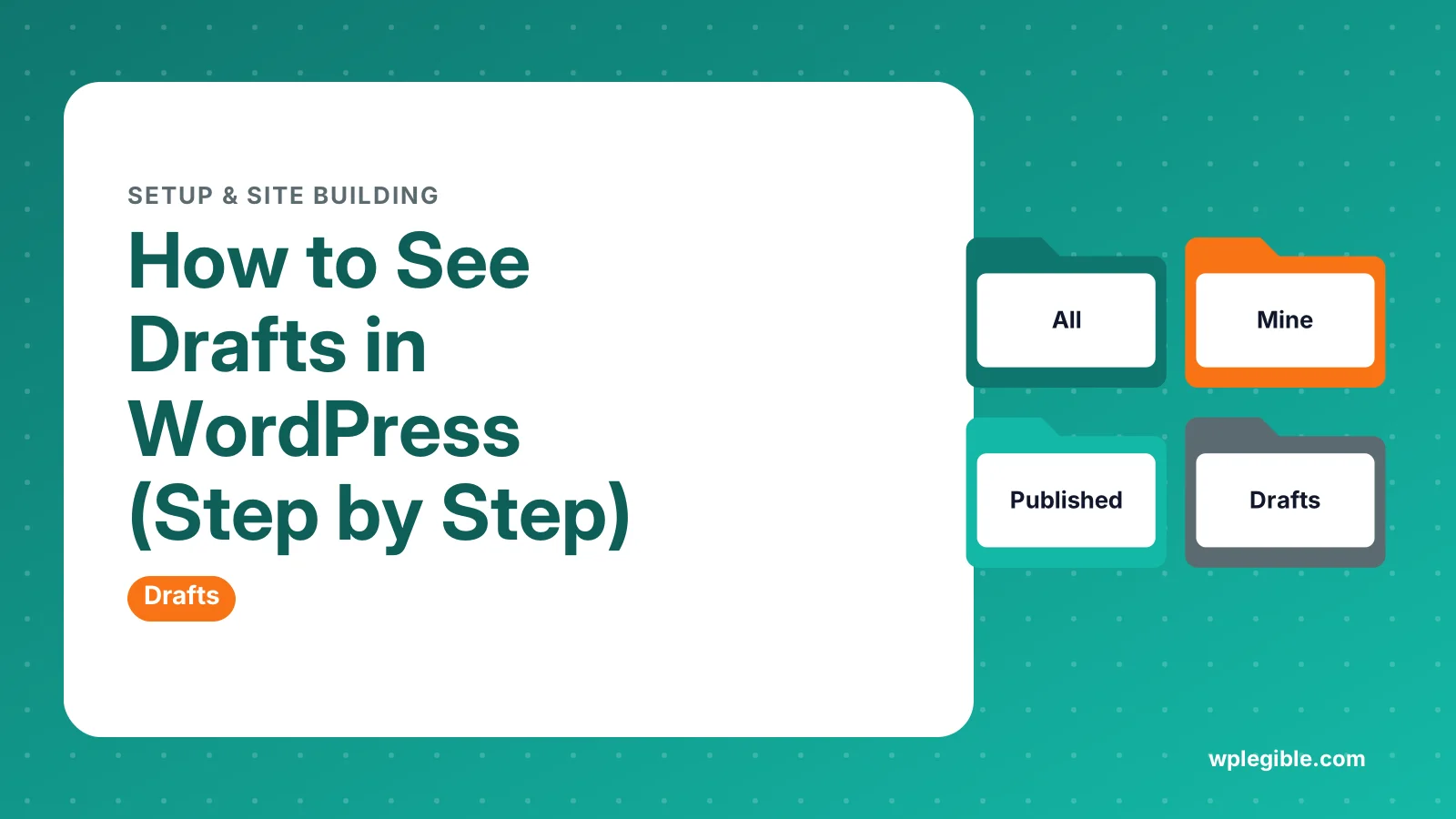
The Drafts list is a filter on the All Posts screen, shown as a link in the row of status filters at the top: All, Mine, Published, Drafts, Trash.
Follow these steps:
- Log in to your WordPress dashboard.
- Click Posts in the left menu, then All Posts.
- Look at the status links above the table.
- Click Drafts to filter the list.
- Hover over a title and click Edit to keep working, or Preview to see it.
The official Posts screen documentation explains each filter link, bulk action and column on this page.
You can also sort the list by date or search inside it. The search box searches titles and content, which helps if you have dozens of old drafts.
How do you see page drafts?
Page drafts work the same way: go to Pages, then All Pages, and click Drafts in the status links above the table.
Pages and posts are stored separately in the admin, so a draft page will never show up in the Posts list. If you are not sure which one you created, check both.
Our guide on posts vs pages in WordPress explains when to use each, which can help you find where a draft ended up.
Can you see drafts from the dashboard home screen?
Yes, the Quick Draft widget on the Dashboard home screen shows your few most recent drafts with links to edit them.
The widget only lists your own recent drafts, not every draft on the site. It is handy for quick notes, but use the All Posts screen for a full list.
If you do not see the widget, click Screen Options at the top right of the Dashboard and tick Quick Draft to turn it back on.
How do you see drafts written by other users?
Administrators and Editors can see every user's drafts in Posts, then All Posts, then Drafts, while Authors and Contributors only see their own.
This comes from user roles and capabilities. An Editor has permission to edit other people's posts, so their drafts appear in the list. A Contributor does not.
Our guide to WordPress user roles breaks down which role can see and edit which content.
To see drafts by one person, click their name in the Author column. That filters the list to their posts, and you can then click Drafts.
| Role | Sees own drafts | Sees other users' drafts | Can publish |
|---|---|---|---|
| Administrator | Yes | Yes | Yes |
| Editor | Yes | Yes | Yes |
| Author | Yes | No | Own posts only |
| Contributor | Yes | No | No, submits for review |
| Subscriber | No | No | No |
What is the difference between Draft, Pending and Scheduled?
A draft is unfinished and private, Pending means it is waiting for an editor to review it, and Scheduled means it will publish automatically at a set time.
Each one has its own filter link on the All Posts screen. If you cannot find a post under Drafts, check Pending and Scheduled as well.
| Status | Who can see it | What happens next |
|---|---|---|
| Draft | Logged-in users with permission | Nothing until someone publishes it |
| Pending | Editors and admins | An editor reviews and publishes |
| Scheduled (future) | Logged-in users with permission | Publishes at the set date and time |
| Private | Admins and editors only | Stays published but hidden from visitors |
The full list of statuses is documented in the Post Status article on WordPress.org.
If a scheduled post did not go live on time, see our fix for scheduled posts that missed their schedule.
How do you preview a draft before publishing?
Open the draft in the editor and click Preview at the top, or hover over the title in the Drafts list and click Preview.
The preview shows the post with your theme applied, exactly as visitors will see it once published. Only logged-in users with permission can open it.
If you want someone without an account to see a draft, WordPress has no built-in share link. A plugin such as Public Post Preview adds a temporary public link for that purpose.
How do you see drafts for custom post types?
Custom post types like Products, Portfolio items or Courses have their own menu items, and each list screen has its own Drafts filter.
For example, WooCommerce product drafts are under Products, then All Products, then Drafts. A portfolio plugin may add a Portfolio menu with the same set of status links.
If a custom post type has no visible menu, it may have been registered with show_ui turned off. Our explainer on what a custom post type is covers how these settings work.
Can you list drafts with WP-CLI or the database?
Yes, developers can list drafts with the WP-CLI command wp post list --post_status=draft, or by querying the posts table where post_status equals draft.
WP-CLI is the quickest way on a server with shell access. This command lists draft posts with their ID, title and date:
wp post list --post_type=post --post_status=draft --fields=ID,post_title,post_dateThe wp post list reference documents every flag, and the main WP-CLI site explains how to install the tool.
If you only have database access, open phpMyAdmin and run a query on the posts table. Replace wp_ with your own table prefix:
SELECT ID, post_title, post_type FROM wp_posts WHERE post_status = 'draft';Only read data this way. Editing rows directly can break posts, so make changes in the dashboard where possible.
Why can't you see your drafts?
Missing drafts are usually caused by your user role, a filter on the list screen, the draft being saved as a different post type, or the post being in the Trash.
Check these one at a time:
- Clear the filters. Remove any date, category or search filter on the list screen, then click Drafts again.
- Check your role. If you are an Author, you will not see other users' drafts.
- Check Trash. Deleted drafts sit in the Trash for 30 days by default and can be restored.
- Check Pending and Scheduled. The post may have moved out of draft status.
- Check auto-drafts. A post you opened but never typed in may only exist as an auto-draft, which does not appear in the list.
- Check revisions. If the content seems older than expected, open the post and use Revisions to restore a later version.
The Revisions documentation shows how to browse and restore earlier saved versions of a post.
If the editor itself refuses to open your draft, our guide to fixing the editor unexpected error may help.
How do you keep drafts organized?
Keep drafts organized by giving every draft a clear working title, adding a category early, and clearing out old drafts you will never finish.
A long Drafts list quickly becomes a junk drawer. A few habits help:
- Start titles with a tag like IDEA or READY FOR EDIT so you can scan the list.
- Assign a category as soon as you start, so you can filter by topic.
- Review the list once a month and move dead ideas to the Trash.
- Use an editorial calendar plugin if a team shares the site.
When a draft is ready, our guide on how to write a blog post in WordPress walks through the final checks before you publish.
If you decide a post is no longer needed, see how to delete a blog post on WordPress.
Frequently asked questions
Why is there no Drafts link on my Posts screen?
The Drafts link only appears when at least one draft exists that you are allowed to see. If you have no drafts, or your role only lets you see your own and you have none, the link is hidden. Create a draft and it will show up.
Are WordPress drafts visible to the public?
No. Drafts are not visible to visitors or search engines. Only logged-in users with the right permissions can open or preview them. A draft only becomes public when someone publishes it or uses a plugin that creates a share link.
How long does WordPress keep drafts?
Drafts stay forever until you publish or delete them. Only auto-drafts, which are created when you open a new post and leave it empty, are cleaned up automatically after about a week. Deleted drafts stay in the Trash for 30 days by default.
Can I recover a draft I accidentally deleted?
Yes, if it is still in the Trash. Go to Posts, then All Posts, click Trash, hover over the post and click Restore. If the Trash was emptied, you will need a site backup or a database backup to get it back.
Does WordPress save drafts automatically?
Yes. The editor autosaves your work every minute or so while you type, and it stores these autosaves separately. If your browser crashes, reopening the post usually shows a notice offering to restore the newer autosaved version.
Sources
- Posts Screen WordPress.org
- Post Status WordPress.org
- Revisions WordPress.org
- wp post list WordPress Developer Resources
- WP-CLI WP-CLI
Is your product missing, or something out of date?
Tell us what to add or correct. We read every note and reply when we need a source. A message does not buy a ranking.
Thanks — we review requests within 3 business days.
Related guides



About the editors
Researched from the primary sources listed above and checked against our editorial rules before publishing.