Hosting · Guide
How to Install WordPress on IONOS Hosting (Step by Step)
Short answer
To install WordPress on IONOS, log in to your IONOS account, open your hosting or WordPress product and start a new WordPress installation. Choose managed mode, where IONOS handles updates, or self-managed mode, then set your admin details and assign your domain. You can also install it manually with a MySQL database and SFTP.
Key takeaways
- IONOS includes a WordPress installer in its WordPress and web hosting plans.
- Managed mode lets IONOS handle updates, while self-managed mode gives you full control.
- Assign your domain to the installation and turn on SSL before launch.
- A manual install needs a MySQL database, SFTP access and the WordPress package.
- Set permalinks, time zone and backups right after installing.
How do you install WordPress on IONOS hosting?
You install WordPress on IONOS by opening your hosting contract in the IONOS control panel, starting the WordPress setup, choosing a managed or self-managed mode, and connecting a domain.
IONOS sells both dedicated WordPress hosting and general web hosting plans. Both let you set up WordPress from the control panel without uploading files by hand, so most people never touch FTP or a database during the first install.
If you would rather do everything yourself, a manual install also works on IONOS web hosting. This guide covers both routes, plus the checks to run once the site is live.
Before you start, it helps to know what WordPress needs from a server. Our page on WordPress hosting requirements lists the PHP and database versions that matter.
What do you need before you start?
You need an active IONOS hosting contract, a domain registered with IONOS or pointed at it, and your IONOS login details.
Most IONOS hosting plans include a domain for the first year, which keeps setup simple. If your domain lives at another registrar, you can still connect it, but DNS changes can take a while to spread.
Have these ready before you begin:
- Your IONOS customer login.
- The domain or subdomain you want the site to live on.
- An email address for the WordPress admin account.
- A strong password, ideally from a password manager.
If you are new to how domains and hosting fit together, our guide on pointing a domain to WordPress hosting explains the DNS side in plain words.
Should you pick managed or self-managed WordPress at IONOS?
Pick managed mode if you want IONOS to handle WordPress core and plugin updates, and self-managed mode if you want full control over updates, file access and configuration.
IONOS describes its WordPress setup as offering two modes. In managed mode, IONOS keeps WordPress and its components updated and limits some settings to protect stability. In the self-managed mode, which IONOS has called Free Mode, you take care of updates yourself.
The IONOS help article on installing WordPress explains the options available for your contract. The exact labels can change, so follow the wording you see in your own panel.
| Choice | Who updates WordPress | Best for |
|---|---|---|
| Managed mode | IONOS | Beginners and owners who want fewer chores |
| Self-managed mode | You | Developers and owners who need full control |
| Manual install | You | Custom setups, staging copies or special folders |
Managed mode is a sensible default for a first site. You can still install themes and most plugins, and updates happen in the background.
Self-managed mode suits you if you plan to edit files, pin specific plugin versions or run a custom deployment. Just remember that skipped updates are the most common way small WordPress sites get hacked.
How do you install WordPress from the IONOS control panel?
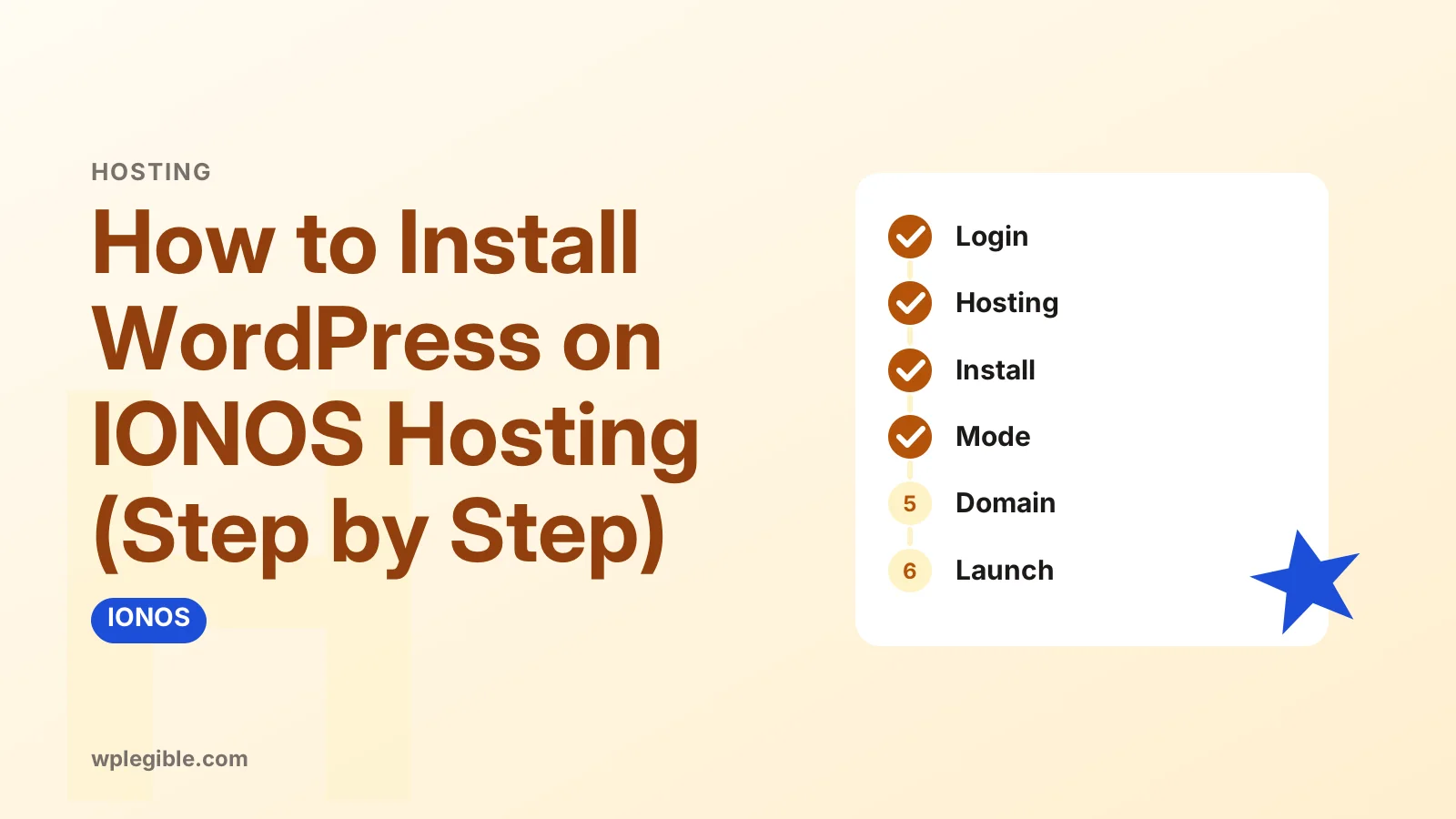
Log in to IONOS, open your hosting or WordPress product, start a new WordPress installation, choose the mode, set your admin details and let IONOS finish the setup.
The steps below follow the general flow IONOS uses. Menu names differ a little between the WordPress hosting product and standard web hosting, so treat them as a guide rather than exact labels.
- Log in to your IONOS account and open the hosting contract you want to use.
- Find the WordPress or Click & Build applications section.
- Choose to create or install a new WordPress site.
- Select managed or self-managed mode.
- Enter the site title, admin username, password and email address.
- Wait while IONOS creates the database and installs the files.
The IONOS guide to Click & Build applications covers the same process for other apps, which helps if your panel looks different.
Avoid using admin as the username. Bots try it first on every WordPress site they find, so a unique username adds a small but useful layer of protection.
Once the installer finishes, IONOS usually shows a link to the new site and to its dashboard. Save both links somewhere safe.
How do you connect your domain to the new WordPress site?
Assign the domain to the WordPress installation inside the IONOS panel, either during setup or afterwards from the domain settings, so visitors reach the new site.
If you skip this step, IONOS may give the site a temporary address. That is useful for building privately, but search engines and visitors need the real domain before launch.
In the domain settings, choose the WordPress site as the destination for your domain or subdomain. If the domain is registered elsewhere, update its DNS records to point to IONOS, then wait for the change to take effect.
After the domain is connected, set up HTTPS. IONOS plans include SSL certificates, and our guide to installing an SSL certificate on WordPress shows how to make sure every page loads securely.
How do you install WordPress on IONOS manually?
For a manual install, create a MySQL database in IONOS, upload the WordPress files with SFTP, then run the WordPress installer in your browser using the database details.
This route is useful when you want WordPress in a specific folder, need a test copy, or prefer to manage everything yourself. It takes longer but gives you complete control.
Follow these steps:
- Download the latest WordPress package from WordPress.org.
- In the IONOS panel, create a new MySQL database and note the host name, database name, username and password.
- Create an SFTP user if you do not have one.
- Upload the unzipped WordPress files to your web space with an SFTP client.
- Point your domain at the folder that holds the files.
- Visit the domain in a browser and enter the database details when asked.
The official WordPress installation guide explains each screen of the installer. Our walkthrough on creating a database for WordPress covers the database step in more detail.
IONOS database host names are not always localhost. Copy the exact host name from the database details screen, or the installer will fail to connect.
What should you do right after installing WordPress?
After installing, log in, set your site title and time zone, choose a theme, pick a permalink structure, and remove any sample content you do not need.
Your dashboard is at your domain followed by /wp-admin. Bookmark it, because you will use it every day.
Work through this short checklist:
- Settings > General: confirm the site title, tagline, language and time zone.
- Settings > Permalinks: choose Post name for clean URLs.
- Appearance > Themes: pick a lightweight theme.
- Posts and Pages: delete the sample post and sample page.
- Users: check that only the accounts you expect exist.
If you want a different look later, our guide on changing a WordPress theme covers the safe way to switch.
How do you keep a new IONOS WordPress site secure?
Keep WordPress, themes and plugins updated, use strong unique passwords, turn on backups, and only install plugins from trusted sources.
In managed mode, IONOS handles many updates. In self-managed mode, check the Dashboard > Updates screen at least weekly, or turn on automatic updates for plugins you trust.
Backups matter even with a good host. Check what your IONOS plan includes, and consider a backup plugin that stores copies off the server.
The WordPress hardening guide lists the core security steps. For a deeper look at backup options, read our explainer on whether host backups are enough.
What problems can happen during an IONOS WordPress install?
The most common problems are a domain that does not load yet, an SSL warning, a database connection error on manual installs, and plugins that conflict with managed mode limits.
Most of these have simple fixes. Use the table below as a quick reference.
| Problem | Likely cause | What to try |
|---|---|---|
| Domain shows a placeholder page | Domain not assigned or DNS still updating | Check the domain destination, then wait |
| Browser shows Not secure | SSL not active or site URL uses http | Activate SSL and update the site URLs |
| Error establishing a database connection | Wrong database host or password | Re-copy the details into wp-config.php |
| Plugin cannot be installed | Managed mode restriction or permissions | Check IONOS guidance or switch modes |
If the dashboard loads slowly after launch, check your PHP version first. IONOS lets you change the PHP version per contract, and newer versions are usually faster.
The PHP supported versions page shows which releases still get security fixes. Our guide on updating the PHP version in WordPress explains the safe order of steps.
Is IONOS a good host for WordPress?
IONOS can be a solid budget choice for small WordPress sites, but you should compare renewal prices, support quality and performance limits before committing.
Low introductory prices are common in hosting, and renewal prices are usually higher. Read the plan terms carefully and check the IONOS pricing page for current figures.
If you outgrow the plan, moving to another host is possible without losing your content. Our guide on shared vs VPS vs managed hosting helps you decide when an upgrade makes sense.
Frequently asked questions
Does IONOS install WordPress for free?
IONOS WordPress hosting and most web hosting plans include a WordPress installer at no extra charge. You pay for the hosting plan itself. Premium themes, paid plugins and add-ons such as extra backups may cost more, so check the details of your contract.
What is the difference between managed and Free Mode at IONOS?
In managed mode, IONOS updates WordPress and limits some settings to protect stability. In the self-managed mode, which IONOS has called Free Mode, you handle updates and have more control over files and configuration. Beginners usually do better with managed mode.
How do I log in to WordPress on IONOS?
Go to your domain followed by /wp-admin and sign in with the admin username and password you chose during setup. You can also open the dashboard from the WordPress section of the IONOS control panel, which is handy if you forget the address.
Can I move an existing WordPress site to IONOS?
Yes. You can migrate an existing site with a migration plugin or by copying the files and database manually. Set up the new hosting first, move the site, test it on a temporary address, and only then point your domain to IONOS.
Why does my IONOS WordPress site show an old page?
The domain may still point to a placeholder, or DNS changes may not have spread yet. Check that the domain is assigned to the WordPress site in the IONOS panel, clear your browser cache, and wait a few hours if you recently changed DNS records.
Sources
- Install WordPress IONOS Help
- Installing an application with Click & Build IONOS Help
- Getting started with WordPress at IONOS IONOS Help
- How to install WordPress WordPress Developer Resources
- Hardening WordPress WordPress Developer Resources
- Download WordPress WordPress.org
Is your product missing, or something out of date?
Tell us what to add or correct. We read every note and reply when we need a source. A message does not buy a ranking.
Thanks — we review requests within 3 business days.
Related guides

About the editors
Researched from the primary sources listed above and checked against our editorial rules before publishing.