Hosting · Guide
How to Install WordPress on InMotion Hosting (Step by Step)
Short answer
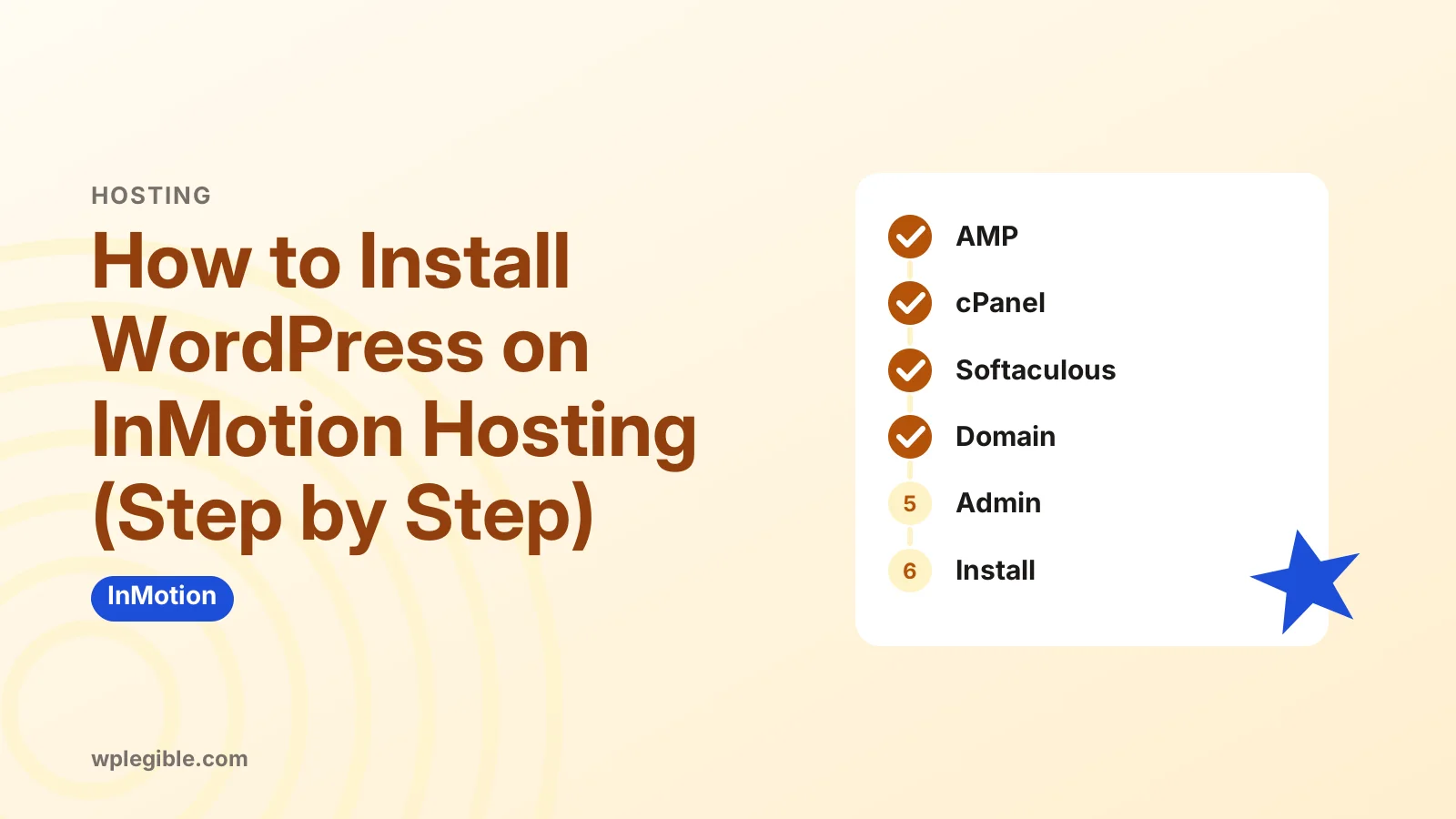
Log in to the InMotion Account Management Panel, open cPanel and launch the Softaculous WordPress installer. Choose your domain, leave the directory blank, create an admin login and click Install, then sign in at the admin link shown on the success screen.
Key takeaways
- Softaculous in cPanel is the quickest install route.
- Clear the directory field to install at the domain root.
- Never use admin as your WordPress username.
- A manual install suits developers who want full control.
- Set permalinks, a theme and backups right after installing.
How do you install WordPress on InMotion Hosting?
Log in to your InMotion Account Management Panel, open cPanel, launch the Softaculous WordPress installer, pick your domain, set an admin username and password, and click Install.
That route takes about five minutes on most shared and WordPress hosting plans. InMotion also offers a manual install, which suits developers who want full control over files and the database.
Before you start, make sure your domain already points to InMotion. If the nameservers still point to an old host, the install works, but you cannot see the new site in a browser until DNS updates.
| Method | Best for | Time needed | Skill level |
|---|---|---|---|
| Softaculous one-click installer | Most beginners | About 5 minutes | Low |
| WordPress preinstalled on a WordPress plan | New WordPress hosting customers | Already done at signup | Low |
| Manual install (upload files + create database) | Developers and custom setups | 20 to 40 minutes | Medium |
| WP-CLI over SSH | VPS and dedicated server users | A few minutes | High |
What do you need before installing WordPress on InMotion?
You need an active InMotion hosting plan, access to the Account Management Panel (AMP), a domain added to the account, and an email address for the WordPress admin account.
Check these items first so the installer does not stop halfway:
- Your login for AMP. This is the account you created when you bought hosting.
- A domain on the account. It can be the primary domain or an addon domain you added in cPanel.
- Correct DNS. The domain should use InMotion nameservers or an A record that points to your server IP.
- A strong admin password. Store it in a password manager before you begin.
If you are moving an existing site rather than starting fresh, an install is the wrong first step. A migration copies your old files and database instead, and a clean install would only add a second empty site.
Step 1: Log in to AMP and open cPanel
Sign in to the InMotion Account Management Panel, then click the cPanel button for the hosting account where you want WordPress.
AMP is InMotion's billing and account area. cPanel is the control panel for your actual hosting files, email accounts and databases.
If you have more than one hosting plan, double-check which account you are opening. Installing on the wrong plan is a common mix-up and means repeating the whole process later.
You can read how the cPanel interface is organized in the cPanel getting started documentation. The layout at InMotion follows the standard cPanel design, with a search bar at the top.
Step 2: Launch the Softaculous WordPress installer
In cPanel, type Softaculous or WordPress into the search bar, open Softaculous Apps Installer, and click the WordPress icon followed by Install Now.
Softaculous is a third-party script installer that InMotion includes with its cPanel plans. It creates the database, uploads WordPress core files and writes the config file for you.
InMotion keeps its own walkthrough of this tool in the InMotion guide to installing WordPress with Softaculous. Screens may change slightly over time, so use that page if a label looks different.
Some newer cPanel accounts also show WP Toolkit or a WordPress Manager tool. These do the same job. If you see one of them instead of Softaculous, use whichever your account offers.
Step 3: Choose the protocol, domain and directory
Pick https:// as the protocol, select your domain from the dropdown, and leave the directory field empty so WordPress installs at the root of the domain.
The directory field trips up many first-time users. Softaculous often fills in wp by default, which would put your site at yourdomain.com/wp instead of yourdomain.com.
Clear that field unless you really want WordPress in a subfolder. A subfolder install can be useful for a blog on a site that already runs something else at the root.
Choose https only if an SSL certificate is active for the domain. InMotion provides free SSL through AutoSSL on cPanel plans, and you can learn how these certificates work at Let's Encrypt. If the certificate is still pending, install with http and switch later.
Step 4: Fill in site settings and the admin account
Enter a site name and tagline, then create an admin username, a strong password and a working email address that WordPress will use for password resets.
Avoid admin as the username. It is the first name bots try in brute-force login attacks, and you cannot change a username later without a plugin or database edit.
The site name and tagline are not permanent. You can change both later in Settings > General inside the dashboard.
Under advanced options, Softaculous lets you set the database name and table prefix. The defaults are fine for most people, though a custom prefix adds a small layer of obscurity.
Step 5: Pick optional plugins, themes and backups
Untick any bundled plugins you do not want, choose whether to enable automatic backups and update settings, and leave the theme as the default if you plan to pick one later.
Softaculous sometimes offers add-ons such as a login limiter or a page builder. Only install what you need, because every extra plugin adds updates and possible conflicts.
Automatic backup settings in Softaculous are separate from InMotion's own backup service. Check your plan details to see what is already included, and add a backup plugin if you want copies stored off the server.
Step 6: Click Install and log in to WordPress
Click Install, wait for the progress bar to finish, then open the admin URL Softaculous shows you, which ends in /wp-admin, and log in with the username and password you just set.
The success screen lists two links: the site address and the administrative URL. Bookmark the admin one so you do not have to search for it.
If you forget where it is later, how to find your WordPress admin URL explains the default paths.
You can also move between the dashboard and your control panel, as covered in our guide on getting from WordPress to cPanel.
Once you are in, you will land on the dashboard home screen. This is where you install themes, add pages and change settings.
How do you install WordPress manually on InMotion?
Download WordPress from wordpress.org, upload the files to public_html with File Manager or FTP, create a MySQL database and user in cPanel, then run the installer in your browser.
The manual route follows the official WordPress installation guide. InMotion also documents it in its manual WordPress install guide.
Here is the short version:
- Download the latest ZIP from WordPress.org.
- In cPanel File Manager, upload the ZIP to public_html and extract it.
- Move the files out of the extracted wordpress folder so they sit directly in public_html.
- Open MySQL Database Wizard, create a database and user, and grant all privileges.
- Visit your domain and follow the setup screens, entering the database name, user and password.
Manual installs give you control over the database name, file location and config settings. The trade-off is more steps and more chances to mistype a credential.
What should you do right after installing WordPress?
Set your permalinks, delete the sample content, choose a theme, install a security and backup plugin, and confirm that the site loads over https.
A fresh install is only the starting point. These first steps save problems later:
- Permalinks. Go to Settings > Permalinks and pick Post name. Our guide to setting up permalinks explains the options.
- Sample content. Delete the Hello World post, the sample page and the default comment.
- Theme. Install a lightweight theme, or follow how to install a theme from a ZIP file if you bought one.
- Time zone and site title. Check Settings > General.
- Backups. Set up an off-server backup before you add real content.
If you want visitors to see a placeholder while you build, read how to enable maintenance mode. That keeps an unfinished site out of public view.
Why is the WordPress install not working on InMotion?
Most failed installs come from DNS that has not finished updating, a leftover index file in public_html, an existing install in the same folder, or an SSL certificate that is not active yet.
Work through these checks one at a time:
- You see the old host's site. DNS has not propagated. Wait a few hours, or test with a temporary URL or hosts file entry.
- You see an InMotion placeholder page. Delete the default index.html from public_html so WordPress's index.php loads.
- Softaculous says the folder is not empty. Another script or old files live there. Back them up and clear the folder, or pick a different directory.
- Browser shows a security warning. The certificate is not issued yet. Run AutoSSL in cPanel or wait for it to finish.
- Login page loops or gives errors. See our guide on fixing wp-admin not loading.
If none of these explain it, open a ticket with InMotion support. They can see server logs that you cannot.
Is InMotion a good host for WordPress?
InMotion is a solid choice for many WordPress sites because it offers cPanel, one-click installs, free SSL and a range of plans from shared hosting to dedicated servers.
The right plan depends on your traffic and budget. Plan names, prices and included features change often, so check the InMotion pricing page for current details rather than relying on older reviews.
If you are comparing hosts, the installation process is similar elsewhere. Our walkthroughs for IONOS show how another panel handles the same job.
Frequently asked questions
Does InMotion Hosting install WordPress for free?
Yes. The Softaculous installer and WordPress itself cost nothing extra on InMotion cPanel plans. You only pay for hosting and your domain. Some optional premium themes or plugins offered during setup may cost money, so untick anything you do not need.
Where is Softaculous in InMotion cPanel?
Log in to cPanel from your Account Management Panel and type Softaculous into the search bar at the top. You can also scroll to the Software section. Some accounts show WP Toolkit or a WordPress Manager tool instead, which does the same job.
Why does my domain show the wrong site after installing WordPress?
Your domain probably still points to an old host, or a placeholder index file sits in the web root. Check that the nameservers point to InMotion, then remove any default index.html file from public_html so WordPress can load.
Can I install WordPress in a subfolder on InMotion?
Yes. Type a folder name such as blog in the directory field of the installer. WordPress will then run at yourdomain.com/blog while the root of the domain stays free for something else.
How do I log in to WordPress after installing it on InMotion?
Add /wp-admin to the end of your domain in a browser and enter the username and password you set during install. You can also open the admin link from the Softaculous installations list inside cPanel.
Sources
- How to Install WordPress using Softaculous InMotion Hosting
- Manual WordPress Install InMotion Hosting
- How to install WordPress WordPress Developer Resources
- Getting Started in cPanel cPanel Docs
- Download WordPress WordPress.org
Is your product missing, or something out of date?
Tell us what to add or correct. We read every note and reply when we need a source. A message does not buy a ranking.
Thanks — we review requests within 3 business days.
Related guides

About the editors
Researched from the primary sources listed above and checked against our editorial rules before publishing.