Plugin how-tos · Guide
How to Install Bricks Builder in WordPress (Step by Step)
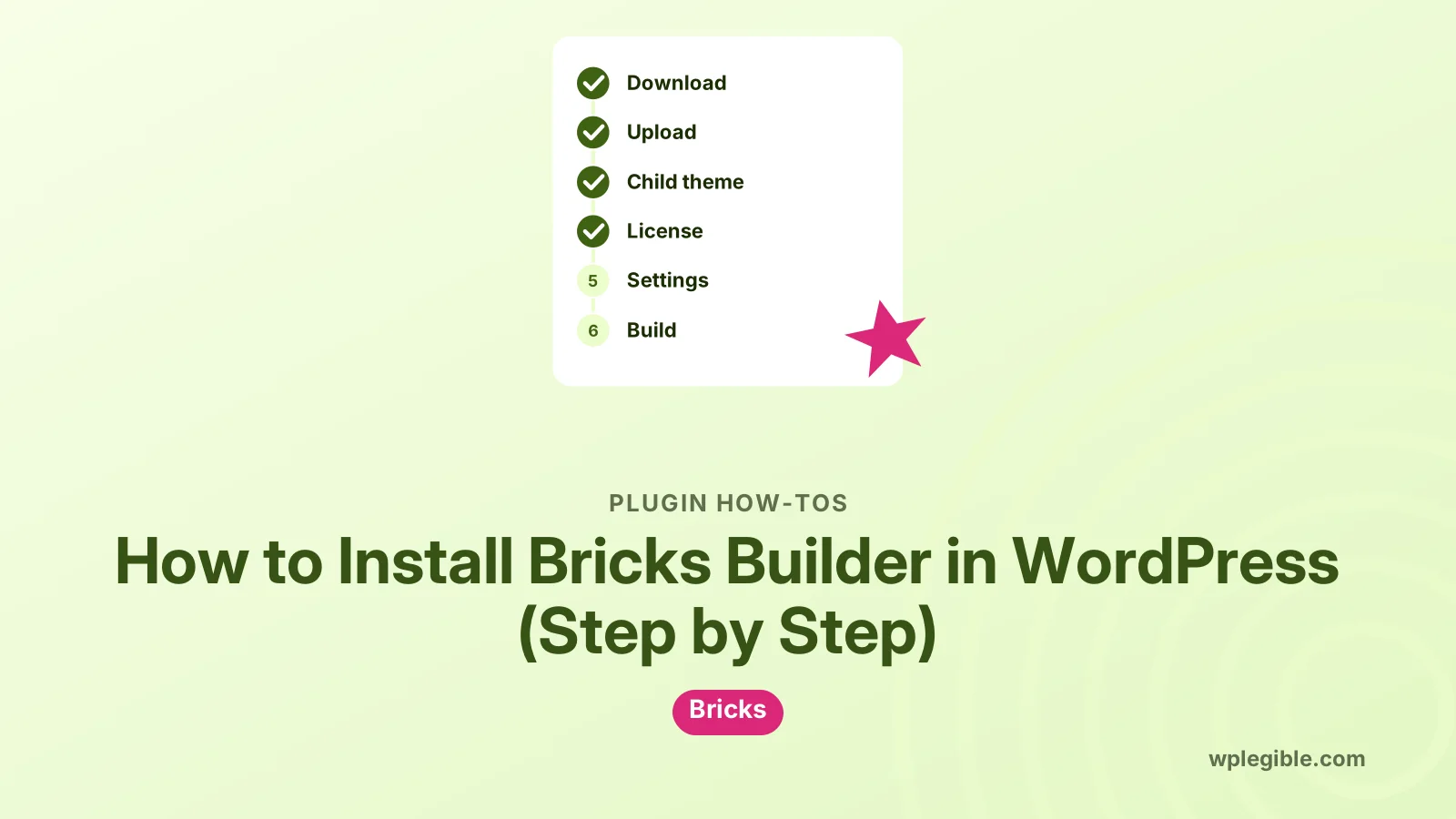
Short answer
Download the Bricks theme ZIP from your Bricks account, then upload it in WordPress under Appearance, Themes, Add New, Upload Theme. Install the Bricks child theme the same way and activate it. Finally, paste your license key under Bricks, License to turn on updates and templates.
Key takeaways
- Bricks is a theme, so you upload it under Appearance > Themes, not Plugins.
- Install and activate the Bricks child theme if you plan to add custom code.
- Activate your license under Bricks > License to get updates.
- Check post types, builder access and code execution in Bricks > Settings.
- Upload errors usually mean the wrong screen, a low upload limit, or a bad ZIP.
- Back up before activating Bricks on a site that already has content.
What do you need before installing Bricks Builder?
You need a paid Bricks license, the Bricks theme ZIP file from your Bricks account, admin access to WordPress, and a host that meets current PHP and memory requirements.
Bricks is not a plugin. It is a WordPress theme with a visual builder built in, so you install it through the Themes screen, not the Plugins screen.
That surprises a lot of people who come from Elementor or Beaver Builder. If you try to upload the Bricks ZIP as a plugin, WordPress will reject it with a missing plugin header error.
Before you start, check these items:
- A Bricks license. Bricks has no free version on WordPress.org. Our page on whether Bricks is free explains the license options.
- The theme ZIP. Download it from your account area on the Bricks website. Do not unzip it.
- The child theme ZIP. Bricks offers a ready-made child theme in the same account area.
- A recent PHP version. Check the minimum in the Bricks Academy, and compare it with what your host runs. The PHP supported versions page shows which releases still get security fixes.
- Enough PHP memory. Visual builders need more memory than a plain theme. 256 MB is a common safe value.
- A backup. Switching themes on a live site changes its look straight away.
The official Bricks installation and setup guide lists the current server requirements. Check it before buying hosting for a new Bricks project.
How do you install the Bricks theme step by step?
Upload the Bricks ZIP under Appearance > Themes > Add New > Upload Theme, install it, and then activate it or the child theme.
Follow these steps:
- Log in to your Bricks account and download the latest bricks.zip file.
- In WordPress, go to Appearance > Themes.
- Click Add New Theme at the top of the screen.
- Click Upload Theme, then choose the bricks.zip file.
- Click Install Now and wait for the upload to finish.
- Do not activate it yet if you plan to use the child theme. Install the child theme next.
WordPress explains theme uploads in its theme management documentation. The process is the same for any premium theme, and our guide to installing a WordPress theme from a ZIP shows each screen.
If the upload fails with a file size error, your host's upload limit is too low. You can raise it, or upload the unzipped bricks folder to wp-content/themes over SFTP instead.
Should you install the Bricks child theme?
Yes, install and activate the Bricks child theme if you plan to add custom PHP, functions or template files, because changes in the parent theme are lost when Bricks updates.
A child theme is a small theme that inherits everything from Bricks. You put your own code in the child, and the parent can update safely.
To install it:
- Download bricks-child.zip from your Bricks account.
- Go to Appearance > Themes > Add New Theme > Upload Theme.
- Upload and install the child theme ZIP.
- Click Activate on the Bricks Child Theme.
The parent Bricks theme must stay installed. The child theme cannot work on its own.
Bricks explains its child theme in the Bricks Academy child theme article. For background on how child themes work in general, read WordPress's own child themes handbook page.
Our explainer on what a child theme is covers the same idea in plainer terms.
If you never plan to write code, you can activate the parent theme directly. Many people still choose the child theme because it costs nothing and keeps options open.
How do you activate your Bricks license?
Go to Bricks > License in the WordPress dashboard, paste your license key from your Bricks account, and click the activate button.
Activating the license turns on automatic updates and remote templates. Without it, the builder may still open, but you will not get update notices in your dashboard.
Steps:
- Copy your license key from the Bricks account area.
- In WordPress, open the Bricks menu in the left sidebar.
- Click License.
- Paste the key and click to activate it.
- Look for a success message confirming the license is active.
If activation fails, the most common causes are:
- Wrong key. Extra spaces before or after the key are easy to miss.
- Site limit reached. Your plan covers a set number of sites. Deactivate the license on an old site from your Bricks account or that site's dashboard.
- Outbound requests blocked. Some hosts or security plugins block the request to Bricks' license server. Ask your host to allow it.
Bricks covers updates and license management in more detail on its license and updates page.
Which Bricks settings should you check after installing?
After activation, open Bricks > Settings and confirm which post types can use the builder, who can access it, and how custom code is handled.
The settings you should look at first:
- Post types. Pages usually work out of the box. Turn on posts or custom post types if you want to build them with Bricks.
- Builder access. Choose which user roles can open the builder. Keep this to trusted roles only.
- Code execution. Bricks lets admins run custom code inside elements. Only allow this for roles you fully trust, because it can run PHP.
- Performance options. Bricks includes options to disable unused WordPress features such as emojis or embed scripts. Turn on only what you understand.
Save your changes at the bottom of each settings tab before you move on.
How do you start building your first page with Bricks?
Create or open a page, click Edit with Bricks, add elements from the panel on the left, and click Save.
Here is a simple first build:
- Go to Pages > Add New and give the page a title.
- Save it as a draft so it exists in the database.
- Click Edit with Bricks at the top of the editor.
- Click the plus icon to open the element panel.
- Add a Section, then a Heading and a Basic Text element inside it.
- Style them in the left panel and click Save.
Bricks also uses templates for headers, footers and archive pages. Go to Bricks > Templates, create a header template, and set its conditions so it shows across the whole site.
If you are still deciding whether Bricks suits you, our overview of what Bricks does explains how it compares with other builders.
How does installing Bricks compare with installing other builders?
Bricks installs as a theme, while most other builders install as plugins on top of a separate theme.
| Builder | Installs as | Where you upload it | Needs a separate theme? |
|---|---|---|---|
| Bricks | Theme | Appearance > Themes | No |
| Elementor | Plugin | Plugins > Add New | Yes |
| Beaver Builder | Plugin | Plugins > Add New | Yes |
| Oxygen (classic versions) | Plugin | Plugins > Add New | Disables the theme |
Because Bricks is the theme, it controls headers, footers and templates directly. You do not need a theme like Astra or GeneratePress alongside it.
That also means switching away from Bricks later is a bigger job. Your Bricks content is stored in its own format, so pages may lose their design if you activate another theme.
What if the Bricks installation fails?
Most Bricks installation failures come from uploading it as a plugin, a low upload limit, a corrupted download, or an outdated PHP version.
Common errors and fixes:
- "The package could not be installed. No valid plugins were found." You uploaded the theme ZIP on the Plugins screen. Use Appearance > Themes instead.
- “The link you followed has expired.” The file is bigger than your host's upload limit. Raise the limit or upload through SFTP.
- "The package could not be installed. The theme is missing the style.css stylesheet." You uploaded the wrong ZIP, or your computer unzipped and re-zipped it. Download a fresh copy.
- White screen or critical error after activation. Your PHP version may be too old, or memory too low. See our guide to increasing the PHP memory limit.
If the builder opens but shows a blank canvas, a plugin conflict is the likely cause. Deactivate other plugins one at a time to find it.
How do you update Bricks safely after installing?
Bricks updates appear in Dashboard > Updates once your license is active, and you should test them on a staging site first for any site that matters.
The parent theme receives the updates. Your child theme stays untouched, which is the whole point of using it.
A safe update routine:
- Take a full backup of files and database.
- Read the Bricks changelog for breaking changes.
- Update on a staging site first if you have one.
- Update the live site, then clear any caching plugin and CDN cache.
- Check key pages, forms and templates.
Bricks regenerates its CSS files in some setups. If styles look wrong after an update, look for a regenerate CSS option in the Bricks settings, then clear your cache.
Can you install Bricks on a site that already has content?
Yes, you can install Bricks on an existing site, but your old theme's layouts, widgets and page builder designs will not carry over automatically.
Posts and pages keep their text and images because those live in the WordPress database. What changes is the design around them.
Things that need rebuilding after a switch:
- Header and footer. Build new ones as Bricks templates.
- Page builder layouts. Pages made with Elementor, Divi or WPBakery need to be rebuilt in Bricks or left on the old builder.
- Theme-specific widgets and shortcodes. These may print raw shortcode text once the old theme is gone.
Plan the switch on a staging copy, rebuild the key templates, and only then activate Bricks on the live site.
Frequently asked questions
Is Bricks Builder a plugin or a theme?
Bricks is a theme with a visual builder built in. You install it from Appearance, Themes, Add New, Upload Theme. Trying to install it from the Plugins screen produces an error because WordPress cannot find a plugin header in the file.
Do I need the Bricks child theme?
It is optional but recommended. The child theme lets you add custom functions and template files without losing them when Bricks updates. If you will never add code, activating the parent theme directly works fine.
Can I install Bricks without a license key?
You need to buy Bricks to download the theme file, since it is not listed on WordPress.org. The license key is then used inside WordPress to enable automatic updates and access to remote templates.
Why does WordPress say the link I followed has expired?
That message usually means the ZIP file is larger than your server allows for uploads. Ask your host to raise the upload and post size limits, or upload the unzipped theme folder to the themes directory using SFTP.
Will my existing pages break if I switch to Bricks?
The text and images stay, but the design from your old theme or page builder does not transfer. Headers, footers, widgets and builder layouts need rebuilding in Bricks. Test the switch on a staging site first.
Sources
- Installation and setup Bricks Academy
- Child Theme Bricks Academy
- License, updates, and your account Bricks Academy
- Work with themes WordPress.org
- Child Themes WordPress Developer Resources
Is your product missing, or something out of date?
Tell us what to add or correct. We read every note and reply when we need a source. A message does not buy a ranking.
Thanks — we review requests within 3 business days.
Related guides



About the editors
Researched from the primary sources listed above and checked against our editorial rules before publishing.