Plugin how-tos · Guide
How to Get Elementor for Free (Step by Step)
Short answer
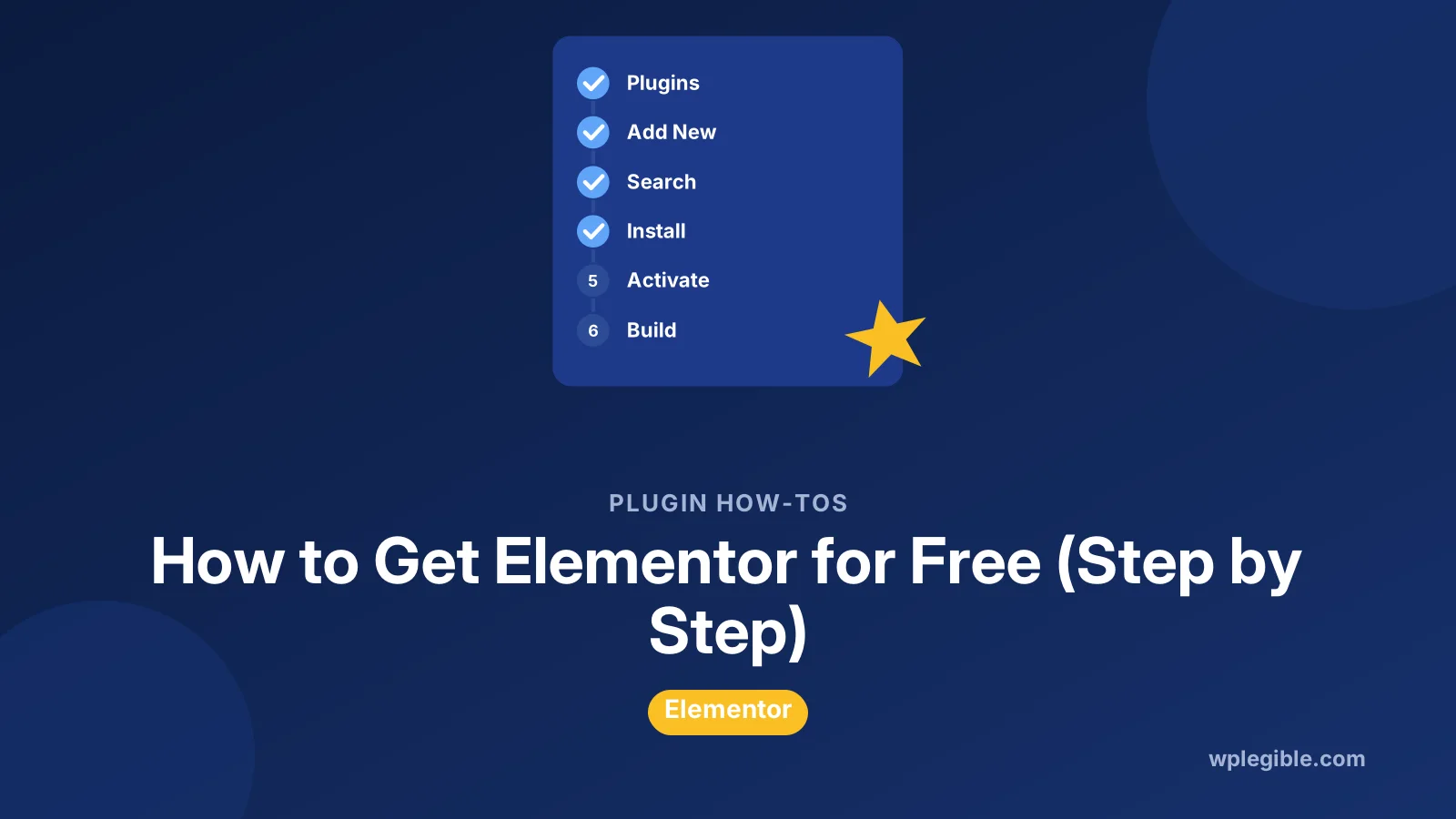
In WordPress, go to Plugins and click Add New Plugin, search for Elementor, then click Install Now and Activate on Elementor Website Builder. The free plugin needs no license key. Only Elementor Pro features such as the theme builder, forms and popups cost money.
Key takeaways
- The free Elementor plugin installs from Plugins > Add New Plugin.
- Check the author is Elementor.com before installing.
- Free Elementor includes the drag-and-drop editor and basic widgets.
- There is no legitimate free Elementor Pro license.
- Avoid nulled Pro downloads; they risk malware and get no updates.
How do you get Elementor for free?
Install the free Elementor plugin from your WordPress dashboard by going to Plugins > Add New Plugin, searching for Elementor, clicking Install Now and then Activate; it costs nothing and needs no license key.
The free version is the official Elementor Website Builder plugin listed in the WordPress plugin directory. It is the same plugin millions of sites run, not a trial.
You only pay if you want Elementor Pro, Elementor's hosting or certain add-on services. This guide shows the safe way to get the free plugin, what it includes and what it leaves out.
If you are still deciding whether the free version is enough, our explainer on whether Elementor is free covers the pricing question in more depth.
What do you need before installing Elementor?
You need a self-hosted WordPress site where you can install plugins, an administrator account, and a server that meets Elementor's PHP and WordPress version requirements.
Self-hosted means WordPress installed on your own hosting, often called WordPress.org. Most shared hosts, managed WordPress hosts and local setups qualify.
WordPress.com sites can only install plugins on plans that allow them. If you do not see a Plugins menu with an Add New Plugin button, your plan may not support it.
Check the current requirements on the plugin page before you start. They list the minimum WordPress and PHP versions, and they change over time.
It also helps to make a backup first. Our guide to backing up WordPress without a plugin shows a simple manual option.
Step 1: How do you open the plugin installer?
Log in to your WordPress dashboard, hover over Plugins in the left menu and click Add New Plugin to open the plugin installer screen.
On older WordPress versions the button is simply labeled Add New. Both lead to the same screen.
The installer pulls plugins straight from the official directory, which is the safest source. The WordPress documentation on managing plugins explains this screen in full.
Step 2: How do you find the official Elementor plugin?
Type Elementor in the search box at the top right of the installer and look for Elementor Website Builder by Elementor.com, which shows a very large number of active installations.
Many add-on plugins use Elementor in their names. Make sure the author is Elementor.com and not a third-party add-on pack.
If you are unsure, click More Details. The popup shows the author, version, last update date and compatibility information.
Step 3: How do you install and activate Elementor?
Click Install Now on the Elementor Website Builder card, wait for the download to finish, then click Activate to switch the plugin on.
Installation usually takes a few seconds. If it fails, your host may block plugin installs or your server may lack write permissions.
Our guide on how to fix installation failed: could not create directory covers the most common install error.
After activation, Elementor may open a short onboarding screen. You can follow it or skip it.
Step 4: What should you do in the Elementor onboarding?
The onboarding wizard may ask about your site, suggest the Hello theme and offer templates, but every step is optional and you can skip straight to the dashboard.
Elementor may ask you to create or connect an Elementor account. An account is free and is used for the template library and some cloud features.
You do not have to buy anything to finish onboarding. If a screen pushes an upgrade, look for a skip or continue option.
You can always come back to these choices later. Elementor's own settings live under the Elementor menu in your dashboard, where you can review general options, features and integrations.
Take a minute to look at the Features screen. It lists newer features, some marked as experiments, that you can switch on or off as your site grows.
Should you install the free Hello Elementor theme?
You do not have to, but the free Hello Elementor theme is a lightweight starting point built for Elementor and is a common choice for new sites.
Elementor works with most well-coded themes. If you already have a theme you like, keep it.
If you want a clean slate, the theme is available in the WordPress theme directory. Install it from Appearance > Themes > Add New Theme.
Step 5: How do you start building a page with free Elementor?
Go to Pages > Add New Page, give the page a title, click Edit with Elementor, then drag widgets from the left panel onto the canvas and click Publish.
You can also open an existing page from the Pages list and choose Edit with Elementor from the hover links.
The free version includes the core layout tools: containers, headings, text, images, buttons, icons, video, spacers and more.
Our guide to what Elementor does explains containers, widgets and the editor panel if this is your first time.
What do you get in the free version of Elementor?
Free Elementor gives you the drag-and-drop editor, a set of basic widgets, responsive editing, global colors and fonts, some templates and performance features, but not the theme builder, forms or popups.
Here is a quick comparison. Elementor changes its feature lists often, so confirm the details on the Elementor pricing page before buying anything.
| Feature | Elementor free | Elementor Pro |
|---|---|---|
| Drag-and-drop page editor | Yes | Yes |
| Basic widgets (heading, image, button, video) | Yes | Yes |
| Responsive editing | Yes | Yes |
| Theme builder for headers, footers, archives | No | Yes |
| Form widget | No | Yes |
| Popup builder | No | Yes |
| WooCommerce builder widgets | Limited | Yes |
| Premium support | No | Yes |
For a fuller breakdown, see our comparison of Elementor free vs Pro.
Can you get Elementor Pro for free legally?
There is no legitimate way to get a free Elementor Pro license; the free plugin is the official no-cost option, and Pro requires a paid plan from Elementor.
Some sites offer Elementor Pro downloads for free. These are usually nulled copies with the license check removed.
Nulled plugins often carry malware, hidden links or backdoors. They also get no updates, which leaves security holes open. Read our guide on whether nulled WordPress plugins are safe before you consider one.
Elementor is licensed under the GNU General Public License, which allows redistribution. But a redistributed copy gives you no official updates, no support and no way to know what was changed.
If budget is the issue, you can often cover Pro features with free add-on plugins. Check that each one is maintained and has good reviews.
What free alternatives can replace Elementor Pro features?
Free add-on plugins from the WordPress directory can fill many gaps, such as forms, extra widgets and headers, though quality varies and each one adds code to your site.
Common workarounds include:
- A free form plugin such as Contact Form 7 or WPForms Lite, embedded with a shortcode.
- A free header and footer builder add-on for Elementor.
- Free widget packs that add sliders, tabs and pricing tables.
- The block editor's own patterns and site editor for headers on block themes.
Keep the number of add-ons low. Our guide on speeding up Elementor explains why extra widget packs can slow pages down.
The WordPress security hardening guide also recommends using only trusted, updated plugins.
When is it worth paying for Elementor Pro?
Pay for Pro when you need a custom header and footer, built-in forms, popups or dynamic templates and would otherwise stack several add-ons to get them.
Agencies and people building many client sites often find Pro saves time. A simple blog or brochure site usually does fine on the free version.
Our guide on how much Elementor costs lists the plan types.
Our review of whether Elementor is worth it weighs the value against free options.
If you do upgrade, install Pro alongside the free plugin. Pro needs the free version to stay active.
What should you do if Elementor is not right for you?
If the free version does not suit you, deactivate and delete it carefully, because pages built with Elementor will lose their layout once the plugin is removed.
Rebuild or convert those pages first. Our guide on how to remove Elementor safely walks through the cleanup.
You can also compare it with the built-in block editor in our Gutenberg vs Elementor guide before deciding.
Frequently asked questions
Is Elementor completely free?
The core Elementor Website Builder plugin is free with no time limit and no license key. Elementor Pro, Elementor hosting and some extra services are paid. You can build full pages with the free version, but features like the theme builder, forms and popups need Pro.
Where is the safest place to download Elementor for free?
Install it from your WordPress dashboard under Plugins, Add New Plugin, or download it from the official WordPress plugin directory. Both sources give you the genuine plugin with automatic update notices. Avoid third-party download sites that bundle Pro features.
Do I need an Elementor account to use the free plugin?
You can use the editor without buying anything. Elementor may ask you to create or connect a free account to access its template library and some cloud features, but that account does not require payment.
Can I use Elementor free on a client website?
Yes. The free plugin is licensed under the GPL, so you can install it on as many sites as you like, including client sites. Only Pro licenses limit the number of sites based on the plan you buy.
Is it safe to download Elementor Pro from a free site?
No. Free Elementor Pro downloads are usually nulled copies that may contain malware or backdoors and never receive official updates. Use the free plugin, free add-ons or a paid Pro license from Elementor instead.
Sources
- Elementor Website Builder plugin WordPress.org
- Manage Plugins WordPress.org Documentation
- Hello Elementor theme WordPress.org
- Elementor pricing Elementor
- Hardening WordPress WordPress Developer Resources
Is your product missing, or something out of date?
Tell us what to add or correct. We read every note and reply when we need a source. A message does not buy a ranking.
Thanks — we review requests within 3 business days.
Related guides



About the editors
Researched from the primary sources listed above and checked against our editorial rules before publishing.